Manage profile information
This guide walks you through updating your profile photo, personal details, and privacy settings in TaskFord to keep your profile up to date and improve collaboration.
The Profile information page allows you to manage the details shown on your personal profile inside TaskFord. Keeping your profile up to date helps teammates recognize you and improves collaboration across the platform.
From this page, you can manage:
- Profile photo
- Display name and title
- Profile details (full name, bio, phone, birthday, location)
- Privacy settings
Access profile information
To access your profile information:
- Click your profile picture in the top-right corner.
- Select Account from the dropdown menu.
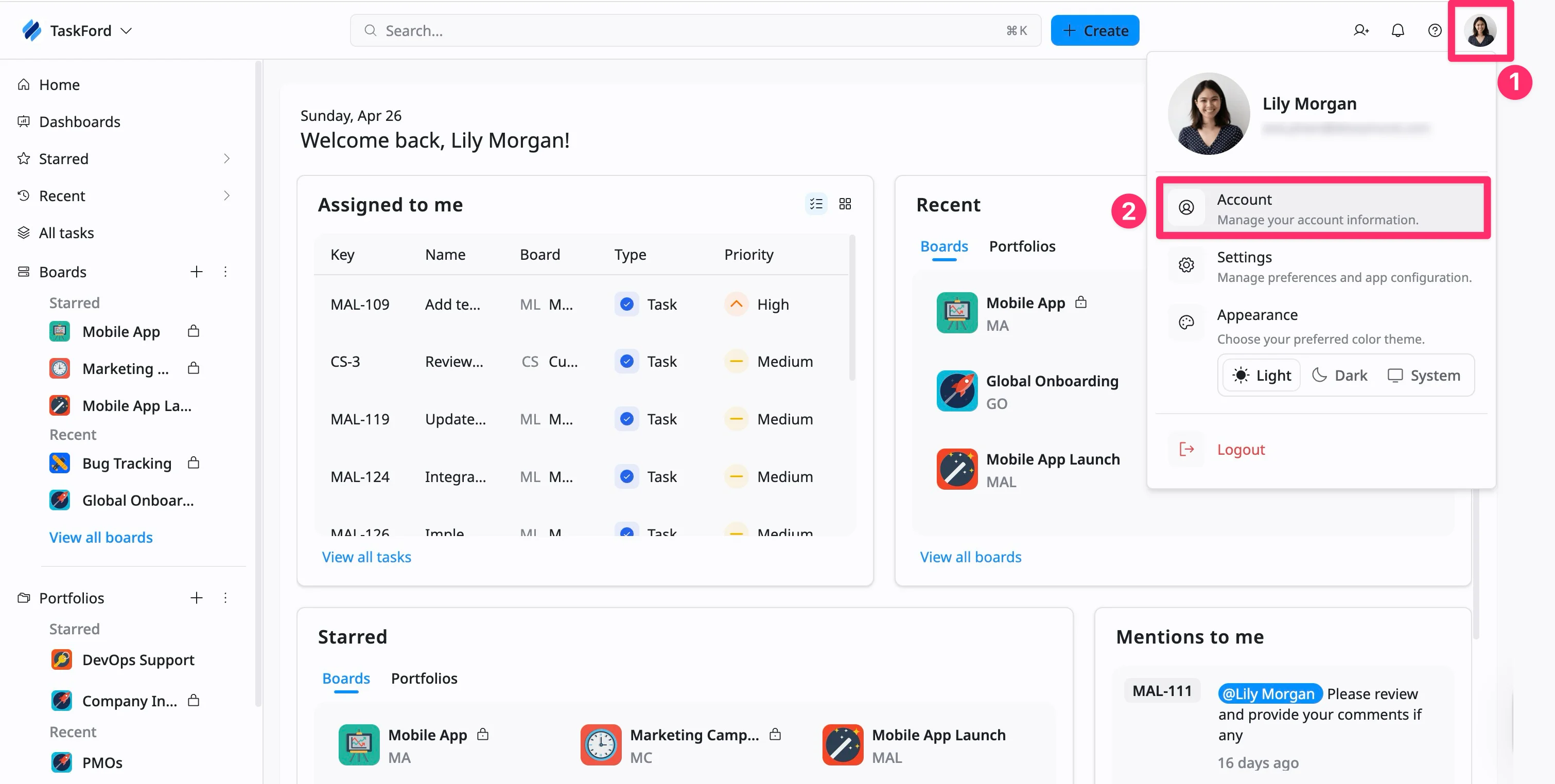
From here, you can manage your personal profile details, including your profile photo, display name, title, additional information, and privacy settings.
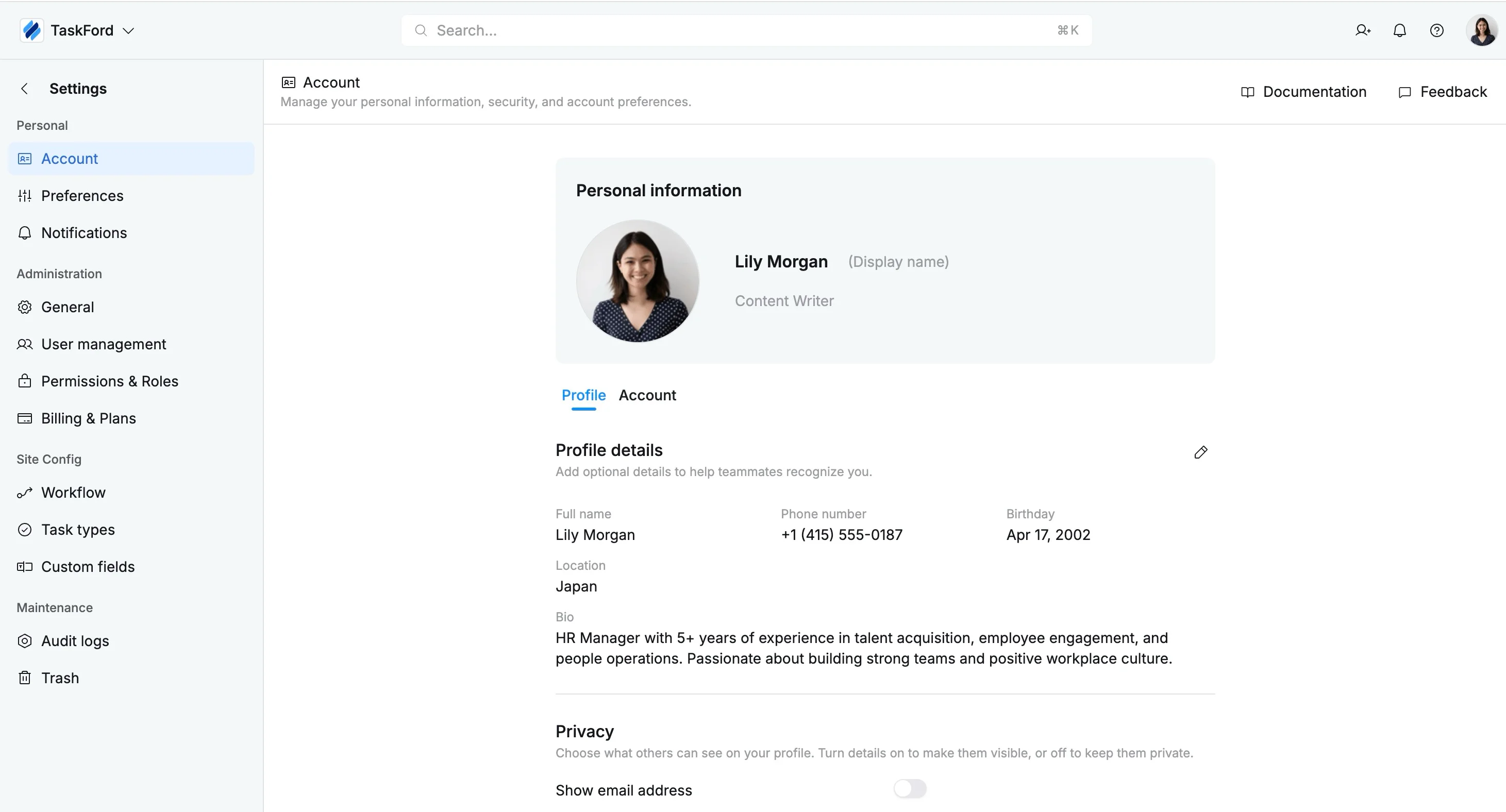
Manage personal information
In the Personal information section, you can manage your profile photo, display name, and title. Keeping this information up to date helps teammates recognize you and understand your role across TaskFord.
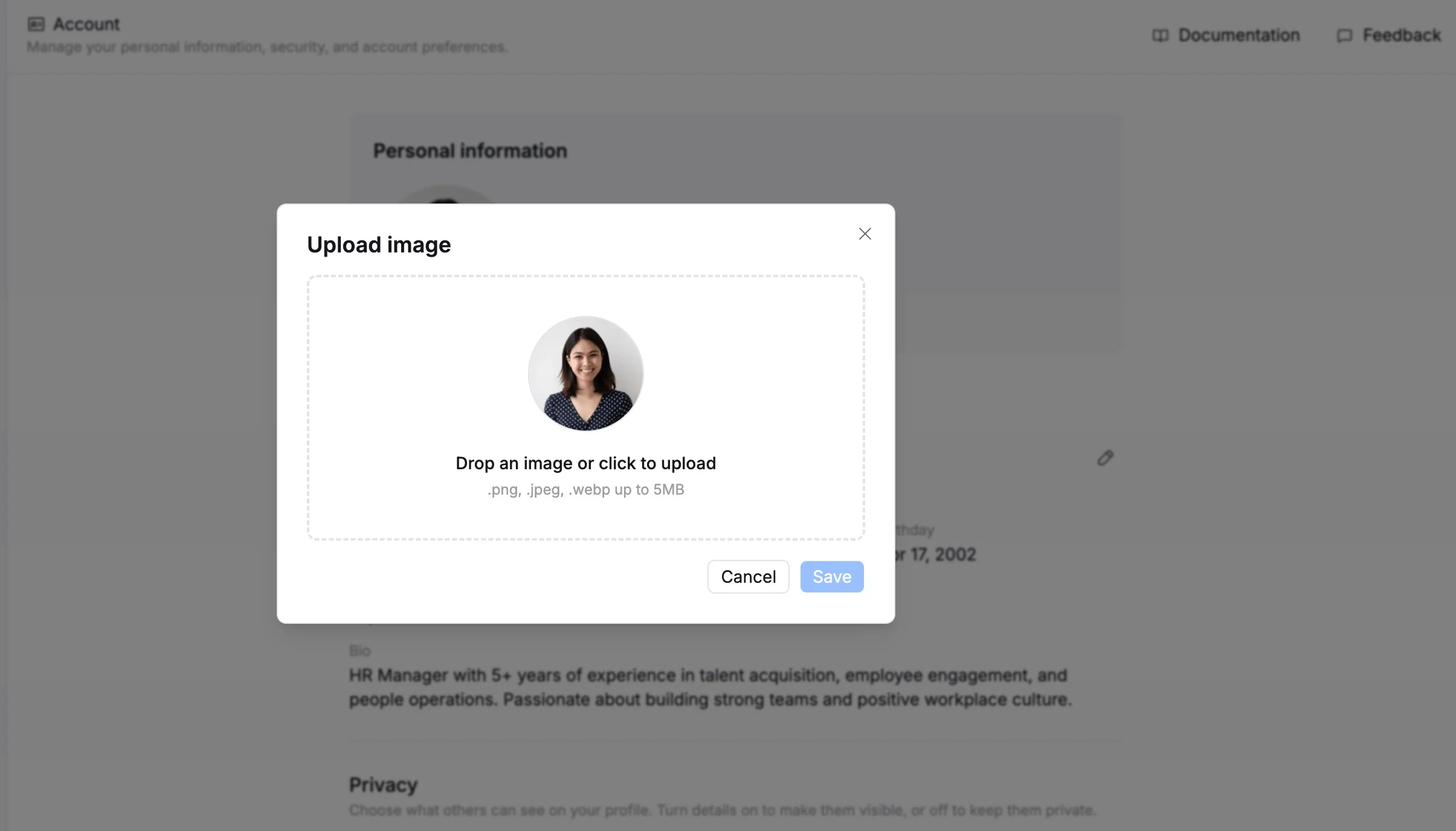
Update your profile photo
To update your profile photo:
- In the Personal information section, click your current photo.
- Upload a new image from your device.
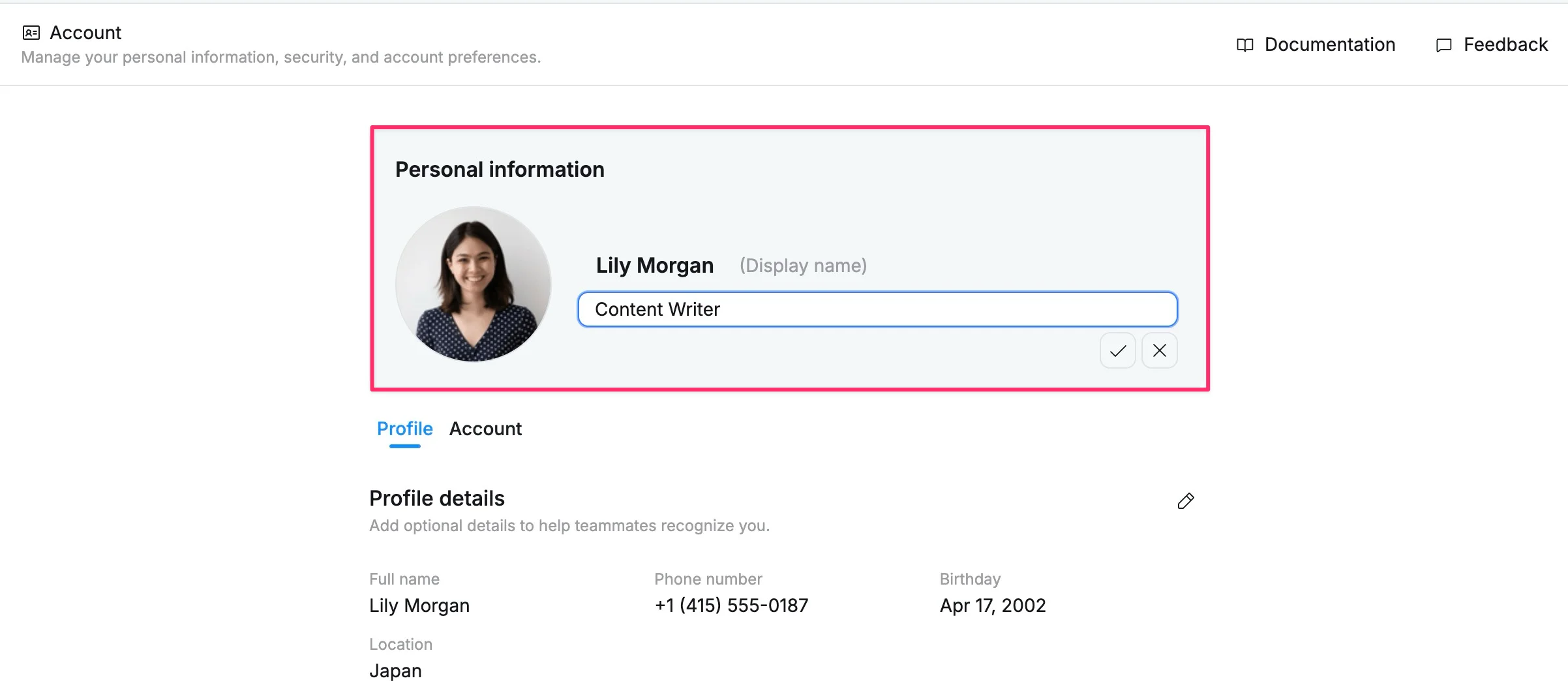
Update display name & title
To update your personal information:
- Display Name – Click the field and enter the name you want displayed to other users across TaskFord.
- Title (Optional) – Click the field to enter your job title or role, such as Project Manager or HR Manager.
Changes are saved automatically once you click outside the field.
Manage profile information
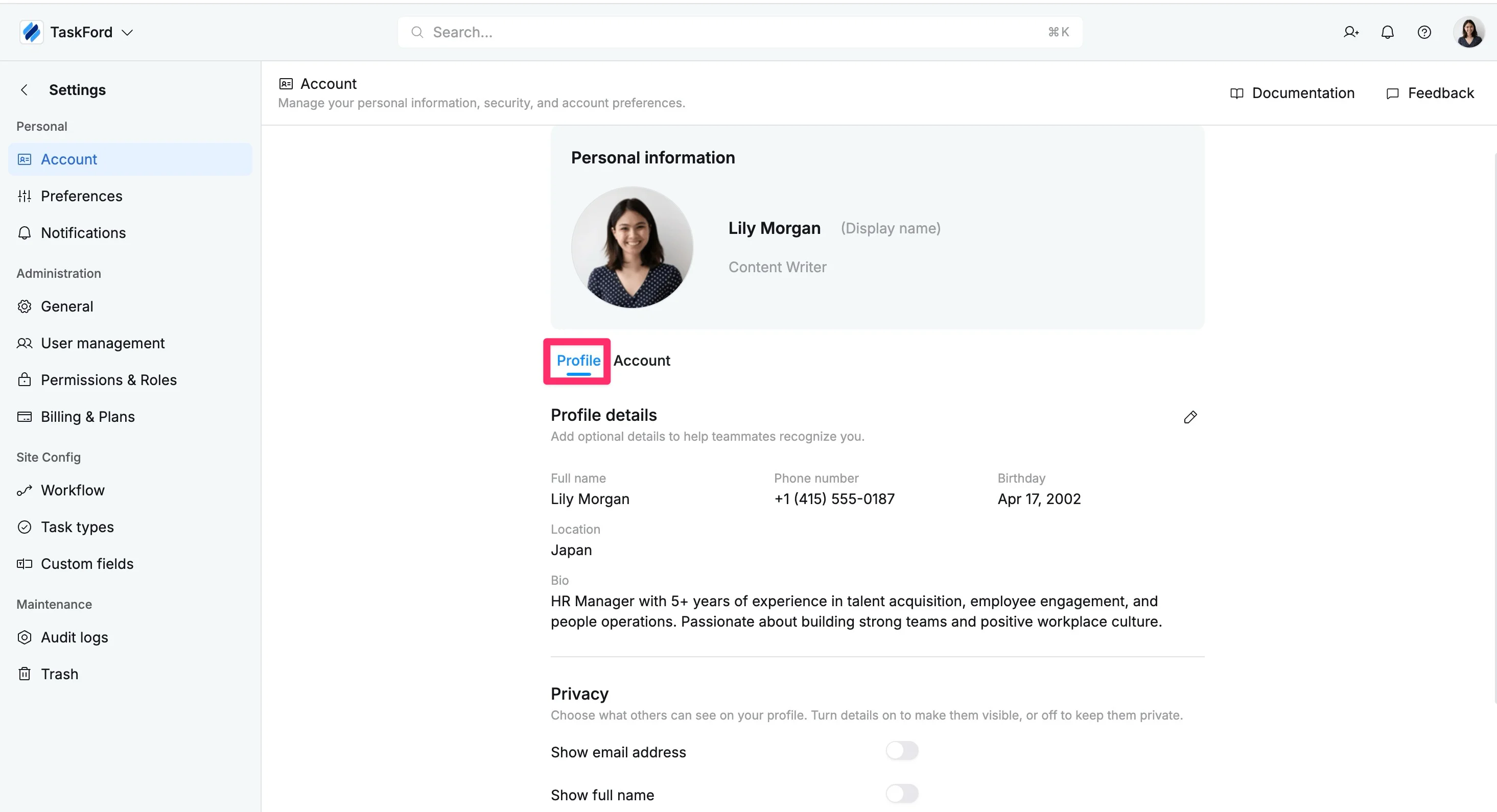
The Profile tab allows you to manage the details shown on your personal profile inside TaskFord. Keeping your profile up to date helps teammates recognize you, understand your role, and collaborate more effectively across the platform.
Update profile details
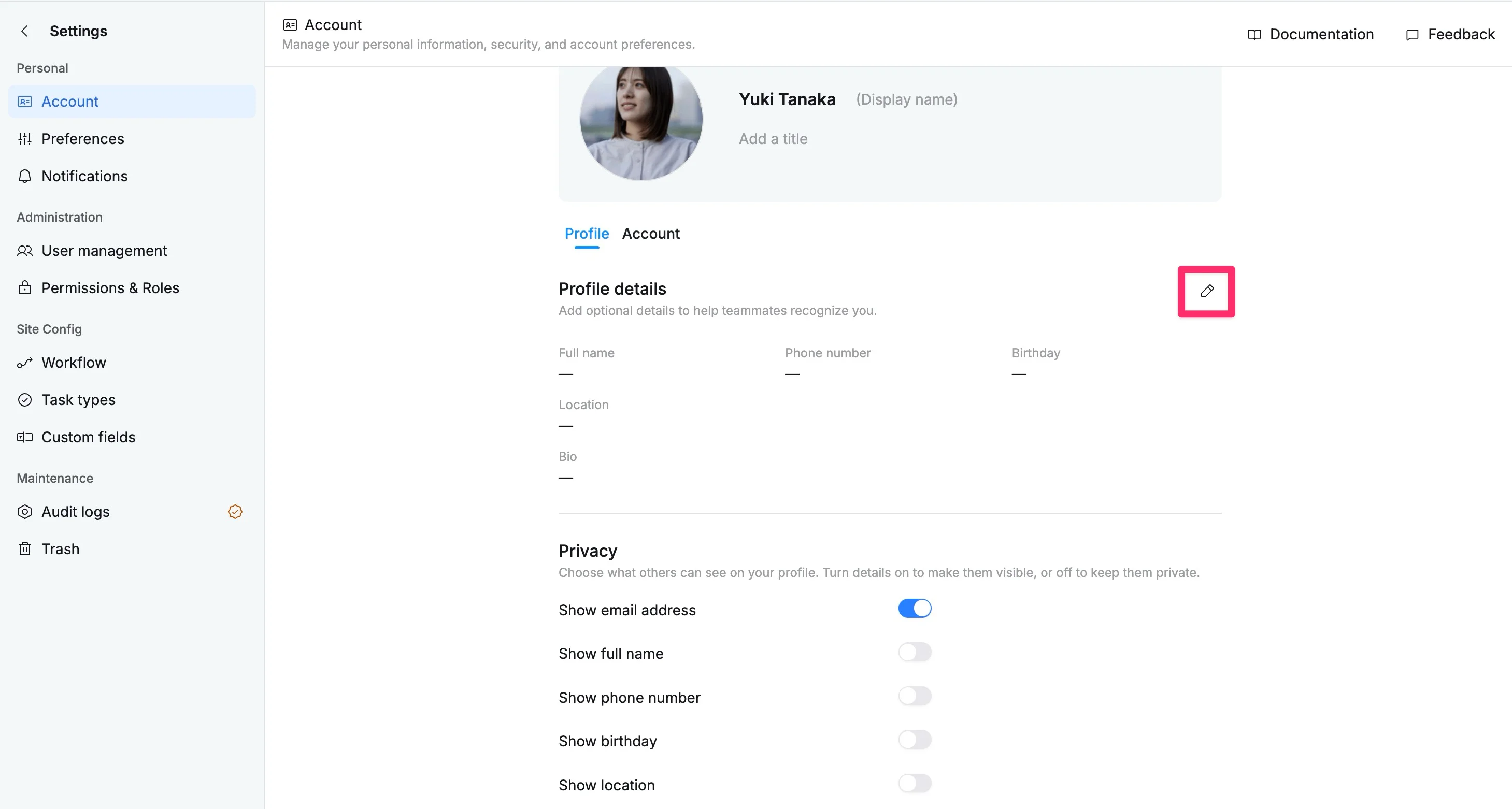
You can add optional profile details to help teammates learn more about you and improve collaboration across TaskFord.
How to update profile details:
- Navigate to your Account settings page.
- Select the Profile tab.
- In the Profile details section, click the edit icon.
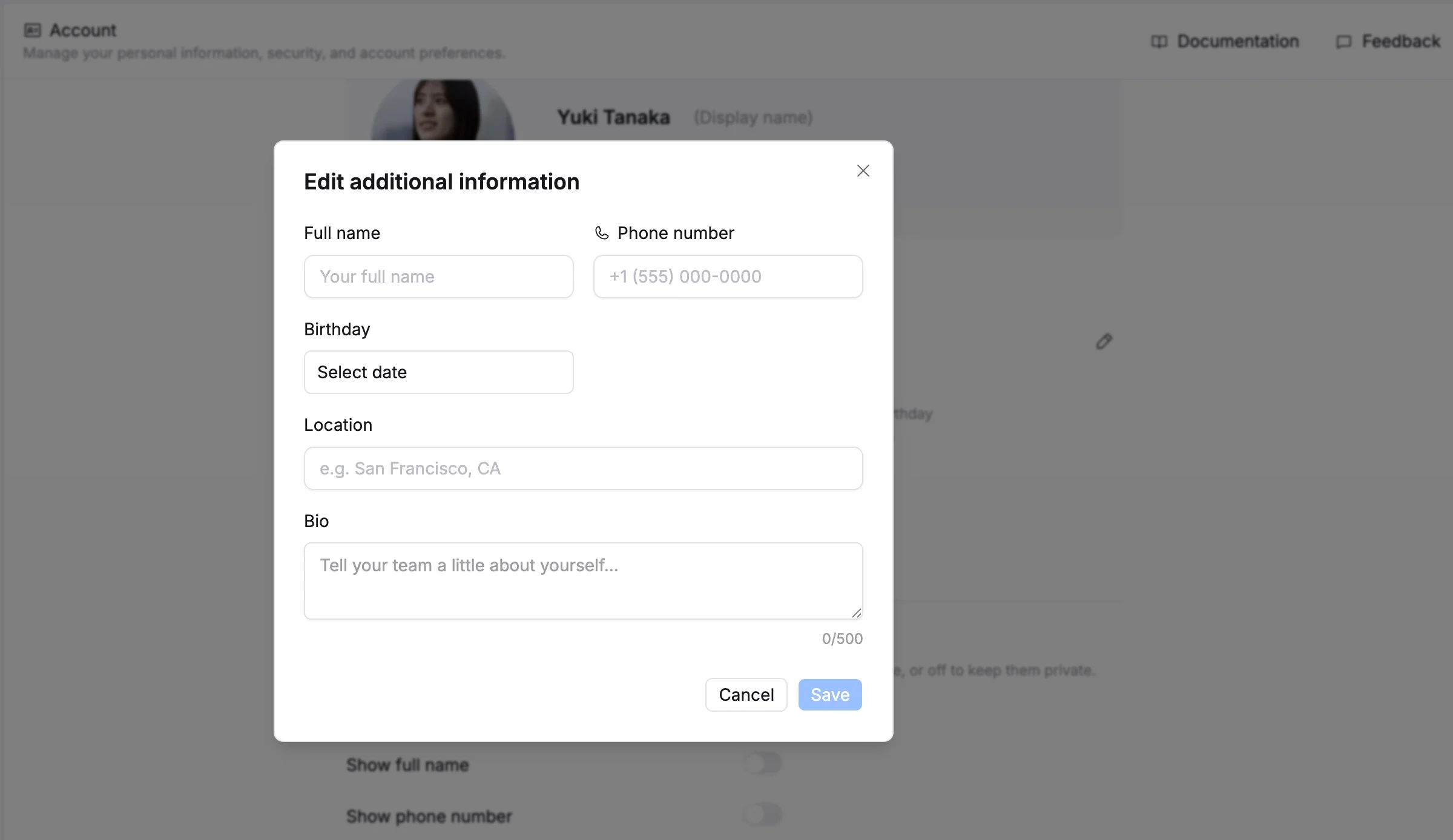
- In the pop-up window, fill out or update the following fields:
- Full name – Your complete name shown on your profile.
- Phone number – A contact number teammates can use to reach you.
- Birthday – Your date of birth.
- Location – Your city, region, or work location.
- Bio – A brief introduction about yourself, your experience, or your role.
- Click Save to apply the changes.
Control privacy settings
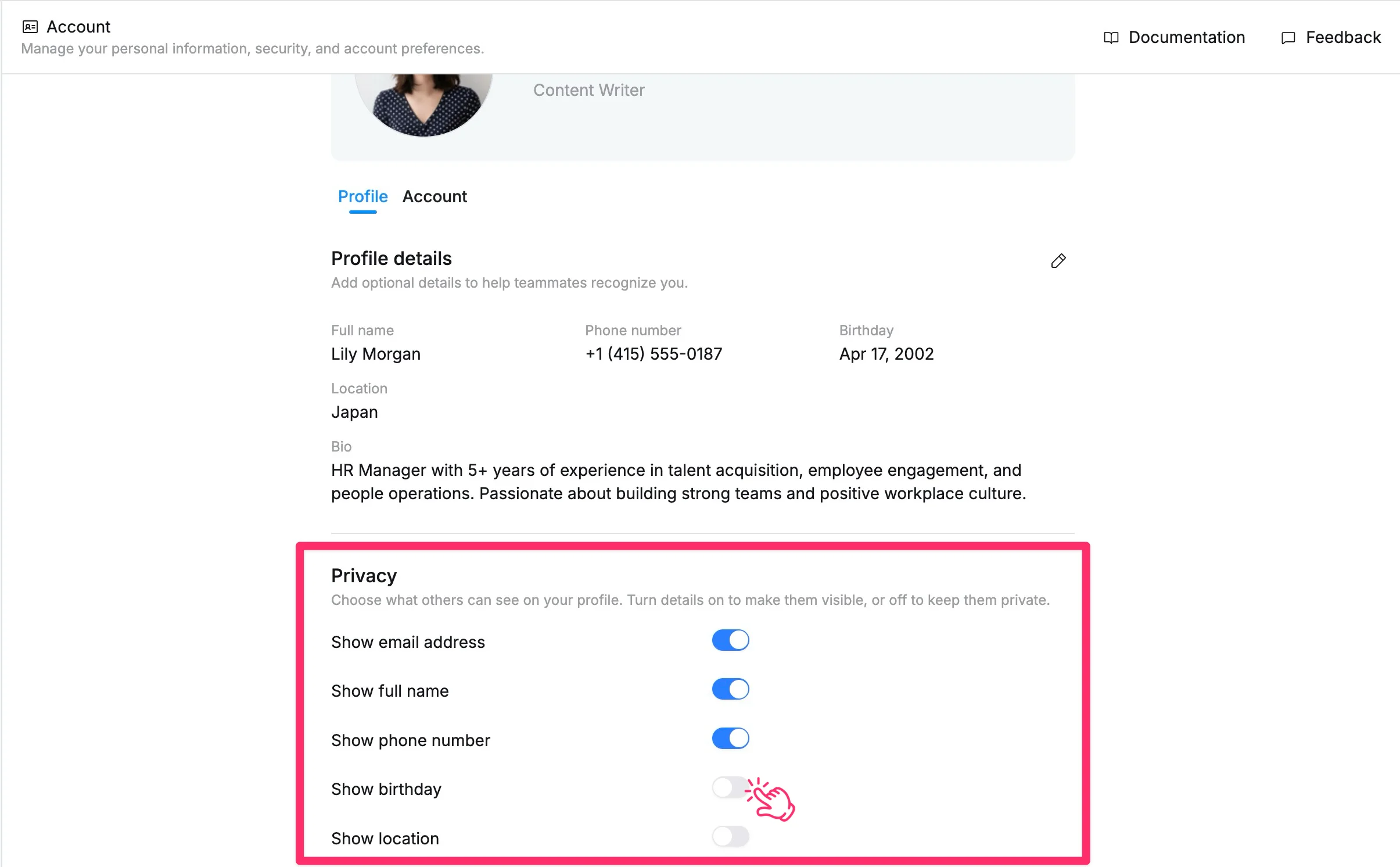
Privacy settings let you control which personal details are visible to other members on your TaskFord profile page.
How to update privacy settings
- Go to Account settings.
- Select the Profile tab.
- Scroll to the Privacy section.
- Use the toggle switches to choose which details you want to display on your profile.
- Show email address – Display your email address on your profile page.
- Show full name – Display your full name to other members.
- Show phone number – Display your phone number on your profile page.
- Show birthday – Display your birthday on your profile page.
- Show location – Display your location on your profile page.
- Changes are saved automatically when you turn each option on or off.
The information you add here may be visible to other users when they hover over your avatar or view your profile page, depending on your privacy settings.