Restore boards
Restore or permanently delete boards from Trash to manage inactive boards and keep your workspace organized.
Who can use this feature?
Only App Admins can restore or permanently delete a board from Trash.
How to restore a board
You can restore boards that have been moved to the Trash, bringing them back to the workspace.
Steps to restore a board:
- Click your profile picture in the top-right corner.
- Select Settings from the dropdown menu.
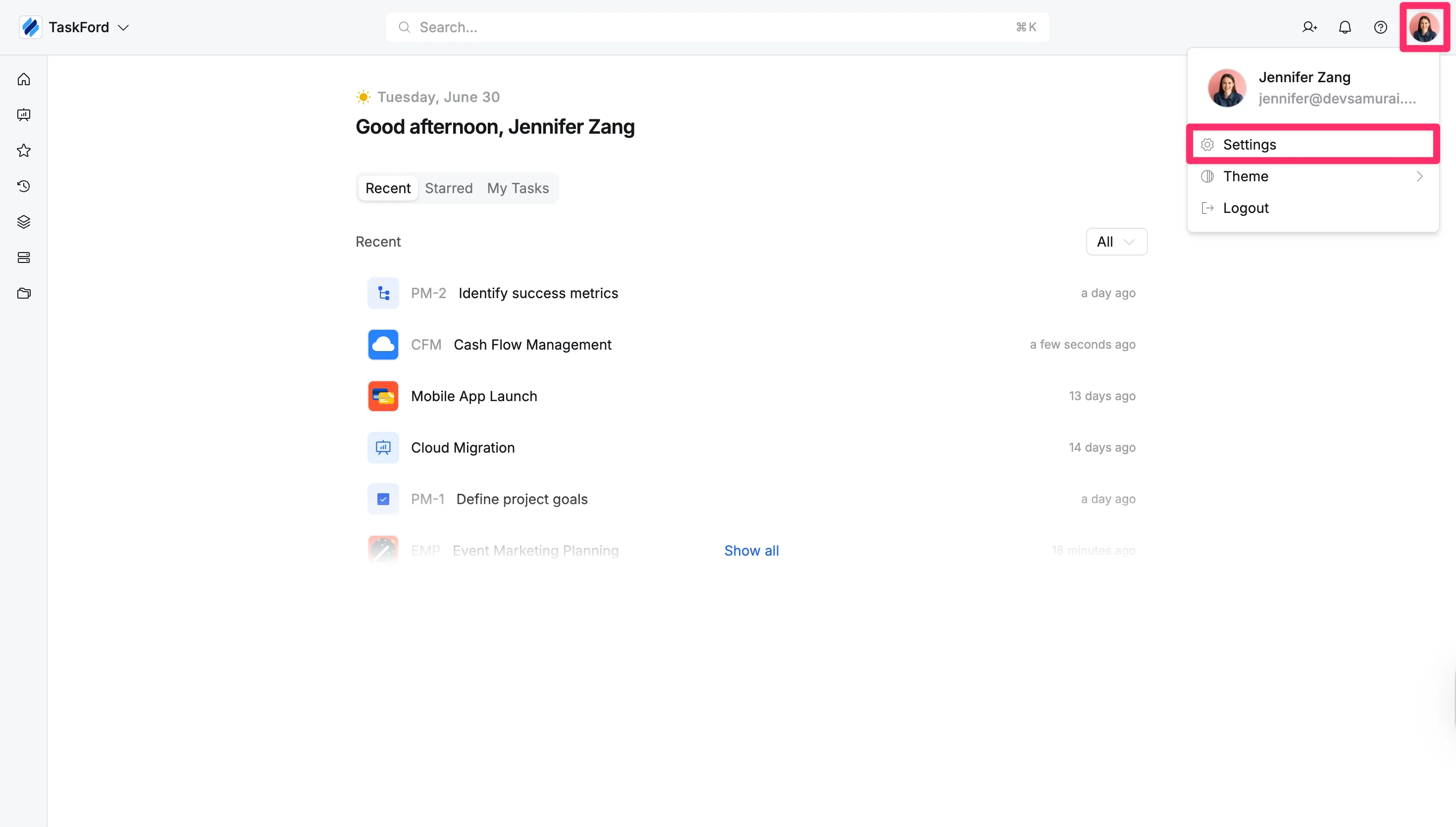
- Select the Trash tab under the Maintenance section from the left-hand menu.
- Click the three vertical dots (⋮) next to the board you want to restore.
- Select Restore from the dropdown options.
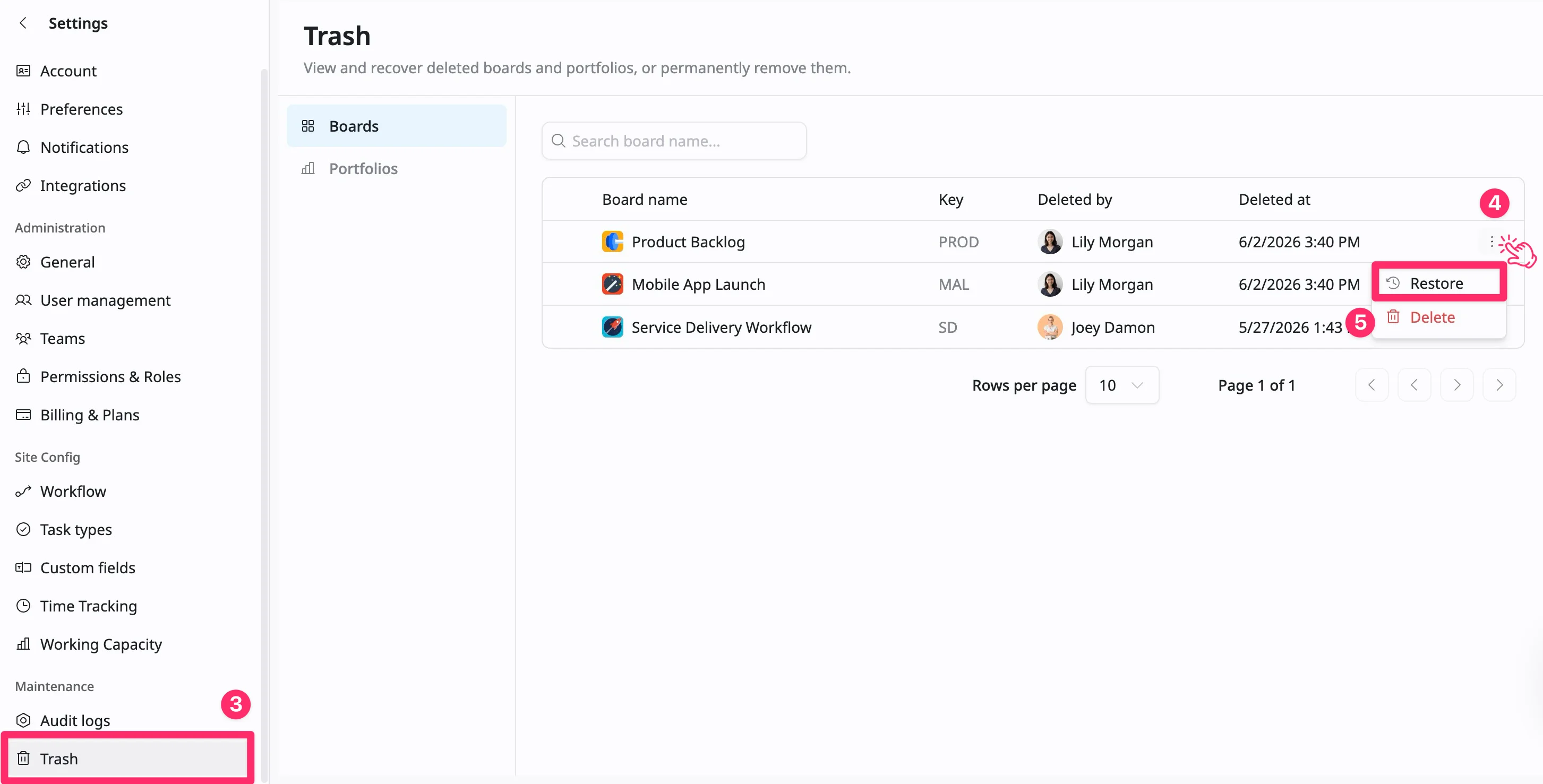
The board will be restored to its previous state and made available again in the workspace.
How to delete a board from Trash
Once a board is placed in the Trash, it will remain there until it is permanently deleted.
Steps to delete a board from Trash:
- Click your profile picture in the top-right corner.
- Select Settings from the dropdown menu.
- Select the Trash tab under the Maintenance section from the left-hand menu.
- Click the three vertical dots (⋮) next to the board you want to delete.
- Select Delete from the dropdown menu.
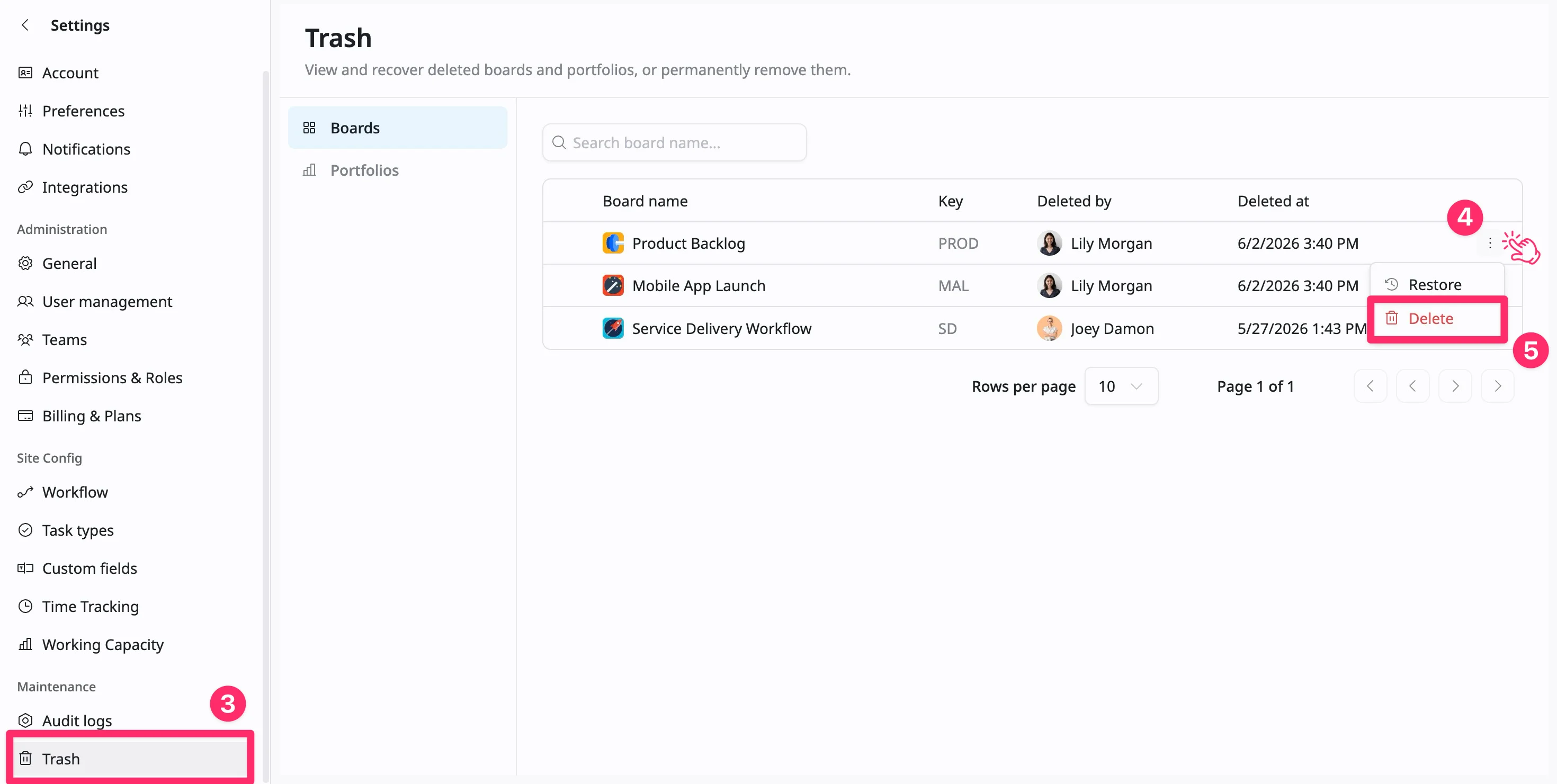
Warning
Once deleted, the board cannot be restored. This action is permanent.