Search, filter, sort, and group tasks in Table
Search, filter, sort, and group tasks in Table view to quickly organize work and focus on what matters most.
The Table view provides tools to quickly locate, organize, and structure your tasks. Use search, filters, sorting, and grouping to focus on the work that matters most.
Anyone with access to a board can search, filter, and sort tasks in the table view.
Search tasks
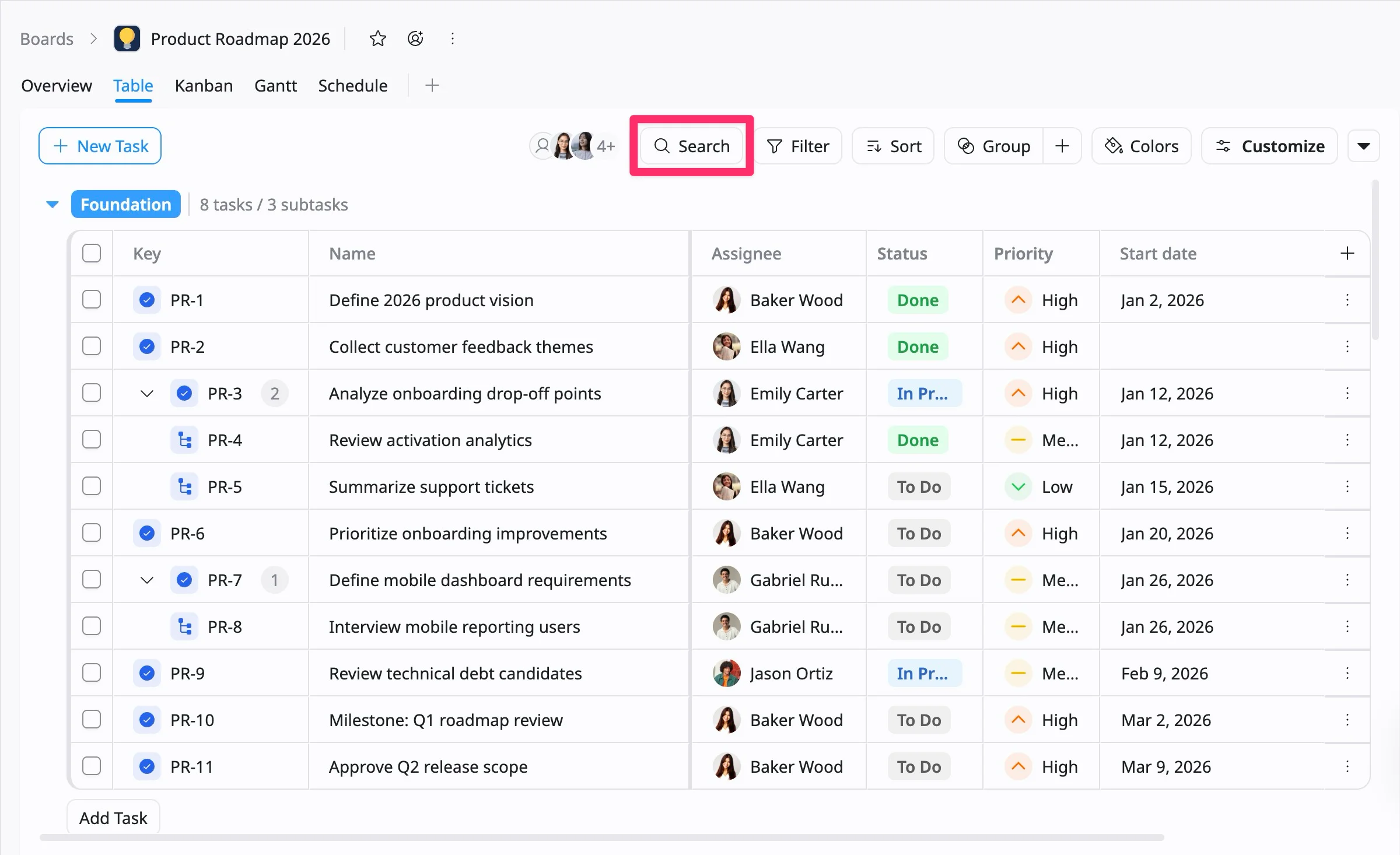
You can use the Search bar in the toolbar to quickly find tasks within your project.
Search by task key or task name to locate specific tasks without scrolling through the task list.
Filter tasks
Filtering helps you narrow down the list of tasks shown in the Table view so you can focus on specific work items that meet your criteria.
How to filter tasks
- Click Filter in the toolbar.
- In the Filter panel, choose from the available quick filters to narrow down the tasks shown in the Table view:
- Assignee – Show tasks assigned to specific team members.
- Start Date – Filter tasks based on when they begin.
- Due Date – Display tasks by their deadline.
- Status – Filter tasks by status (e.g., To Do, In Progress, Done).
- Group – Show tasks within a specific group or category.
- Priority – Filter tasks by importance level.
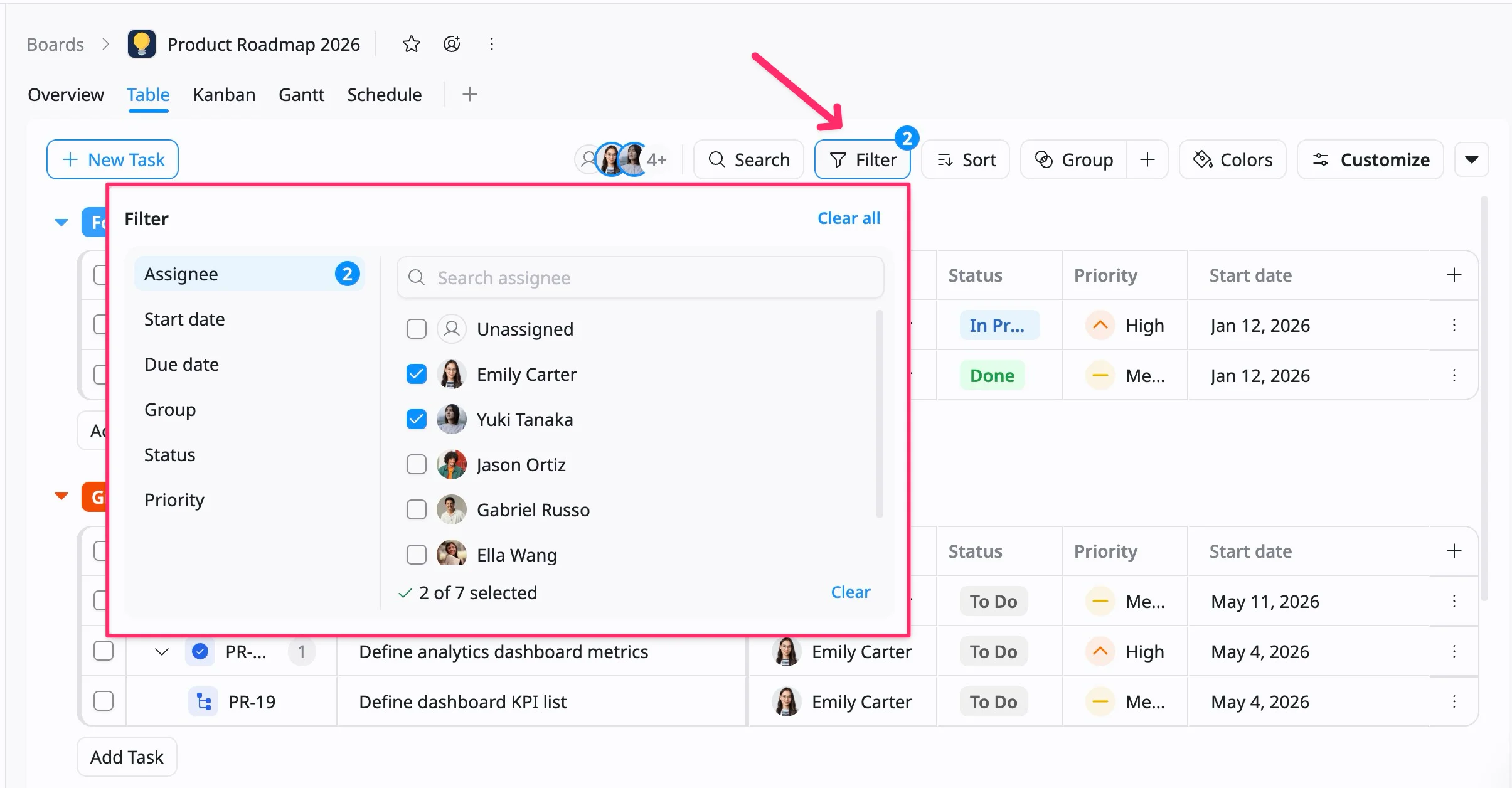
You can apply multiple filters at once.
Remove filters
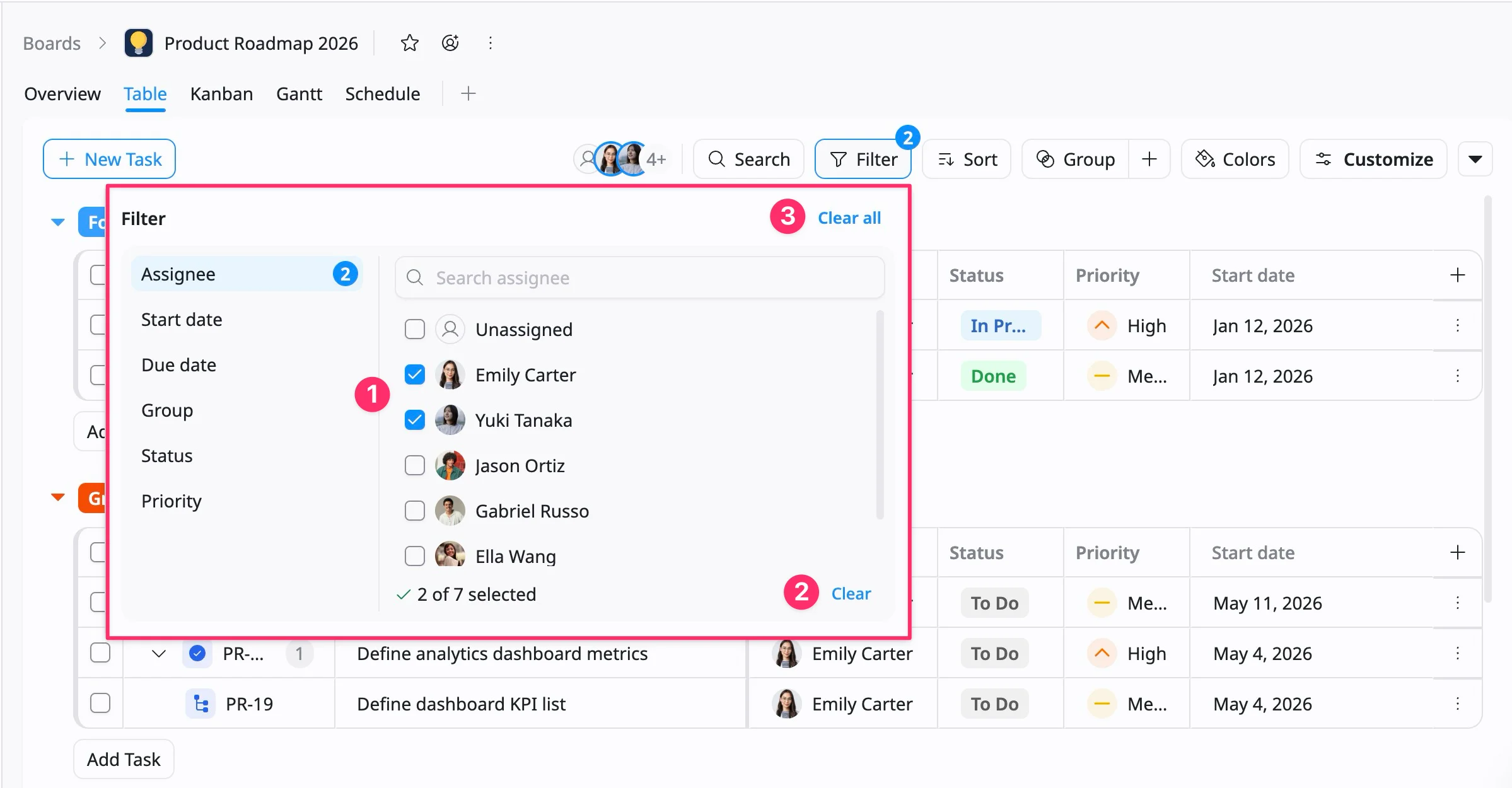
To remove active filters, click Filter in the toolbar to open the Filter panel.
- Deselect specific options (1): Uncheck the box next to a value to remove a single filter criterion.
- Clear a single category (2): Click Clear at the bottom of the panel to remove all selected values within that category.
- Clear all active filters (3): Click Clear all at the top right of the panel to remove every applied filter and reset the Table view.
Sort tasks
Sorting in Table view allows for efficient task management by organizing data by fields such as Assignee, Due Date, or Priority.
How to sort tasks
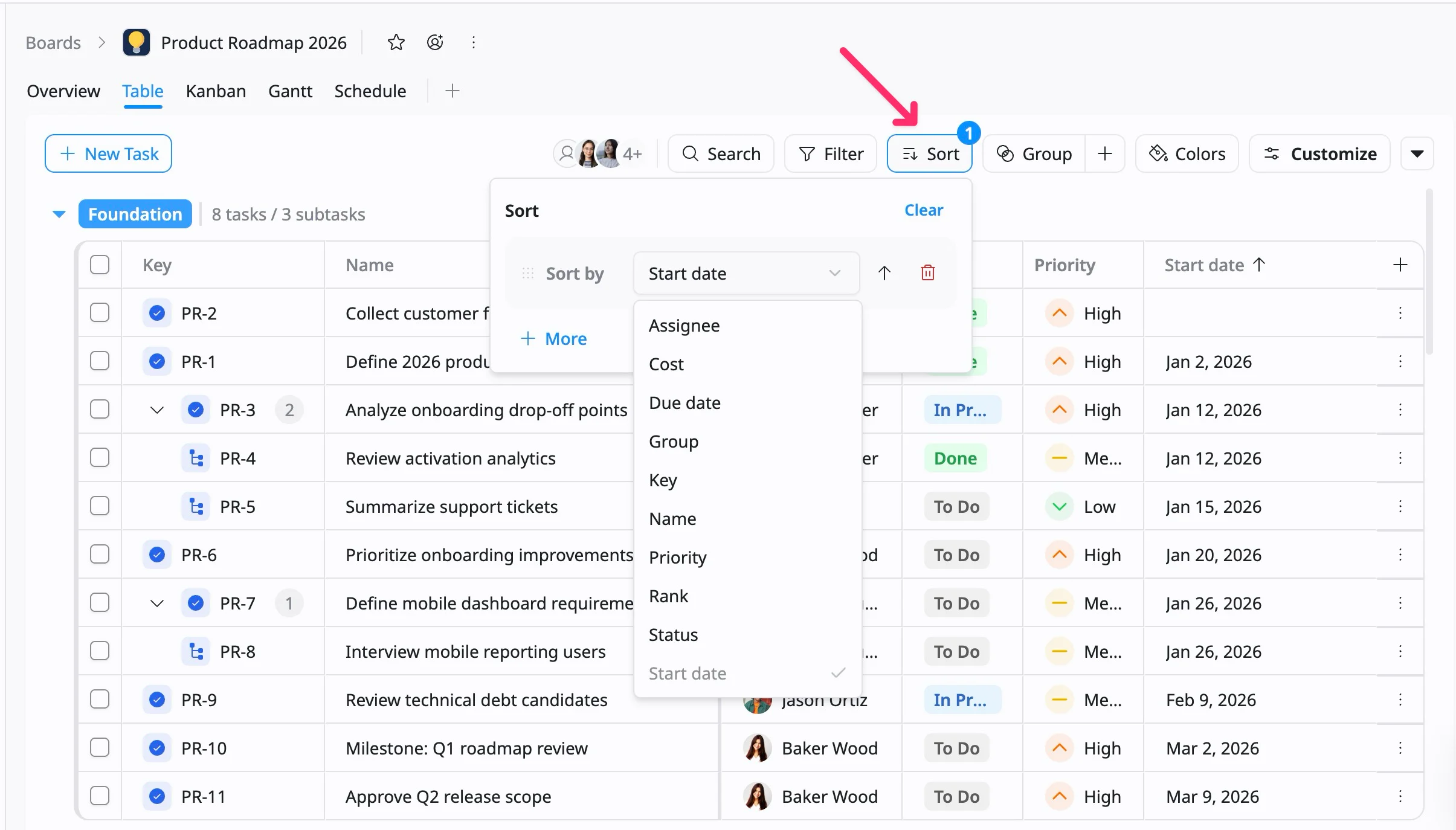
- Click Sort in the toolbar.
- In the dropdown menu, select a field you want to sort by:
- Assignee – Sort tasks by the person responsible for them.
- Cost – Sort tasks based on their associated cost or budget.
- Due Date – Sort tasks by their deadline.
- Group – Sort tasks based on their assigned group or category.
- Key – Sort tasks by their unique task ID.
- Priority – Sort tasks by importance level (e.g., Lowest to Highest).
- Rank – Sort tasks by their manual order within the board.
- Start Date – Sort tasks by when work is scheduled to begin.
- Status – Sort tasks by their status (e.g., To Do, In Progress, Done).
- Name – Sort tasks alphabetically by task title.
- Choose ascending (↓) or descending (↑) order as needed.
Apply multiple sorting levels
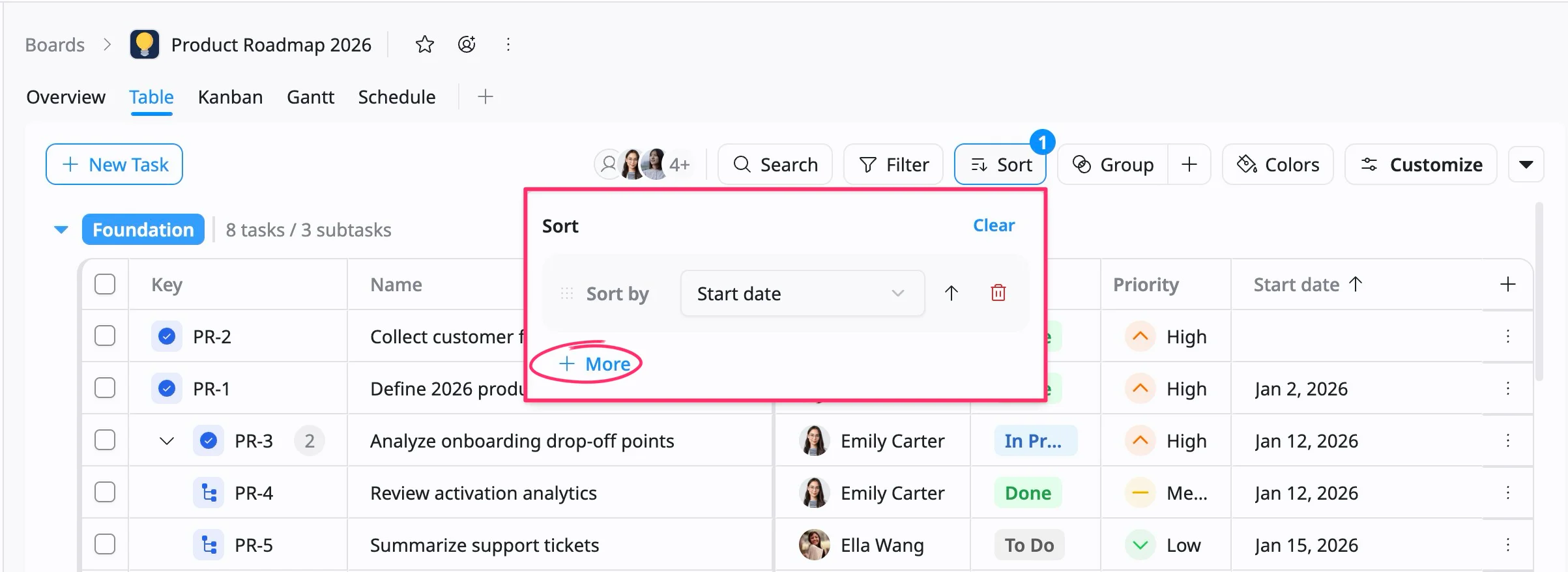
You can add more than one sorting condition to control how tasks are ordered in your Table View.
- Click Sort in the toolbar.
- In the dropdown menu, choose your first sorting field (e.g., Assignee).
- Choose ascending (↓) or descending (↑) order as needed.
- Click + More to add another sorting condition.
- Continue adding fields as needed.
The system will sort by the first criterion, then by the second, and so on.
Reorder sorting levels
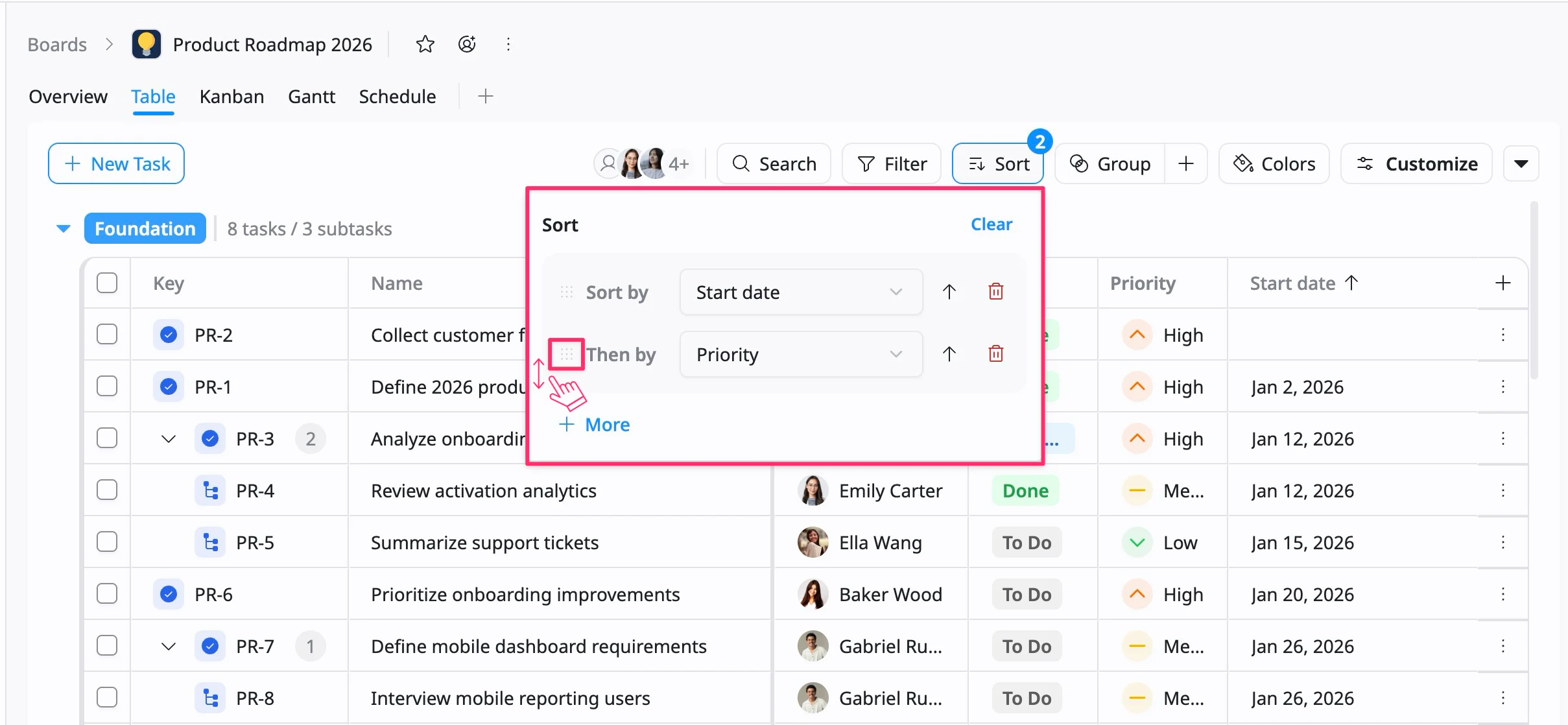
You can change the priority of sorting conditions to control how tasks are ordered. The order of sorting levels determines which field is applied first when arranging tasks.
To reorder sorting levels:
- Click Sort in the toolbar.
- Click and drag (⋮⋮⋮) next to a sorting field.
- Move it up or down to change its priority.
Remove sorting
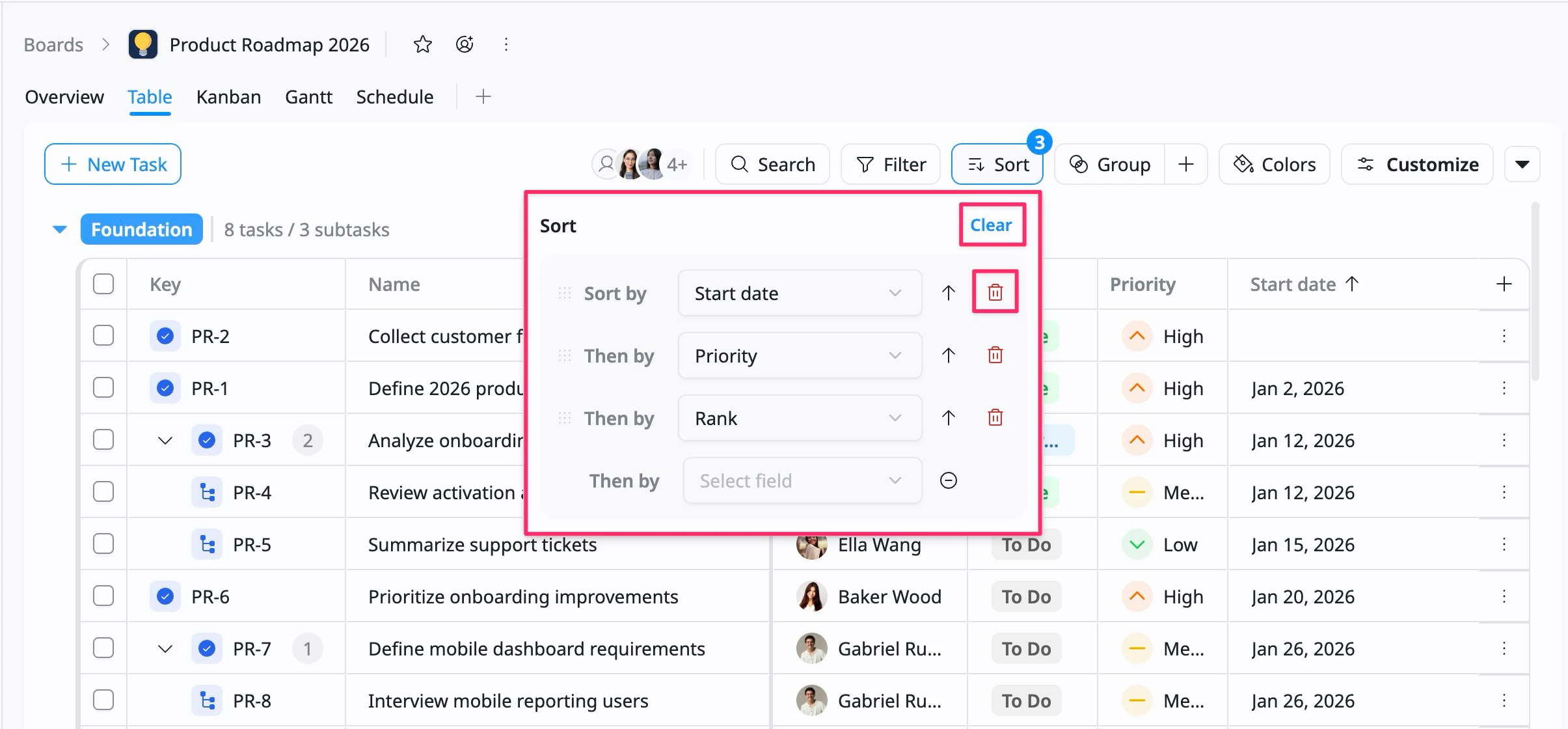
- Click the Remove icon next to a field to delete that sorting level.
- Click Clear at the top of the Sort panel to remove all sorting.
Group tasks
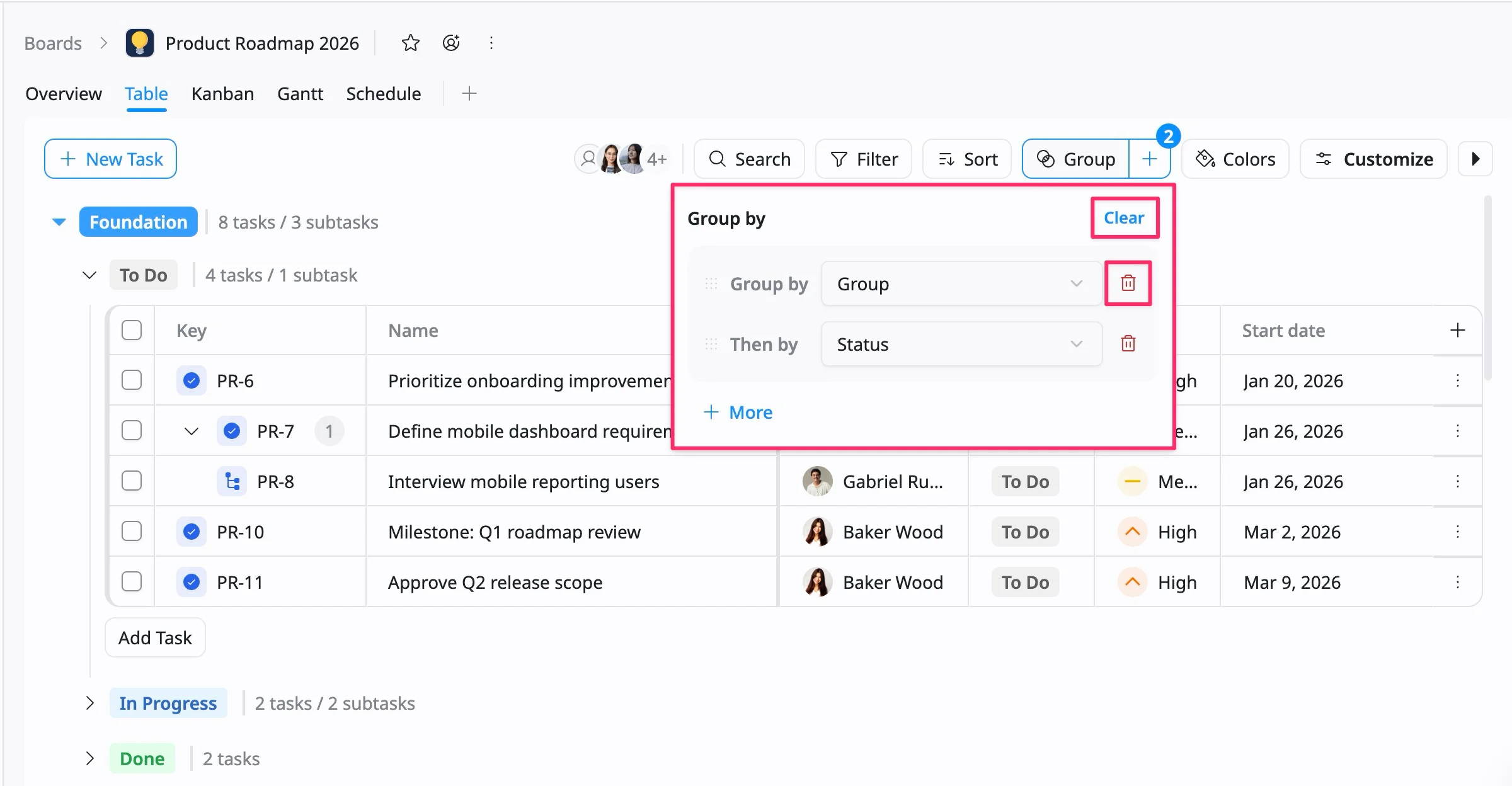
- Board Admins / Board Editors can group tasks in the Table view.
- App Admins / App Editors can group tasks in the Table view only on Open boards.
Grouping allows you to categorize and structure related items, such as assignee, status, or priority, into organized sections. This makes it easier to track progress, generate reports, and visualize work clearly and manageably.
How to group tasks
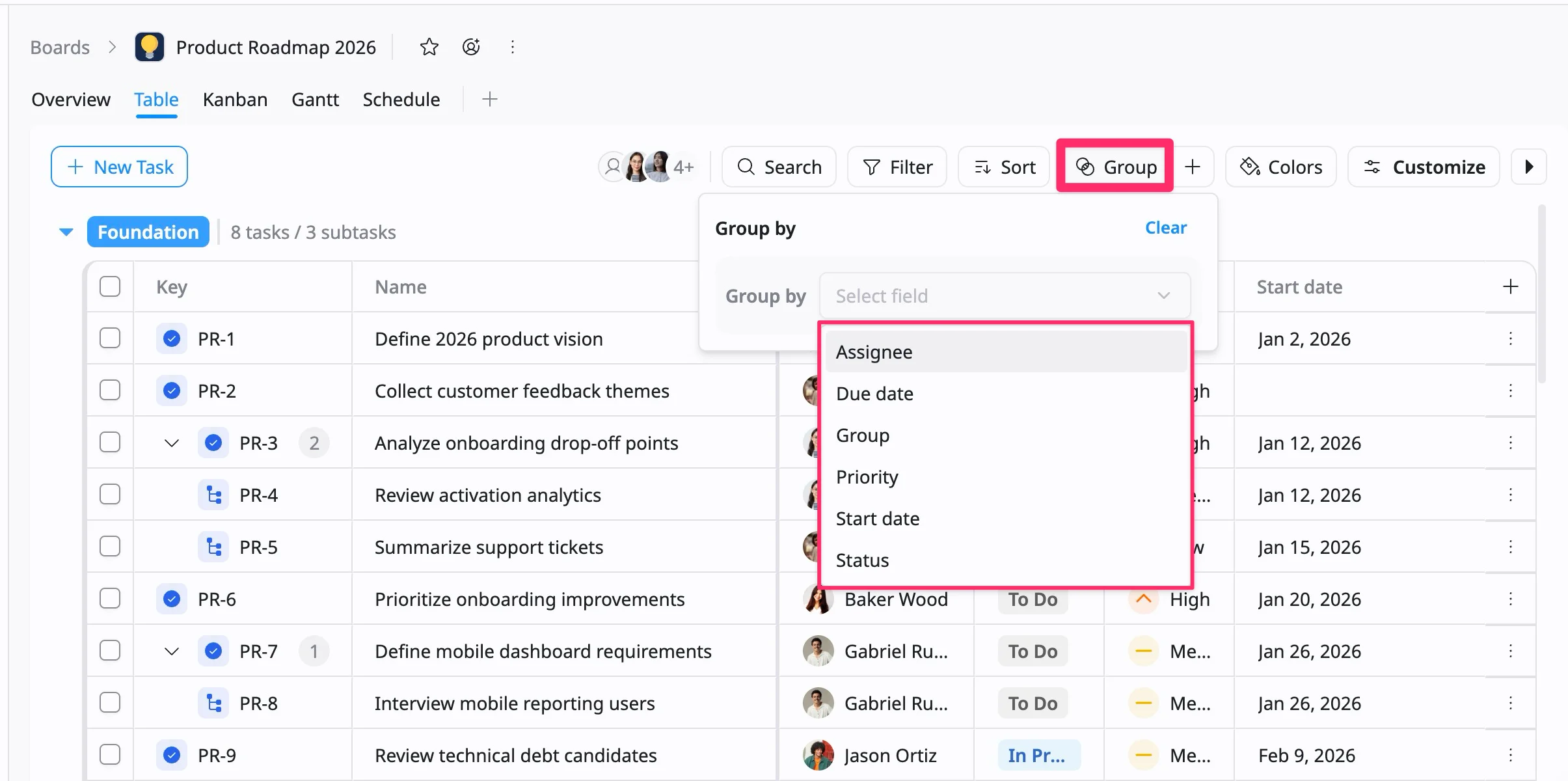
- Click Group in the toolbar.
- In the dropdown menu, select the field you want to group by:
- Assignee - Group tasks by the person responsible for them.
- Due Date - Group tasks by the person responsible for them.
- Group - Organize tasks by their assigned group or category.
- Priority - Group tasks by importance level.
- Start Date - Group tasks by importance level.
- Status - Group tasks by status (e.g., To Do, In Progress, Done).
Apply multiple Group By
You can apply more than one Group By condition in the Table View to organize tasks into multiple layers:
- Click Group in the toolbar.
- In the dropdown menu, choose your first grouping field.
- Click + More to add another grouping condition.
- Select the second field.
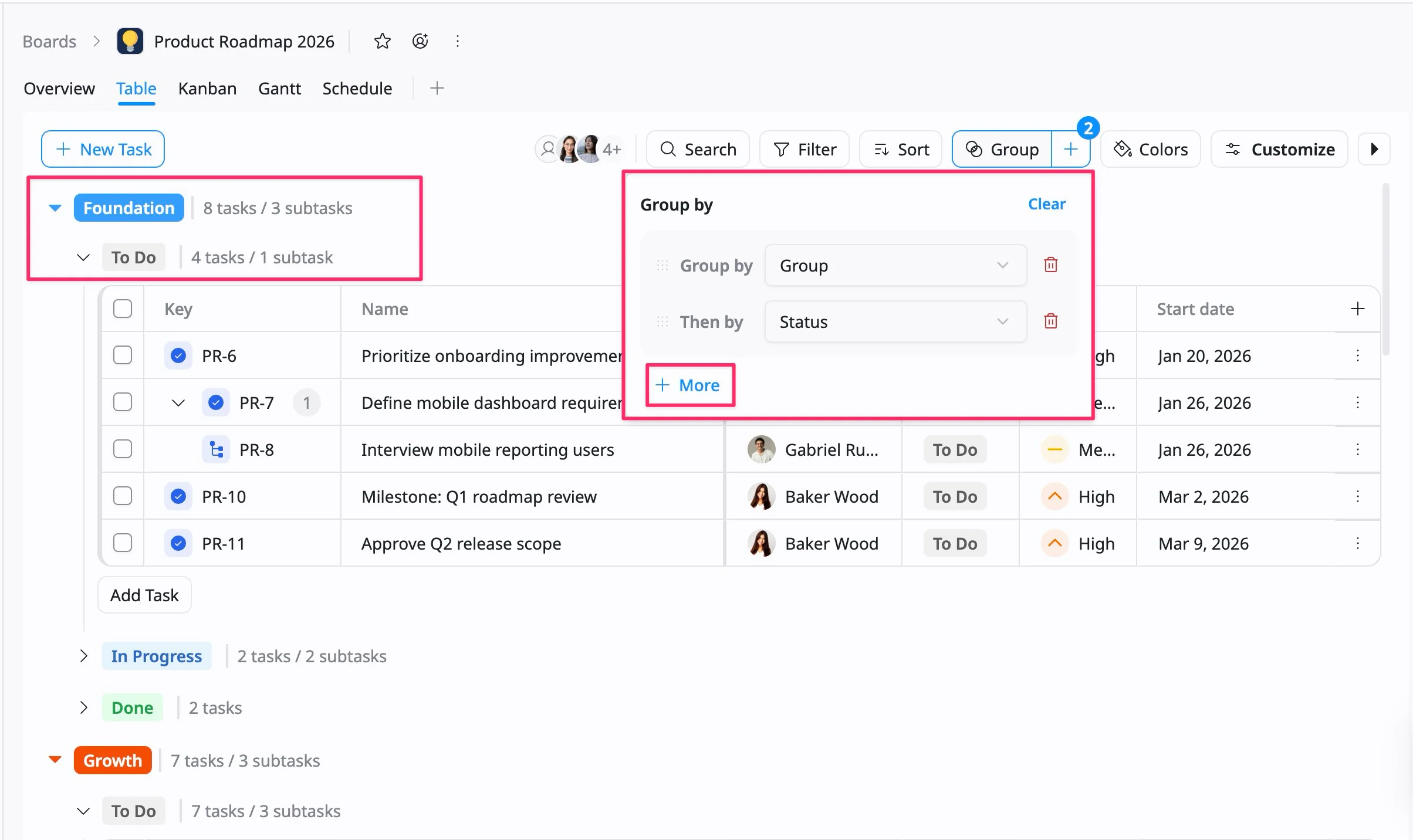
- When multiple “Group By” conditions are applied, the data is organized into a hierarchical, nested structure.
- Each layer can be collapsed or expanded, allowing you to focus only on the sections that matter most.
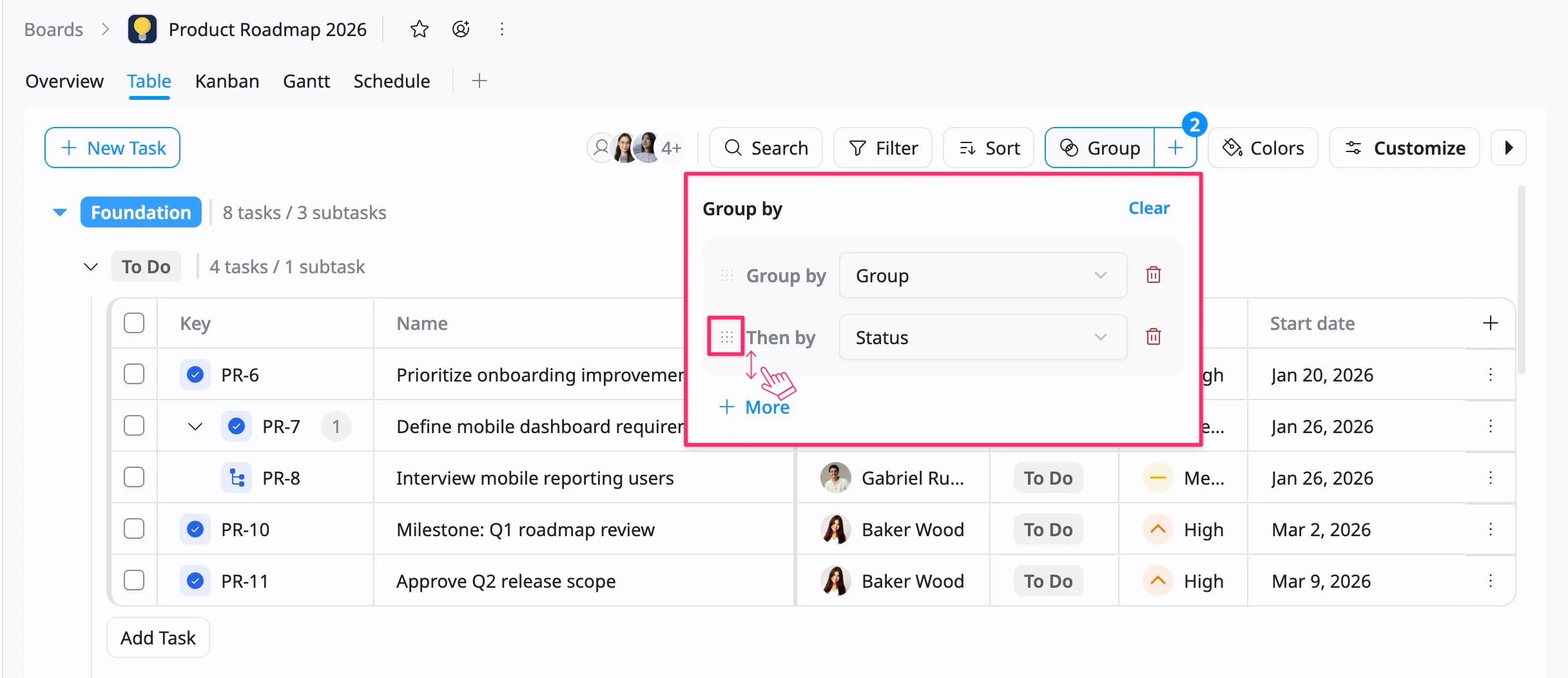
Reorder grouping levels
Click and drag (⋮⋮⋮) to change the sequence of your grouping fields. The order determines how tasks are structured and nested in the Table view.
Remove grouping level
You can remove grouping levels at any time from the Group panel.
- Remove all groupings: Click Clear at the top of the panel to reset the Kanban view.
- Remove a specific grouping level: Click the trash icon next to the field you want to remove.