Sections on the Overview view
Monitor board progress at a glance with Overview widgets for key metrics, task status, priority breakdown, recent updates, and team workload in TaskFord.
The Overview view provides a high-level summary of your board’s activity, progress, and workload in one centralized dashboard. All Overview widgets update automatically in real time as changes occur across the board.
This ensures your team always has access to the latest project data, workload information, and task progress without needing to refresh or manually generate reports.
The Overview view is made up of several sections that summarize your board activity and performance.
Key metrics
At the top of your Overview, there are four overview cards. These four sections provide an overview of recent activity within the by displaying the number of work items that have been completed, updated, and created in the last seven days, as well as the number of items due in the next seven days.
- Completed – Number of tasks completed in the last seven days.
- Created – Number of new tasks added in the last seven days.
- Updated – Number of tasks modified in the last seven days.
- Overdue – Number of tasks that have passed their due date and are not yet completed.

Tasks
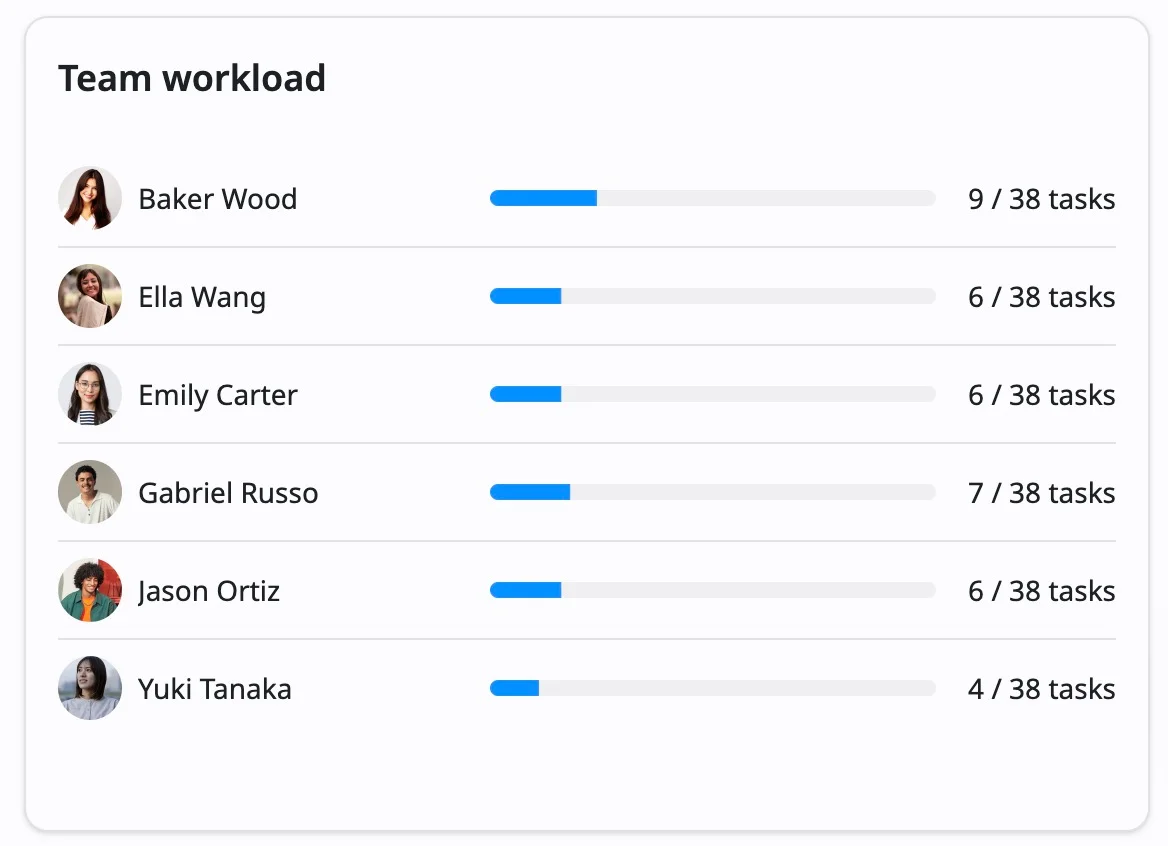
The Tasks section shows how work is distributed across statuses in your board workflow.
You can see:
- Total number of tasks
- Task count by status
- A visual chart showing task distribution
Use this section to understand overall progress and identify where work is currently concentrated.
Priority breakdown
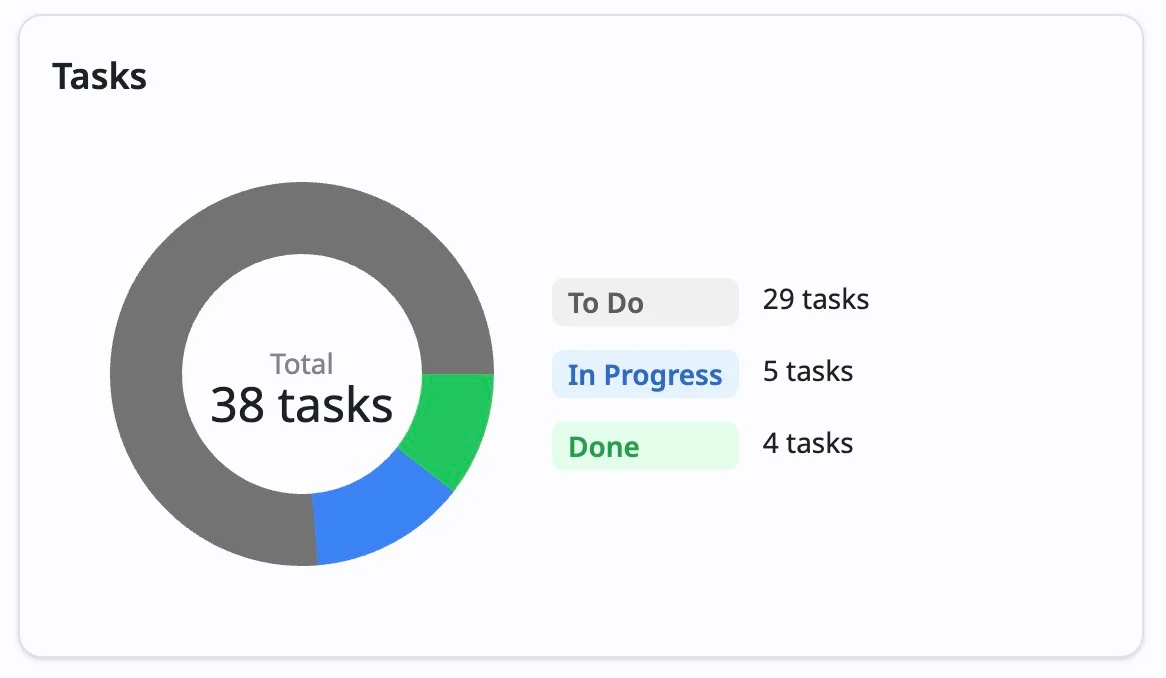
The Priority Breakdown section shows how tasks are distributed across priority levels, such as Lowest, Low, Medium, High, and Highest.
Use this section to check whether urgent work is being prioritized and whether high-priority tasks need more attention.
Updated recently
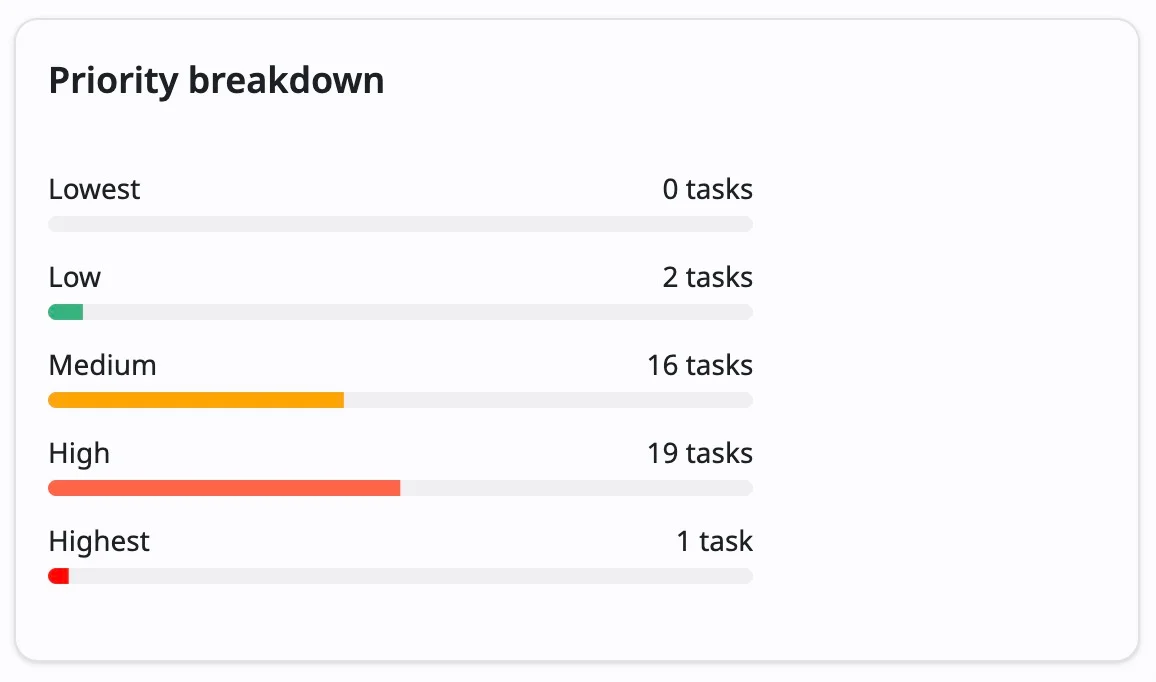
The Updated Recently section shows recent activity across the board.
Activity may include:
- Task updates
- Date changes
- Status changes
- Rank changes
- Other edits made by team members
Each entry shows who made the update, what changed, and when it happened.
Team workload
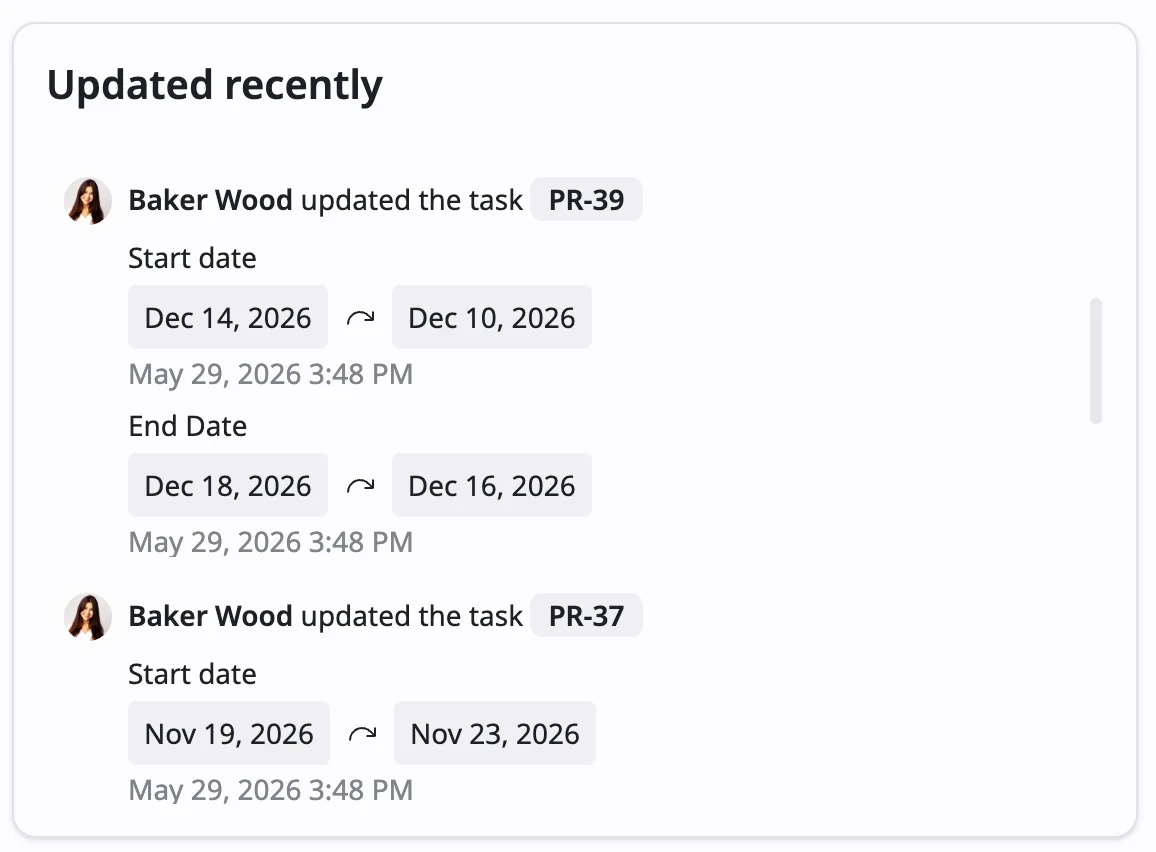
The Team Workload section shows how tasks are distributed across team members.
Use this section to:
- See who has the most assigned tasks
- Identify overloaded team members
- Balance work across the team
- Monitor unassigned work if applicable