Set up Two-Factor Authentication (2FA)
This guide explains how to enable Two-Factor Authentication (2FA) in TaskFord, allowing you to keep your account secure and reduce the risk of unauthorized access.
Two‑Factor Authentication (2FA) adds an extra layer of security to your TaskFord account. In addition to your password, you will be required to enter a one‑time verification code generated by an authenticator app each time you sign in.
TaskFord supports TOTP (Time‑based One‑Time Password) authenticator apps such as Google Authenticator and Microsoft Authenticator.
Enable Two-Factor Authentication
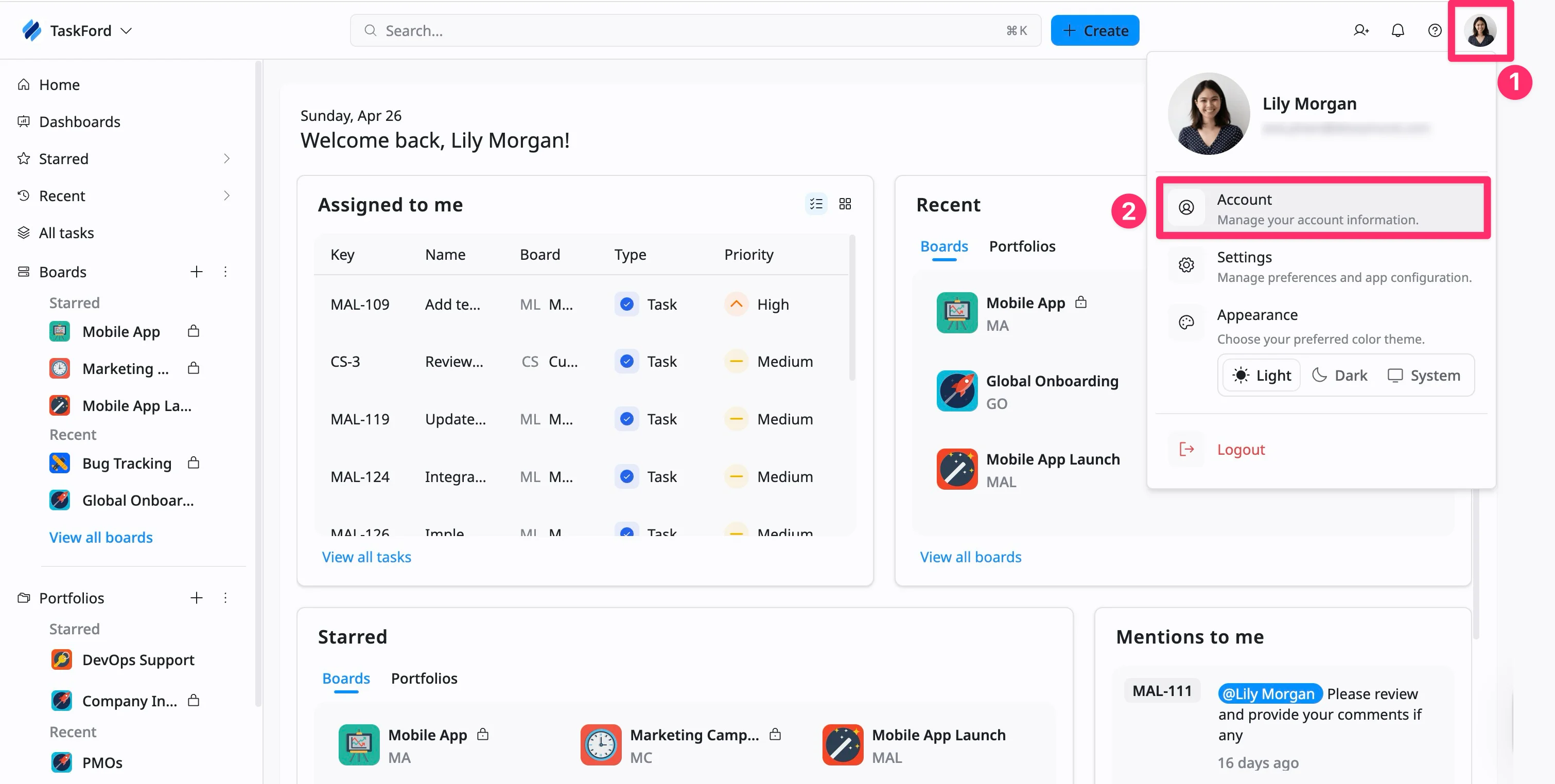
- Click your profile picture in the top-right corner.
- Select Account from the drop-down menu.
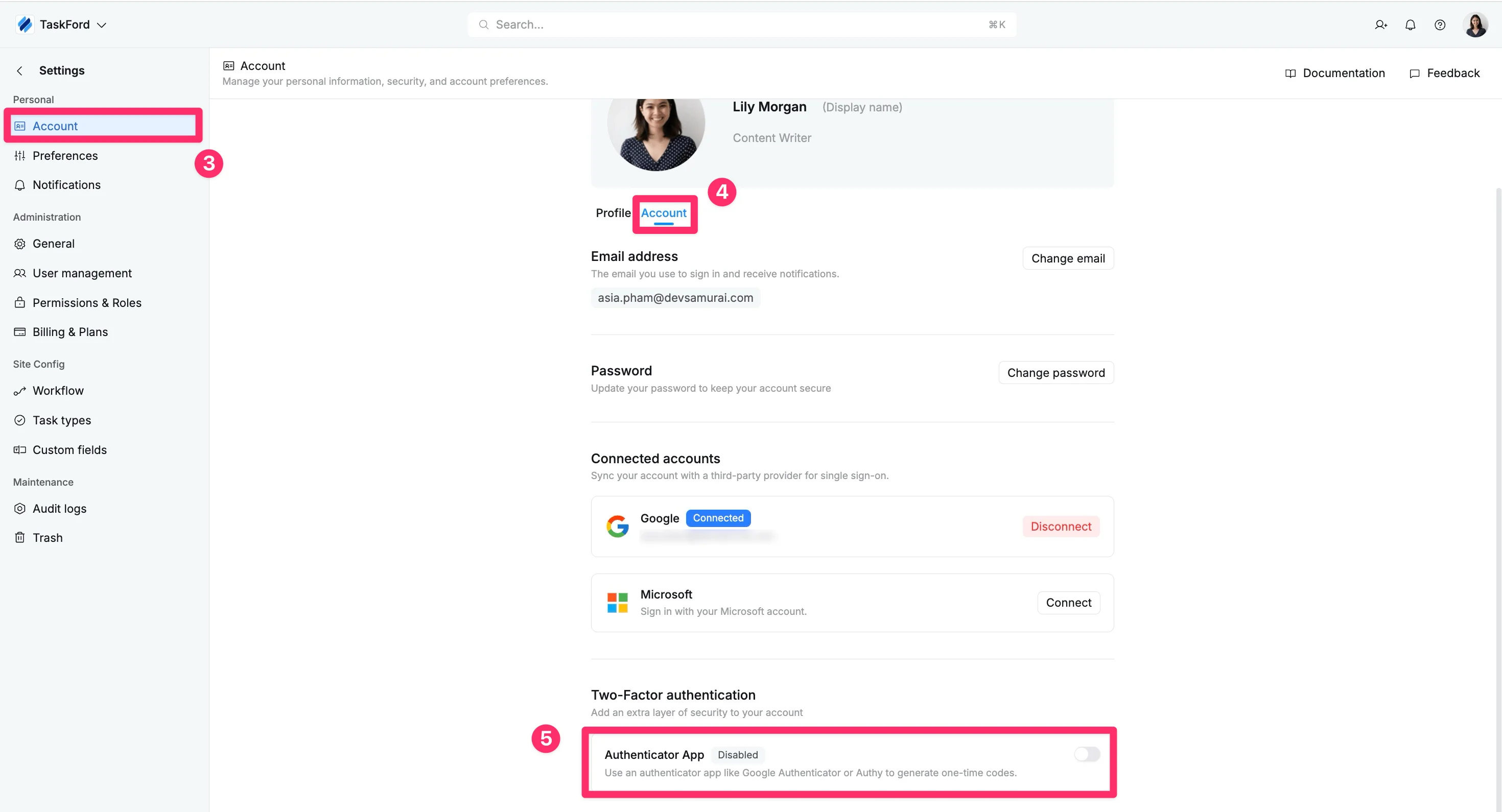
- In the left-hand menu, select Account.
- Choose the Account tab
- In the Two-Factor authentication section, enable the Authenticator App option.
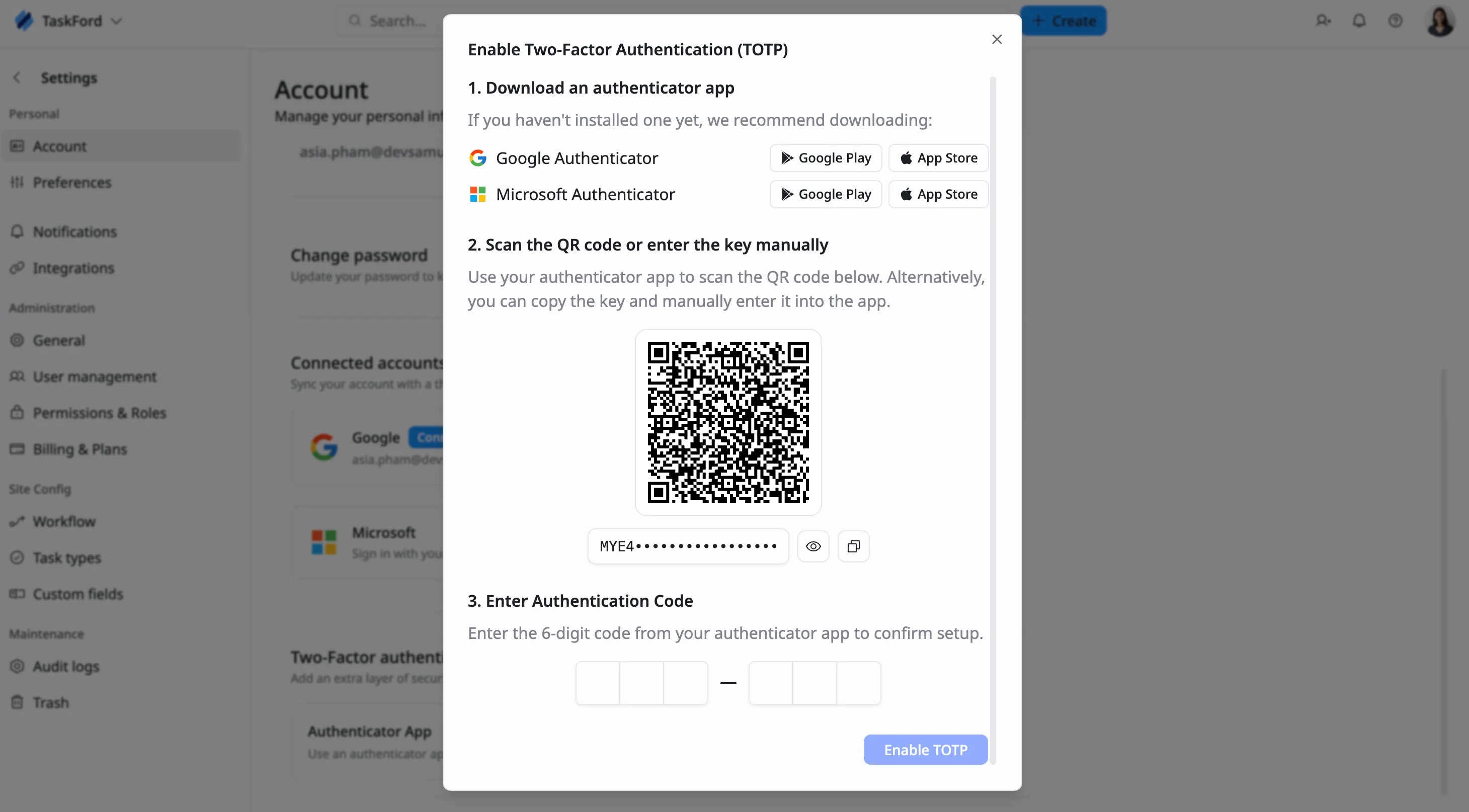
Complete setup
Follow the instructions shown in the setup dialog:
1. Install an authenticator app
If you do not already have an authenticator app, download one of the following:
- Google Authenticator: Google Play or App Store
- Microsoft Authenticator: Google Play or App Store
2. Scan the QR code
- Open your authenticator app
- Scan the QR code displayed on the screen
If you are unable to scan the QR code, you can copy the setup key and enter it manually in the app.
3. Enter verification code
- Enter the 6-digit code generated by your authenticator app
- Click Enable TOTP to complete the setup
After setup, TaskFord will display a TOTP secret key and a recovery code. Save this information in a secure location. You can use it to restore access if you lose your authenticator device.
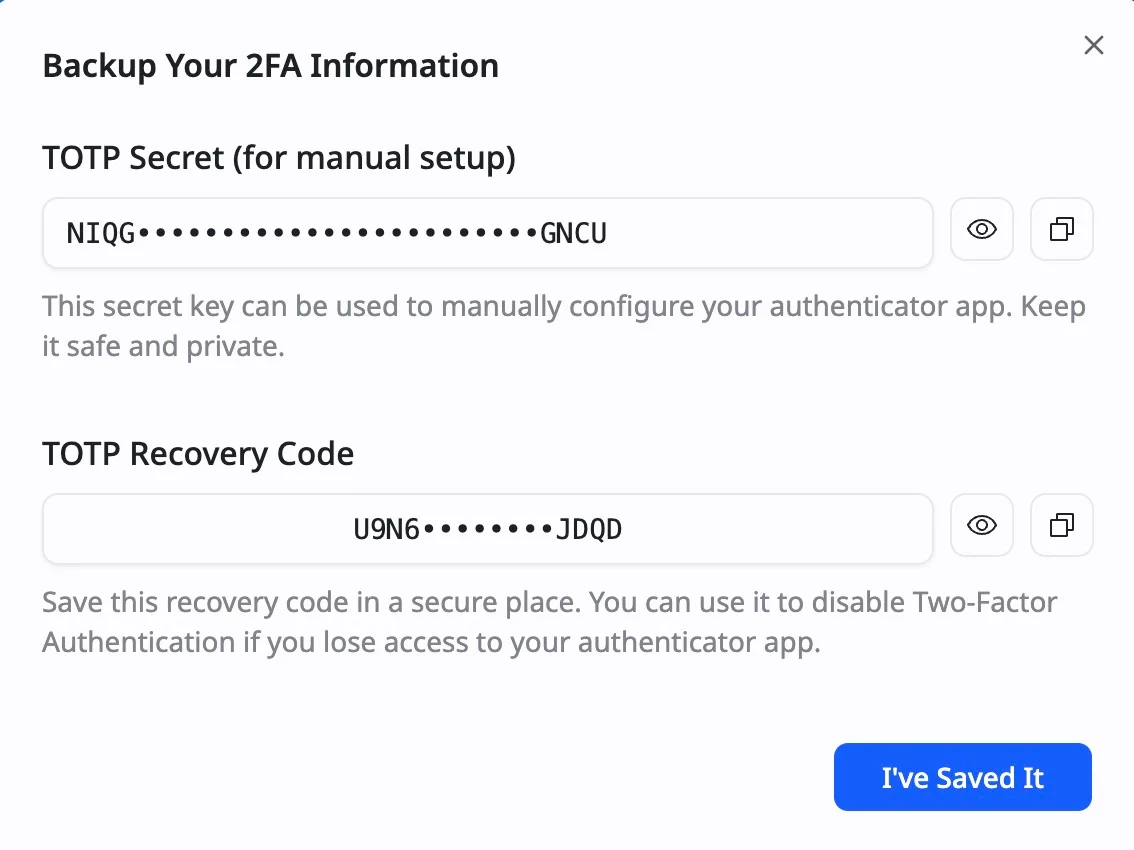
- TOTP Secret Key: When setting up 2FA, you scan a QR code. That QR code represents a secret key. If you copy that alphanumeric key and save it somewhere safe, you can re-input it into a new app to restore your codes.
- TOTP Recovery Code (backup code): These are one-time use codes when you first set up 2FA. If your phone is gone, one of these codes is the only way to log in.
Save your Recovery Code and TOTP Secret Key in a secure location. Without them, you may not be able to access your account if your authenticator device is lost.
Log in with Two-Factor Authentication
Once you’ve enabled two-step verification, you’ll need your authentication app to log in every time:
- Go to the login page: taskford.com
- Select your sign-in method:
- Enter your email and password.
- Continue with Google or Microsoft if your account is linked.
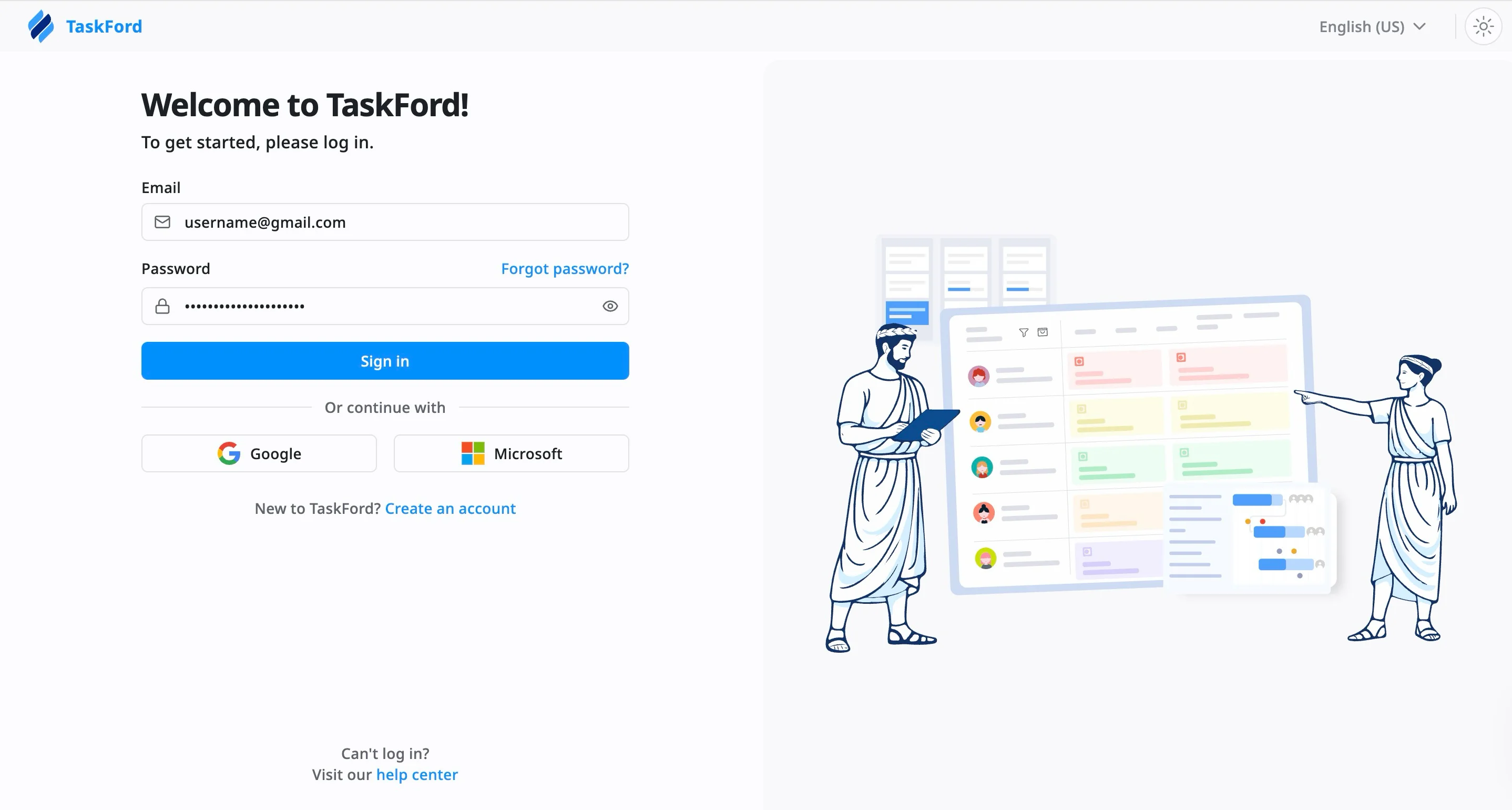
- Click Sign In.
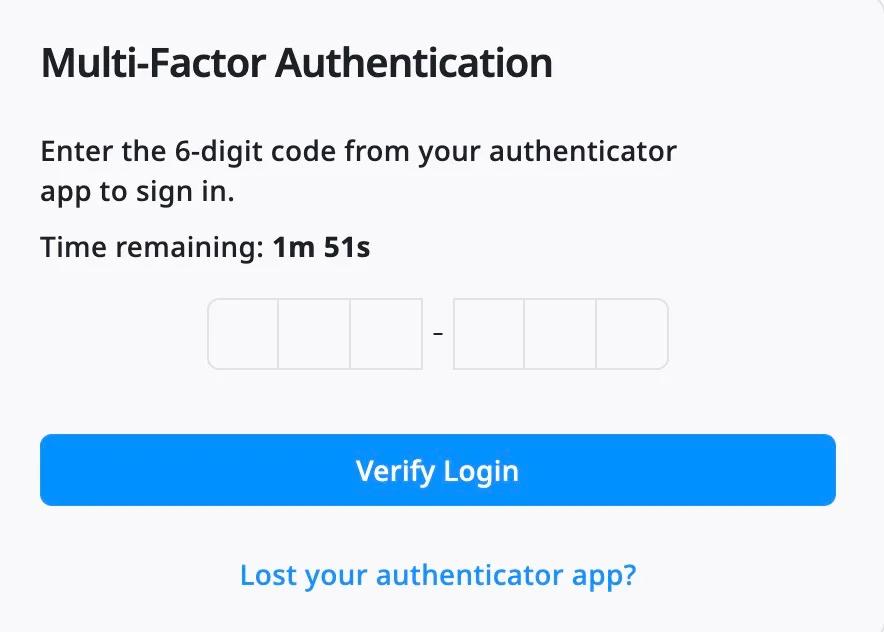
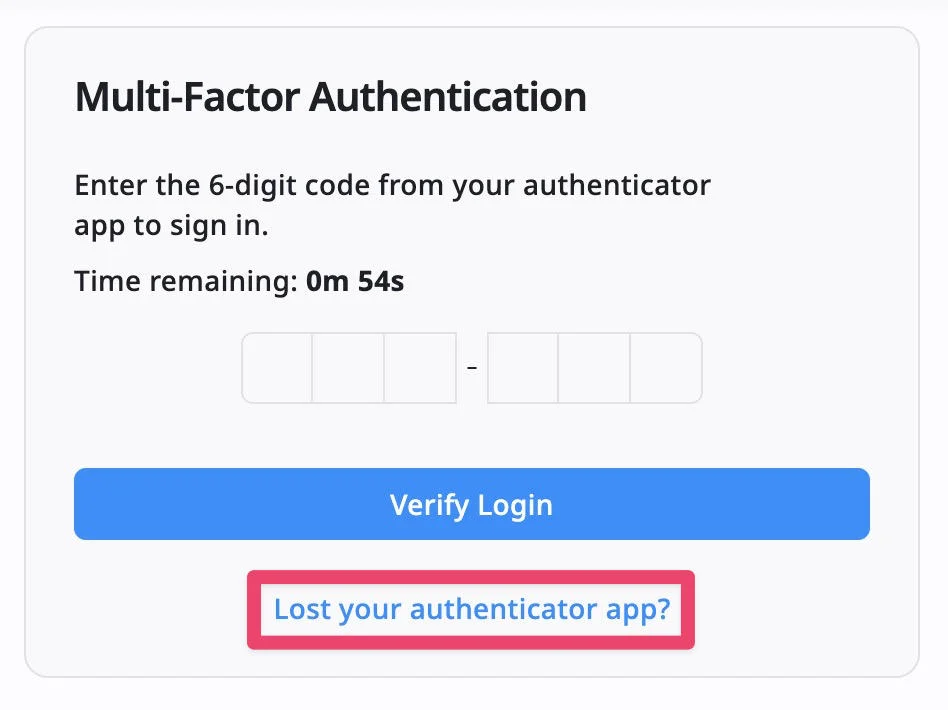
- Then, use your code generated by your authentication app and click Verify Login.
Disable Two-Factor Authentication
If you no longer want to use Two-Factor Authentication, you can disable it at any time from your account settings.
To disable 2FA:
- Click your profile picture in the top-right corner.
- Select Account from the dropdown menu.
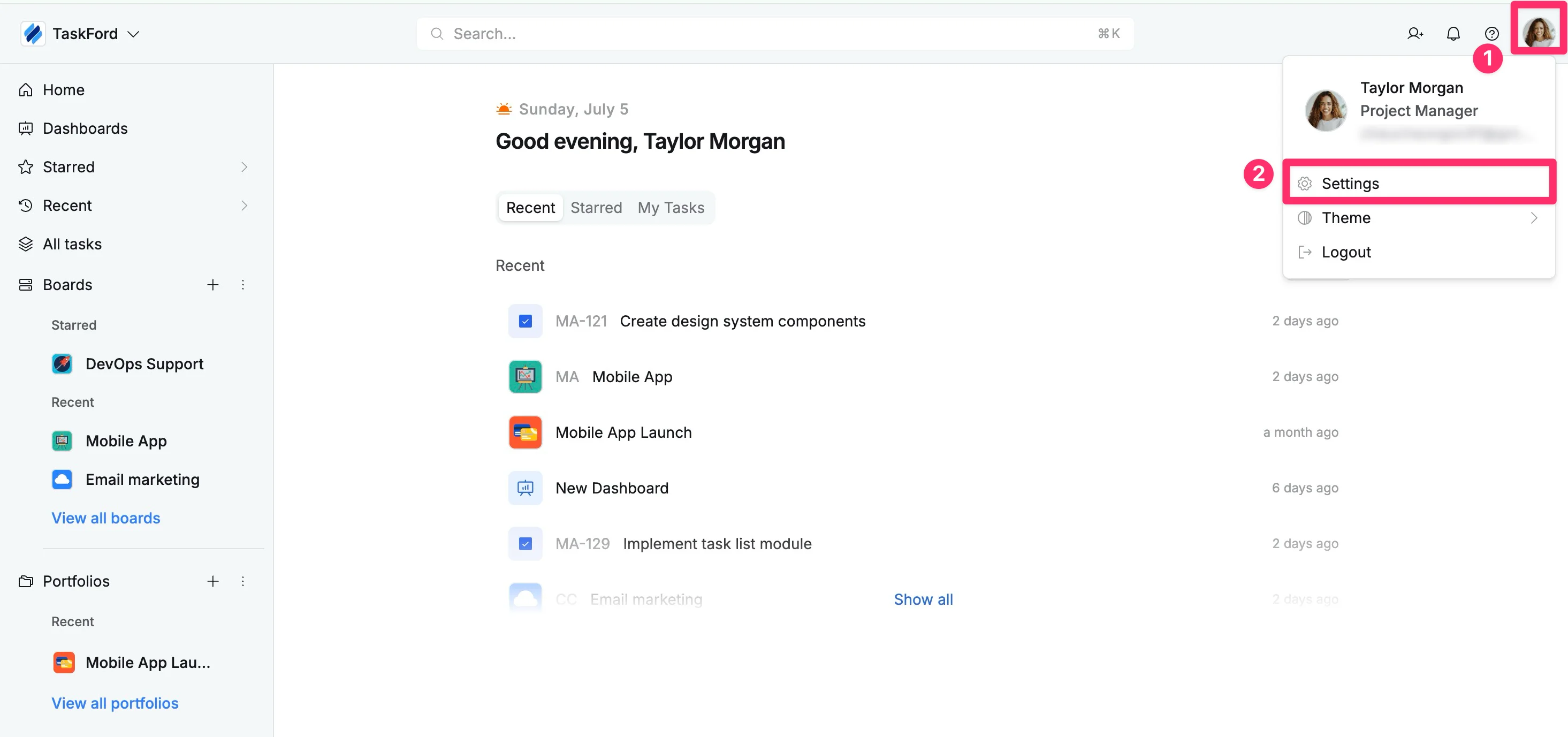
- In the left-hand menu, select Account.
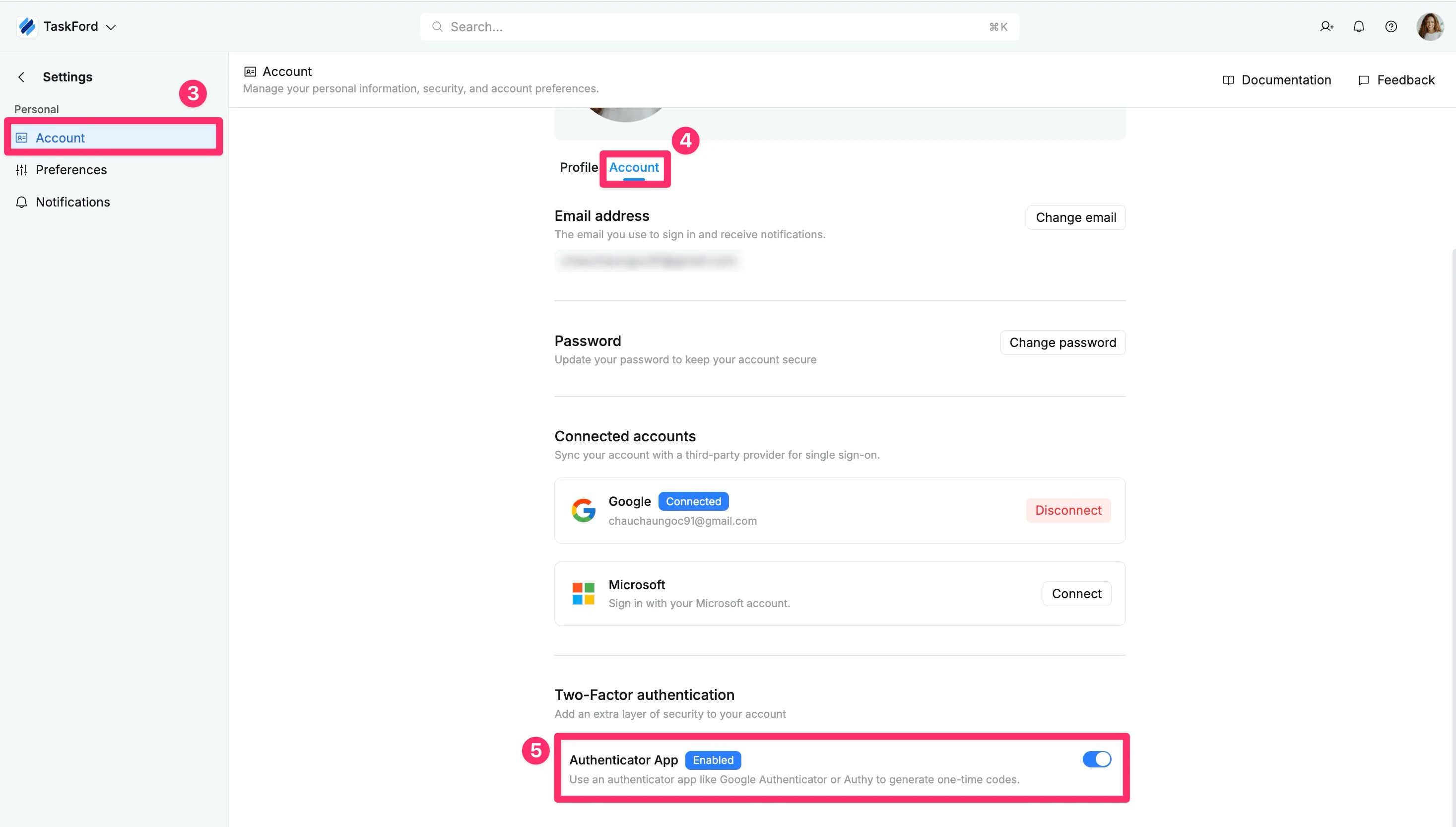
- Choose the Account information tab
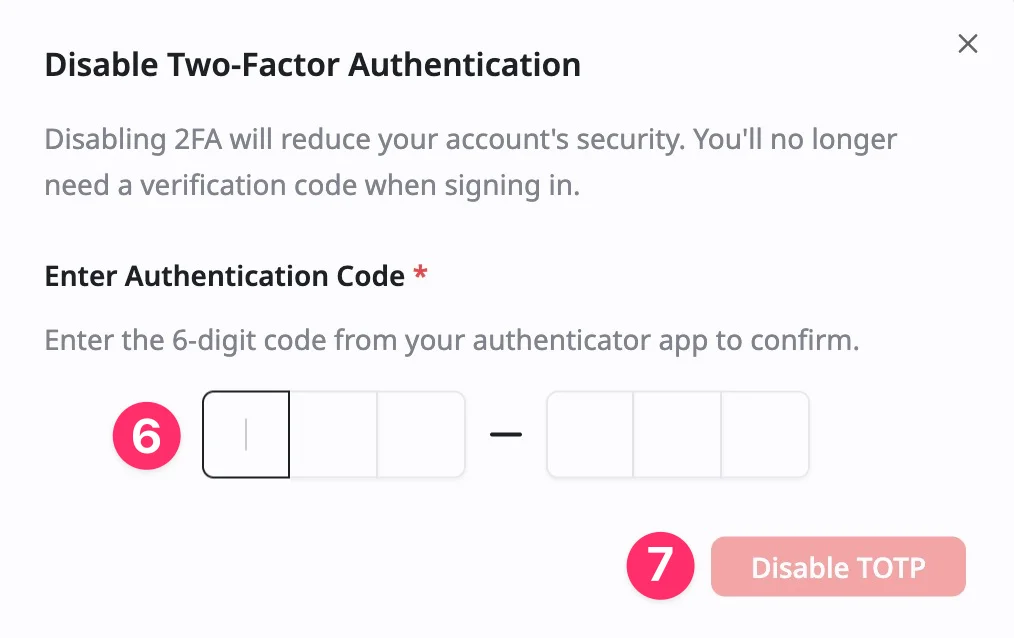
- In the Two-Factor authentication section, turn off the Authenticator App option.
- Enter your current authentication code generated by your authenticator app.
- Click Disable TOTP to confirm.
Troubleshooting 2FA issues
If you lose your phone or no longer have access to your authenticator app, you can still recover access to your TaskFord account using the backup information provided when 2FA was enabled.
Recovery codes can only be used once. After using one, you should generate a new recovery code from your Security settings.
What if I lose my phone or verification device?
If your phone is lost, replaced, or unavailable, you can use your recovery code to regain access.
To recover access:
- Enter your email address and password as usual.
- On the verification screen, select Lost your authenticator app?
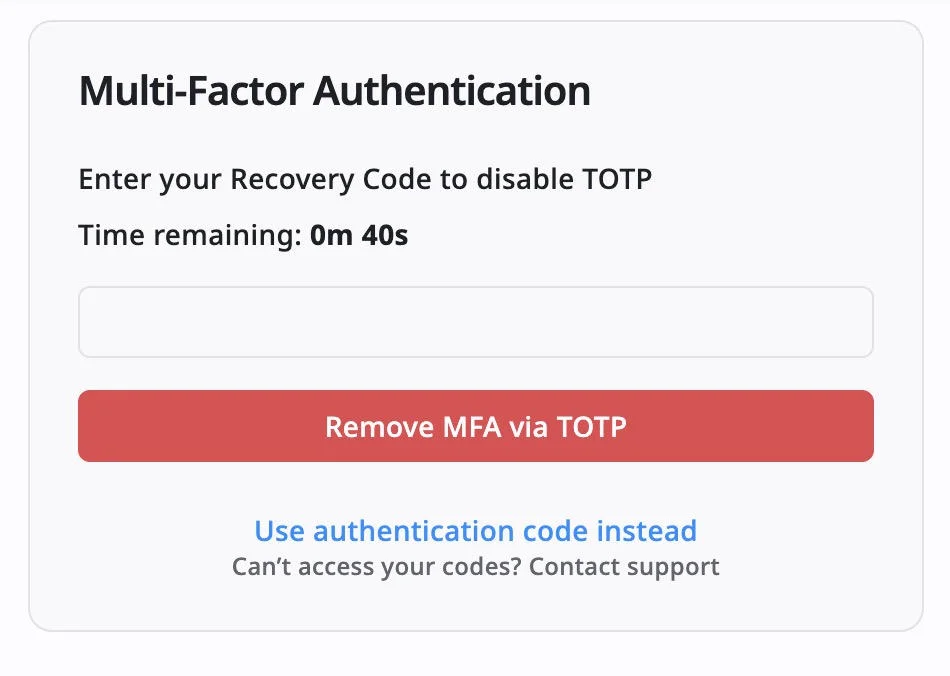
- Enter your TOTP Recovery Code to continue signing in.
- After signing in, you can disable 2FA or set it up again on a new device.
Restore your authenticator app on a new device
If you have access to your TOTP Secret Key, you can reconnect your account to a new authenticator app:
- Install Google Authenticator, Microsoft Authenticator, or another compatible app.
- Choose the option to add an account manually.
- Enter the saved TOTP Secret Key.
- Use the generated verification code to sign in normally.
If you’ve lost your recovery code, please contact our Support Team to request a 2FA reset.