Site custom fields
Manage and create custom fields in TaskFord to capture additional task information, standardize data, and tailor boards to your team’s workflow.
Only App Admins can access and manage site custom fields.
Custom fields let admins create and manage additional fields used to capture information beyond the default task details.
In Site settings, admins can manage both global custom fields and board-specific custom fields. Global fields can be used across boards, while board-specific fields belong to a particular board.
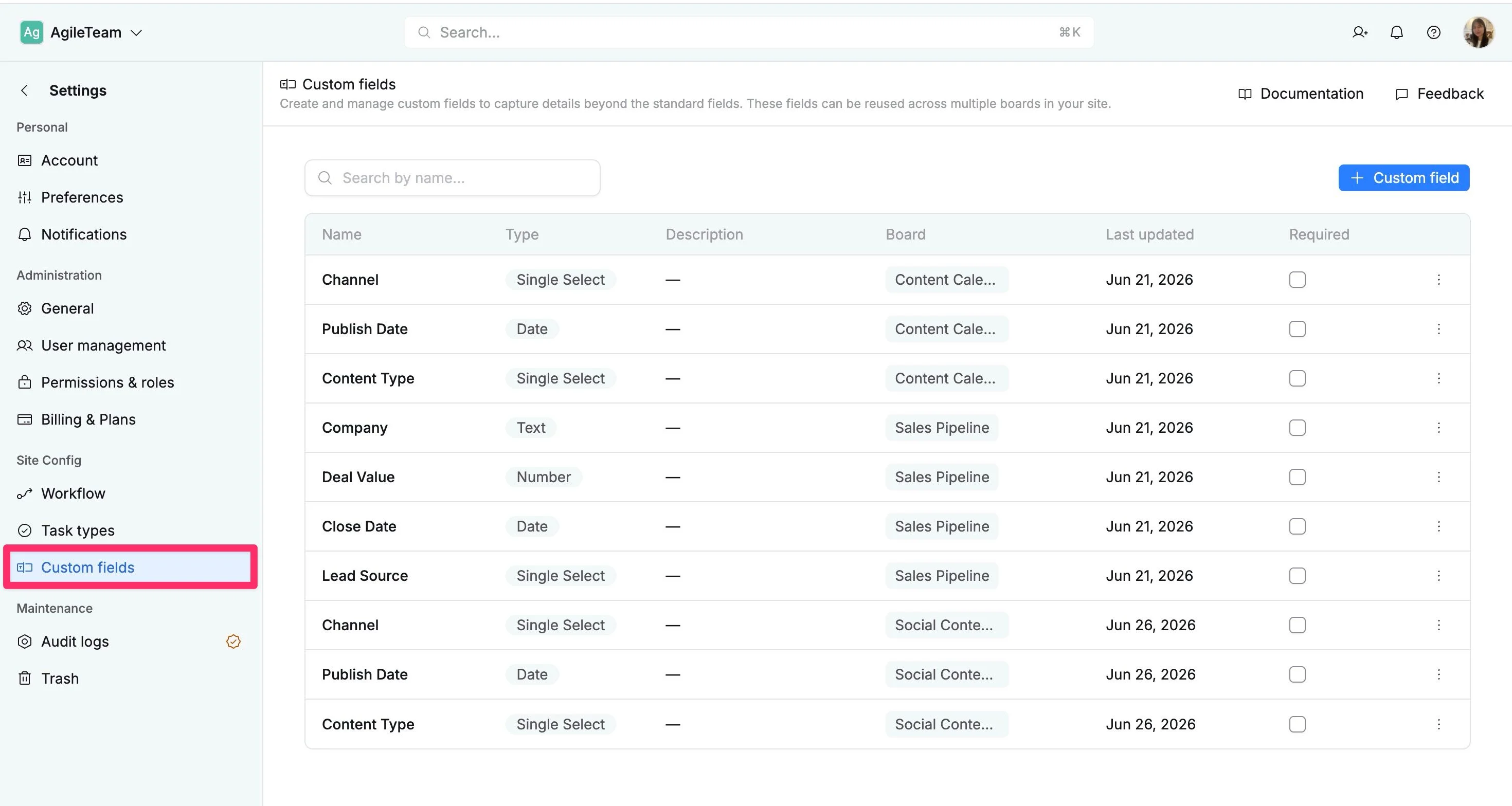
The Custom fields table displays:
- Name: The custom field’s name.
- Type: The type of data (e.g., number, text).
- Description: Any description or details about the field (if provided).
- Required: Indicates if the field is required for tasks.
- Board: Specifies which board the field belongs to (Global or Board-specific).
- Last updated: The date when the field was last modified.
- Actions: Options to edit or delete custom fields.
This helps admins keep custom fields organized and manage them from one central place.
Access the custom fields tab
- Navigate to the Board settings page.
- Select the Custom Fields tab from the left-hand menu.
Search for custom fields
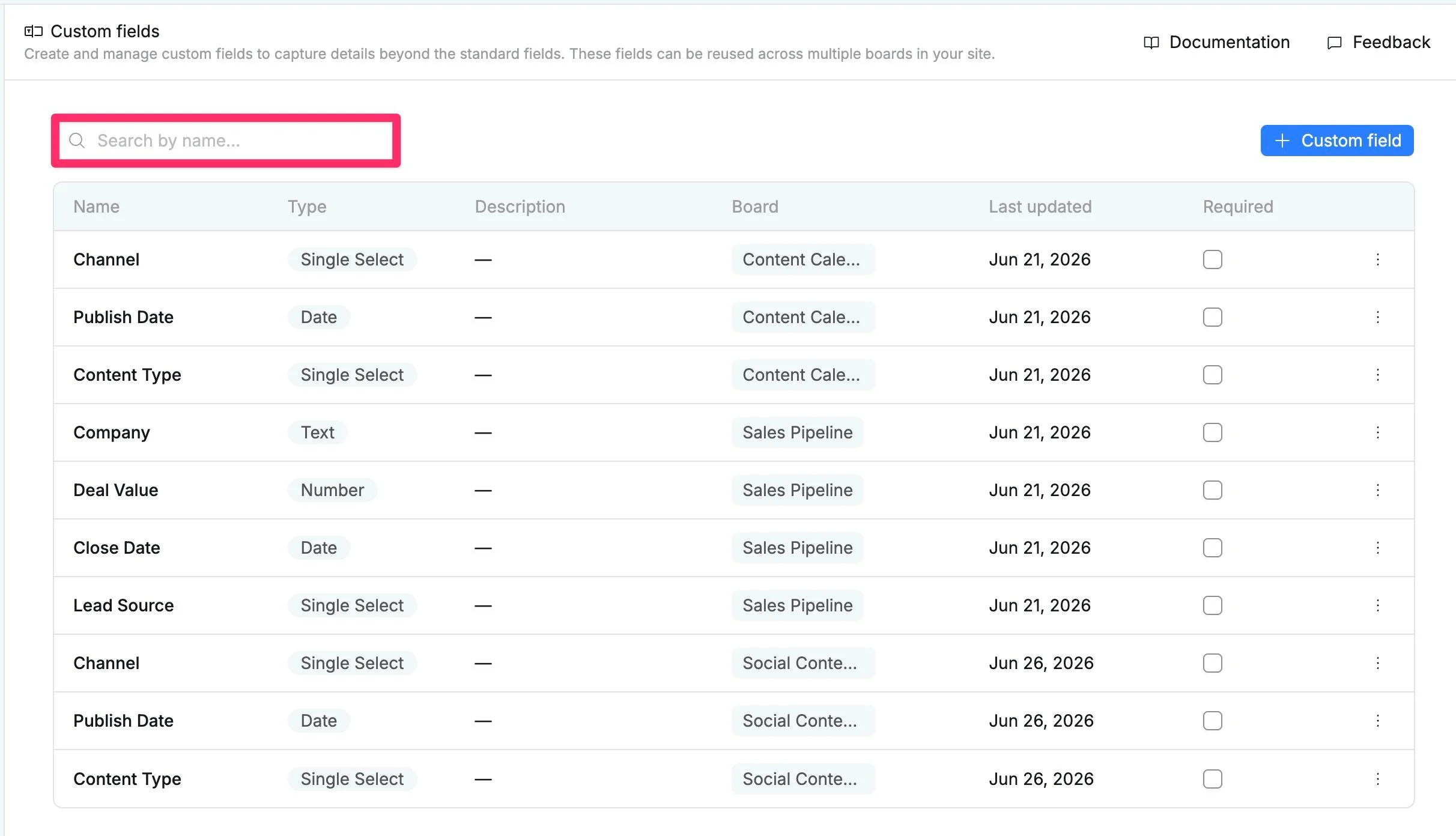
To search for custom fields, click the search bar and type the field name. This enables you to locate and manage specific custom fields within the site quickly.
Types of custom field
TaskFord gives you flexibility in how you apply custom fields:
- Global fields: Use Global fields when you want to standardize data across your entire site. These fields will be available on all boards.
- Board-specific fields: Create data fields that only appear on your current board.
Create a custom field
To create a new custom field, follow these steps:
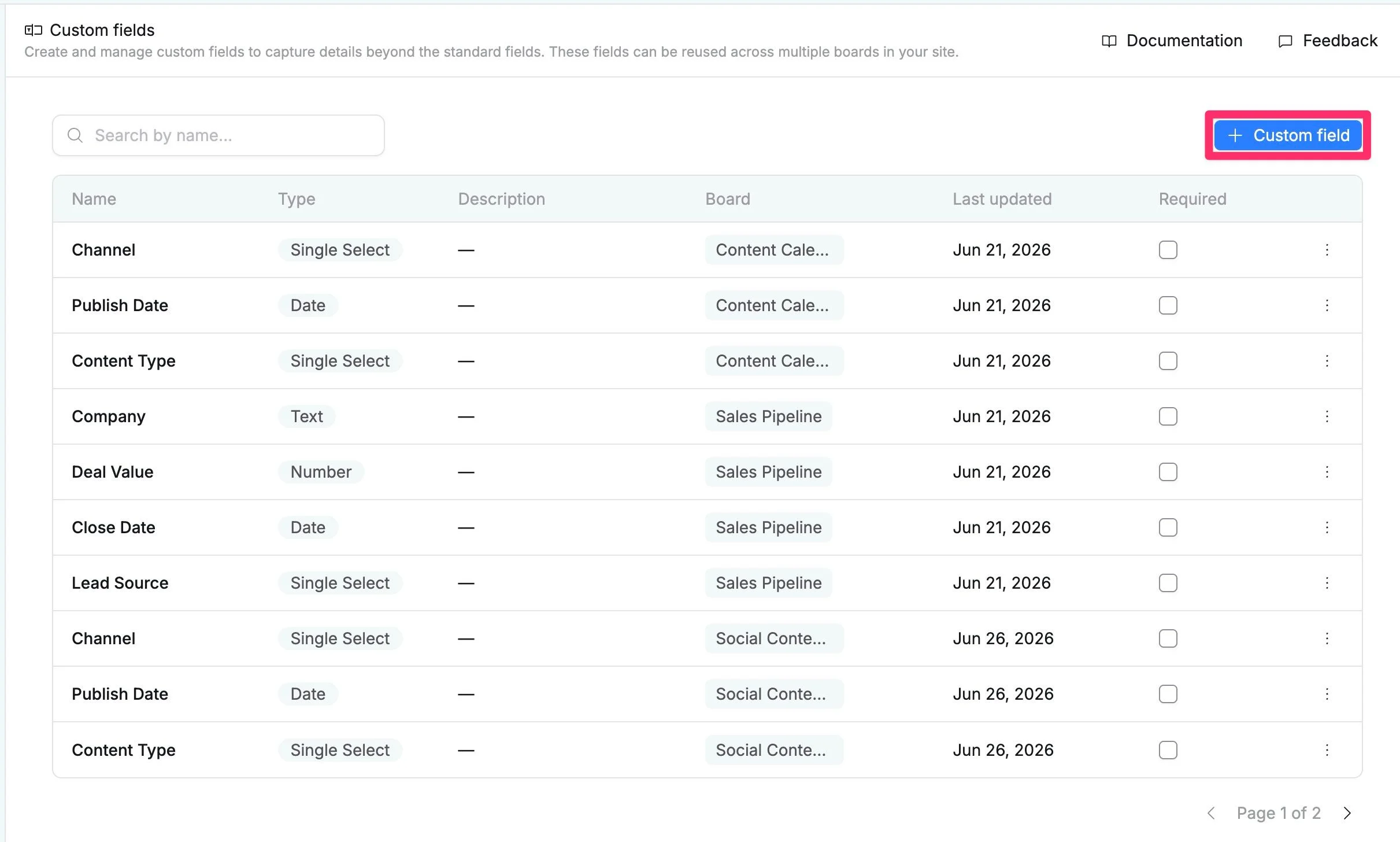
- Click + Custom Field button in the top-right corner.
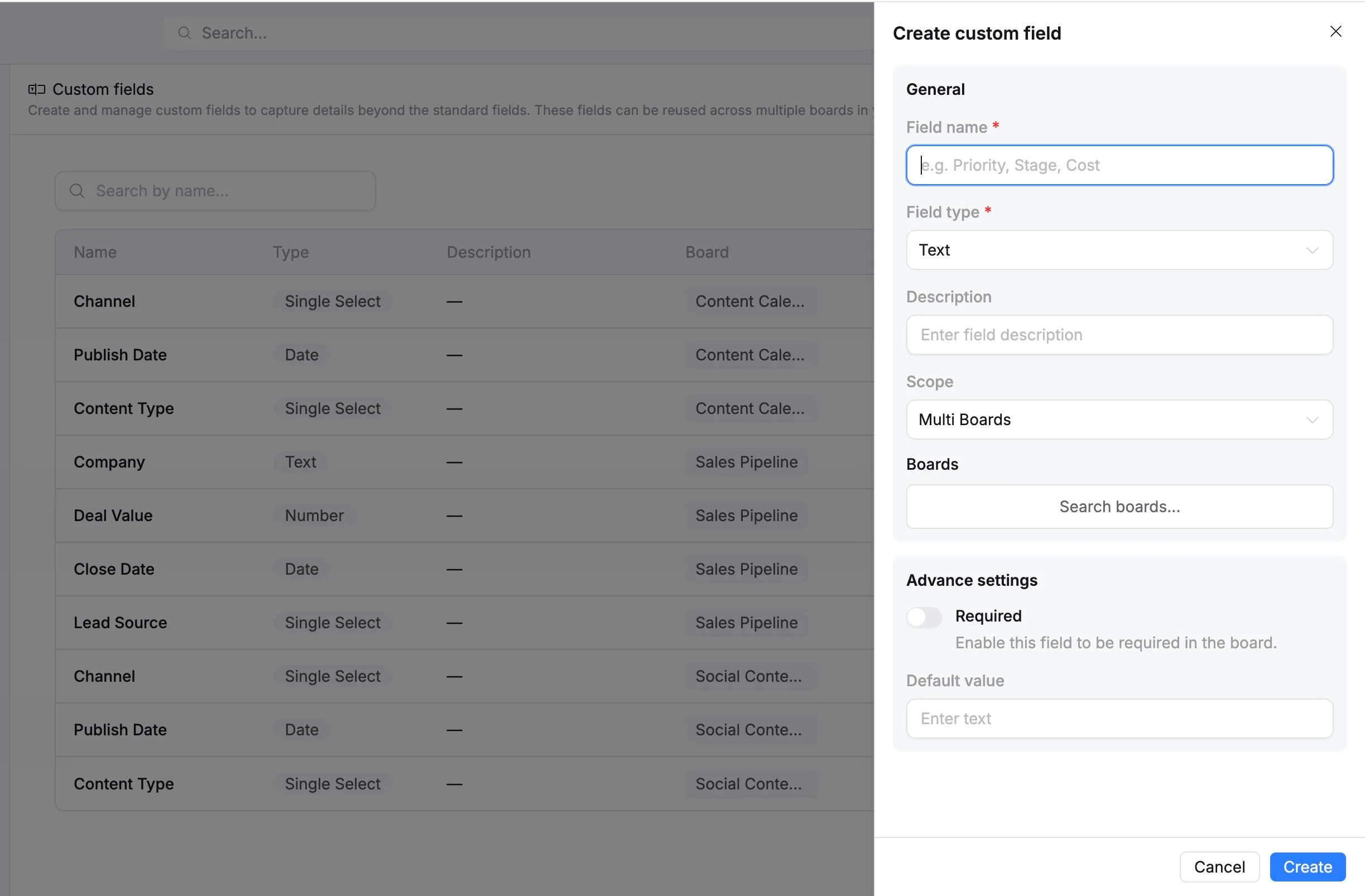
- In the Create Field panel that opens on the right, configure the following details:
- Field name: Enter a clear name for the field, such as Priority, Budget, or Client.
- Field type: Select the type of data this field will collect and store:
- Text: For names, notes, labels, or other written details.
- Number: For numerical data such as costs, financial budgets, or story points.
- Date: For deadlines, milestones, or other date-based information.
- Description: Optionally add guidance to help your team understand how to use the field.
- Scope: Choose where the field can be used:
- Global: Makes the field instantly available across all boards on your site.
- Multi Boards: Restricts and applies the field only to specific boards you manually select.
- Configure Advanced settings, if needed:
- Required: Enable this option to make the field mandatory when creating or updating tasks.
- Default value: Pre-fill the field with a standard value to automate data entry.
- Click Save to create the custom field.
Once created, custom fields appear in the Task Details panel, where your team can enter and update field values directly on each task.
You can also add custom fields as columns in supported views, such as the Table view, to view, edit, filter, sort, or report on custom task data more easily. Learn how to add custom fields to a Table view
Edit a custom field
To edit a custom field:
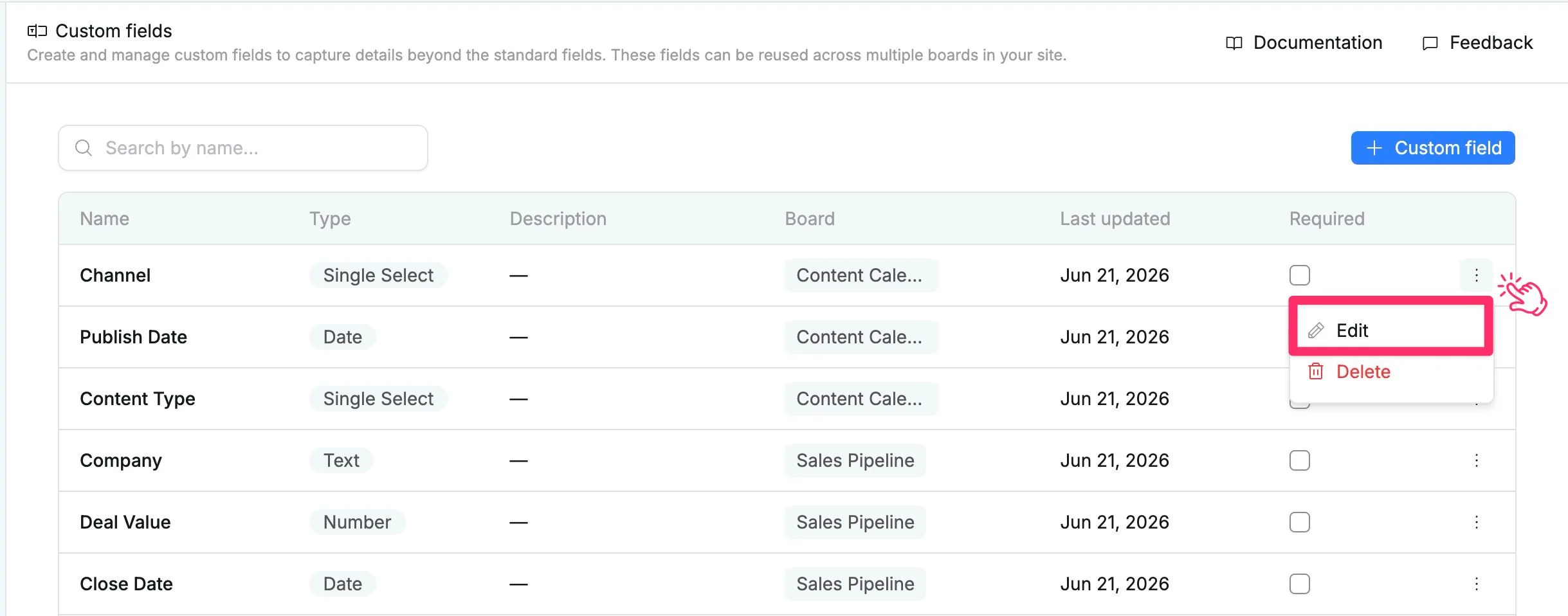
- Click the three vertical dots (⋮) on the row of the field you want to edit.
- Select Edit from the dropdown menu.
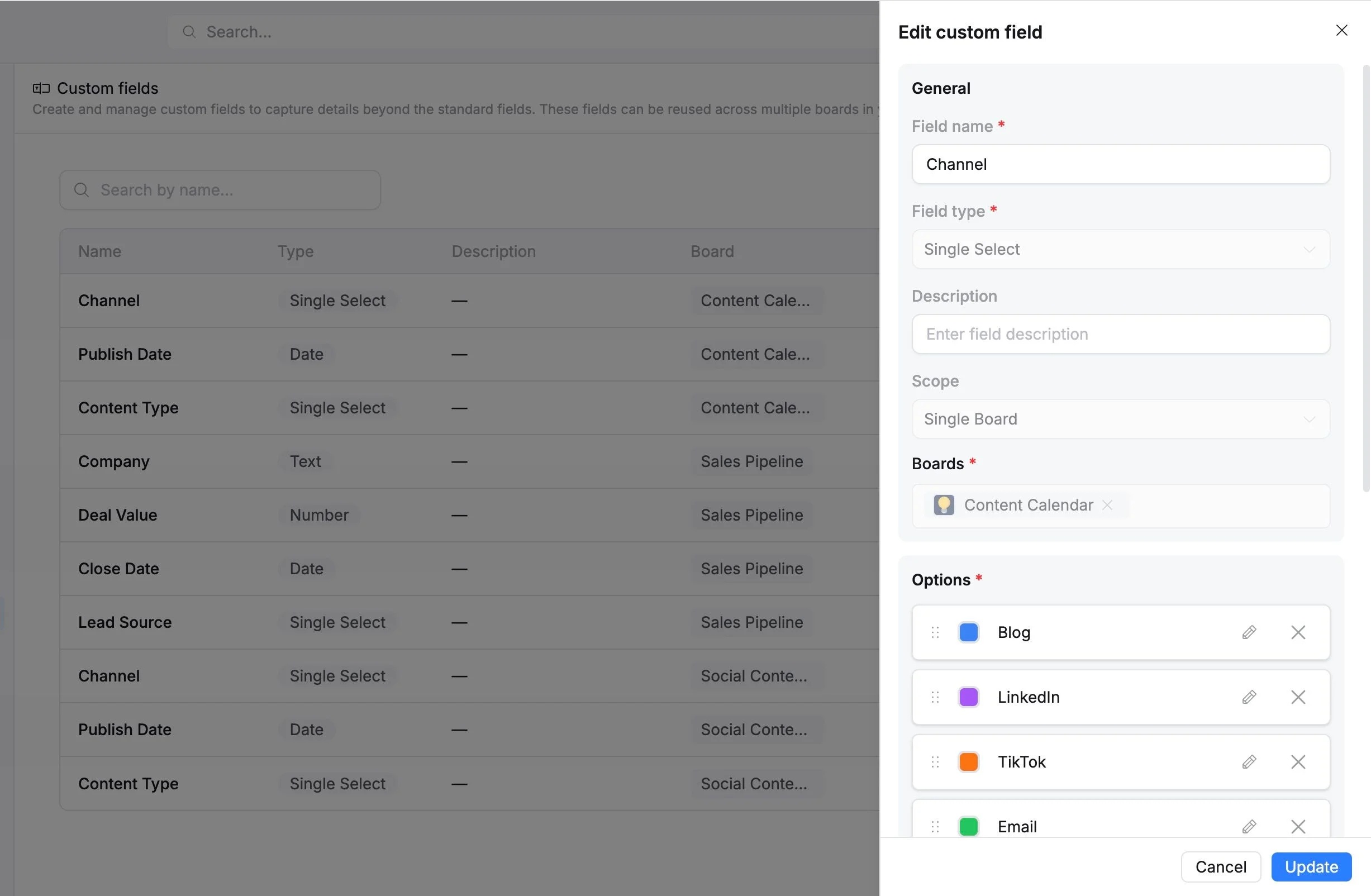
- Update the information in the Edit custom field panel.
- Click Update to apply your changes.
Delete a custom field
To delete a custom field:
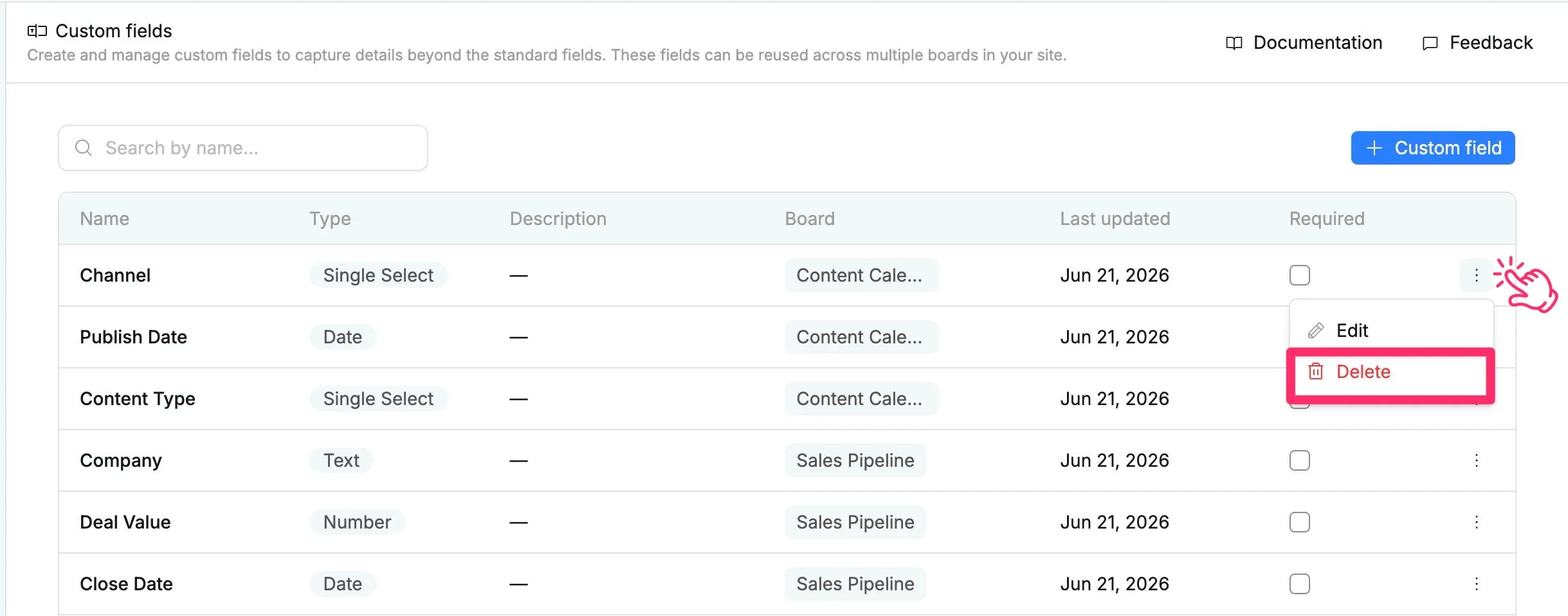
- Click the three vertical dots (⋮) on the row of the field you want to delete.
- Select Delete from the dropdown menu.
- In the confirmation dialog, click Delete to remove it or Cancel to keep it.
The deleted custom field will be removed from the site and will no longer appear in the task details view.