Site general settings
The General settings allow you to manage your site's core details, including its name, domain, and other key configurations that define its identity.
Only Site Owners / Site Admins / App Admins can access and manage site general settings.
The General tab allows you to manage the core details and basic configuration of your site. This section is essential for setting up your site’s name, domain, and other key information that defines your site’s identity.
Access the General tab
To access general settings:
- Navigate to the Site settings page
- Select the General tab under the Administration section from the left-hand menu.
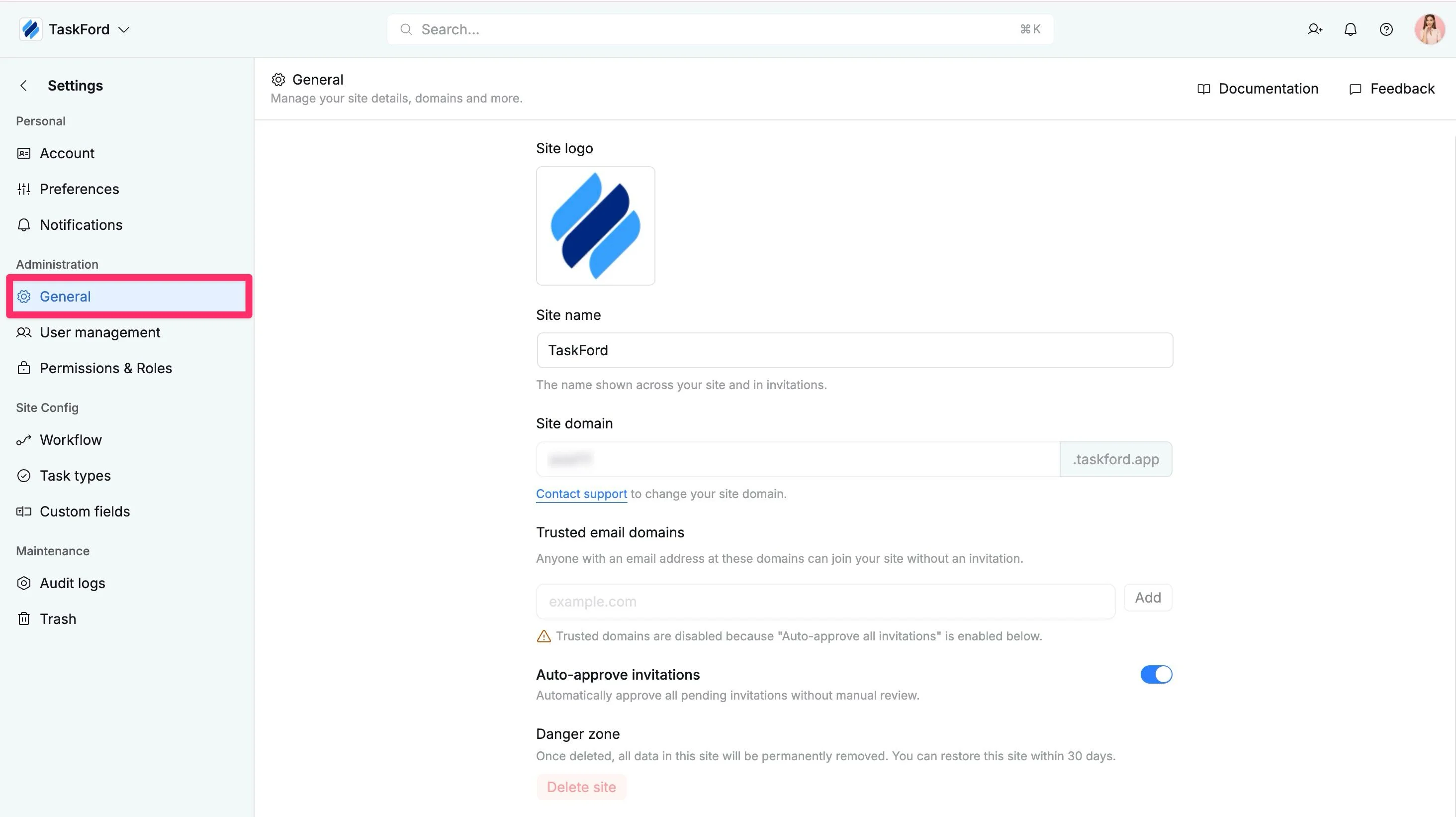
From here, you can manage your site’s basic details, including its name, icon, and deletion settings, and auto-approve invitations
Change the site logo and name
Changing the site name and avatar in the TaskFord app is essential for branding, helping users quickly recognize and differentiate your site, especially for those managing multiple sites.
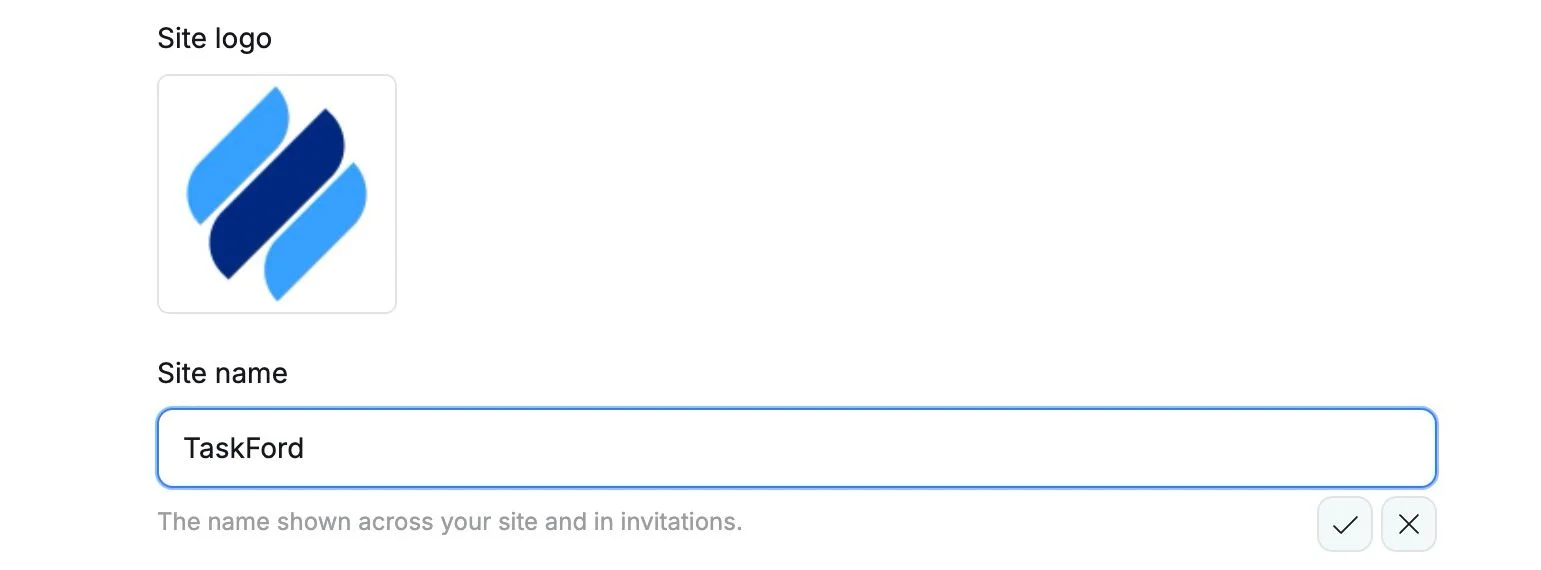
Change the site logo
- In the General settings, find the Site logo section and click on the current image.
- Select a new image from your computer, or drag and drop the file into the upload box.
- Once you’ve selected the image, click Save to update the site picture.
Change the site name
- In the General settings page, find the Site Name field.
- Click on the Site name field, and type the new name you want to use for your site.
- Once you’ve entered the new name, click the checkmark to save the changes.
Site domain
The site domain represents the unique URL that identifies your workspace. It appears as site-name.taskford.app. This URL is used for logging in and accessing your site across devices. It allows your team and collaborators to reach your workspace directly.
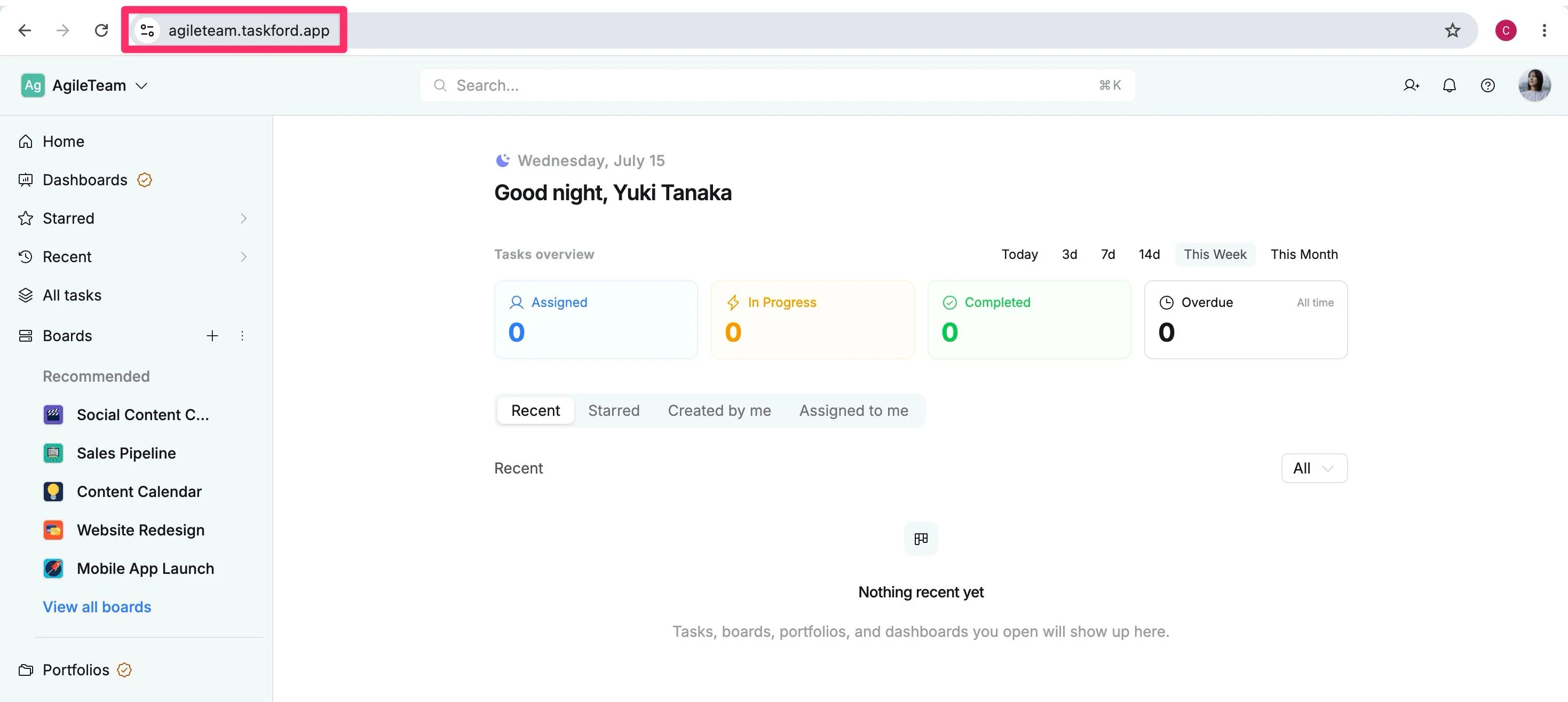
How to customize your site domain
- You can request a custom domain change if you want the URL to match your branding or organizational preferences.
- Custom domain changes are only available for Enterprise plan customers.
- To request a domain change, click the Contact support to reach the TaskFord support team and provide your desired domain details.

Trusted email domains
This setting lets you specify which email domains are trusted. When someone is invited using an email address from a trusted domain, they can accept the invitation and join the Site without additional approval from a Admin.
This is especially useful for organizations that want to automatically approve trusted internal members while still requiring a security review for users from other domains.
How to add trusted email domains
- In the Trusted Email Domains section, type the domain you want to add (e.g.,
mycompany.com). - Click Add to confirm the domain.
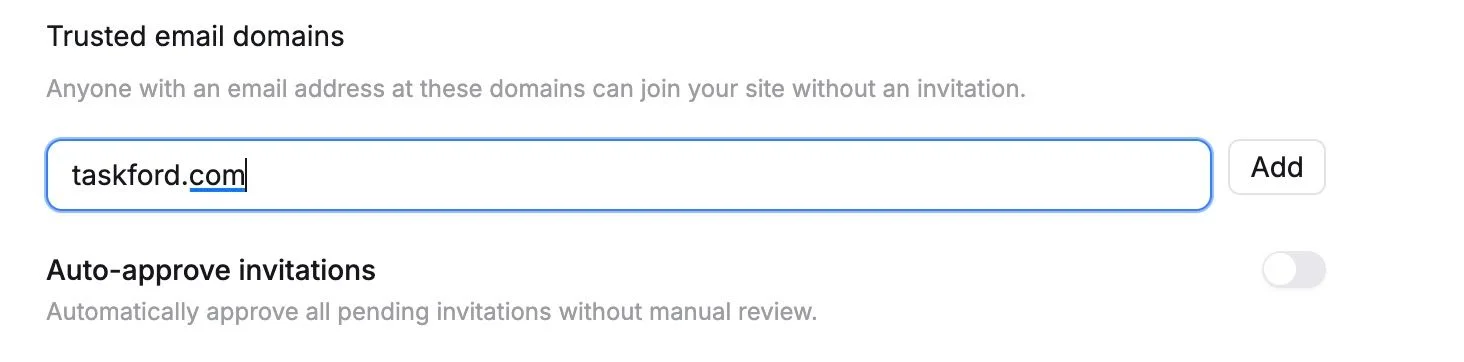
After adding a domain, any user with an email from that domain will be automatically approved to join the site without needing an invitation.
When Auto-approve invitations is enabled, trusted domains are disabled to avoid conflicts between automatic approvals and trusted domains.
Invitations
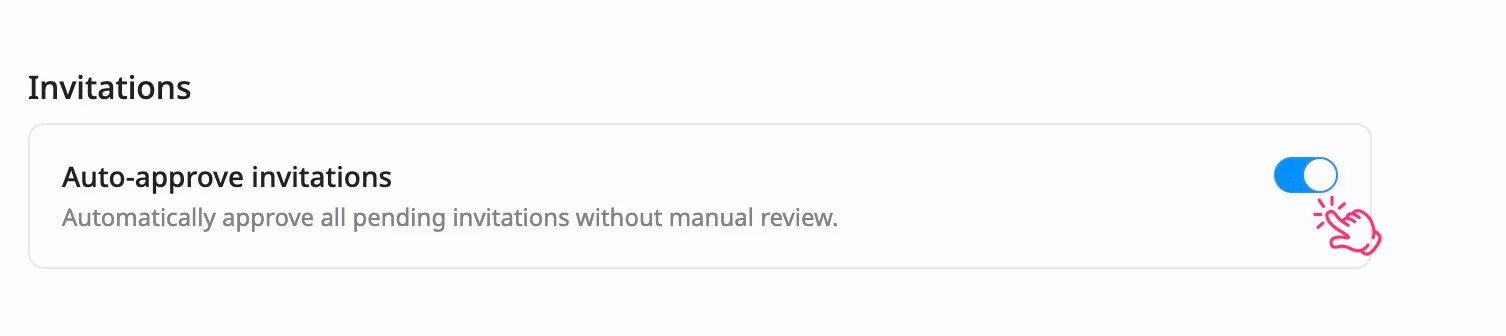
The Invitations settings control how new users join your site. You can either allow auto-approvals, speeding up the onboarding process, or keep it manual to review users before they join.
How to enable or disable auto-approve invitations:
- To enable auto-approve invitations, toggle the switch to On. This will automatically approve any pending invitations.
- To disable auto-approvals, toggle the switch to Off, which will require manual approval for each invitation.
Danger Zone: Delete the site
The Danger Zone is where you delete your site. Deleting your site will remove all data, including tasks, boards, and user information. This action is irreversible after a 30-day grace period.

How to delete the site
- Scroll to the bottom of the General settings page, where you’ll find the Danger Zone section.
- Click the Delete site button to begin the process.
- You will be asked to confirm the deletion by typing the site name in the confirmation box.
- After typing the name, click the Delete site button again to confirm.
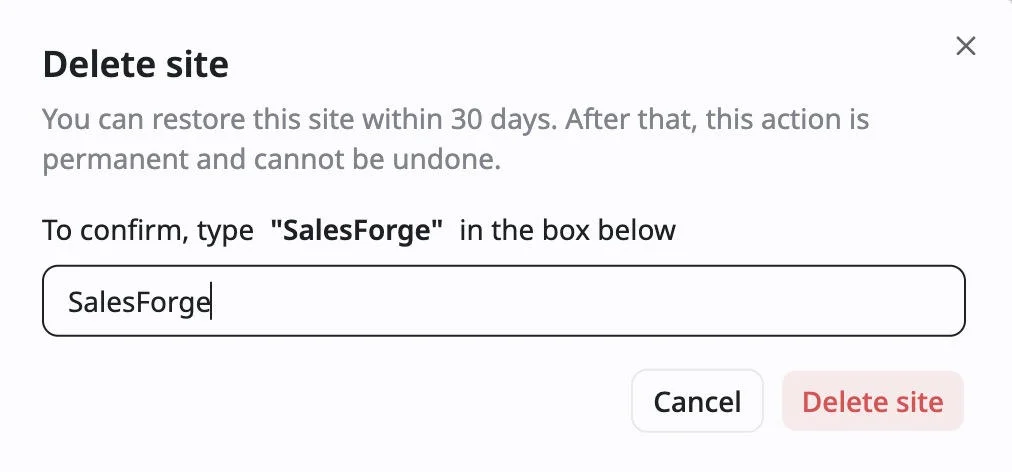
Your site will be marked for deletion, but you have a 30-day grace period to restore it. After 30 days, the deletion becomes permanent, and the site cannot be restored.
Deleting your site removes all data permanently, and the action cannot be undone after the grace period. Be very cautious when using this feature.
Restore a deleted site
When a site is deleted, it enters a 30-day grace period during which you can restore it. After 30 days, the deletion is permanent, and the site cannot be recovered.
How to restore a Deleted Site
- Click the Site Switcher in the top-left corner of the TaskFord screen.
- Select Site Management to open the TaskFord Administration page.
You can also click here to open the TaskFord Administration quickly.
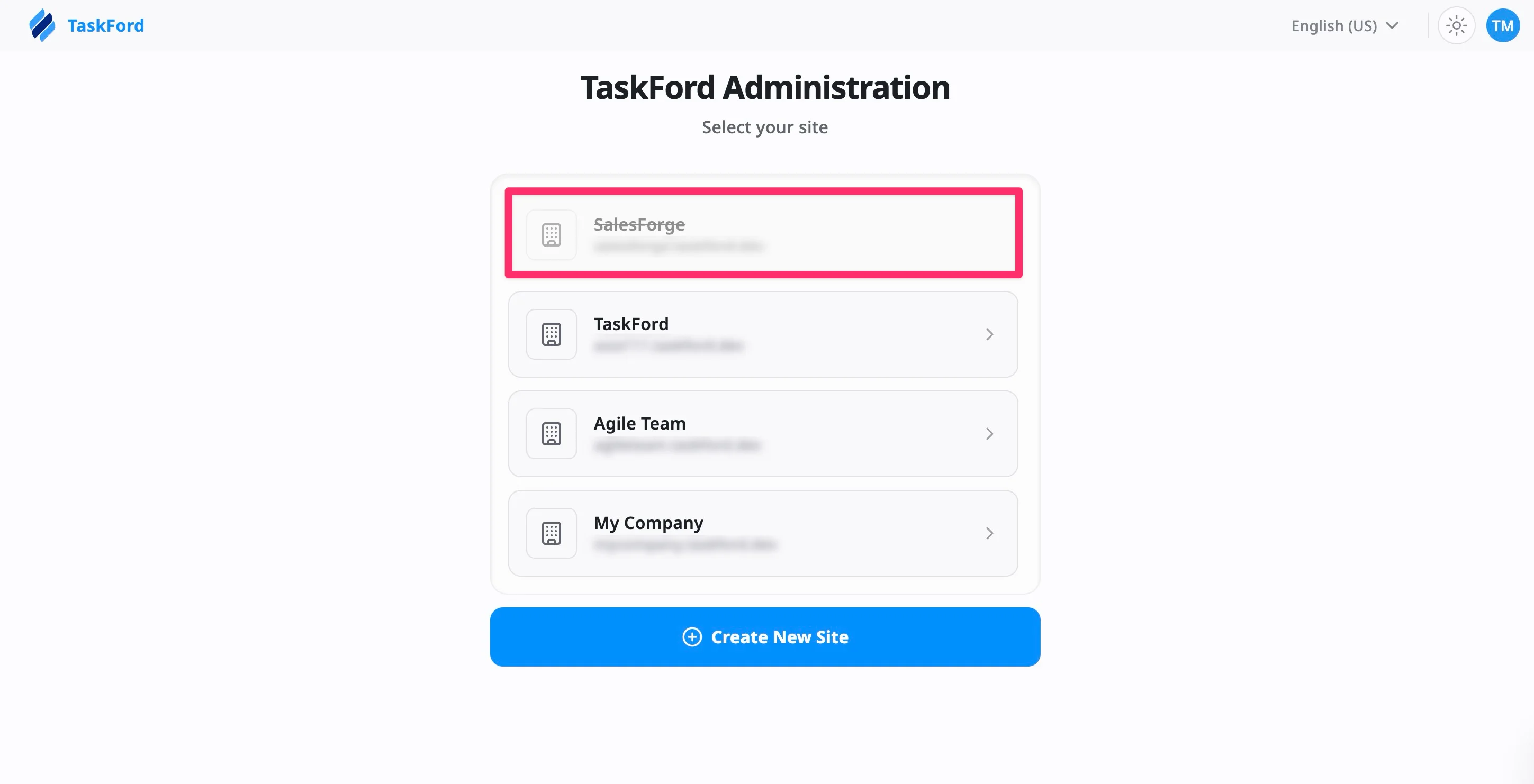
- Find the site marked as “Deleted”, it will appear grayed out with a “deleted” status.
- Click on the deleted site from the list to open its details page. You’ll see a notification indicating the site is in the process of being deleted.
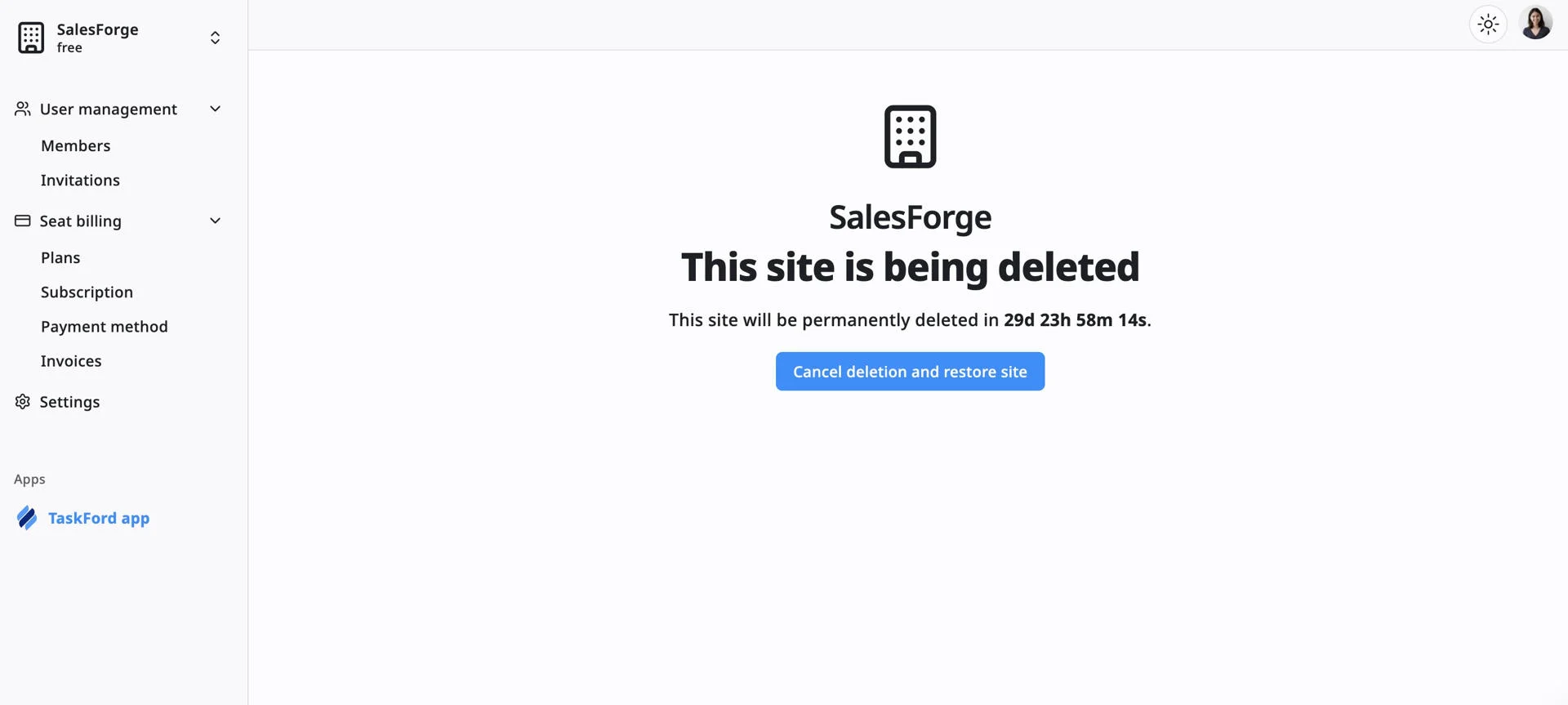
- To restore the site, click the Cancel deletion and restore site button. This will undo the deletion within the 30-day grace period.
After clicking the restore option, the site will be restored, and you will regain access to all the data and settings.