Site task types
Manage and customize task types in TaskFord to organize, track, and standardize work across boards.
App permission:
- Anyone with the Manage task type permission can access and manage task types in Site settings.
Default role:
- App Admins have this permission by default.
Task types define the different kinds of work tracked in TaskFord, such as Tasks, Subtasks, and Milestones. They help teams organize work consistently across boards.
In Site settings → Task types, users with the required permission can manage shared task types at the site level. Board admins can then add these task types to individual boards.
Site task types can be shared across multiple boards, while task types created as Private on a board remain limited to that board. Private task types are listed in Site settings for visibility only.
Access the task types settings
To manage task types at the site level:
- Navigate to Site settings.
- Select Task types from the left-hand menu.
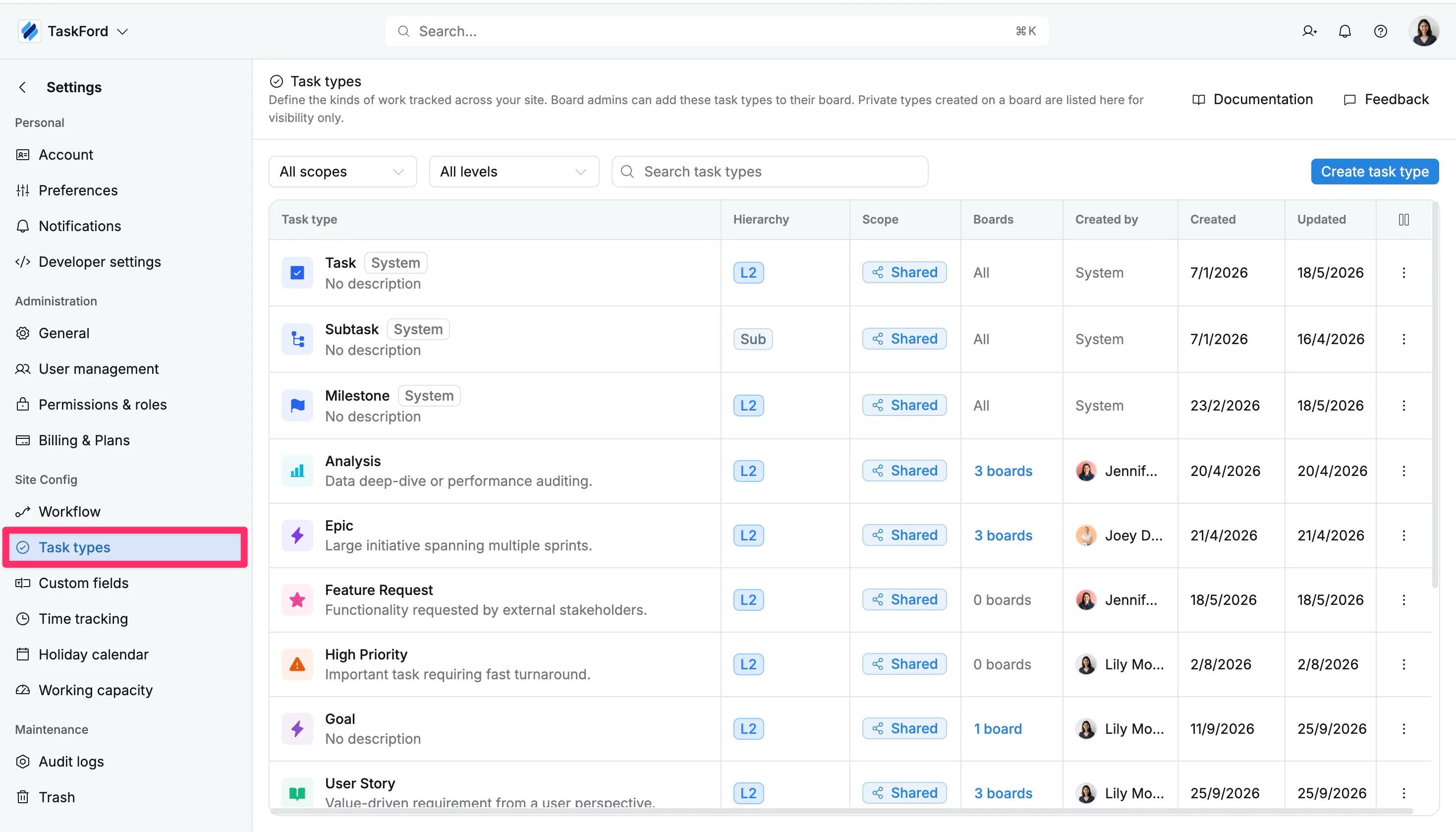
The Task types page displays all task types available across the site.
The table includes:
- Task type: The task type name, icon, and description.
- Hierarchy: The hierarchy level assigned to the task type: Initiative (L0) → Epic (L1) → Task (L2)→ Sub
- Scope: Indicates whether the task type is Shared or Private.
- Shared: Managed at the site level and can be used on multiple boards. Board admins can add shared task types to their boards from the site catalogue.
- Private: Created on a specific board and used only on that board. Private task types are listed in Site settings for visibility, but they are managed from the board where they were created.
- Boards: The boards currently using the task type.
- Created by: The user or system that created the task type.
- Created: The date the task type was created.
- Updated: The date the task type was last updated.
- More actions: Actions available for managing the task type.
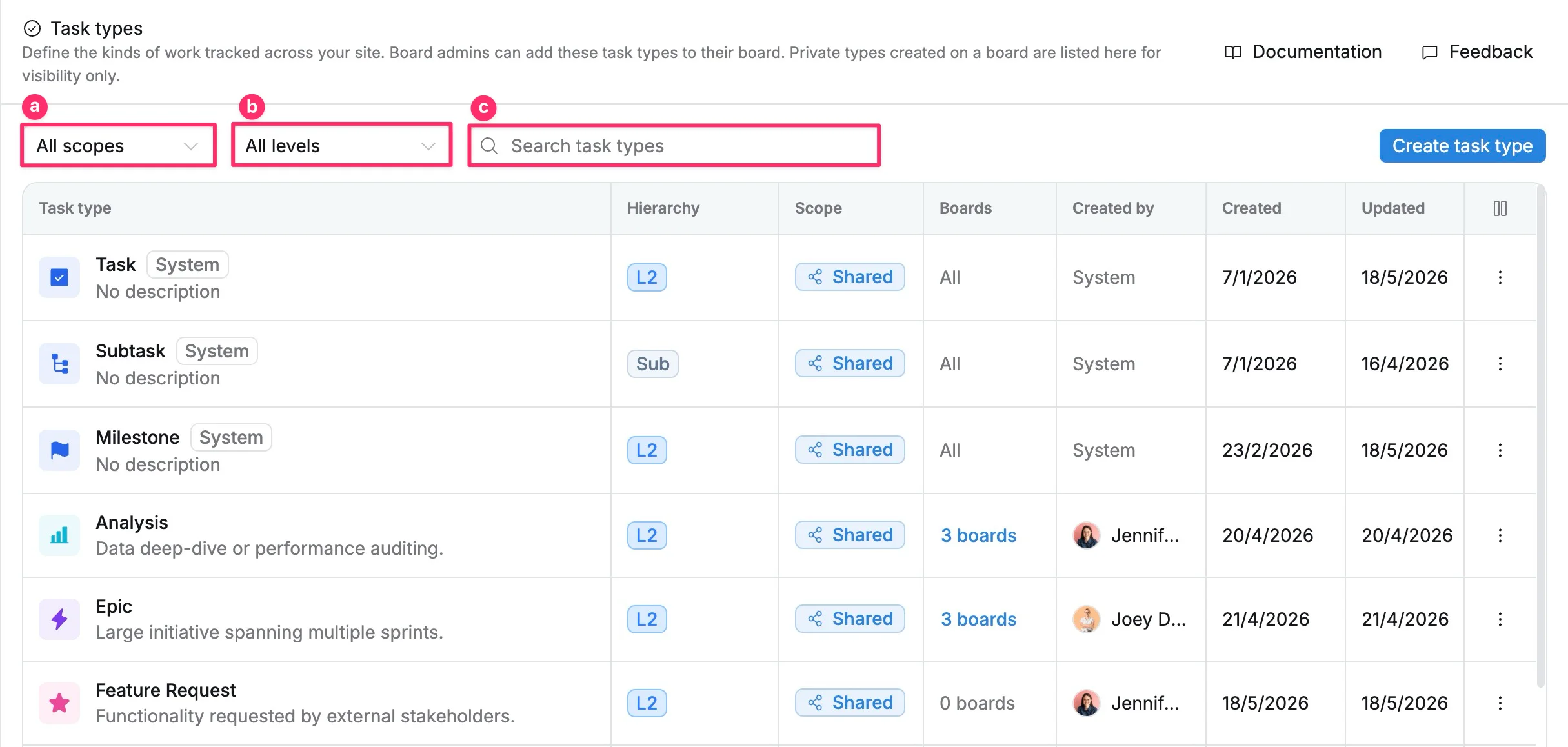
Search and filter task types
Use the search and filter controls to quickly find task types.
a. Filter task types by Scope:
- All scopes
- Shared
- Private
b. Filter task types by Hierarchy level:
- All levels
- Select a specific hierarchy level.
c. Enter a task type name in the Search task types field.
Create a task type
Create a task type at the site level when you need a new work category that can be added to multiple boards. To create a task type:
- Select Create task type.
- Enter the task type details:
- Name: Enter the name displayed when creating tasks.
- Description: Describe what the task type is used for.
- Icon: Choose an icon to identify the task type.
- Color: Select a color for visual identification.
- Hierarchy level: Select the level where the task type belongs in the task hierarchy.
- Scope: Task types created from Site settings are Shared and can be added to boards through the site catalogue.
- Select Create task type to save it.
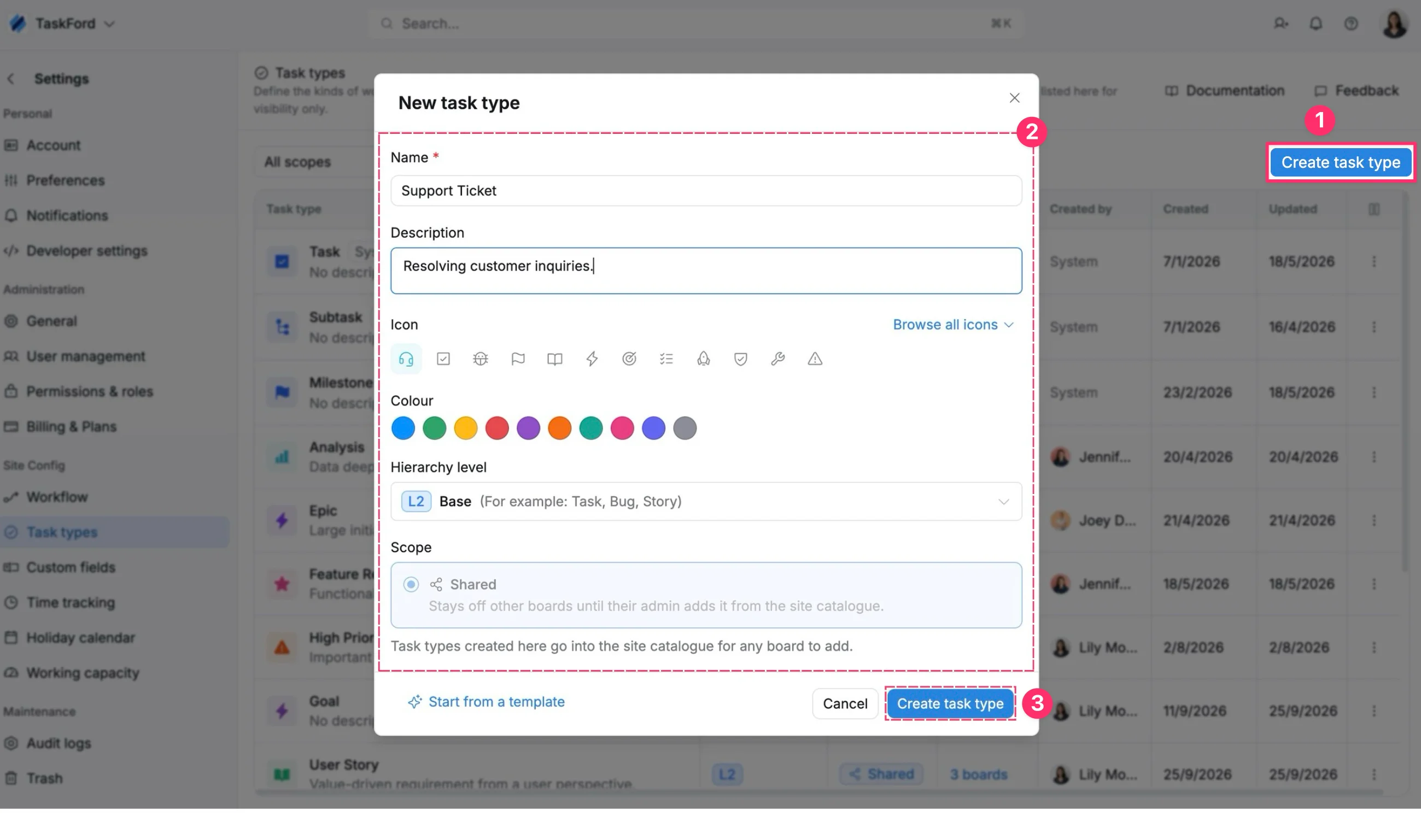
Select Start from a template to quickly create a task type using an available template.
Task types created from Site settings are shared at the site level. To create a Private task type that is available only on one board, create it from Board settings → Task types.
Editing and deleting actions
The available actions depend on the task type’s Source and Scope.
| Scope | Boards | Edit details | Change hierarchy | Change scope | Manage boards | Delete |
|---|---|---|---|---|---|---|
| Shared | All | ✅ | ❌ | ❌ | ❌ | ❌ |
| Shared | Selected boards | ✅ | ❌ | ❌ | ✅ | ✅ |
| Private | This board only | From board | ❌ | From board | ❌ | ❌ |
Edit a task type
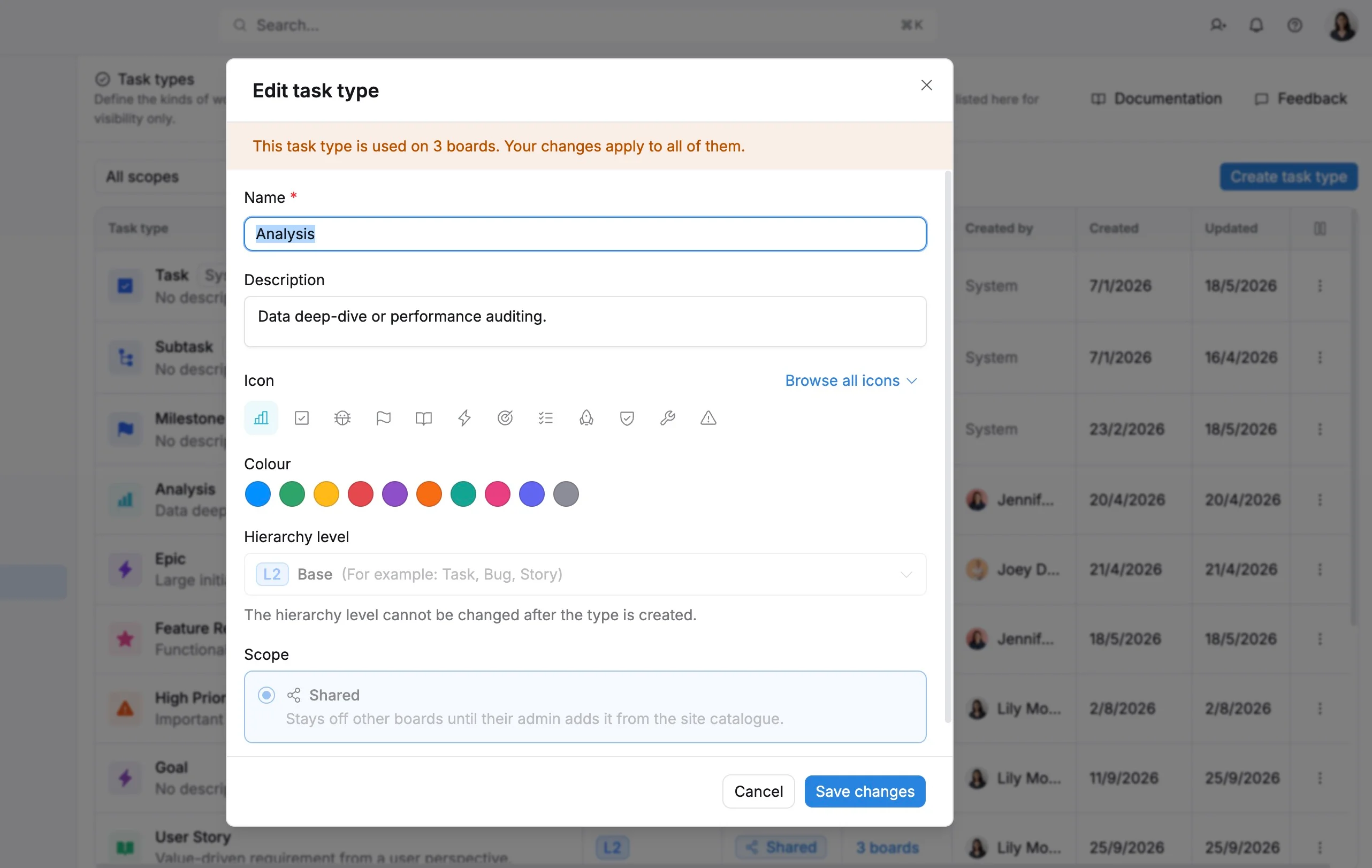
You can update a task type’s name, description, icon, or color when its configuration needs to change.
To edit a task type:
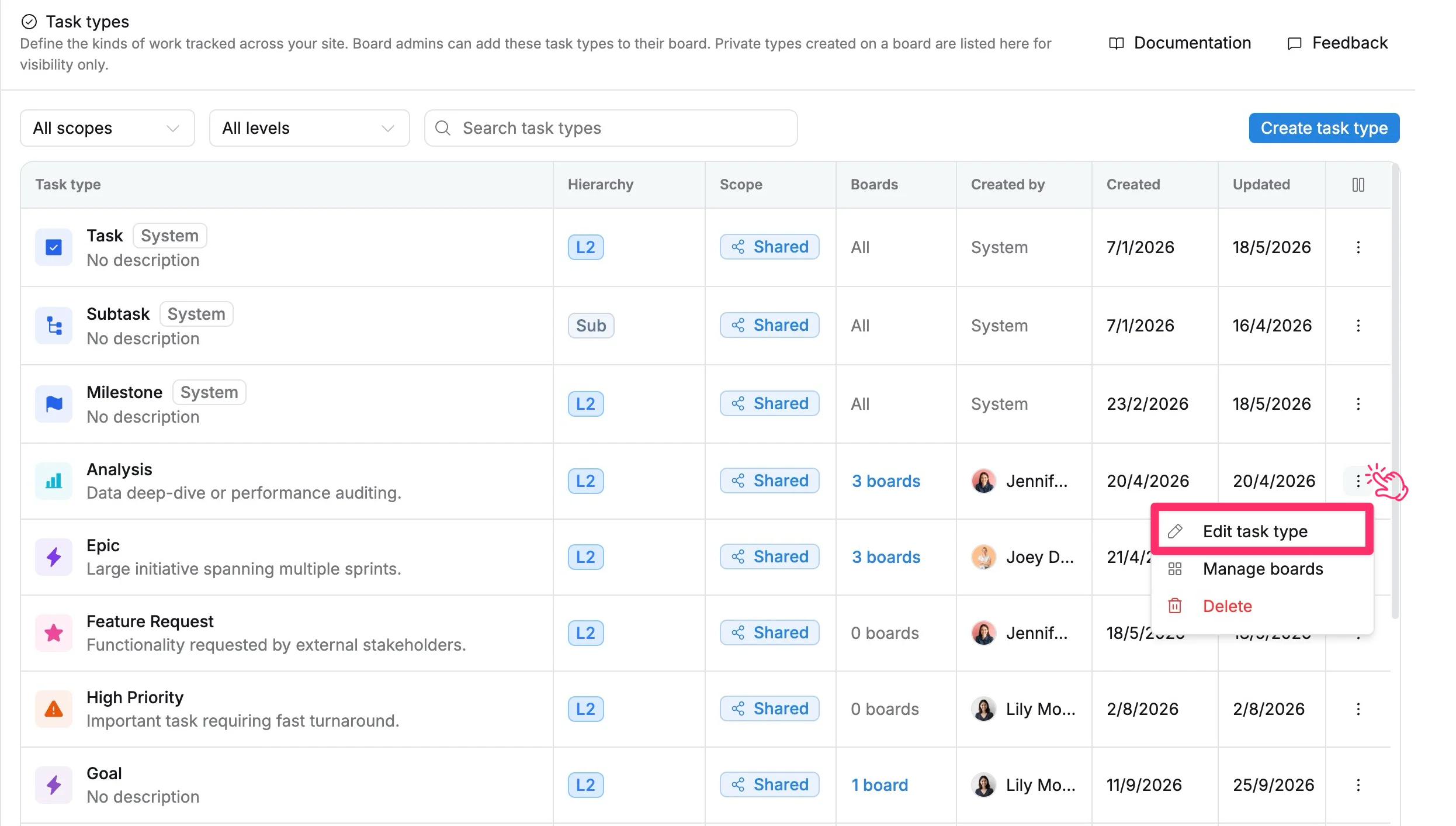
- Find the task type you want to update.
- Select More actions (⋮).
- Select Edit task type.
- Update the available details:
- Name: Change the task type name.
- Description: Update the purpose or usage description.
- Icon: Select a different icon.
- Color: Select a different color for visual identification.
- Select Save changes.
Manage boards for a task type
For Shared task types, you can control which boards can use the task type.
To manage boards:
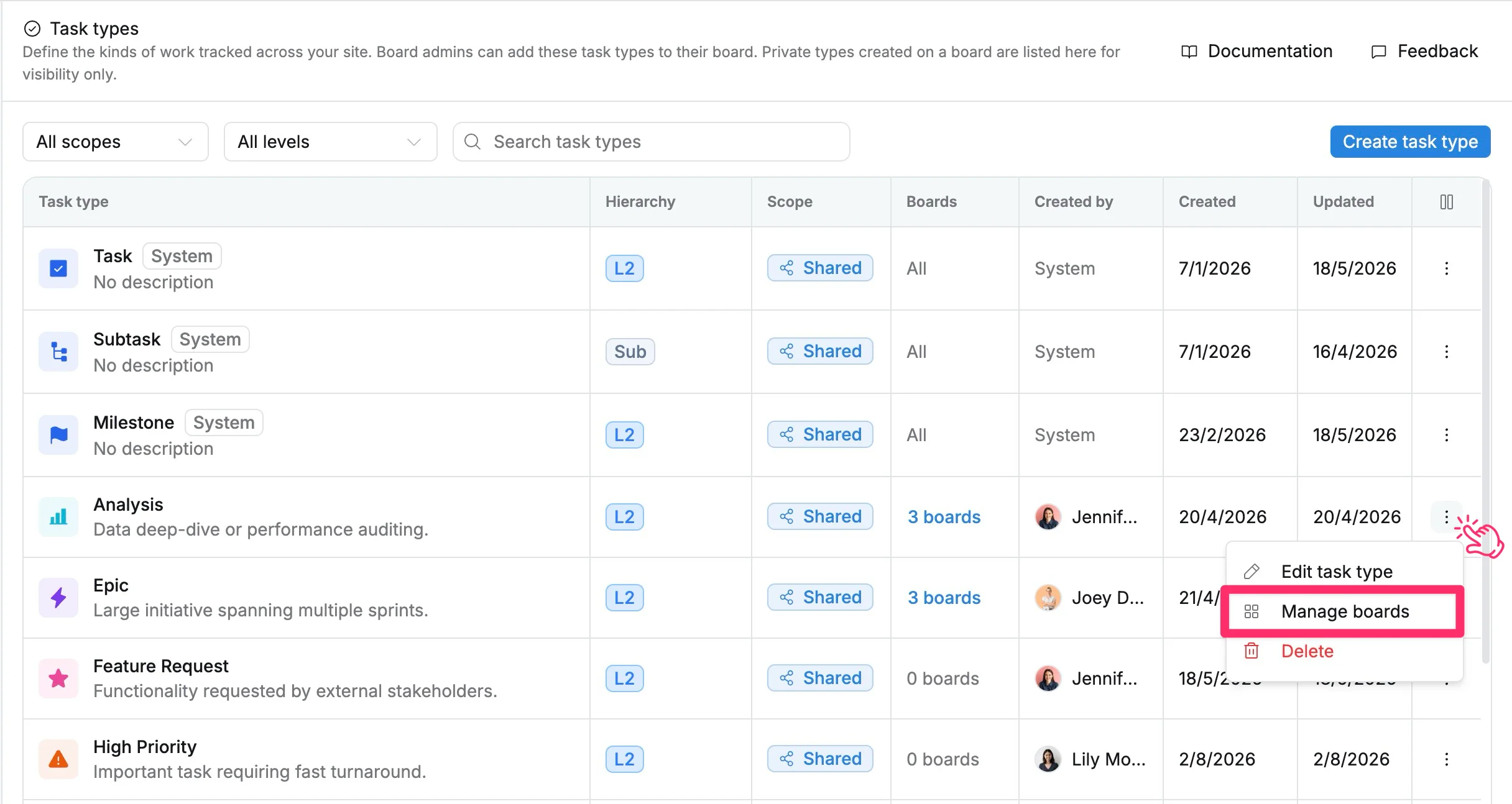
- Find the Shared task type you want to manage.
- Select More actions (⋮).
- Select Manage boards.
- In the Manage boards dialog:
- Use Search boards to add to find a board.
- Select + next to a board to add the task type to that board.
- Select × next to a board currently using the task type to remove it from that board.
- Select Save changes to apply your changes.
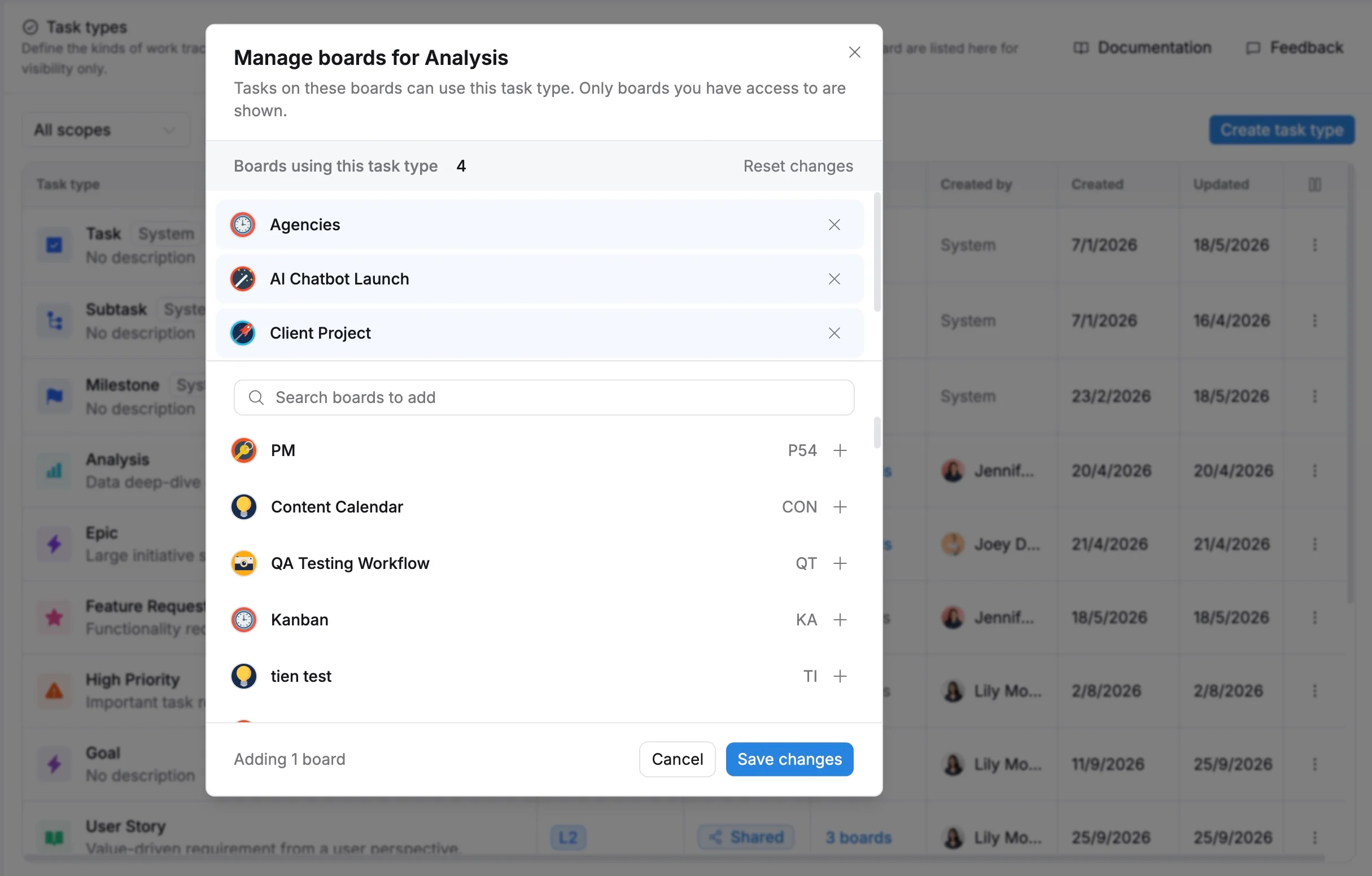
Only boards you have access to are shown when managing boards for a task type.
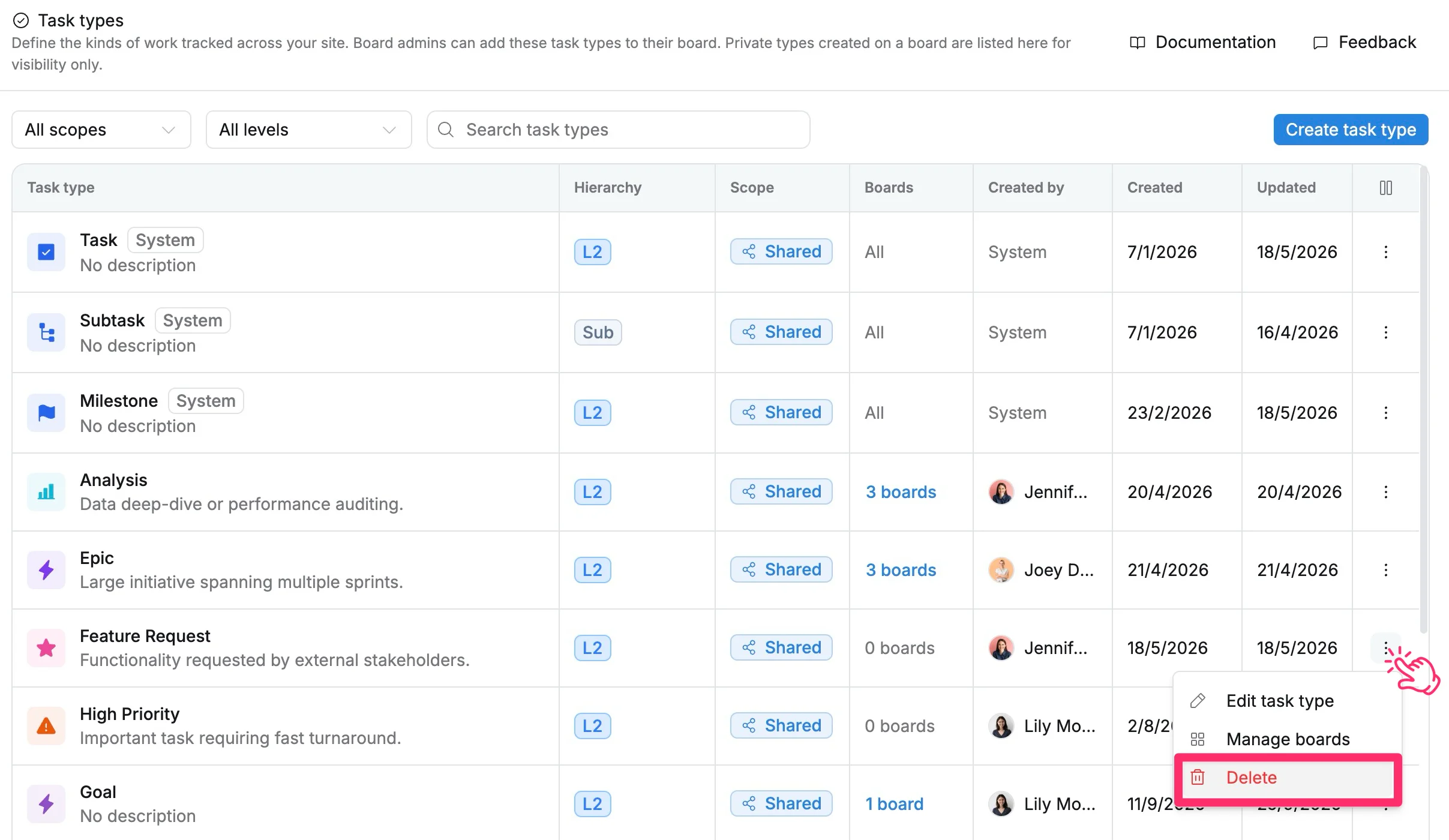
Delete a task type
You can delete a custom shared task type when it is no longer needed.
To delete a task type:
- Find the task type you want to delete.
- Select More actions (⋮) > Select Delete.
- Review the confirmation dialog.
- Select Delete type to confirm.