Site workflow
Manage site-wide workflows in TaskFord by standardizing statuses and workflows to ensure consistent tracking across projects and teams.
Only App Admins can access and manage site workflow settings.
The site workflow defines the default set of statuses available across your entire site. It acts as a global workflow that boards can inherit to ensure a consistent way of tracking work.
Access Site workflow settings
To access Site workflow settings:
- Navigate to the Site settings page.
- Select the Workflow tab under the Site Config section from the left-hand menu.
This opens the site-level workflow configuration screen.
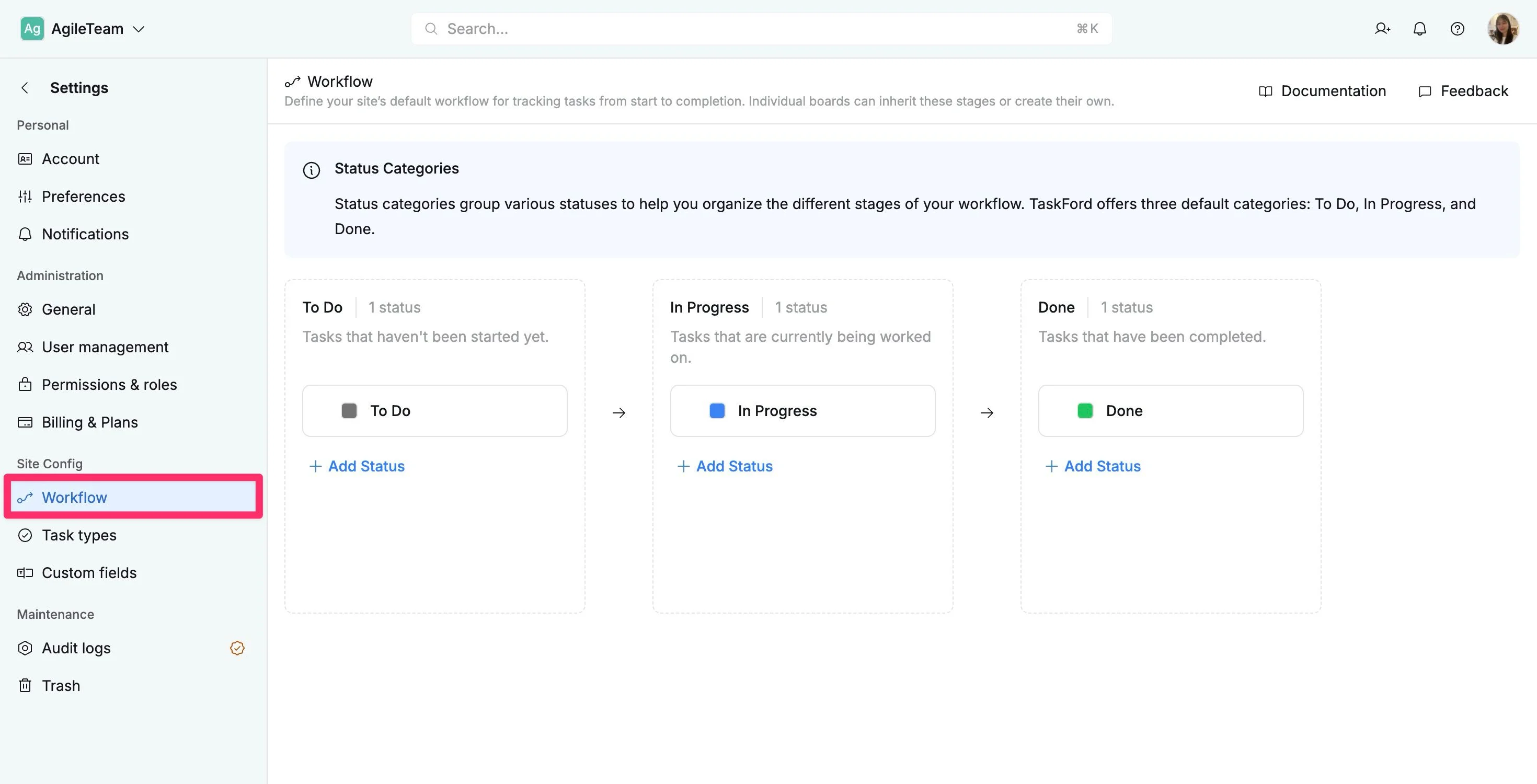
Manage site workflow
Add a new status
To add a status to your site workflow:
- In the Site workflow pages, locate the desired category column (To Do, In Progress, or Done).
- Click + Add Status at the bottom of that column.
- Type the name for the new status.
- Press Enter to apply the change and add the status to your workflow.
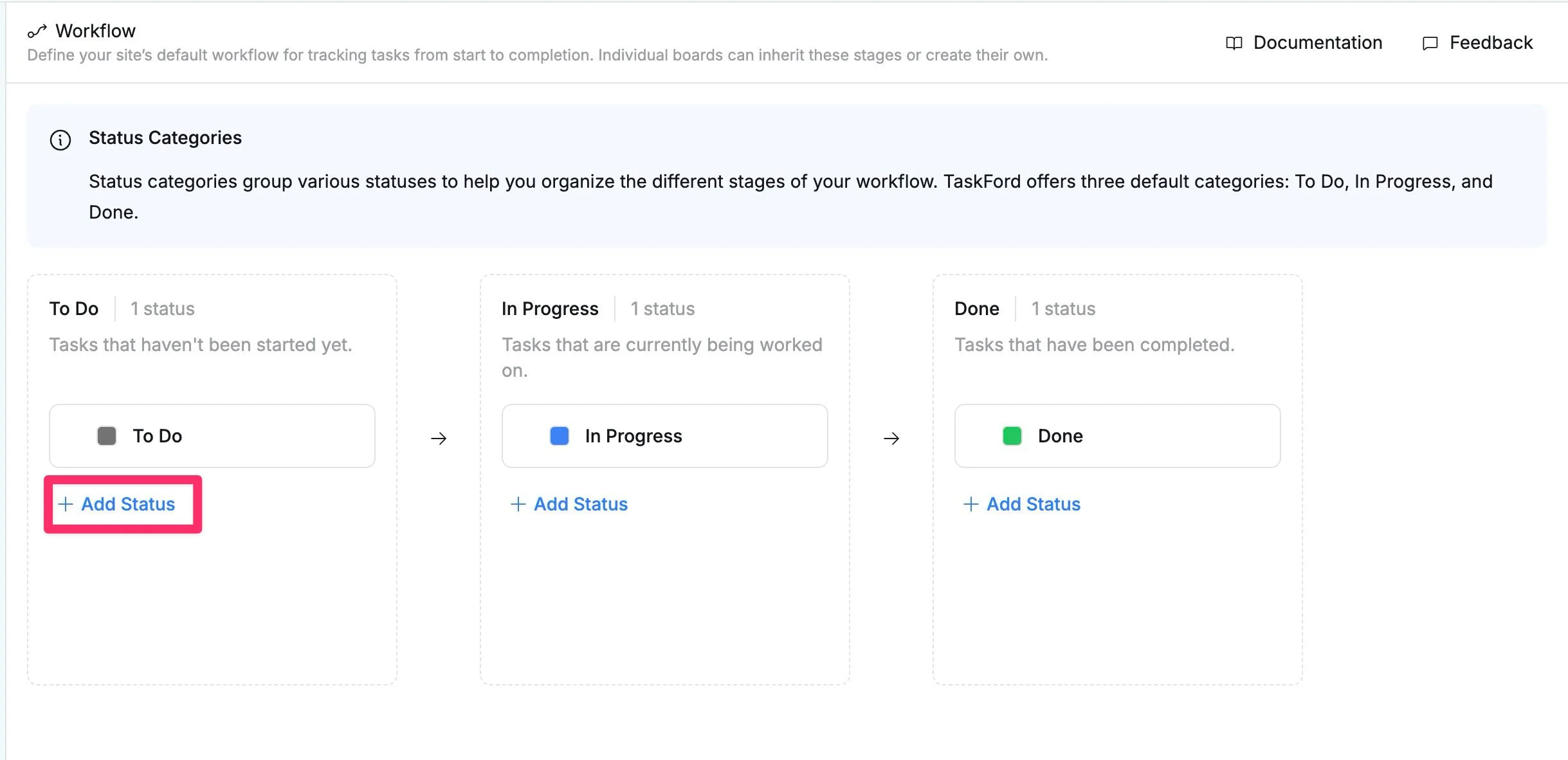
Edit a status
To update an existing status:
- In the Site workflow pages, hover over the status you want to change.
- Click the pencil icon to rename the status.
- Click the color box to select a new color. (You can also click Revert to restore the default color)
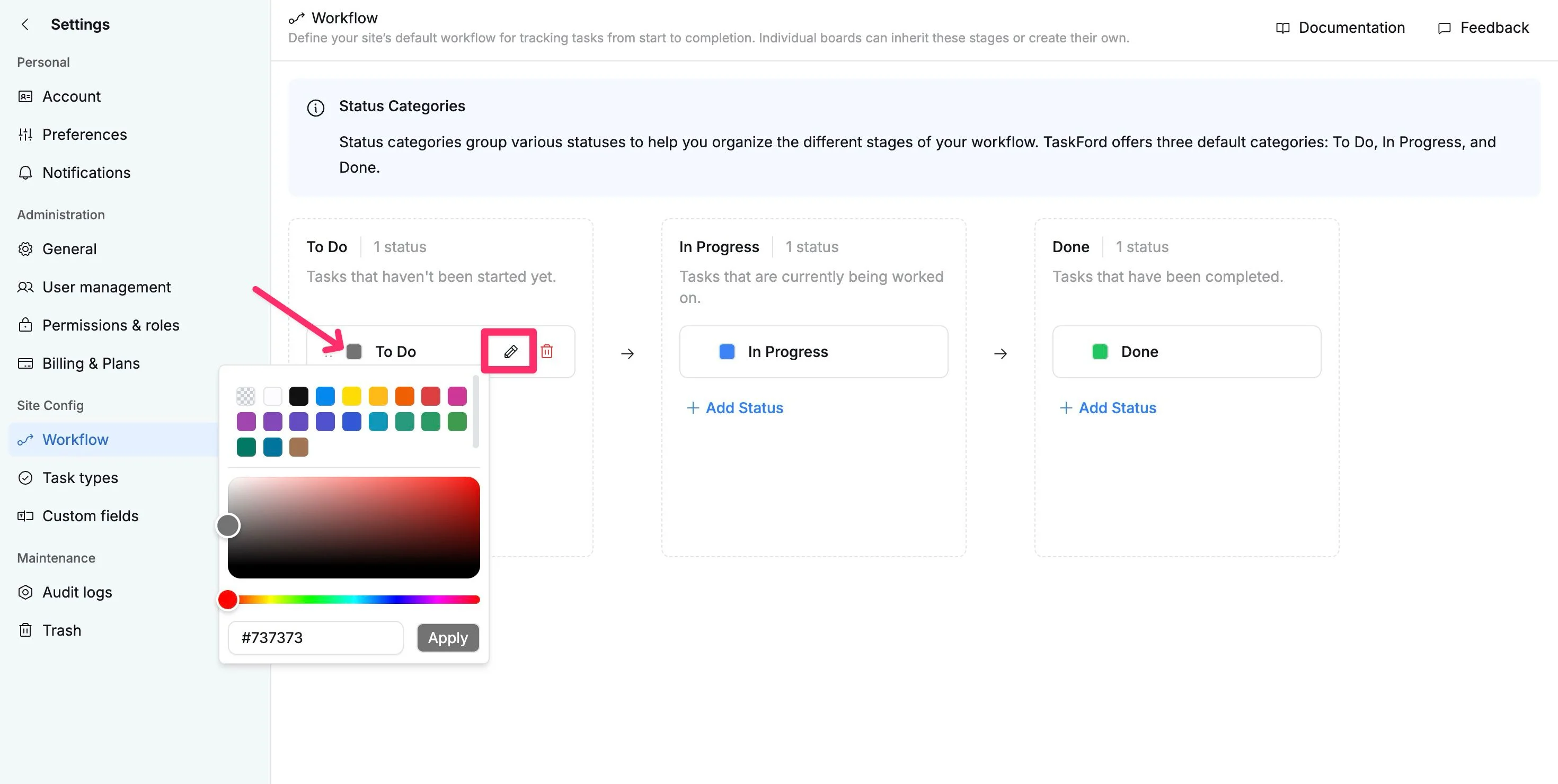
Delete a status
To remove a status from the site workflow:
- In the Site workflow pages, hover over the status you want to delete.
- Click the trash bin icon.
- Confirm the deletion when prompted.
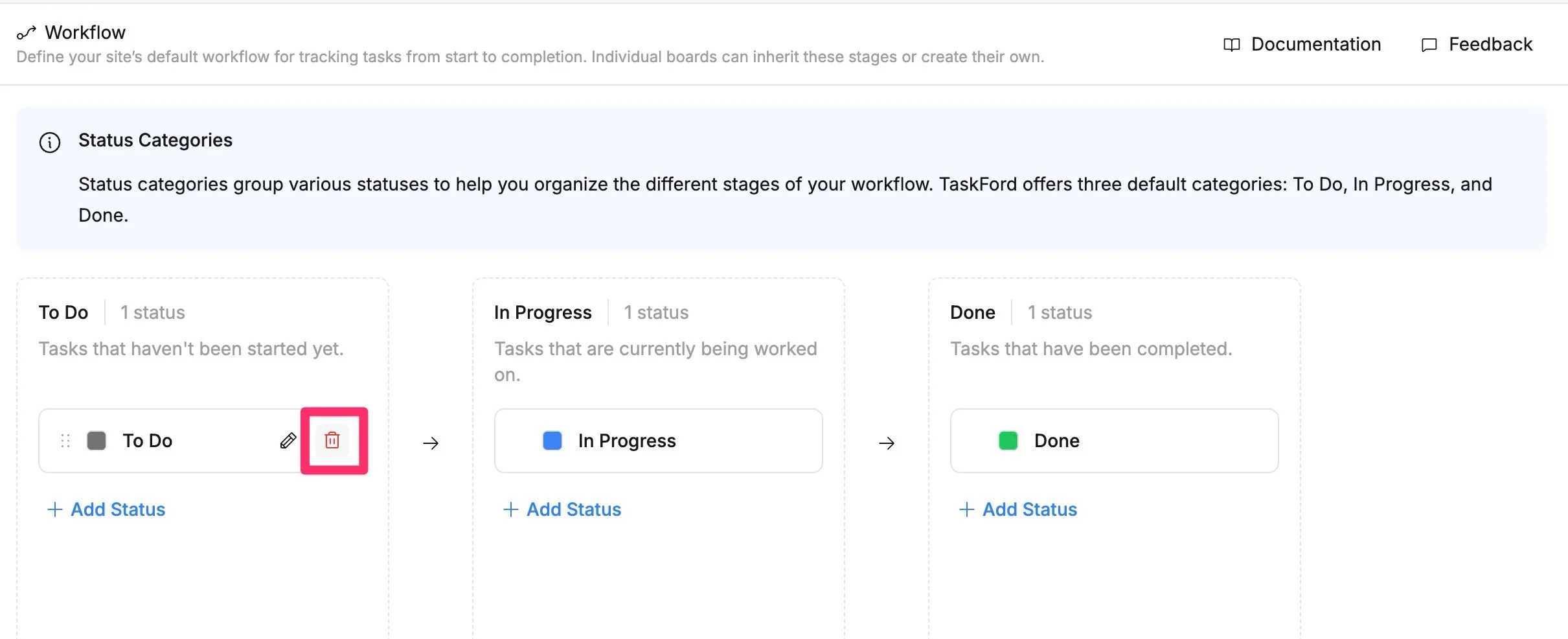
If tasks are using this status, you’ll be asked to reassign them to another active status.
Reorder workflow sequence
You can reorder statuses to match your preferred workflow process. Changing the sequence helps ensure statuses appear in a logical order across the site.
How to reorder statuses
- In the Site workflow pages, locate the status you want to move.
- Click and hold the ⋮⋮ drag handle beside the status card.
- Drag the status to a new position within the same category or move it to another category.
- Release the status card to save the new order automatically.
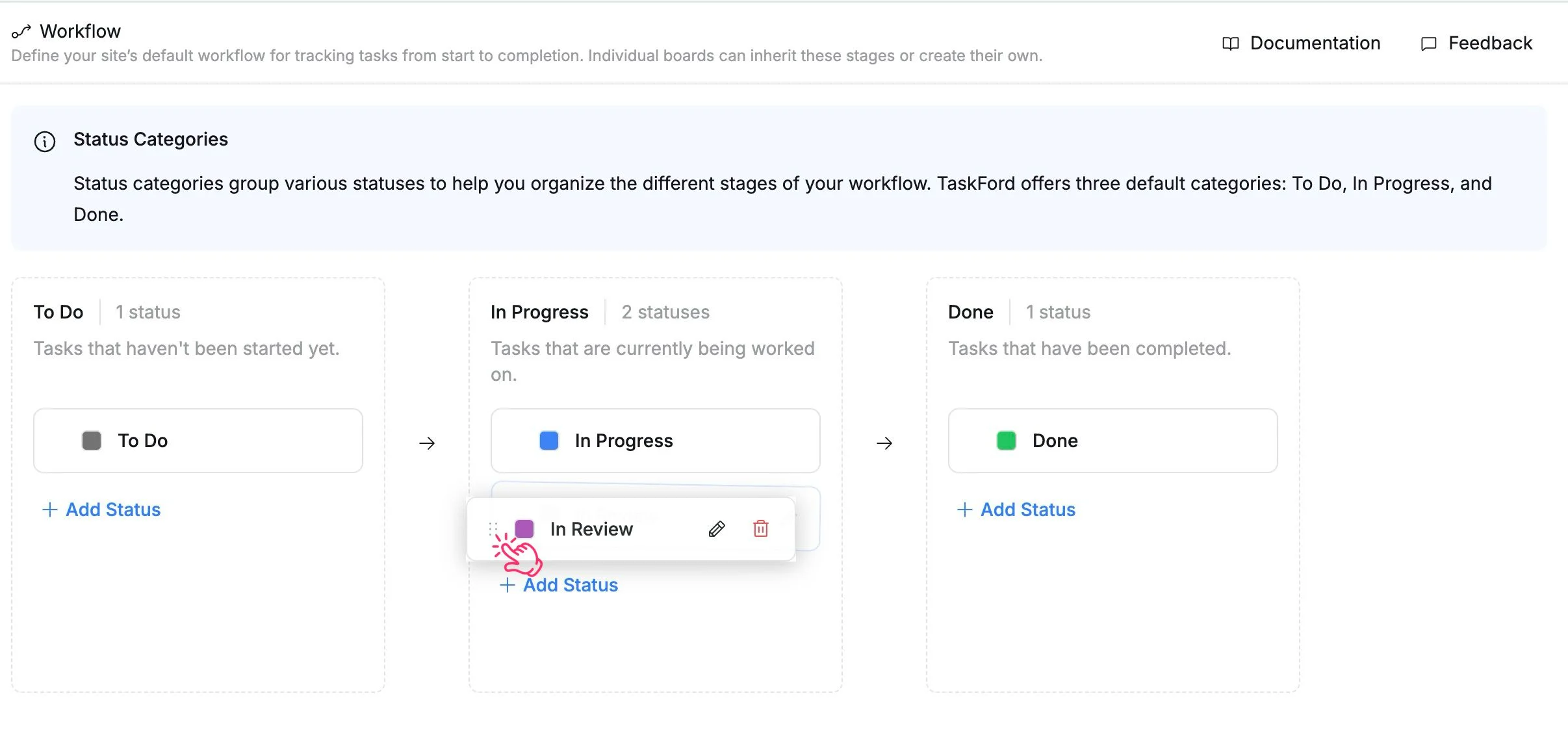
Reordering updates:
- The order of columns in site-level Kanban views
- The order of options in the status dropdown field