Stripe Customer Portal
Learn how TaskFord uses the Stripe Customer Portal to securely manage payment methods, billing details, and invoices, keeping sensitive financial information safe.
About the Stripe Customer Portal
TaskFord uses the Stripe Customer Portal to securely manage payment and billing details for paid subscriptions. Stripe is TaskFord’s payment provider, so sensitive payment information, such as card details, is handled through Stripe instead of being stored directly in TaskFord.
From the Stripe Customer Portal, Site Owners and Billing Managers can manage payment-related actions, including adding or updating payment methods, setting a default card, reviewing billing information, and viewing invoice history.
You may be redirected to the Stripe Customer Portal when you select Add payment method, update an existing card, or manage billing details from the Payment method page. Your available options may depend on your plan, subscription status, and billing permissions.
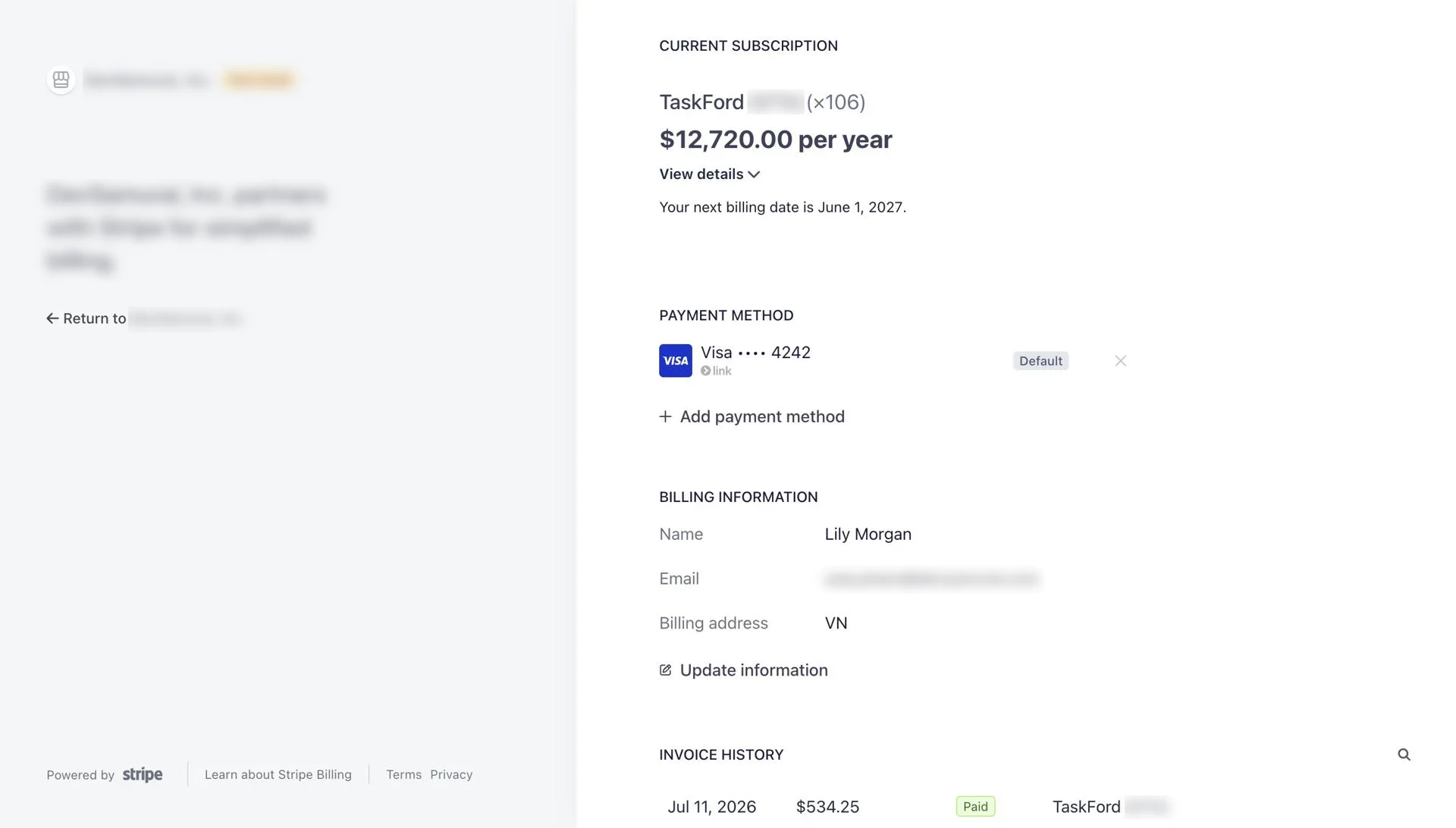
What you can manage in the Stripe Customer Portal
From the Stripe Customer Portal, you may be able to:
Manage payment methods Add a new card, replace an expired card, remove a card when allowed, or choose which card should be used as the default payment method for future charges.
Review billing information View or update billing contact details, such as name, billing email, billing address, and phone number if required.
View invoice history Review past invoices for subscription renewals, trial periods, seat purchases, plan changes, and prorated billing adjustments.
Download invoices and receipts Download invoices for accounting records and receipts as proof of completed payment.
Your available options may depend on your current plan, subscription status, billing permissions, and Stripe’s available settings for your account.
Payment security
TaskFord uses Stripe to securely process payment details. TaskFord does not store your full card details directly.
Stripe may handle:
- Card details
- Payment processing
- Payment verification
- Subscription charges
- Invoice and receipt generation
- Billing information updates
- Payment retry handling if a charge fails
Using Stripe helps keep payment information protected while allowing billing administrators to manage subscription-related payment details in one secure place.
When you may be redirected to Stripe
You may be redirected to the Stripe Customer Portal when you:
- Add a new payment method
- Add another payment method
- Change the default payment method
- Delete a saved payment method
- Update billing information
- View invoice history
- Download an invoice
- Download a receipt
- Review payment details after a charge
After completing your action in Stripe, you can return to TaskFord using the return option in the Stripe Customer Portal.
Frequently Asked Questions (FAQs)
Can I add more than one payment method?
Yes. You can add multiple payment methods in Stripe. Make sure the card you want to use for future charges is set as the default payment method.
Can I delete my default payment method?
If your site has an active paid subscription, Stripe may prevent the default payment method from being deleted. Add another payment method first, set it as the default, then delete the old card.
Where can I download invoices and receipts?
Open the Stripe Customer Portal from TaskFord, go to Invoice History, select the invoice you want to review, then choose Download invoice or Download receipt.
What happens if my payment fails?
Your subscription may become past due while Stripe retries the payment. To avoid service interruption, update your payment method and ensure a valid card is set as the default payment method.