Subtasks
Learn how to create, view, and manage subtasks in TaskFord to break down larger tasks and track work more effectively.
- Board Admins / Board Editors can create and manage subtasks.
- Site Admins / Site Editors can create and manage subtasks only on Open boards.
- Site Viewers / Board Viewers can only watch subtasks, view activity history, and share subtasks.
Subtasks help break down larger tasks into smaller, manageable pieces, making it easier to track progress and organize work.
View a subtask
Subtasks can be viewed in the task details view, Table view, and Gantt view, giving you flexibility to review and manage them in the context that fits your workflow.
Subtasks in task details view
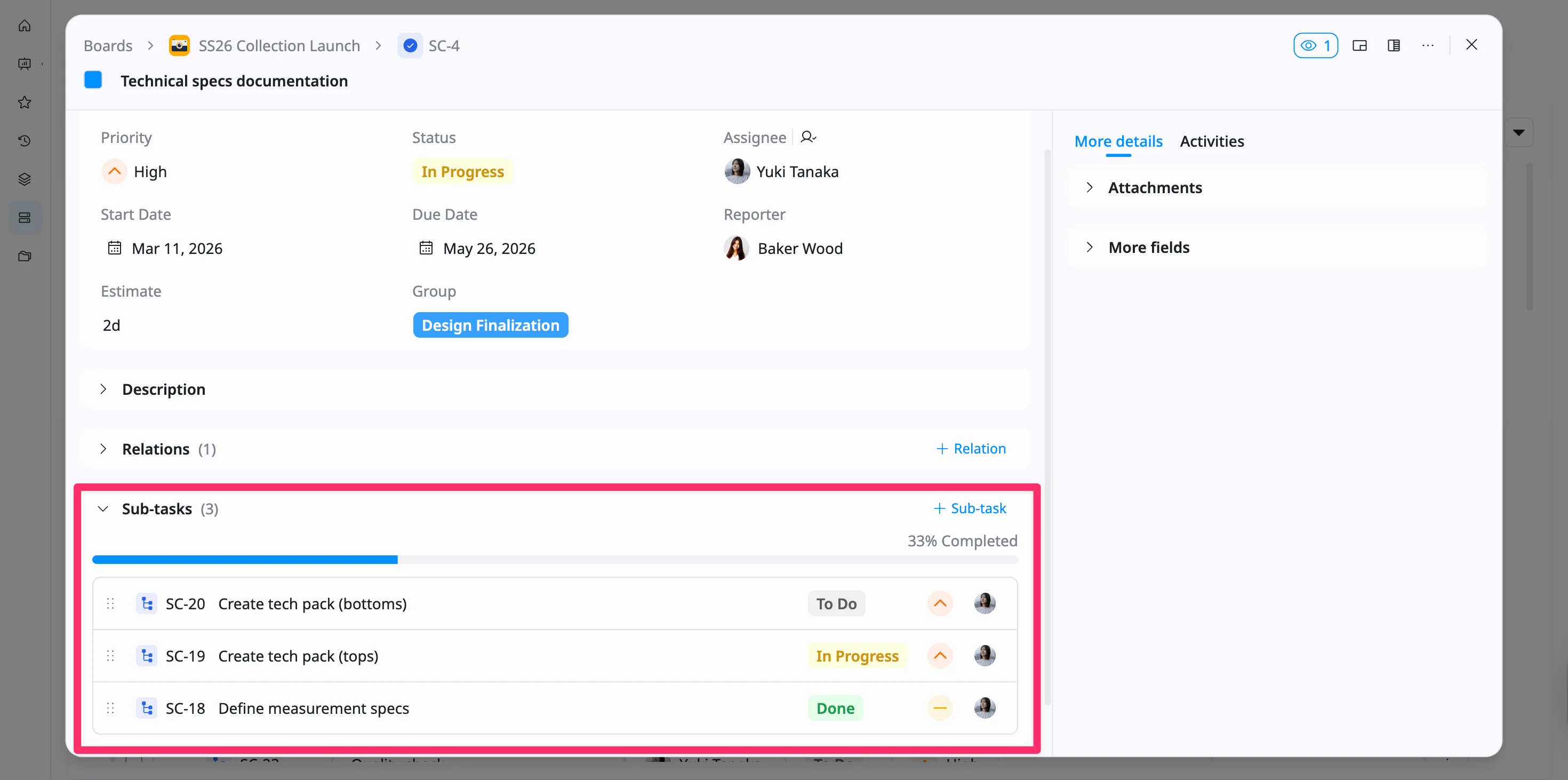
In the task details view, subtasks are displayed within the parent task, allowing you to review and manage them in context.
To view subtasks in the task details view:
- Open the task details view for the parent task.
- Scroll to the Subtasks section.
- Click the arrow icon to expand or collapse the subtask list.
- Review the subtasks listed under the parent task.
You can see key details such as status, priority, and assignee, along with overall progress through the subtask progress bar.
Subtasks in Table view
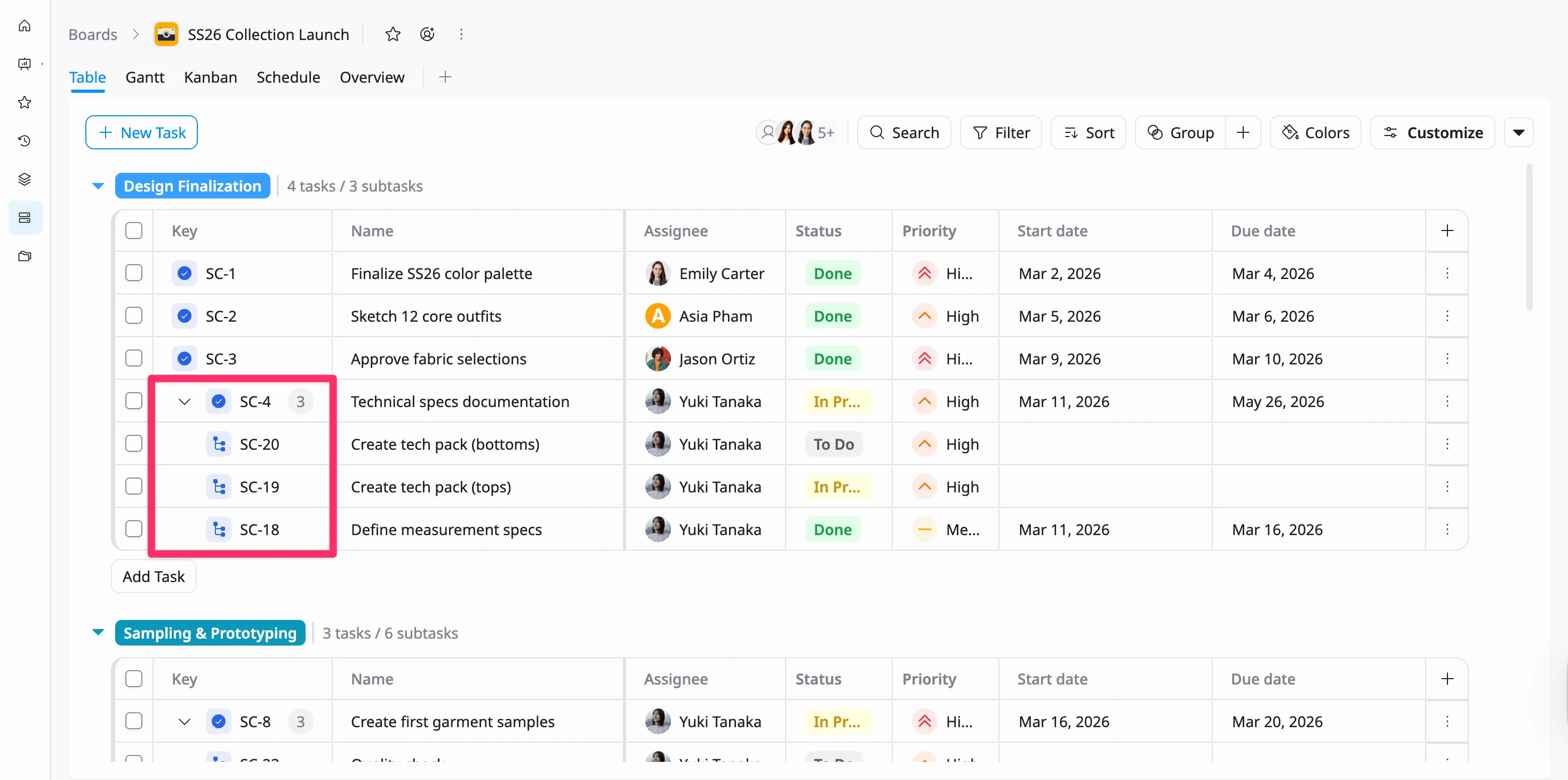
In the Table view, subtasks are displayed under their parent task in a collapsible list.
- Click the arrow icon next to a task to expand and view its subtasks
- Click the arrow again to collapse and hide them
This allows you to quickly navigate between high-level tasks and their detailed breakdown.
Subtasks in Gantt view
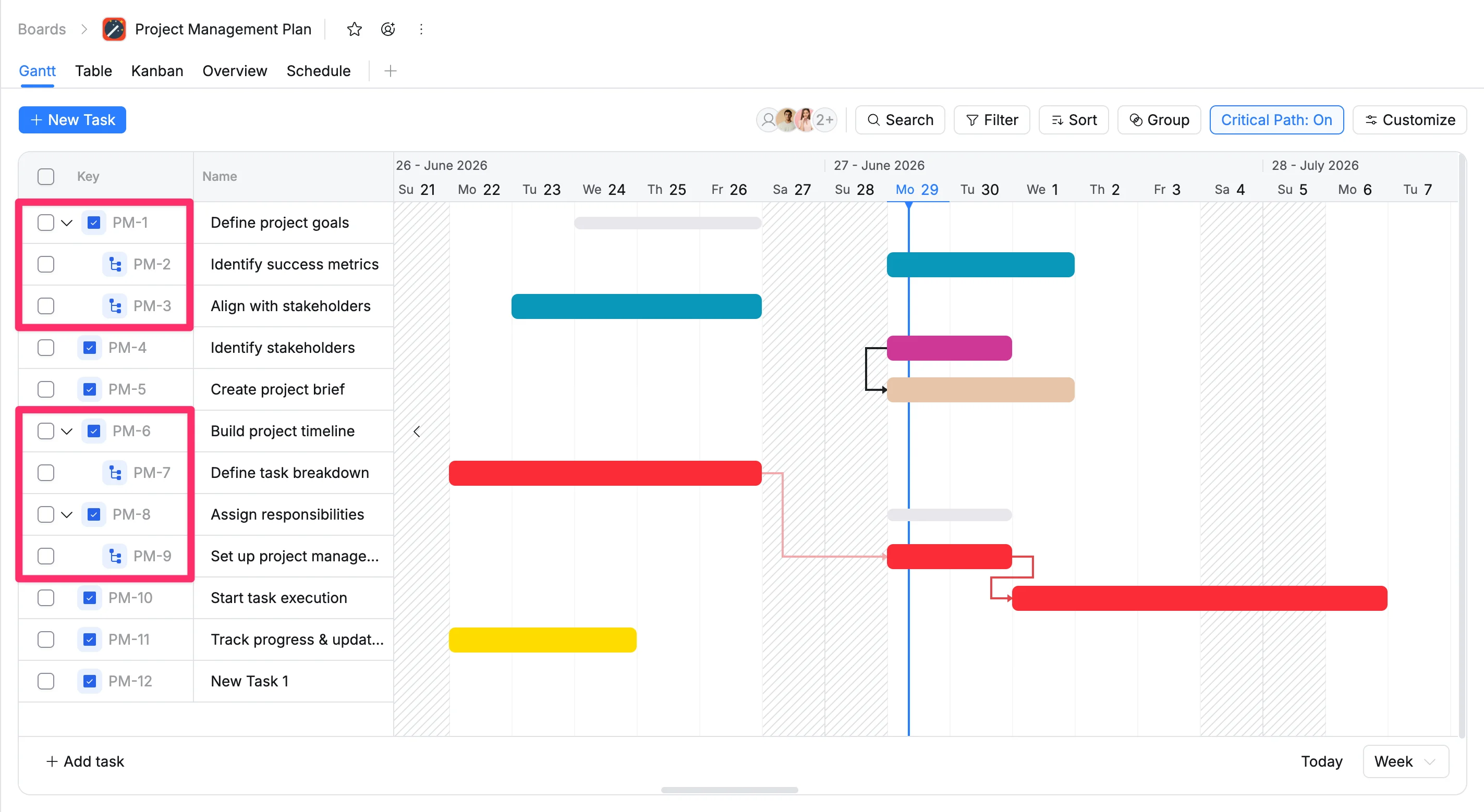
In the Gantt view, subtasks are also shown under their parent task in a hierarchical structure.
- Click the arrow icon to expand or collapse subtasks
- Subtasks appear as individual timeline bars beneath the parent task
This helps you visualize how smaller tasks are scheduled and how they contribute to the overall timeline.
Create a subtask
There are two ways to create a subtask:
Option 1: From the task details view
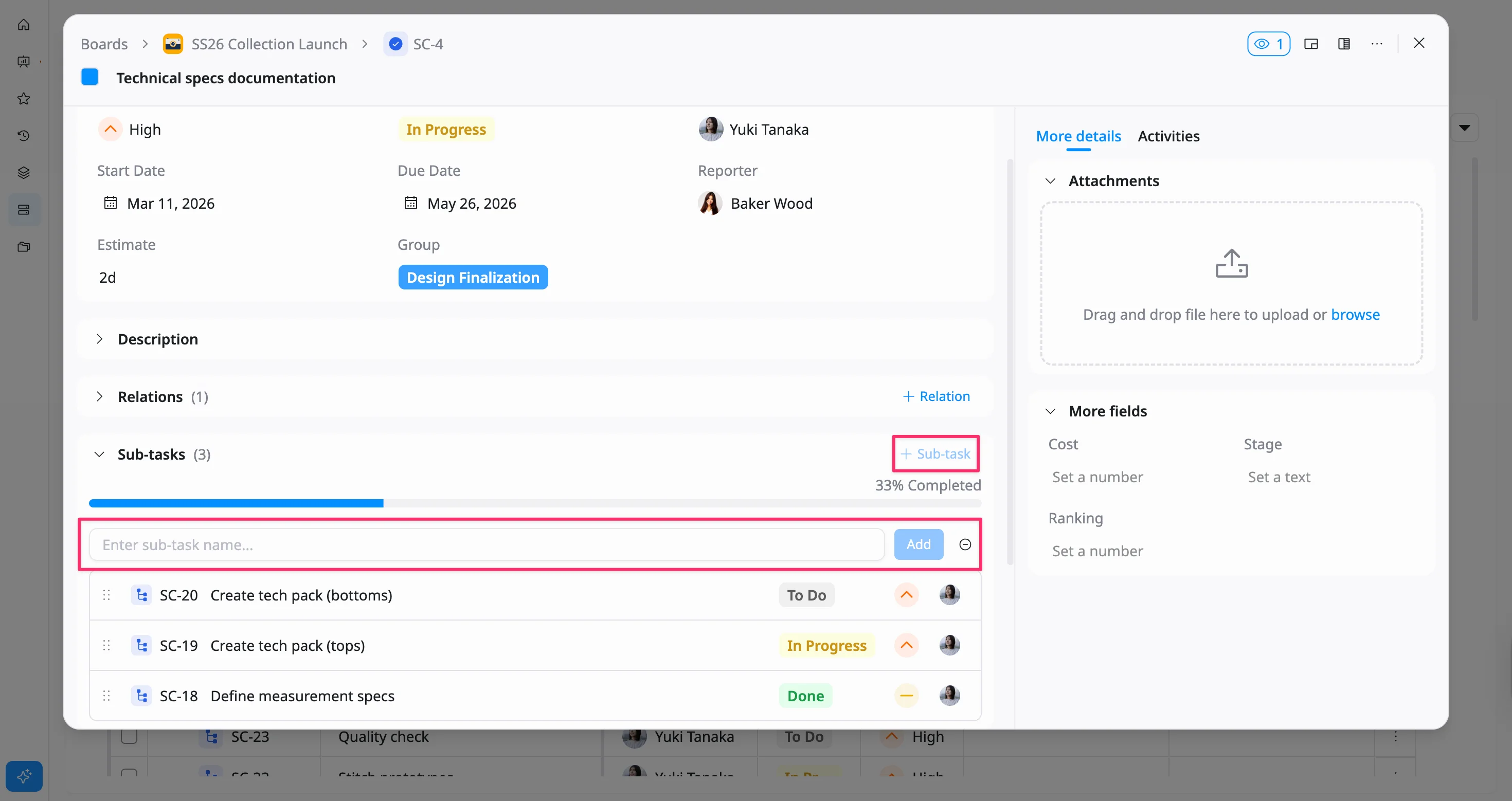
To create a subtask from the task details view:
- Open the task details view for the parent task.
- In the task details view, go to the Sub-tasks section.
- Click + Sub-task.
- Enter the subtask name.
- Click Add to create the subtask.
The subtask will appear in the Sub-tasks list, and the progress bar will update automatically based on the status of each subtask.
To cancel creating a subtask:
Click the minus (–) icon next to the Add button to remove the subtask input.
Option 2: From the Table view
You can create a subtask directly from a task row in the Table view in two different ways to match your workflow.
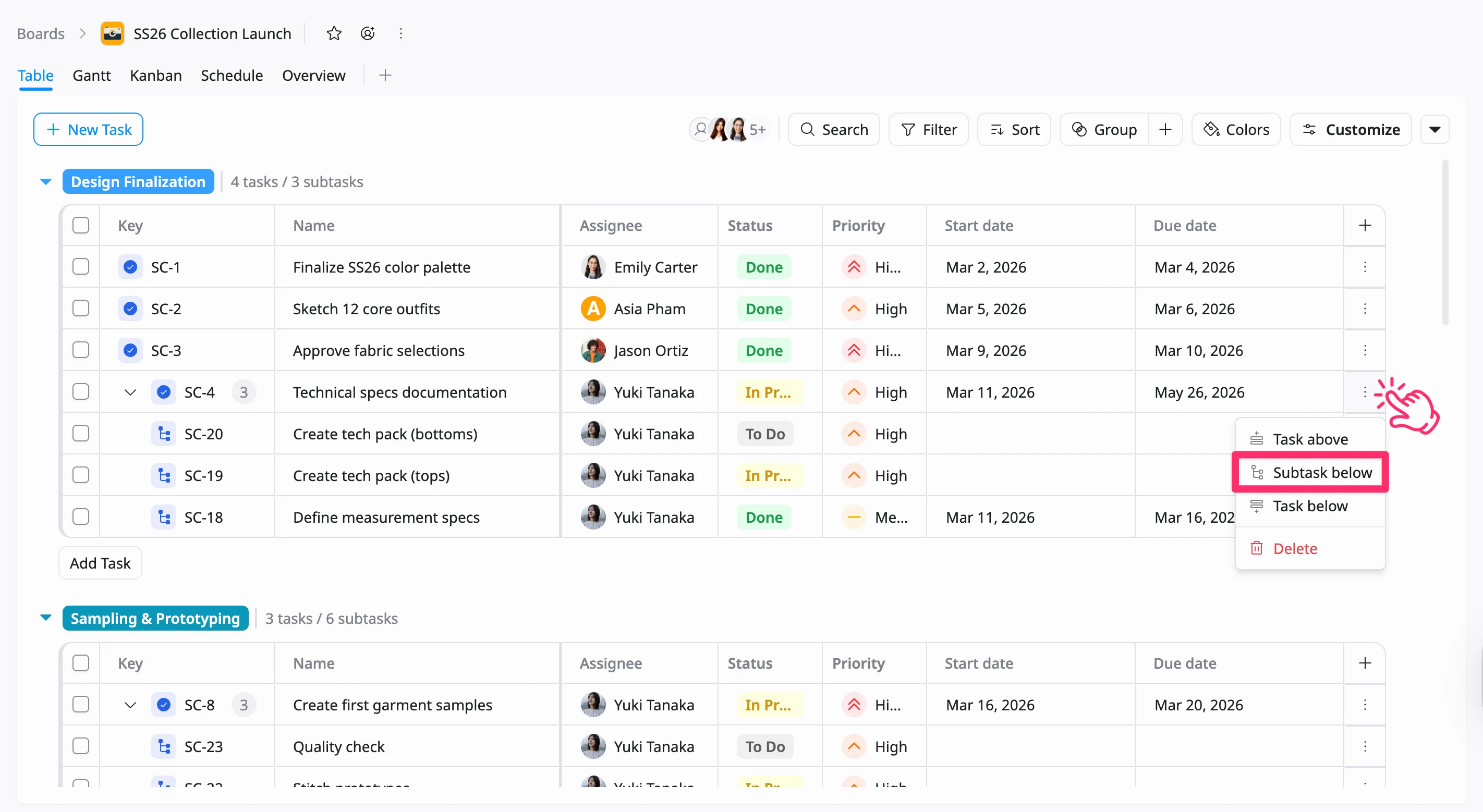
To quickly insert a new subtask below an existing task in the Table view, follow these steps:
- Click the three vertical dots (⋮) on the task row where you want to insert a new subtask.
- Select Subtask below from the dropdown menu.
- When the new row appears, enter the subtask name.
- Press Enter to add the subtask.
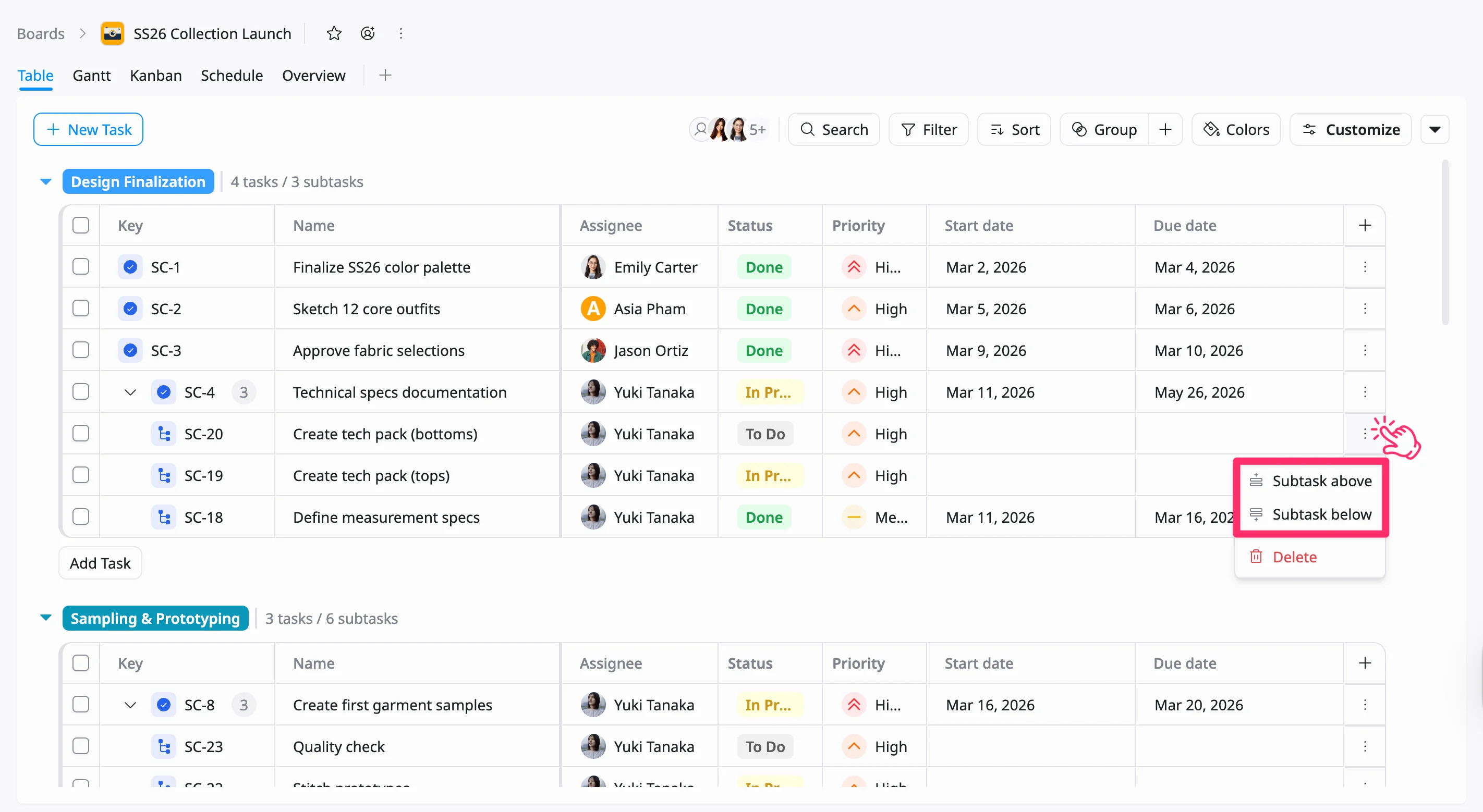
If you click the three vertical dots (⋮) on an existing subtask row, the options will differ. You can choose to create a subtask above or below that subtask within the same parent task.
Manage a subtask
You can manage subtasks similarly to tasks, with options to update details, navigate between related items, and organize execution.
Update subtask details
You can update subtask details either from the subtask details view or directly from the Subtasks list.
Option 1: From the subtask details view
Open the subtask to access its details view. From here, you can:
- Rename the subtask
- Change the status
- Update the priority
- Assign or reassign the assignee
- Add or edit the description
- Manage relations, attachments, and other fields
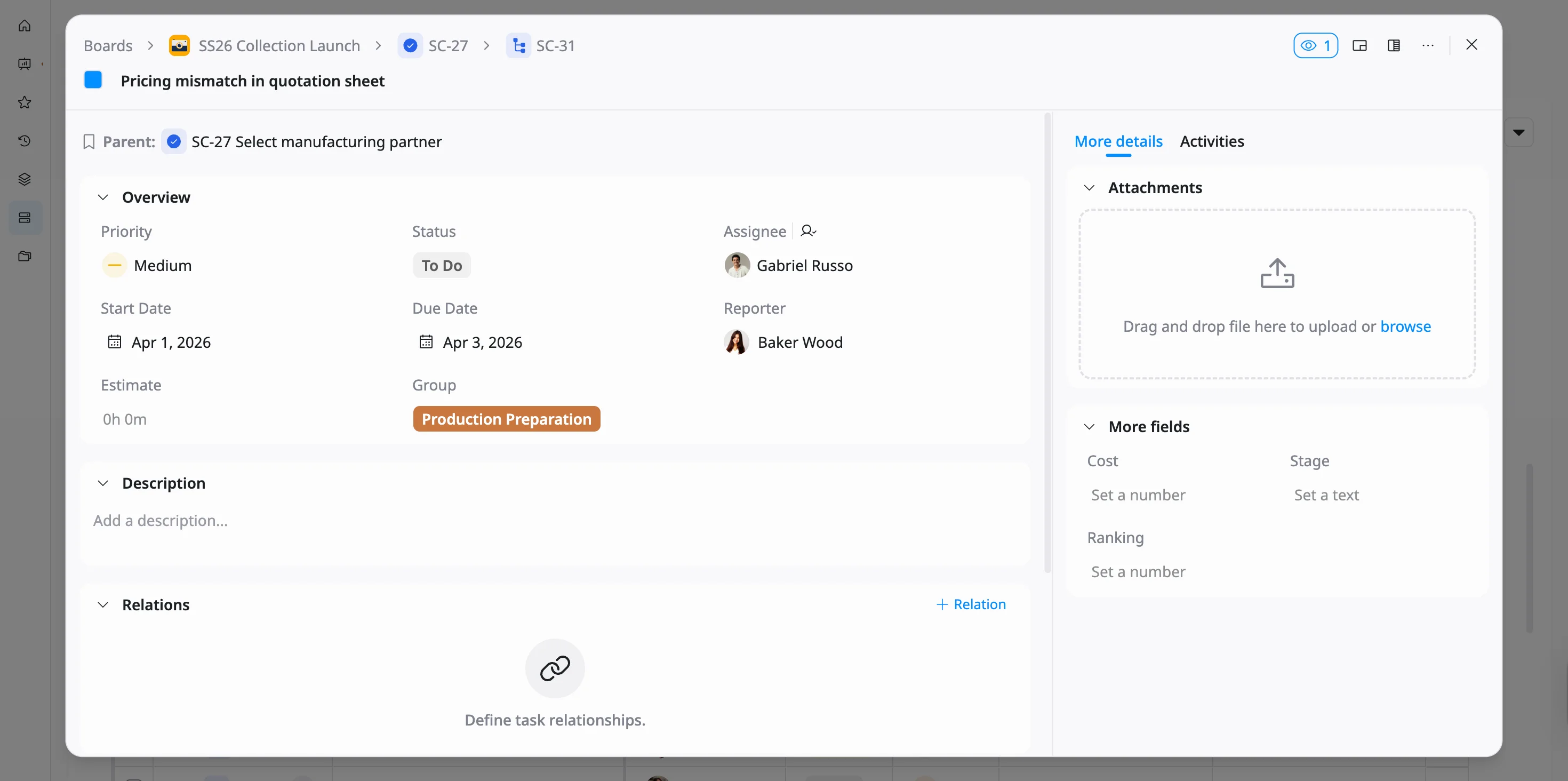
Subtasks do not include a Subtasks section. Instead, they display their parent task at the top. Click the parent task name to navigate to the parent task details view.
Option 2: From the Subtasks section in the parent task
You can quickly update key subtask fields directly within the parent task details view, without opening the subtask:
- Rename the subtask
- Change the status
- Update the priority
- Assign or reassign the assignee
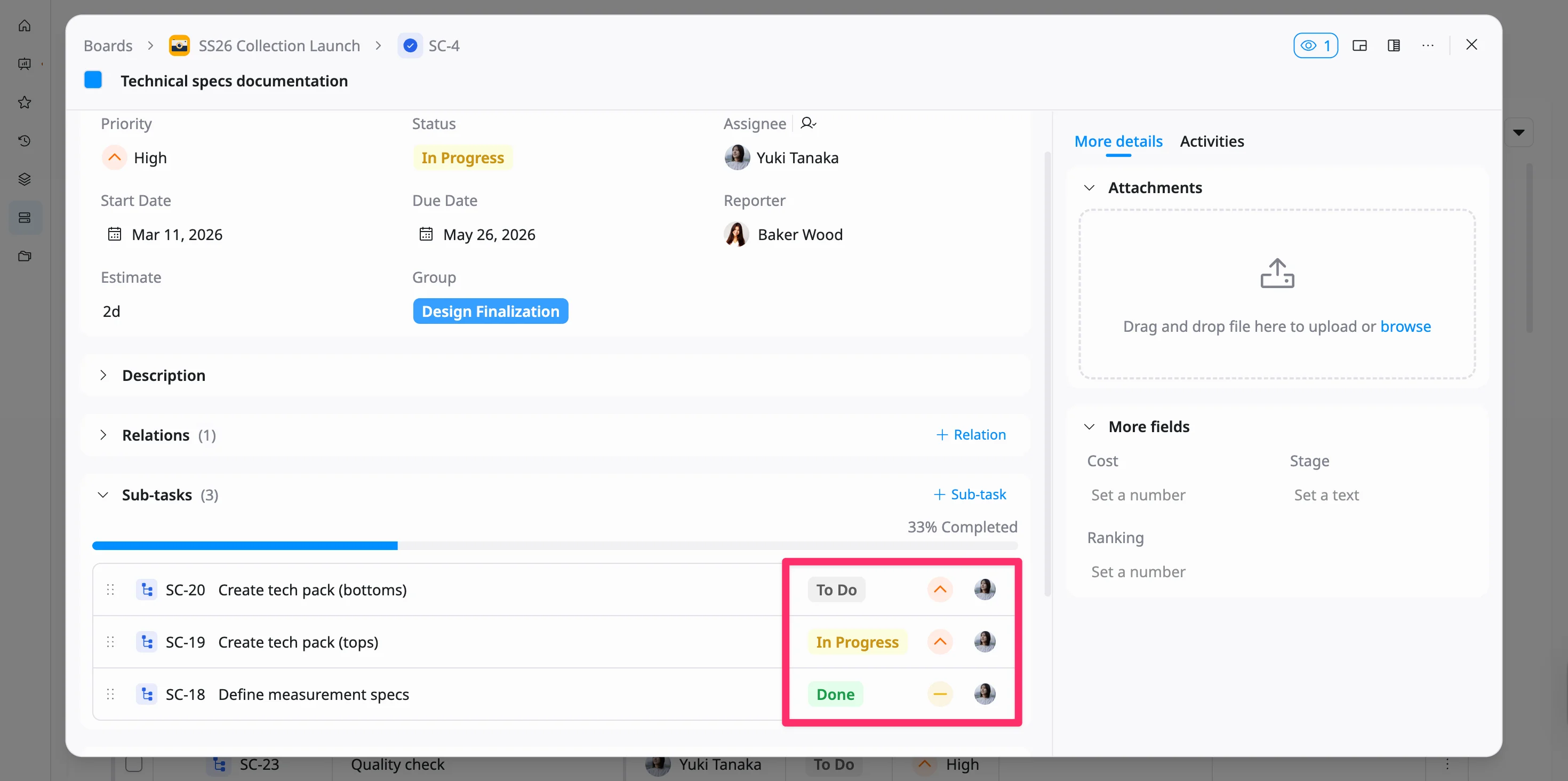
These inline updates allow you to make quick changes while staying focused on the parent task.
Reorder a subtask
You can reorder subtasks to reflect the correct execution sequence within a parent task. There are two ways to reorder a subtask:
Option 1: From the Subtasks list in the task details view
To reorder a subtask:
- Click and hold the drag handle (⋮⋮⋮) on the left side of the subtasks row.
- Drag the subtask up or down to the desired position.
- Release to drop it into place.
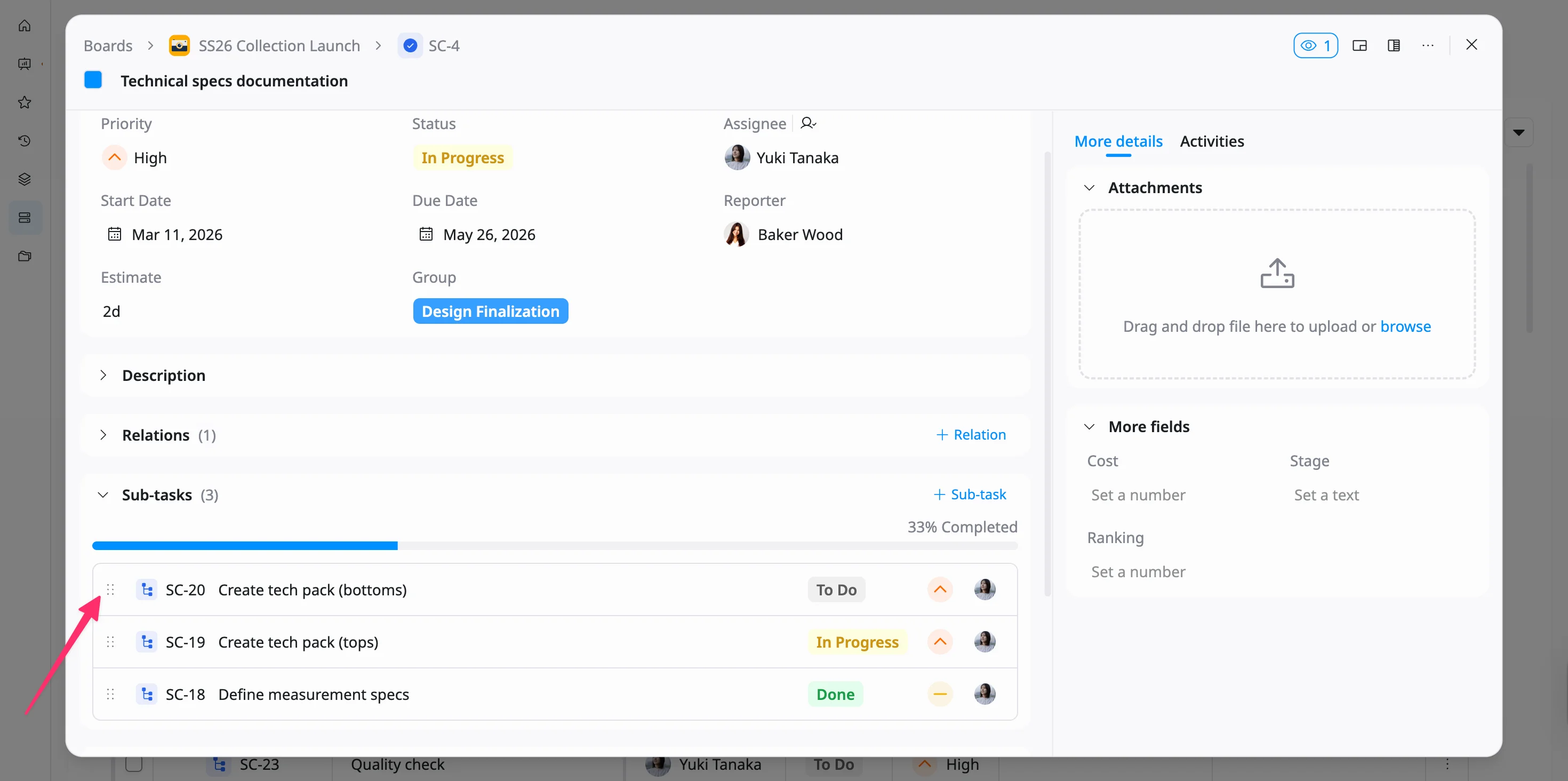
The subtask order will be updated immediately.
Option 2: From the Table view
To reorder a subtask:
- Locate the subtask in the Table view.
- Hover over the left side of the subtask row until the drag handle appears.
- Click and hold the handle.
- Drag the subtask up or down within the same parent task.
- Release to drop it into place.
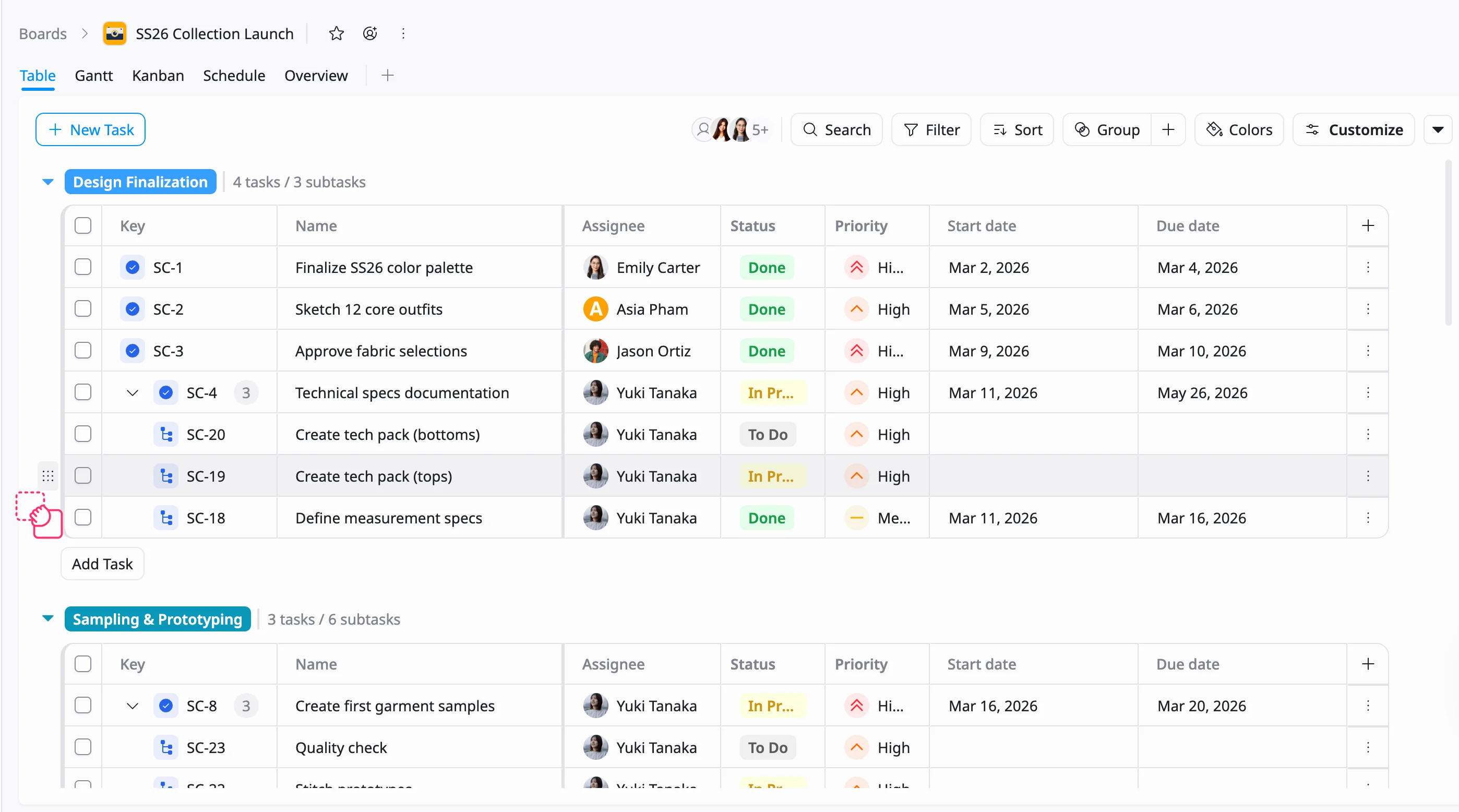
The updated order will be reflected in the table.
Change a subtask’s parent task
You can easily move a subtask to another parent task to keep work properly structured and aligned as priorities or ownership change.
To move a subtask from the Table view:
- Hover over the subtask row until the drag handle (⋮⋮⋮) appears.
- Click and hold the handle.
- Drag the subtask under the desired parent task.
- Release to drop it in place.
The subtask will now belong to the new parent task and appear within that task’s subtask list.