Table view in TaskFord
Use the Table view in TaskFord to organize, edit, and manage tasks in a clear, structured format.
Overview
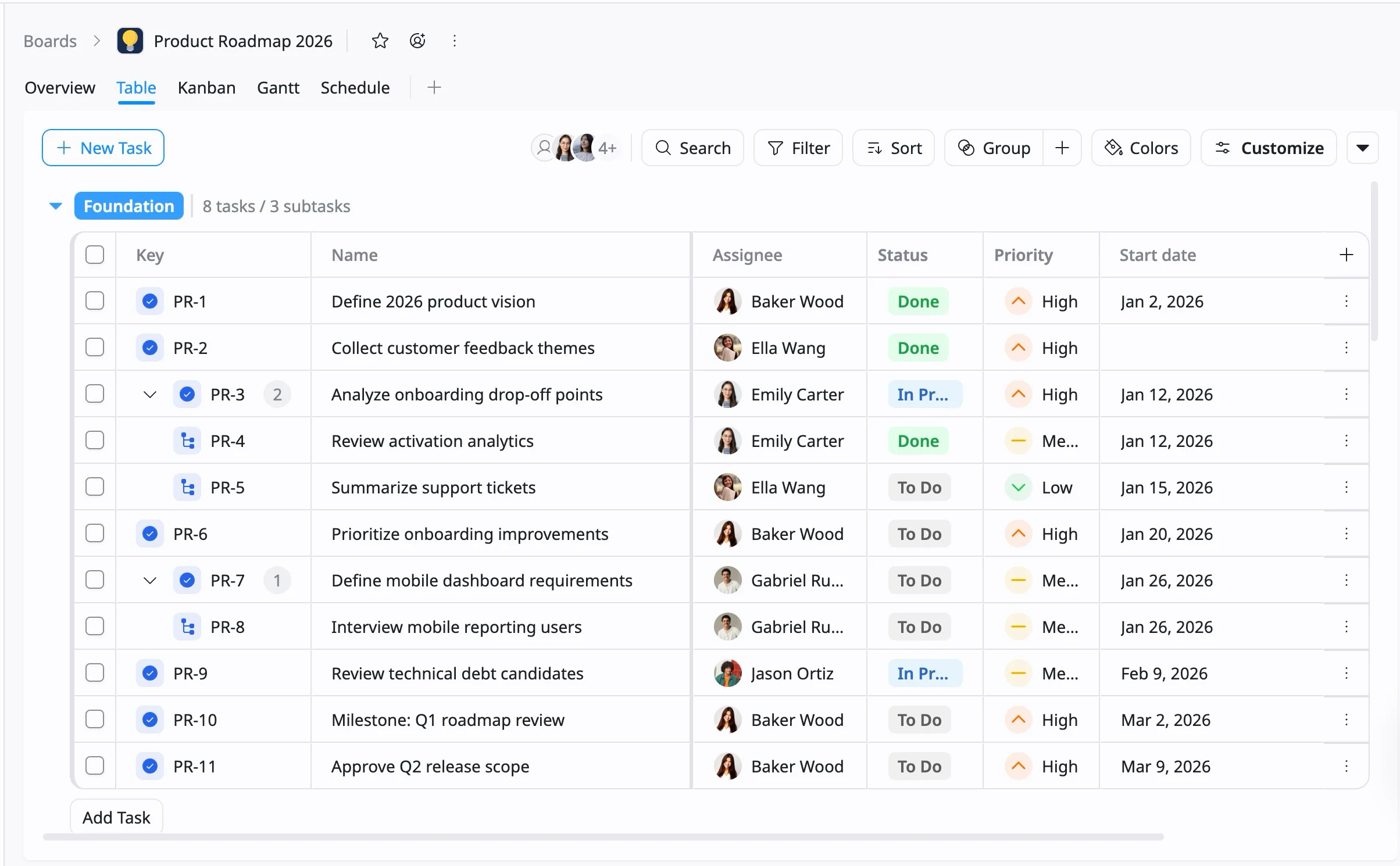
The Table view in TaskFord is a detailed, tabular display of all your project tasks, designed to help teams analyze, edit, and organize work efficiently. Each row represents a task, while each column corresponds to a task field, such as Assignee, Status, Priority, Start date, or any custom field you’ve added.
Create a Table view
Who can use this feature?
- Board Admins / Board Editors can create board views.
- App Admins / App Editors can create board views only on Open boards.
To create a Table view, follow these steps:
- Go to the specific board where you want to add a new view.
- Click the plus (+) icon in the view bar to open the Board views menu.
- Select Table from the available view options.
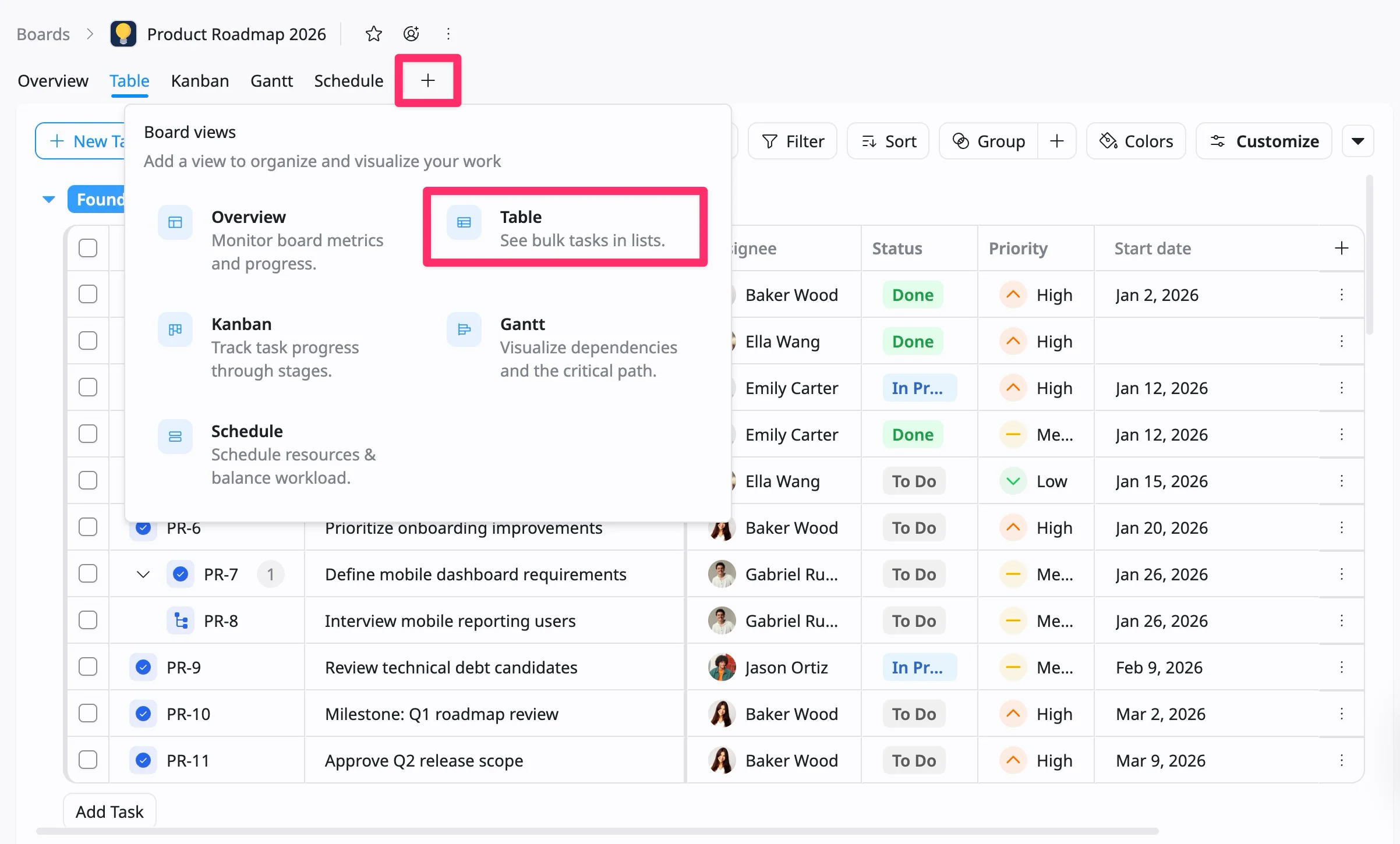
The system will create a new Table View that you can rename, customize, and save for your workspace.