Task comments
Learn how to add, reply to, edit, and delete task comments in TaskFord to keep task discussions organized and collaborative.
- Board Admins / Board Editors comment on tasks within their boards.
- Site Admins / Site Editors can comment on tasks in Open boards only.
Task comments let you communicate and collaborate directly within a task. Use comments to share updates, ask questions, provide feedback, and keep all discussions related to the work in one place.
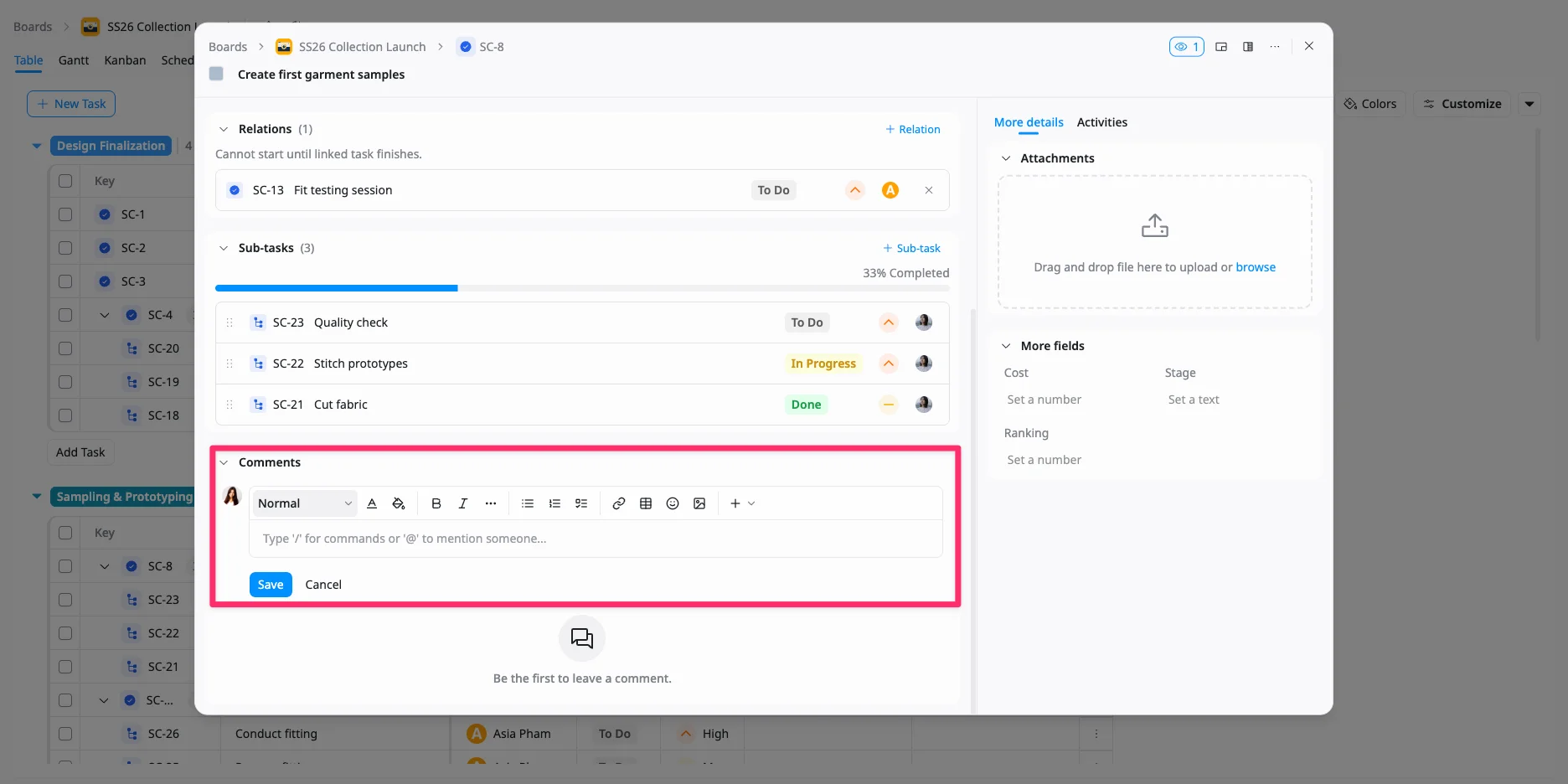
Add a comment
You can add comments at the bottom of the task details view to share updates or communicate with your team.
To add a comment:
- Open the task details view for the task you want to comment on.
- Scroll to the Comments section.
- Click into the comment field and enter your message.
- Click Save to post the comment.
Your comment will be added to the task’s activity timeline, making it easy for everyone to stay updated on the latest discussions.
Reply to a comment
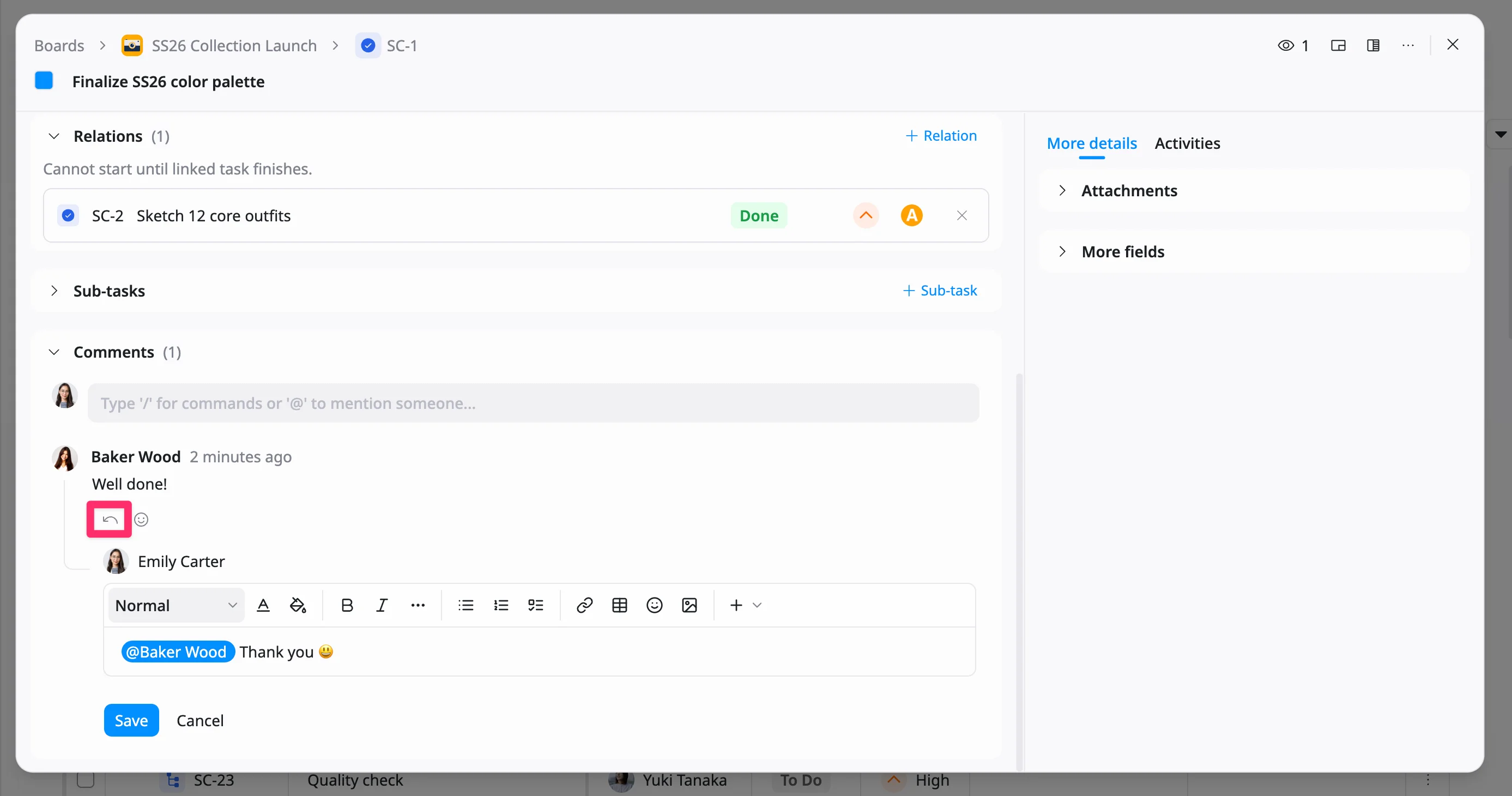
You can reply to a specific comment to keep conversations organized and easy to follow.
To reply to a comment:
- Open the task details view and scroll to the Comments section.
- Hover over the comment you want to reply to.
- Click the Reply icon.
- Type your message in the reply field.
- Click Save to post your reply.
Your reply will appear nested under the original comment, helping keep discussions clear and contextual.
React to a comment
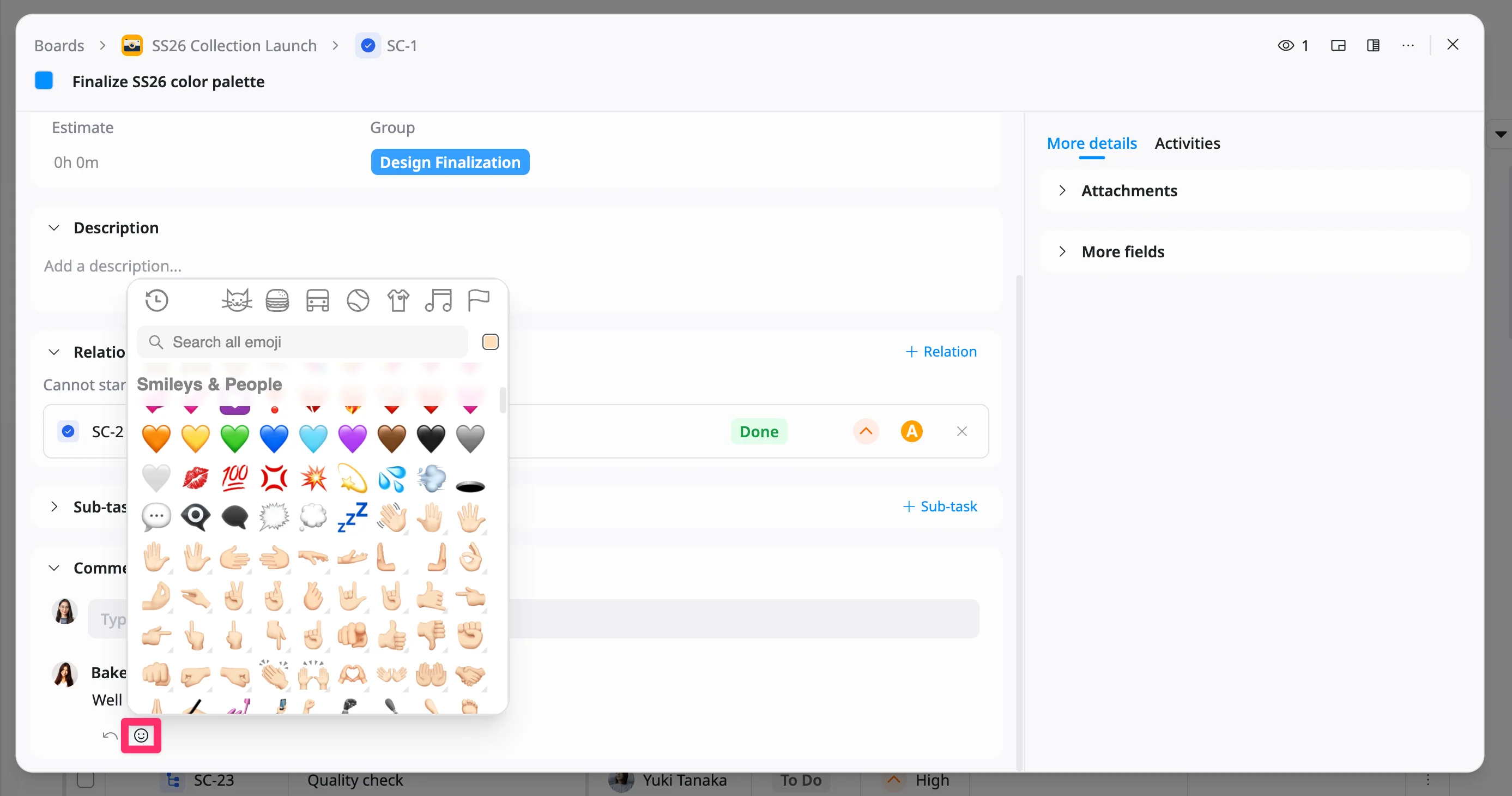
You can react to a comment to quickly acknowledge or respond with an emoji.
To react to a comment:
- Open the task details view and scroll to the Comments section.
- Hover over the comment you want to react to.
- Click the Add reaction icon.
- Select an emoji from the emoji picker.
The selected emoji will be added to the comment as your reaction.
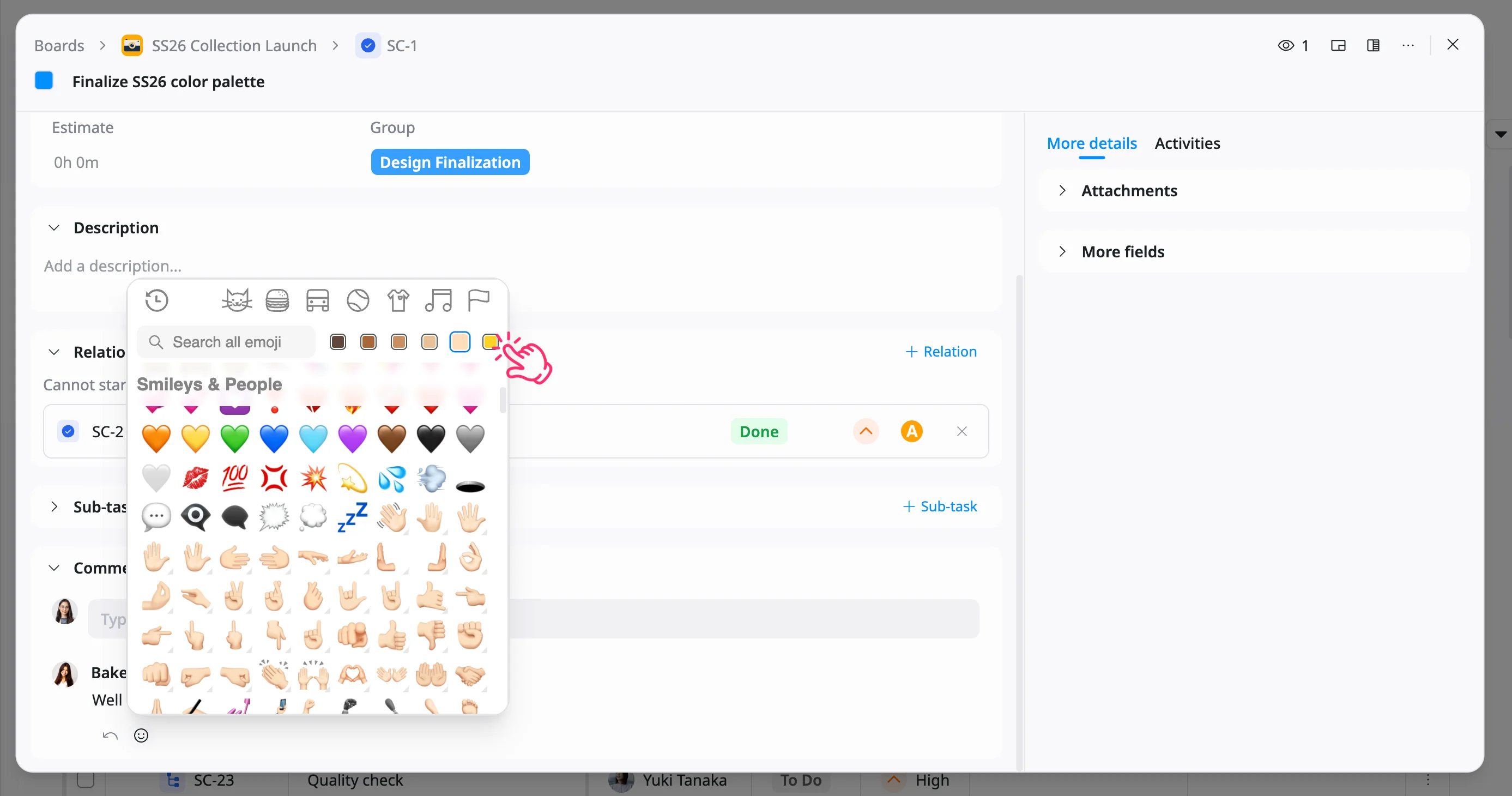
To change the emoji skin tone, click the skin tone color picker next to the search bar, then select a tone.
Edit a comment
You can update your comment if you need to make changes or add more information.
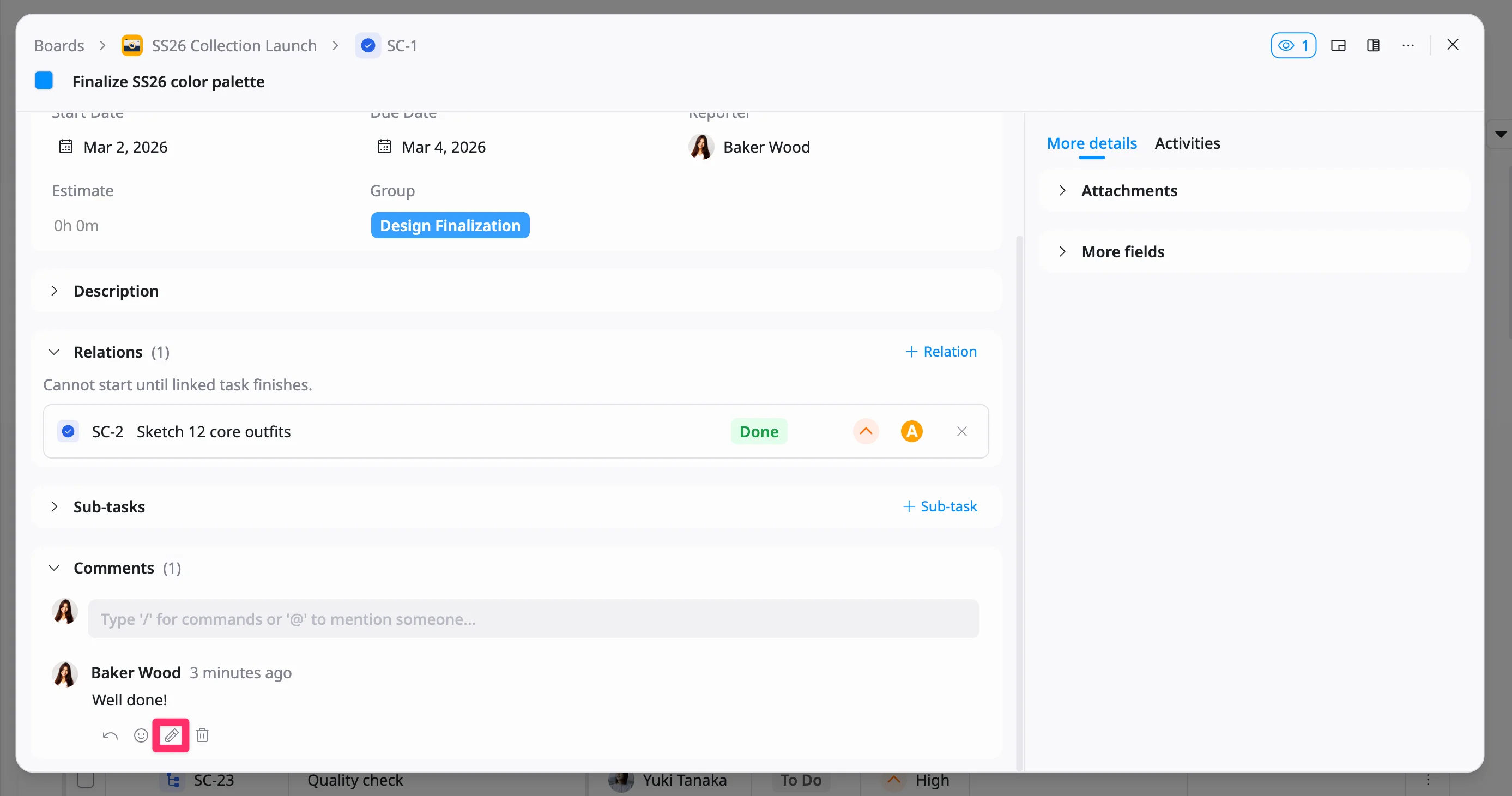
To edit a comment:
- Hover over your comment.
- Click the Edit icon.
- Update your message in the comment field.
- Click Save to apply changes, or Cancel to discard them.
Reorder comment lines
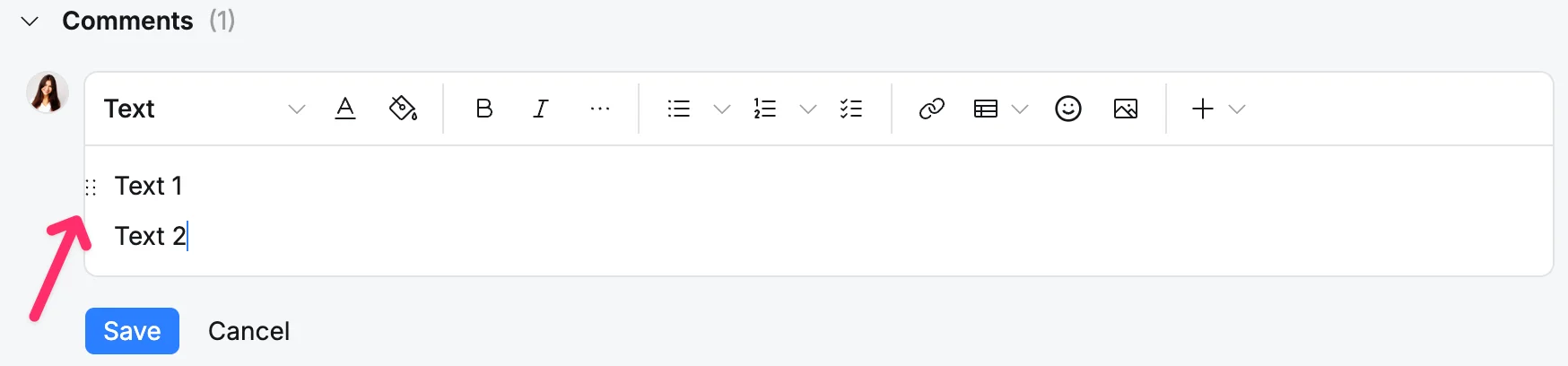
In the task details view, you can rearrange text lines in a comment by dragging them.
Hover over a text line in the comment editor. A six-dot drag icon will appear on the left side of the line. Click and hold the icon, then drag the line to a new position.
Release the line when it is in the desired order, then click Save to apply your changes.
Delete a comment
You can delete a comment if it is no longer needed.
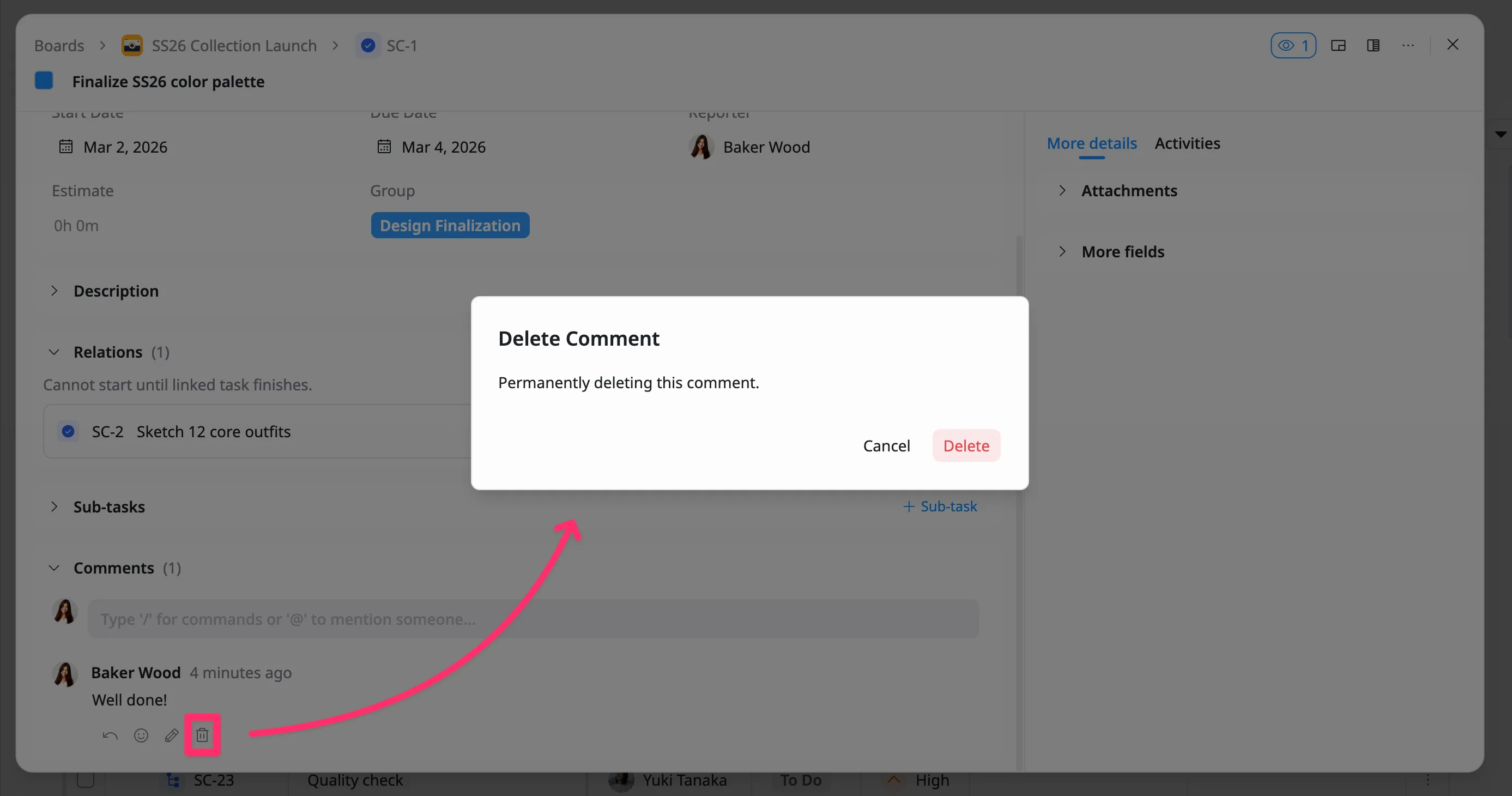
To delete a comment:
- Hover over the comment you want to remove.
- Click the Delete icon.
- In the confirmation dialog, click Delete to remove it or Cancel to keep it.
You can only edit or delete comments that you’ve created.