Task details view
Explore the task details view in TaskFord, a centralized space for managing tasks with essential information, progress updates, and team collaboration tools.
The task details view is a comprehensive view that displays all information related to a specific task, including descriptions, assignees, statuses, comments, and custom fields. It serves as a central place for managing work, enabling users to update progress, attach files, and collaborate effectively.
Open the task details view
The task details view can be opened by clicking the task key in any workspace view. Additionally, different board views provide tailored ways to access these details:
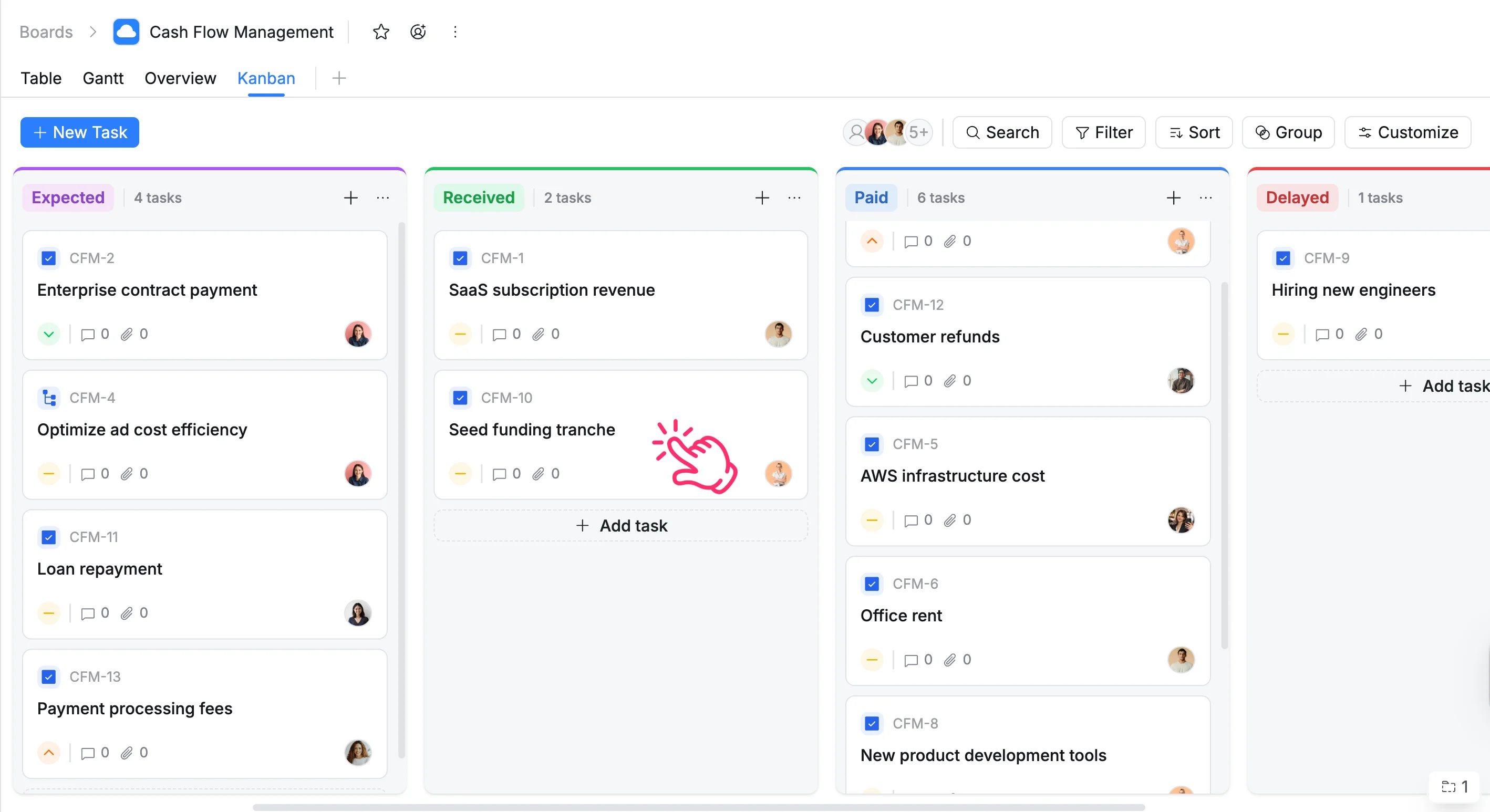
- Kanban view: Click on any task card.
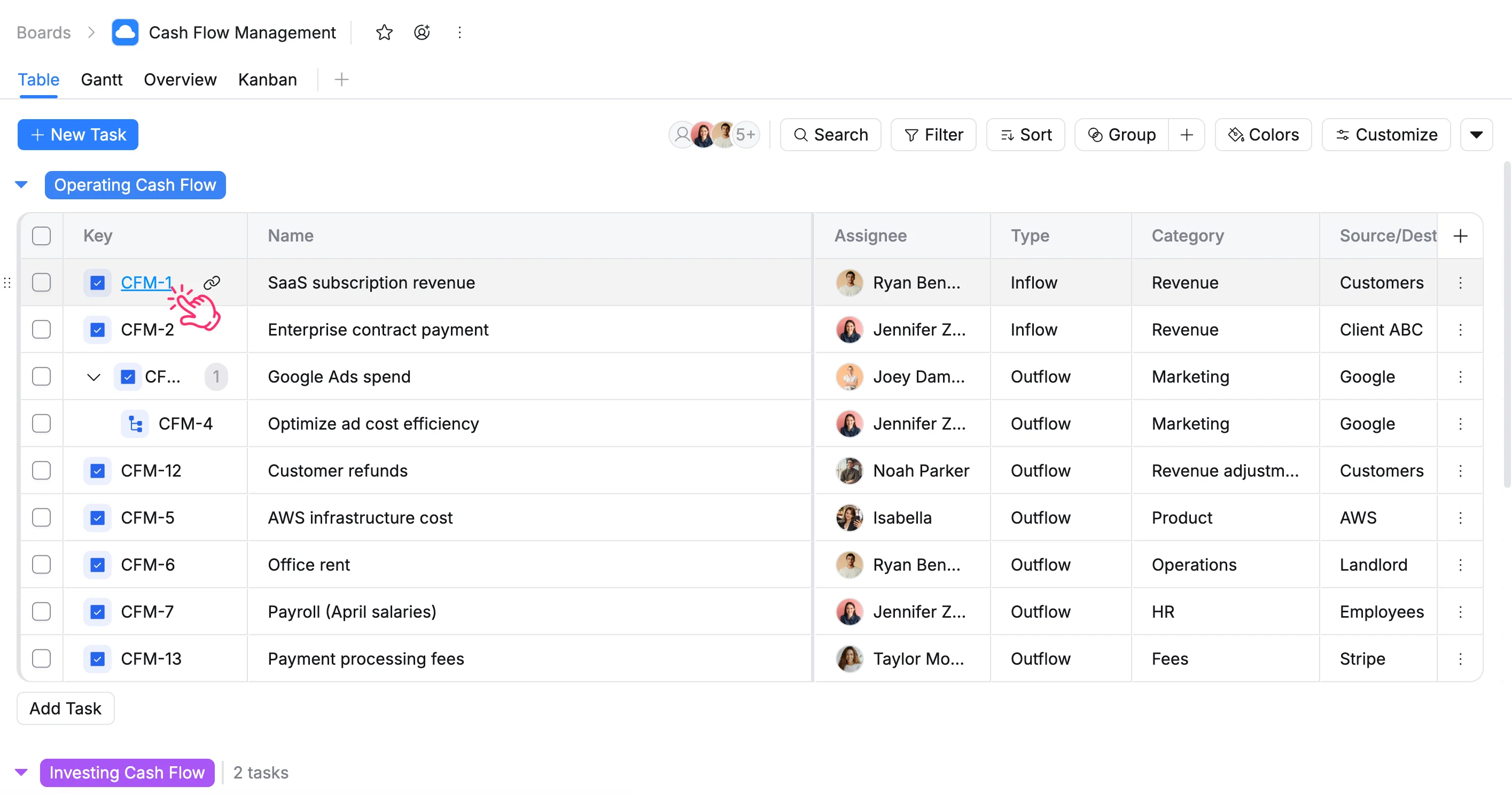
- Table view: Click the task key.
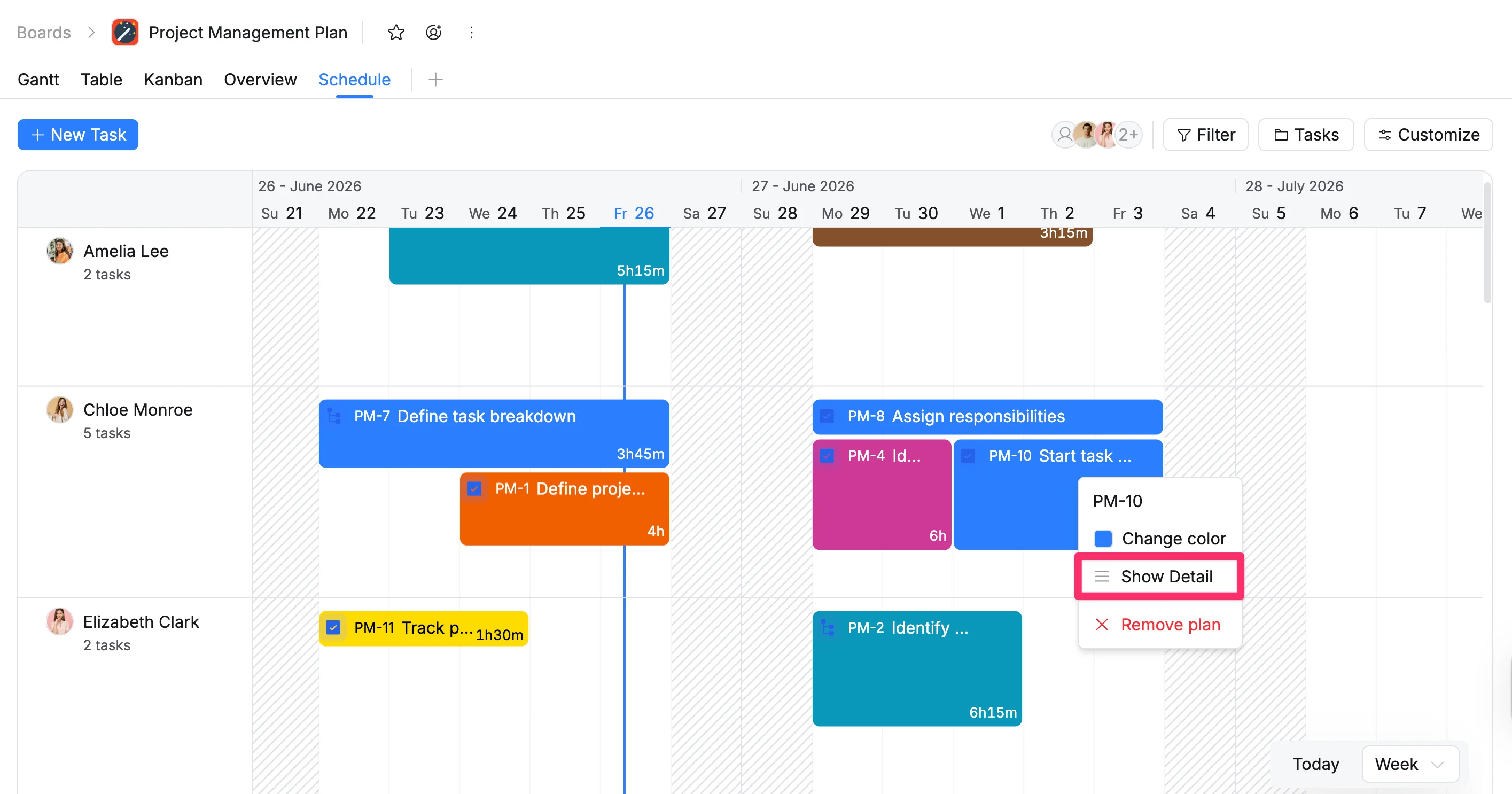
- Schedule view: Click the task key or right-click the taskbar, then select Show Detail.
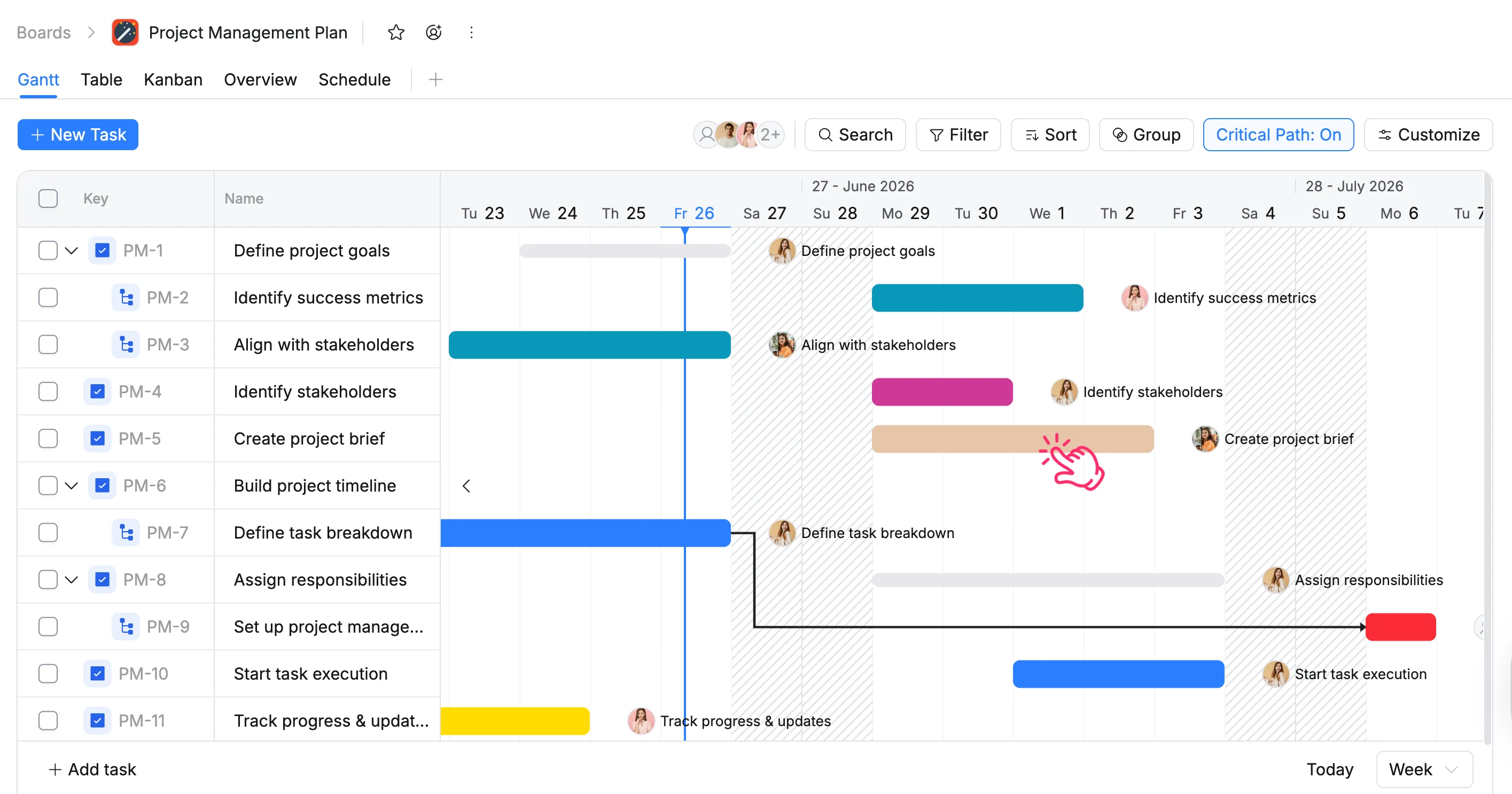
- Gantt view: Click the task bar.
Navigate task details view
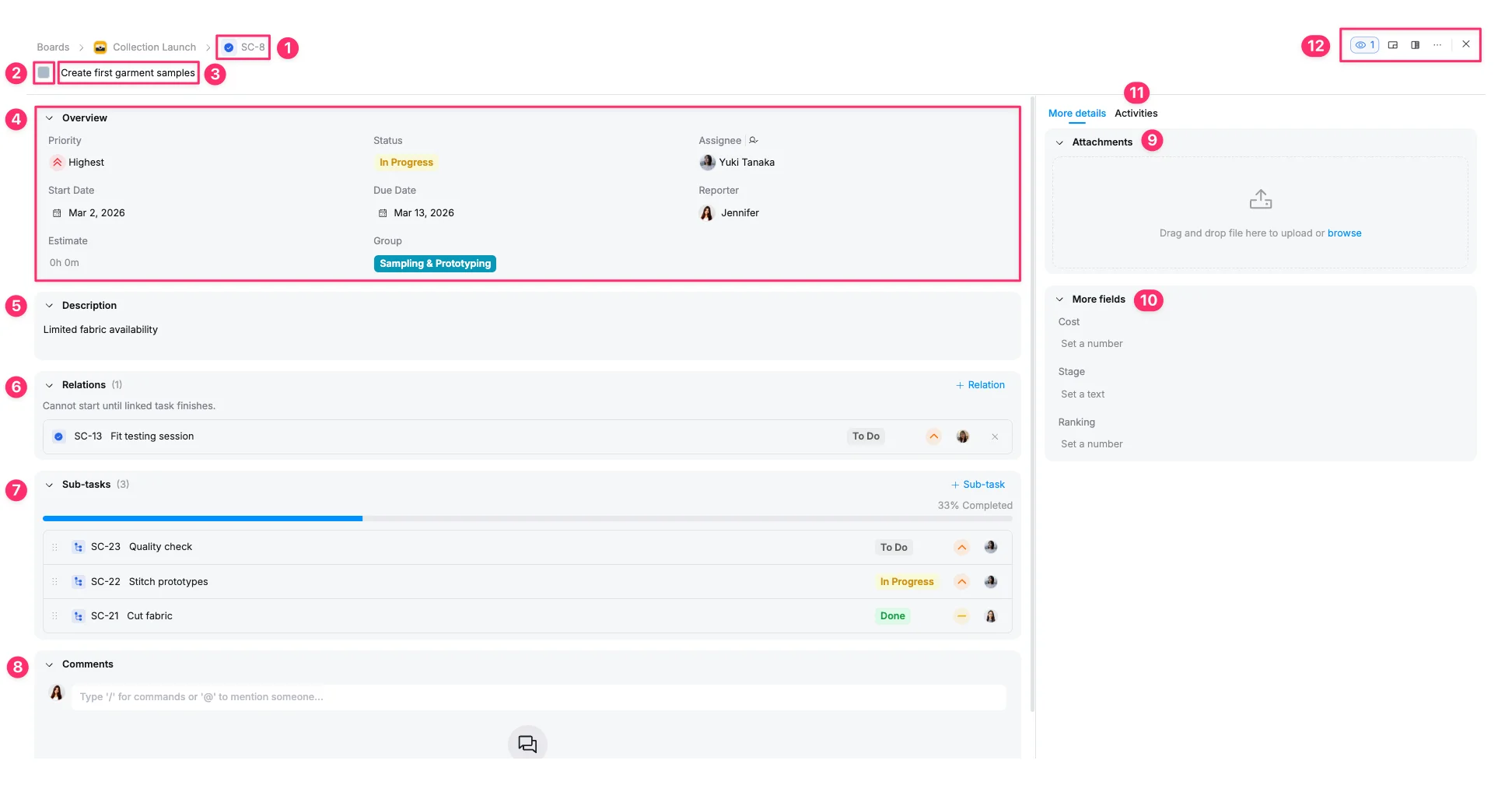
-
Type: The type of the task (e.g., Task, Subtask, Milestone)
-
Task color: Customize the task’s visual identifier for easier recognition in the Schedule view.
-
Task name: The title or identifier of the task.
-
Overview: The Overview section displays key task details:
- Priority: Set the urgency (e.g., Highest, Low).
- Assignee: The team member responsible for the task.
- Status: The current stage of work (e.g., In Progress, Review).
- Group: The project phase or category this task belongs to.
- Dates: Track the Start Date and Due Date to stay on schedule.
- Estimate: The predicted time or effort required to complete the task.
- Reporter: Anyone who creates the task.
-
Description: Add detailed information, notes, or objectives for the task.
-
Relations: Link related tasks or define dependencies.
-
Sub-tasks: Break the task into smaller, manageable items.
-
Comments: A communication hub for team discussions and @mentions.
-
Attachments: Upload or link files related to the task.
-
More fields (Custom fields): Additional, customizable fields to track project-specific information.
-
Activities: A log tracking the history of updates, changes, and actions.
-
Quick actions toolbar:
- Watch task: Follow the task and receive notifications for updates.
- Task tray: Minimizes the task detail view into a temporary storage area for quick access later.
- Switch layout: Toggle between panel view and modal view.
- More options: Access actions such as deleting the task.