Task types
Manage system and custom task types in TaskFord to categorize, track, and standardize work across boards and projects.
Manage system and custom task types in TaskFord to categorize, organize, and standardize different kinds of work across boards and projects.
What are task types?
Task types categorize and track the different kinds of work your team does, such as Tasks, Subtasks, and Milestones.
Instead of treating every task the same, TaskFord lets teams define work categories based on their purpose. This helps teams organize work, understand tasks at a glance, and build workflows that match how they operate.
For example:
- Developers can track Bugs, API Integrations, and Security work.
- Product teams can manage Epics, User Stories, and Feature Requests.
- Marketing teams can organize Campaigns, Copywriting, and Email Campaigns.
- Operations teams can track Audits, Maintenance, and Support Tickets.
Using task types helps you:
- Understand tasks at a glance.
- Keep boards organized.
- Filter and report on specific work.
- Build workflows that fit each team.
- Standardize how work is tracked.
TaskFord includes system task types to help you get started quickly. You can also create custom task types to match your team’s specific workflow and operational needs.
How task types appear across views
TaskFord displays task types throughout the platform using unique icons, labels, and visual indicators so teams can quickly identify different kinds of work.
Task types appear in:
- Kanban view: Task cards display task type icons, helping teams quickly scan different categories of work.
- Table view: Task type icons appear near the task key, making it easier to filter, sort, and manage tasks.
- Gantt view: Task type indicators help identify different work items, milestones, and project activities.
- Schedule view: Task type information appears on scheduled tasks to show what type of work is planned.
- Task details panel: The task type appears alongside the task title and can be changed to another available task type.
- You can only switch between task types available on the current board.
- Tasks cannot be converted into subtasks from the task type selector. Subtasks must be created separately under a parent task.
System task types
TaskFord includes core task types that provide a standard structure for managing work.
- Task: A standard piece of work that needs to be completed.
- Subtask: A smaller task connected to a parent task.
- Milestone: A key checkpoint, deadline, or major delivery point.
Teams can extend this structure by creating custom task types for specific workflows.
Custom task types
Custom task types allow teams to create specialized work categories that match their own workflows and operational processes. To help you set up quickly, TaskFord provides ready-to-use task type templates across various functional departments such as Epic, Bug, User Story, Billing, Support Ticket, Campaign, etc.
Task type templates
TaskFord provides ready-to-use task type templates across different categories to help teams quickly set up workflows for different departments and use cases.
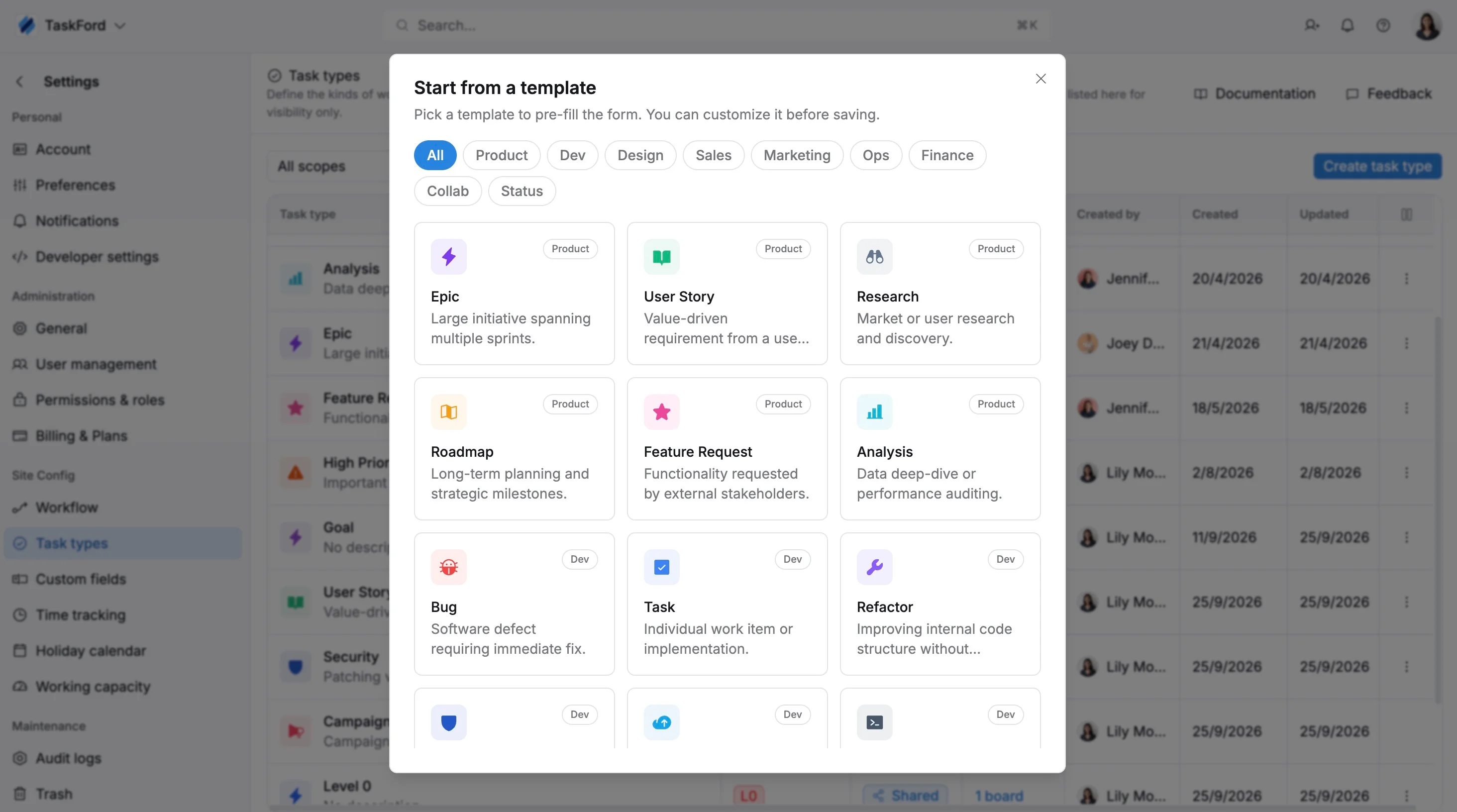
Templates include categories such as:
Product
- Epic: Large initiative spanning multiple sprints or projects.
- User Story: Requirement written from the user’s perspective.
- Research: Market, competitor, or user research work.
- Roadmap: Long-term planning and strategic initiatives.
- Feature Request: Requested functionality or product enhancement.
- Analysis: Data review, reporting, or performance auditing.
Development
- Bug: Software issue or defect that needs fixing.
- Task: General development or implementation work.
- Sub-task: Smaller technical task within a larger task or story.
- Refactor: Improving code structure without changing functionality.
- Security: Security fixes, patching, or hardening work.
- Infrastructure: Hosting, server, or environment management.
- DevOps: Deployment pipelines and automation work.
- API Integration: Connecting with third-party services or systems.
- Database: Database updates, migrations, or schema changes.
- Hotfix: Urgent production issue requiring immediate action.
Design
- UI Design: Designing interfaces, screens, or visual components.
- UX Wireframe: Planning layouts and user flows.
- Asset Creation: Creating images, banners, icons, or media assets.
- Branding: Brand identity and visual guideline work.
Sales
- Lead: Prospect outreach and qualification.
- Deal: Opportunity tracking and contract negotiation.
Marketing
- Campaign: Marketing campaign planning and execution.
- Social Media: Social content publishing and engagement.
- Copywriting: Writing blogs, ads, or marketing copy.
- Email Campaign: Newsletter or email automation setup.
Operations
- Support Ticket: Customer issue or support request.
- Audit: Internal review, inspection, or compliance check.
- Maintenance: Routine system or operational maintenance.
- HR / Hiring: Recruitment and onboarding activities.
Finance
- Billing: Invoice generation and payment tracking.
- Expense: Budget tracking and reimbursement management.
Collaboration
- Meeting: Team sync or stakeholder discussion.
- Presentation: Sharing updates, demos, or reports.
- Workshop: Brainstorming or collaborative planning session.
- Sync: Quick alignment or daily standup activity.
Status
- Blocker: Critical issue preventing progress.
- High Priority: Urgent work requiring immediate attention.
- Scheduled: Task planned for a specific date or time.
- Milestone: Major project checkpoint or delivery target.
- Idea: Early concept or unplanned opportunity.
- On Hold: Task temporarily paused.
Task type hierarchy
The hierarchy level defines how different types of work are organized and related within TaskFord’s work structure.
| Level | Definition |
|---|---|
| L0 | The highest level in the work hierarchy. Used for top-level work that represents large initiatives, programs, or strategic objectives. |
| L1 | A higher level of work that breaks down L0 work into major work areas or components. |
| L2 | The standard execution level of work. Used for individual tasks or work items completed by team members. |
| Subtask | A smaller work item that belongs under a parent task. Used to break a task into smaller, more manageable steps. |
- When creating a task type, you can select L0, L1, or L2 only.
- Subtask is the only sub-level and cannot be selected when creating a task type.
- The hierarchy level cannot be changed after a task type is created.
- Each hierarchy level can only contain child items from the next lower level:
- L0 can contain L1 items.
- L1 can contain L2 items.
- L2 can contain Subtasks.
Task type scope
The scope determines where a task type can be used.
| Scope | Definition |
|---|---|
| Shared | A shared task type can be made available to multiple boards across the site. Shared task types are managed at the site level and can be added to selected boards. |
| Private | A private task type is created for a specific board and can only be used on that board. Private task types are managed from the board where they were created. |
Task type source
The source indicates where a task type comes from and where it is managed.
| Source | Definition |
|---|---|
| System | Built-in TaskFord task types provided by default. |
| This board | A task type created directly from a specific board. |
| Inherit from site | A shared task type added to a board from the site. It appears on the board because it is available from the site’s shared task types. |
Manage task types in TaskFord
Task types can be managed at different levels depending on how broadly they are used.
- Site task types: Manage shared task types available across your site.
- Board task types: Manage task types available on a specific board.