TaskFord Free Plan explained
The TaskFord Free plan is designed for individuals and small teams that want to create tasks, organize work, and collaborate at no cost.
The Free plan is designed for individuals and small teams that want to get started with TaskFord at no cost. It includes the core tools you need to organize work, create tasks, collaborate with your team, and track progress in simple projects.
Use the Free plan if you are exploring TaskFord for the first time, testing how your team works in TaskFord, or managing lightweight workflows that do not require advanced planning, reporting, or resource management.
Available features in Free Plan
The Free plan includes core features for creating work, organizing tasks, collaborating with your team, and tracking progress in simple projects.
| Feature | Description |
|---|---|
| Essentials | |
| Up to 10 Boards | Create up to 10 boards to organize your work. Each board can represent a specific project, team, department, or client workspace. |
| Up to 10 Users | Invite up to 10 users to collaborate. Team members can create and update tasks, leave comments, and stay aligned in one shared workspace. |
| Unlimited Tasks | Manage your work without limits. Use tasks to track assignments, deadlines, approvals, bugs, or any work item your team needs to complete. |
| Limited storage | Upload and attach basic project files, such as documents, images, and PDFs, to keep essential materials connected to tasks. Includes 3 GB of storage. |
| Board views | |
| Table view | Manage tasks in a structured spreadsheet-style layout. This is ideal for seeing many details at once and performing quick bulk updates. |
| Kanban view | Visualize work as cards across columns like To Do, In Progress, Review, and Done. Track progress in real time and limit work-in-progress (WIP) to prevent bottlenecks and keep tasks moving. |
| Calendar view | View tasks by date so your team can plan around deadlines, milestones, and upcoming work. Calendar view helps you understand what is due today, this week, or later in the month. |
| Schedule view | Plan and view tasks across a timeline with resources. Schedule view helps you identify scheduling conflicts, find open time slots, allocate resources effectively, and track work progress. |
| Overview view | Get a high-level summary of your project, including key information, progress, and important details in one place. |
| Reporting | |
| Docs | Create and store project documents directly in TaskFord. Use Docs for meeting notes, project briefs, requirements, process guides, decisions, or other important information your team needs to reference. |
| Tasks | |
| Tasks & Sub-tasks Management | Create tasks to manage work items and break larger tasks into smaller sub-tasks so work is easier to assign, track, and complete. |
| Project Template | Use templates to quickly create projects with a predefined structure, helping your team save time and follow a consistent workflow. |
| Custom Workflow | Customize workflow stages to match how your team works, such as To Do, In Progress, Review, and Done. |
| Relationship | Link related tasks together so your team can understand connections between work items, dependencies, or supporting tasks. |
| Labels | Add labels to categorize and filter tasks by type, priority, team, client, or any grouping your team uses. |
| Custom Fields | Capture specific information tailored to your team’s needs. Add data points like Priority, Department, or Budget that are not covered by default fields. |
| Attachments | Upload files directly to tasks so your team can keep supporting documents, images, briefs, or references close to the work. |
| Comments | Discuss work directly inside tasks. Team members can ask questions, share updates, and keep conversations connected to the right task. |
| Task Activities | Track changes and updates on a task, such as status changes, comments, assignments, and other activity history. |
| Import & Export | Bring work into TaskFord or export task data when needed, making it easier to move information in and out of the workspace. |
Limitations of the Free Plan
The Free plan includes the core tools needed to start managing work in TaskFord, but some advanced features and higher usage limits are only available on paid plans.
Common limitations of the Free plan include:
- Up to 10 boards
- Up to 10 users
- Basic dashboards only
- Limited access to advanced reporting
- No Gantt view
- No portfolio management
- No time tracking or timesheets
- No budget and cost tracking
- No advanced automation
- No advanced forms
- Limited or no API access
- No advanced permissions, SSO, custom domain, SLA, or premium support
If your team needs more planning, reporting, automation, resource management, or security controls, you may need to upgrade to a paid plan.
How to access the Free plan in TaskFord
Only the Site Owner or users with Billing Manager can manage the site plan.
Start on the Free plan
To get started on the Free plan, follow these steps:
- Visit the Pricing page: Go to the TaskFord pricing page.
- Select the Free tier: Click on the Get Started button under the Free plan column.
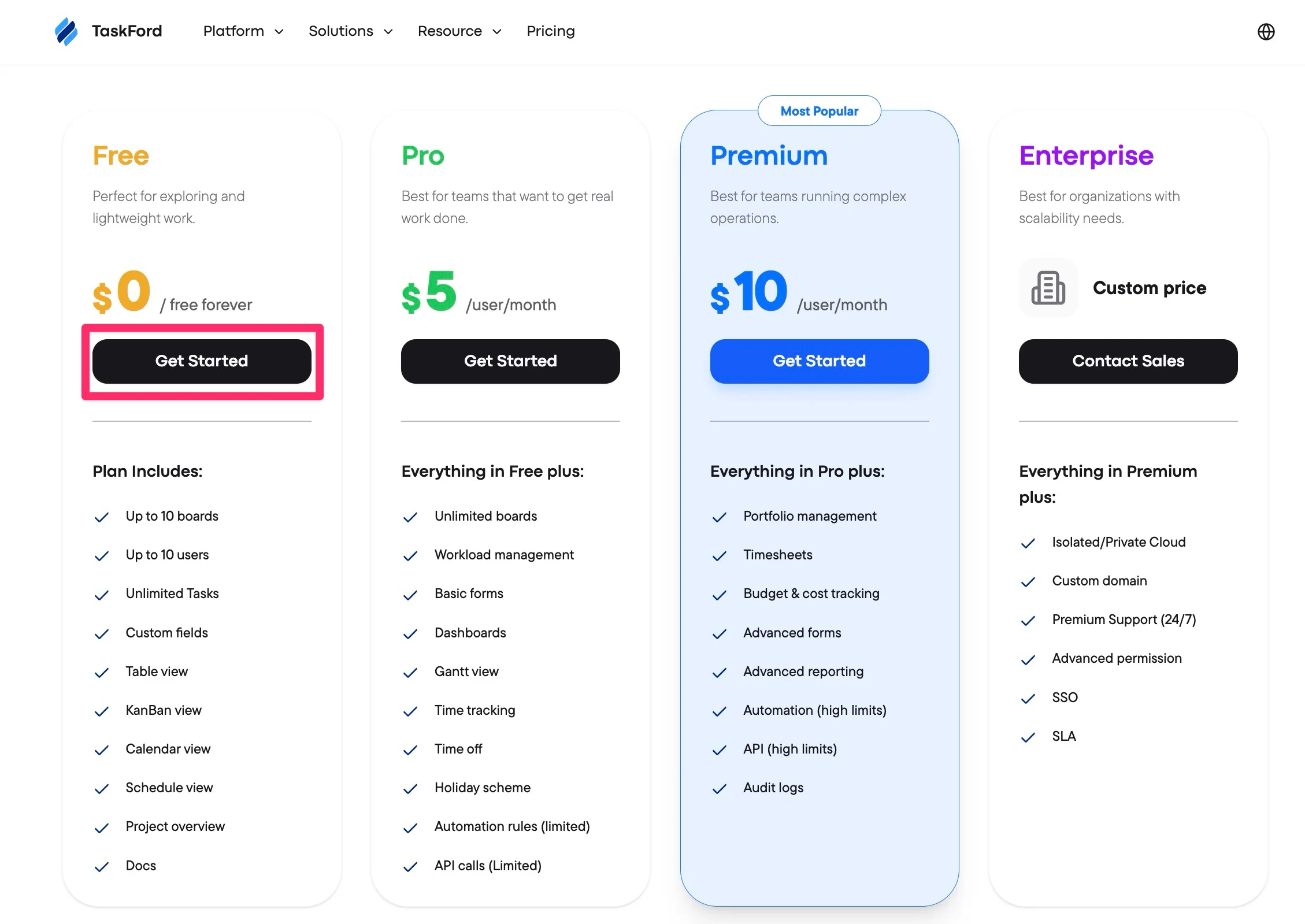
- Register: You will be redirected to a sign-up page. Enter your details to create an account.
- Create your Site: Once registered, follow the prompts to set up your new site.
Your site will automatically be placed on the Free plan, allowing you to manage your work and explore features at no cost.
Continue with Free after a trial
If your site is using a trial, you can continue with the Free plan when the trial ends.
When the trial expires, you may be asked to choose a paid plan or continue with the Free version. Select the option to continue with the Free plan if you do not want to upgrade.
After moving to Free, your site will keep access to Free plan features, while trial or paid features may become unavailable.
Move from a paid plan or trial to Free
If your site is currently on a paid plan or trial, you can move to the Free plan from your billing settings.
To move to Free
- Click your profile picture in the top-right corner.
- Select Settings from the dropdown menu.
- You will be directed to the Site Settings panel.
- From the left-hand menu, go to Administration and select Billing & Plans.
- Locate your current plan and select Cancel plan.
- In the confirmation window, choose Cancel subscription.
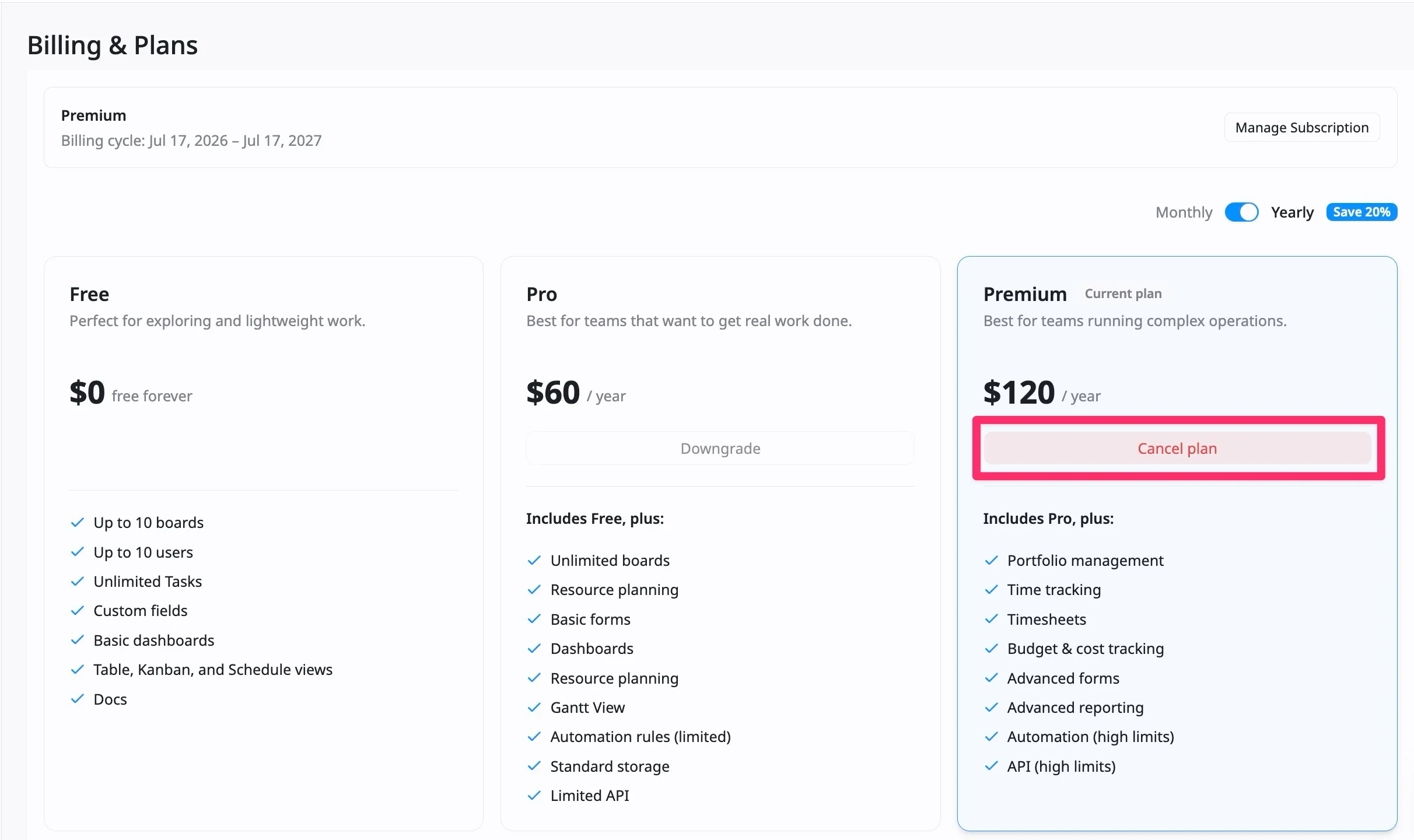
After cancellation, your subscription will remain active until the end of the current billing cycle. During this time, you can continue using the features included in your current plan.
Once the billing cycle ends, your site will move to the Free plan, and features not included in Free may become unavailable, limited, or read-only.
Frequently Asked Questions (FAQs)
How can I use TaskFord for free?
You can use TaskFord for free by signing up and creating a new site. New TaskFord sites are automatically created on the Free plan, so you can start managing work without choosing a paid plan.
What’s included in TaskFord’s Free plan?
The Free plan includes up to 10 boards, up to 10 users, unlimited tasks, basic dashboards, board views (Table view, Kanban view, Calendar view, and Schedule view), and core task management features such as sub-tasks, custom fields, labels, comments, attachments, task activities, and import/export.
How many boards can I create on the Free plan?
You can create up to 10 boards on the TaskFord Free plan.
How many users can I invite on the Free plan?
You can invite up to 10 users on the TaskFord Free plan.
How long can I use TaskFord for free?
You can use the Free plan for as long as your site stays within the Free plan limits. There is no required upgrade date.
What are the limitations of the TaskFord Free plan?
The Free plan is limited to 10 boards and 10 users.
Some advanced features are not included, such as Gantt view, resource planning, advanced forms, advanced reporting, automation rules, API access, portfolio management, time tracking, timesheets, budget and cost tracking, and premium support.
How many sites can I create?
You can create multiple TaskFord sites. Each new site starts on the Free plan by default and has its own separate plan. If you want to use paid features on a specific site, you need to upgrade that individual site.
What happens to my data if I move to the Free plan?
When you move to the Free plan, your existing data is not automatically deleted. Your tasks, boards, comments, and attachments may remain in your site, but access can change depending on the Free plan limits.
For example, if your site has more than 10 boards, some boards may become unavailable or require action. If your site has more than 10 users, you may need to remove users or reduce access. Any paid, premium features will be locked.
Can I trial a paid plan before upgrading?
Yes. If a trial is available for your site, you can try paid features from the Pro or Premium plan before upgrading. When the trial ends, you can choose to upgrade to a paid plan or continue with the Free plan. If you continue with Free, any paid, premium features will be locked.