TaskFord v2.0.0: Time Tracking, Capacity & Smarter Scheduling
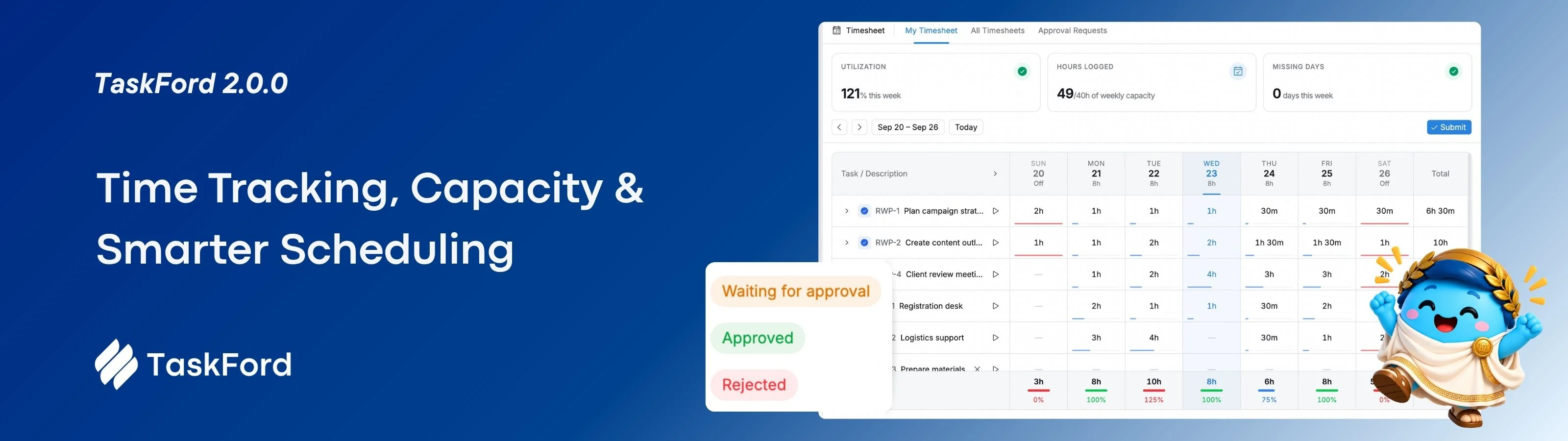
TaskFord 2.0 adds time tracking and resource planning
Your team can now log time, set working capacity, plan around real availability, and see where their hours go, all in the same place they plan and deliver work.
⭐ Release highlights
Four big themes drive this release: time tracking, resource planning, smarter scheduling, and workload reporting.
| ⏱️ Time Tracking | 👥 Resource Planning | 📊 Smarter Scheduling | 📈 Dashboards |
|---|---|---|---|
| Timers, timesheets & approvals | Working capacity & holiday calendars | Gantt & Scheduler with real availability | Time tracking dashboards |
| Log time from tasks, timesheets, or the top bar, and take timesheets through approval. | Set working schedules per person and import holidays by country or region. | Plan against working hours, see workload, and spot over-allocated team members. | Report on utilization, capacity, and allocation with heatmaps, gauges, charts, and tables. |
🆕 What’s new
1. Time tracking & timesheets
You can now track time where the work happens and take timesheets through approval without leaving TaskFord.
✍️ Log time your way
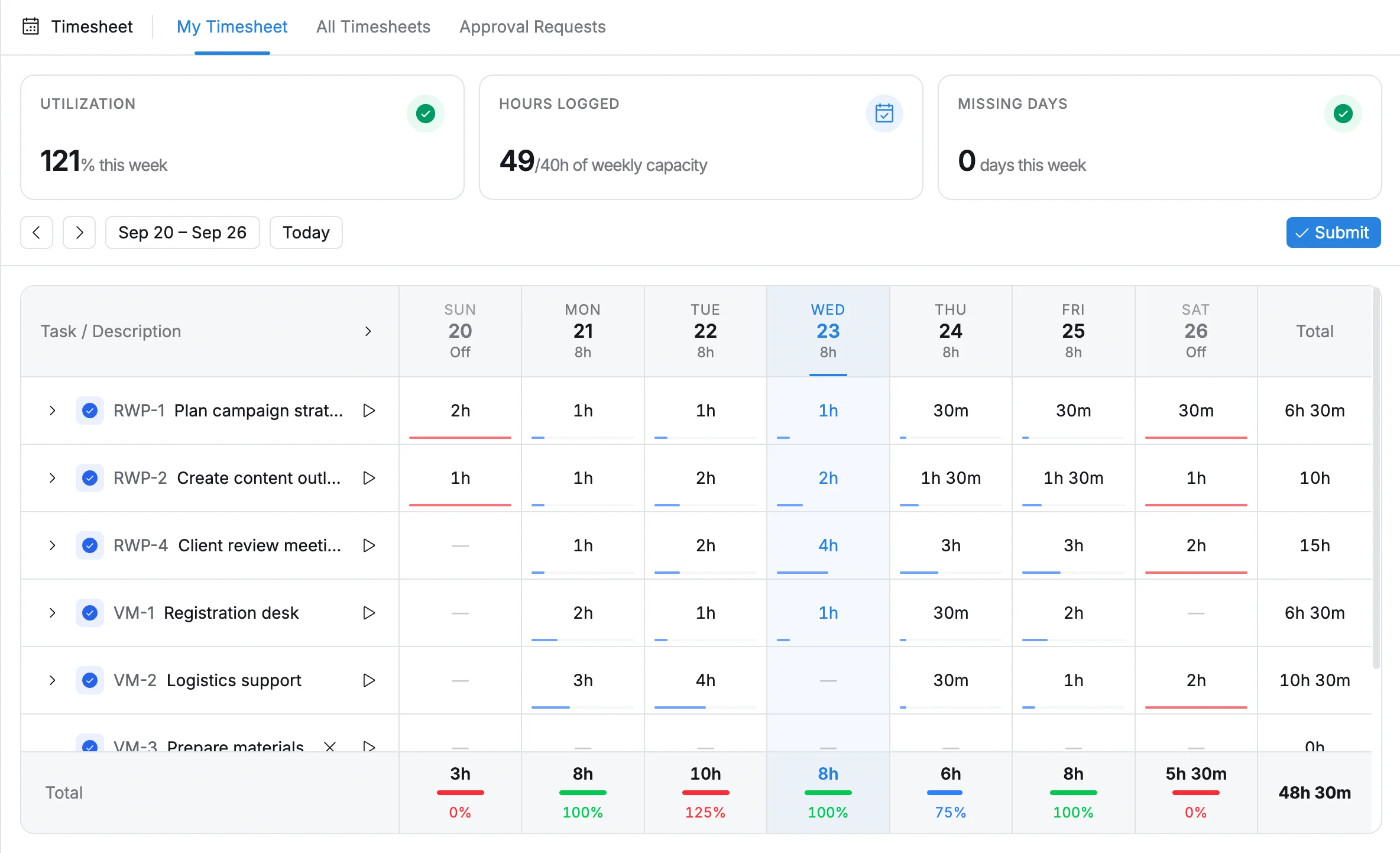
- Log time from a task, from your timesheet, or from the top bar.
- Start and stop a timer while you work.
- Add notes to time entries so reviewers know what the time covered.
- Add tasks to your timesheet and log time against them throughout the period.
- Review logged time by task and by day.
✅ Approve timesheets
- Submit timesheets for approval.
- Recall, approve, reject, or reopen submitted timesheets.
- Managers can submit timesheets on behalf of team members.
- Use the dedicated approval view to see each person’s timesheet status.
| Status | Meaning |
|---|---|
| ⚪ Draft | Still being filled in |
| 🔵 Submitted | Waiting for approval |
| 🟢 Approved | Accepted by the approver |
| 🔴 Rejected | Returned for changes |
💡 Tip: Use the top-bar timer when you switch between tasks often. You can start tracking without opening each task.
2. Working capacity
Plan work around the hours your team actually has, not an assumed 40-hour week.
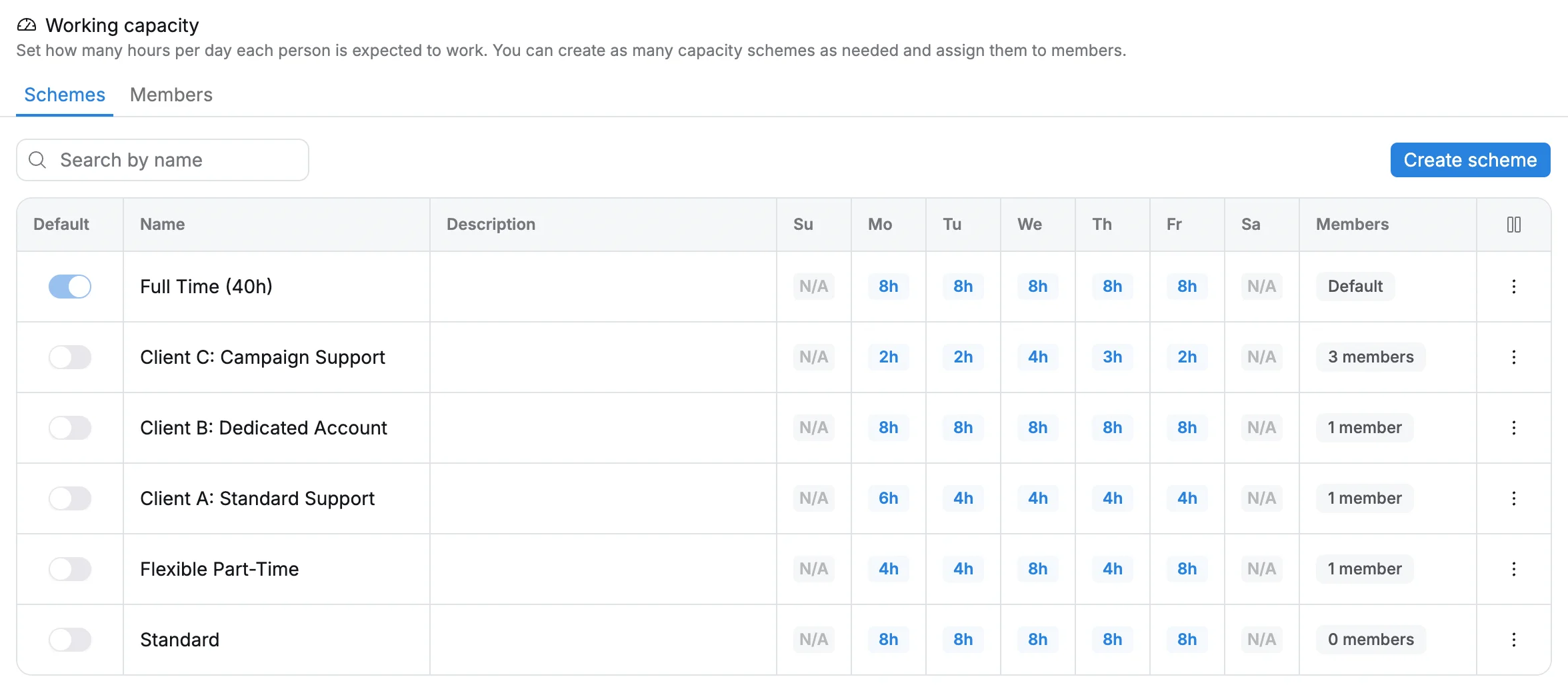
- Create reusable working schedules.
- Set different working hours for each day of the week.
- Assign schedules to team members for specific periods.
- Update a schedule when someone’s availability changes, such as a move to part-time.
- See available capacity while you plan and schedule work.
💡 Tip: Create one schedule per common pattern (full-time, part-time, four-day week) and reuse it across your team instead of setting hours person by person.
3. Holiday calendars
Account for public holidays and non-working days so your plans stay realistic.
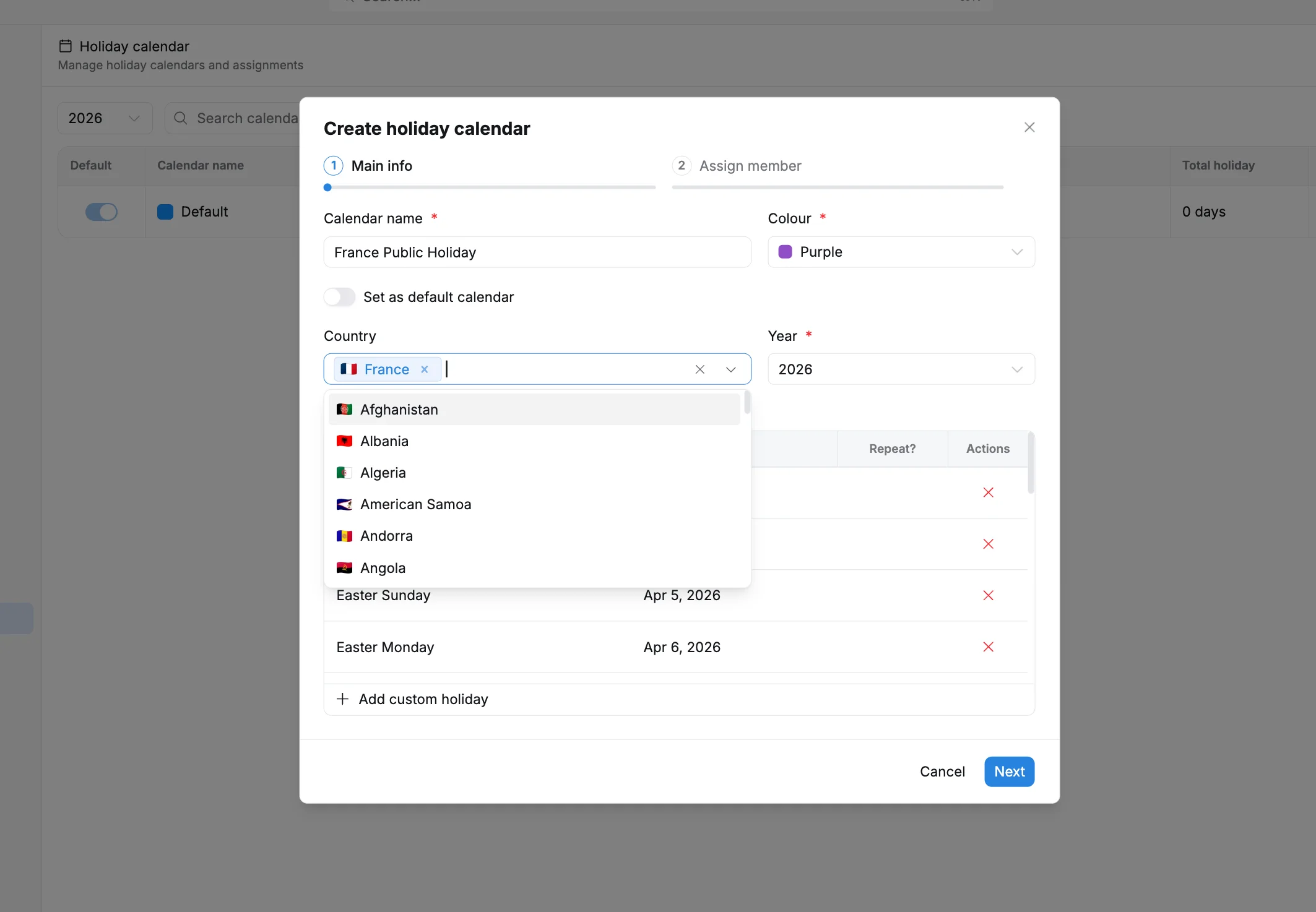
- Create and manage holiday calendars.
- Add holidays manually, or import them by country or region.
- Assign different holiday calendars to different team members.
- TaskFord accounts for holidays automatically when you plan work.
- Non-working days appear in Gantt and Scheduler.
📝 Note: For teams across several countries, assign each person the calendar for their location. Capacity and scheduling then reflect each person’s local holidays.
4. Gantt & Scheduler
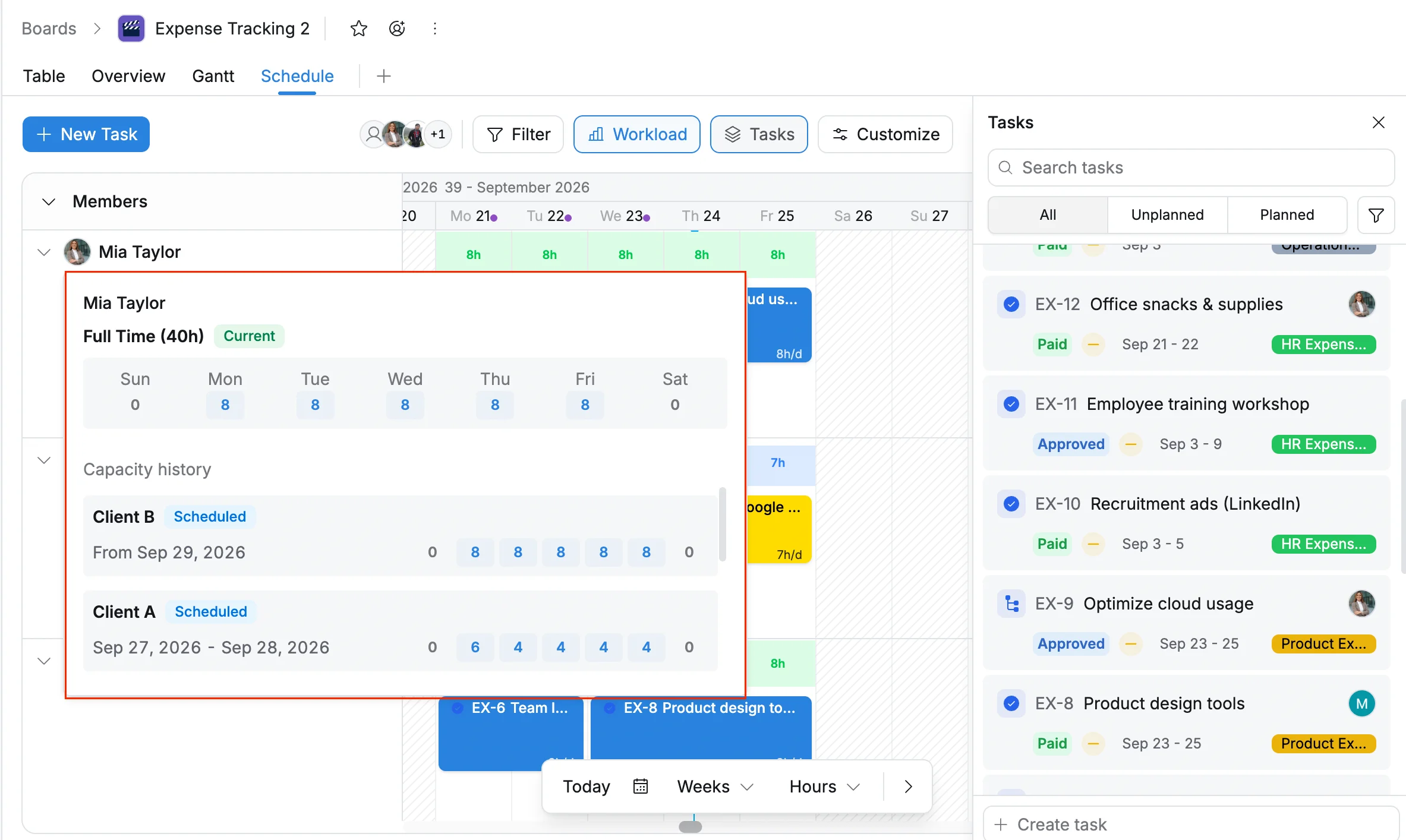
Gantt and Scheduler now use each person’s working hours, holidays, and capacity.
🎯 Plan with real availability
- Schedule tasks based on working hours and capacity.
- Holidays and non-working days are applied automatically.
- See each team member’s workload on the schedule.
- Identify over-allocated team members before work slips.
⚡ Schedule faster
- Move and reschedule tasks across the timeline more easily.
- Find and assign unassigned work quickly.
- Scheduler performance is improved, and large projects load faster.
5. Time tracking dashboards
See where your team’s time goes with new dashboard widgets.
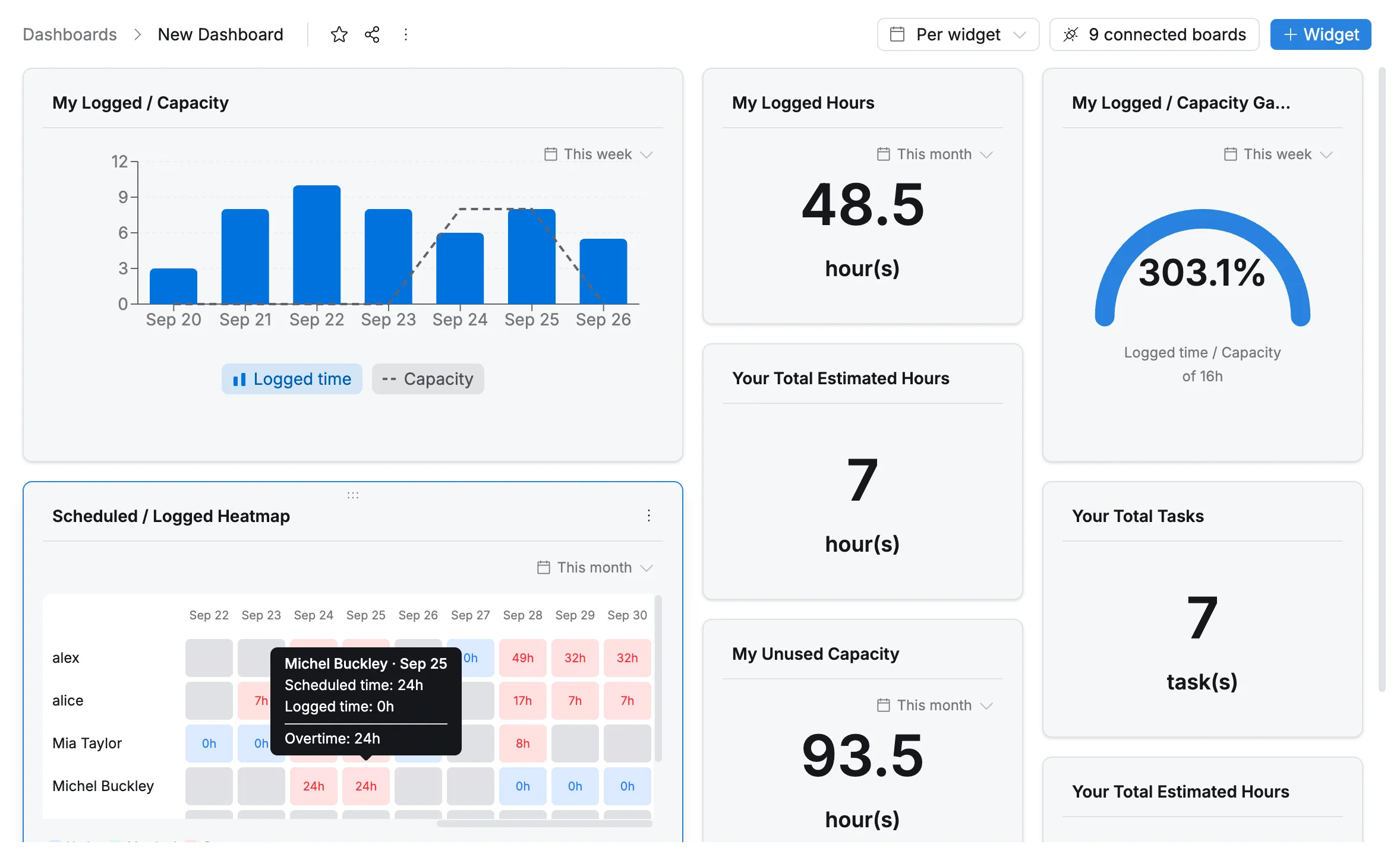
Metrics you can report on:
| 🔋 Capacity | ⏱️ Time | 🎯 Performance |
|---|---|---|
| Available capacity | Logged time | Utilization |
| Remaining capacity | Scheduled time | Allocation |
| Over-allocated members | Completion | |
| Under-utilized members |
Break down any report by assignee, date, board, status, priority, or task.
💡 Tip: Start with a utilization heatmap by assignee. It shows who is overbooked and who has room for more work next week.
6. Deeper task hierarchy
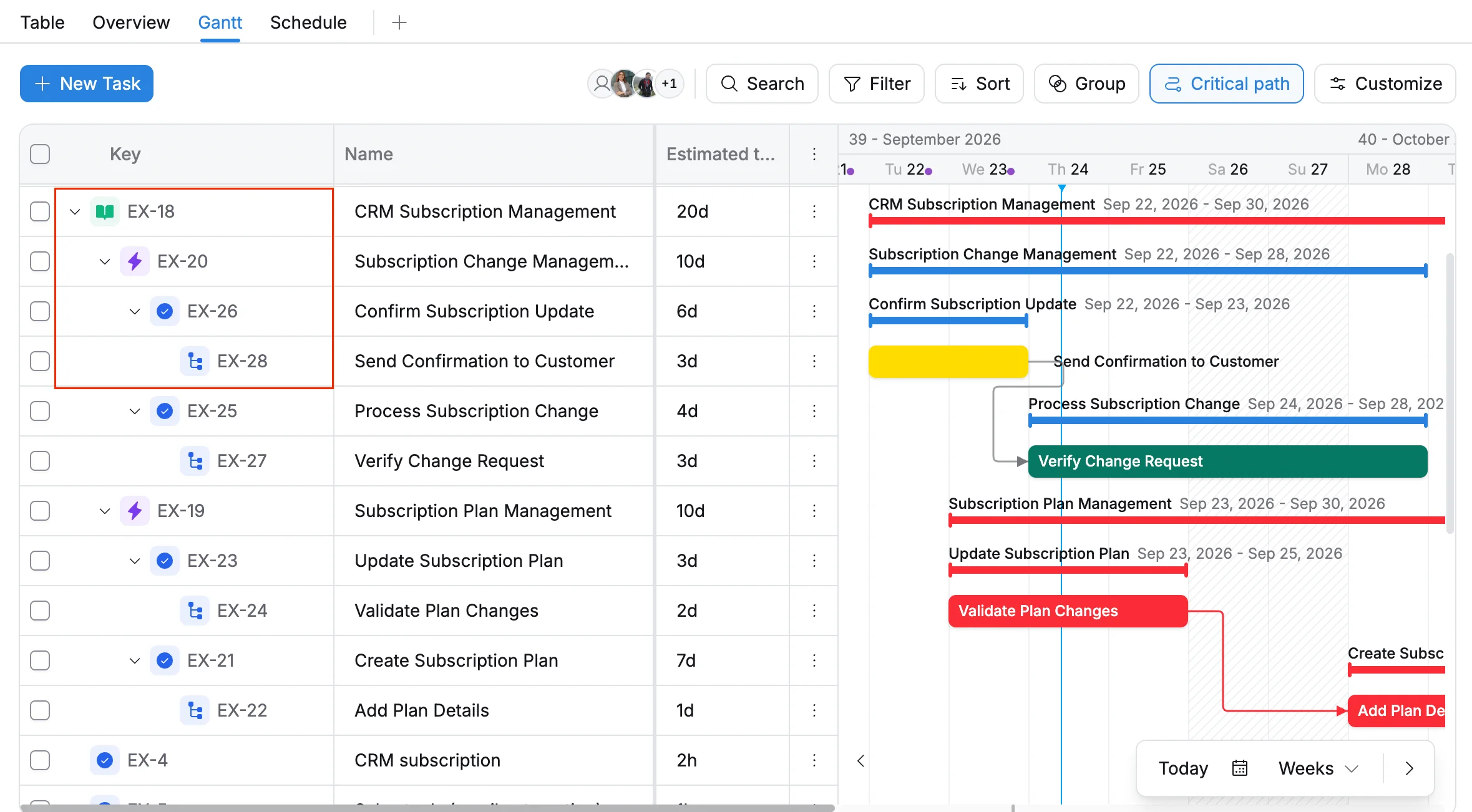
Structure larger projects with four levels:
🎯 Goal → 🟪 Epic → 🟦 Task → 🔹 Sub-task
This connects high-level goals to the day-to-day tasks that deliver them.
✨ Improvements
Impact: 🔴 High · 🟠 Medium · 🟢 Low
| Improvement | Category | Impact |
|---|---|---|
| Mobile push notifications now have separate preferences | 🔔 Notifications | 🟠 |
| Unread notifications are easier to spot | 🔔 Notifications | 🟢 |
| Description edits only notify people who are newly mentioned | 🔔 Notifications | 🟠 |
| Notification preferences sync more reliably across devices | 🔔 Notifications | 🟢 |
| New 3-step onboarding flow | 🚀 Onboarding | 🟠 |
| Guided product tour for new users | 🚀 Onboarding | 🟢 |
| Tips for boards and key features | 🚀 Onboarding | 🟢 |
| Map task types when you import tasks from CSV | 📥 Import | 🟠 |
| New task type scopes: private and shared | 🗂️ Tasks | 🟠 |
| Set your timezone for accurate times and dates | ⚙️ Settings | 🟠 |
| Improved custom fields | 🗂️ Tasks | 🟢 |
| Better filtering and task management | 🗂️ Tasks | 🟢 |
🛠️ Bug fixes
Severity: 🔴 High · 🟠 Medium · 🟢 Low
| Bug fix | Category | Severity |
|---|---|---|
| More reliable task ordering | 🗂️ Tasks | 🟠 |
| Better reliability across time tracking, calendars, dashboards, and tasks | 🛡️ Reliability | 🟠 |
| Your preferred theme is now saved correctly | 🎨 Appearance | 🟢 |
💬 Have feedback on TaskFord 2.0? Contact us. We use your input to decide what we build next.