Text formatting in TaskFord
Learn how to use text formatting tools in TaskFord to create clear, structured, and visually organized task descriptions and comments.
- Board Admins / Board Editors can format text.
- App Admins / Editors can format text only on Open boards.
TaskFord provides rich text formatting tools to help you create clear, structured, and easy-to-read content. You can use text formatting in places like task descriptions and comments to organize information, highlight important details, and communicate more effectively with your team.
Use the formatting toolbar or quick commands to apply styles and structure your content with ease.
Format text
To format text, select it and then choose one or more formatting options from the toolbar.
| Formatting option | Shortcut | Description |
|---|---|---|
| Bold | ⌘ B / Ctrl+B | Emphasize important text |
| Italic | ⌘ I / Ctrl+I | Add subtle emphasis |
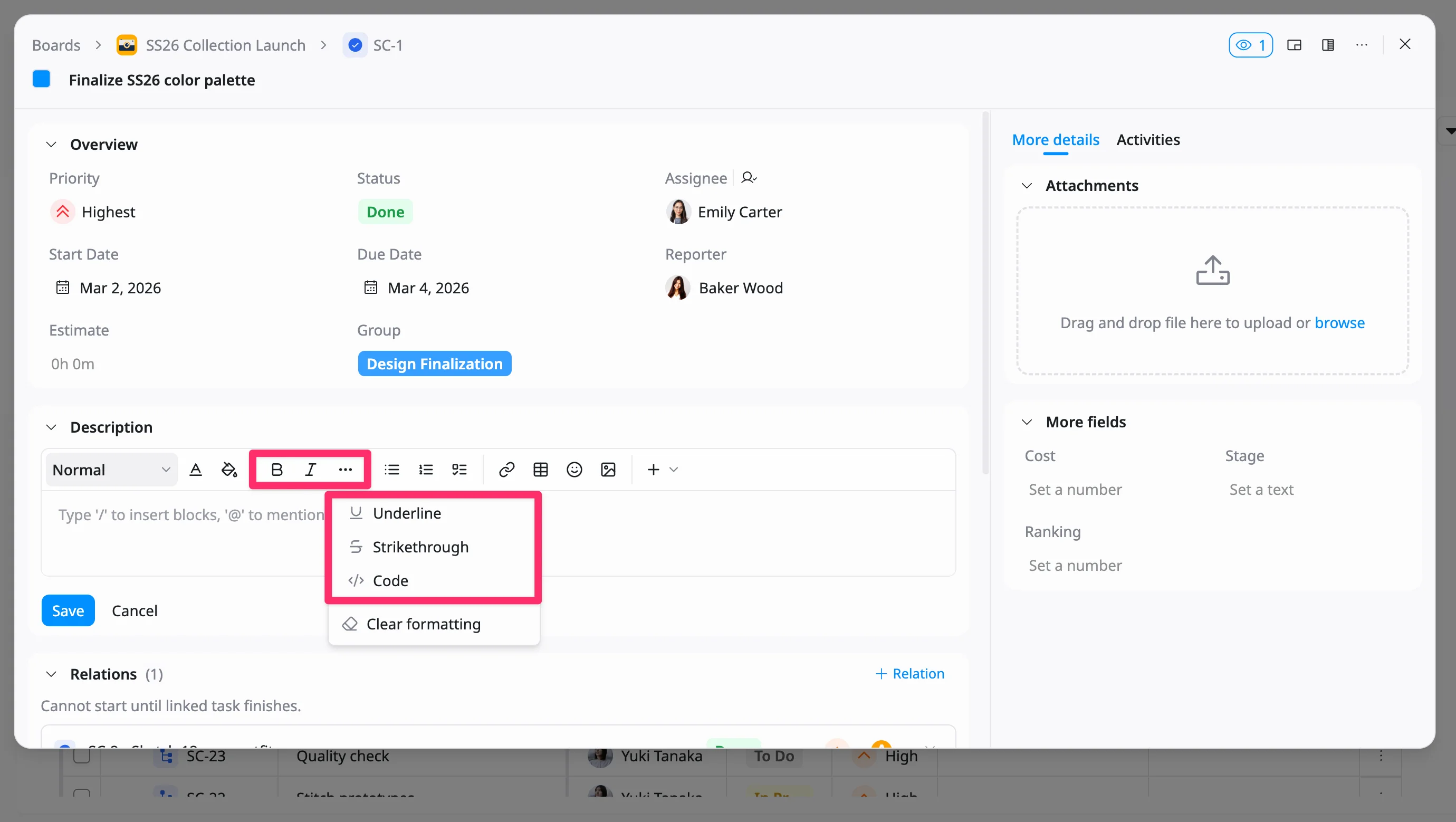
| Underline | ⌘ U / Ctrl+U | Highlight text |
| Strikethrough | ⌘ ⇧ X / Ctrl+Shift+X | Indicate removed or completed content |
| Code | ⌘ E / Ctrl+E | Format text as inline code |
Clear formatting
To remove formatting from text, select it and click the applied formatting option(s) again.
You can also clear formatting using the menu:
- Click the three dots (⋯) in the toolbar.
- Select Clear formatting from the dropdown menu.
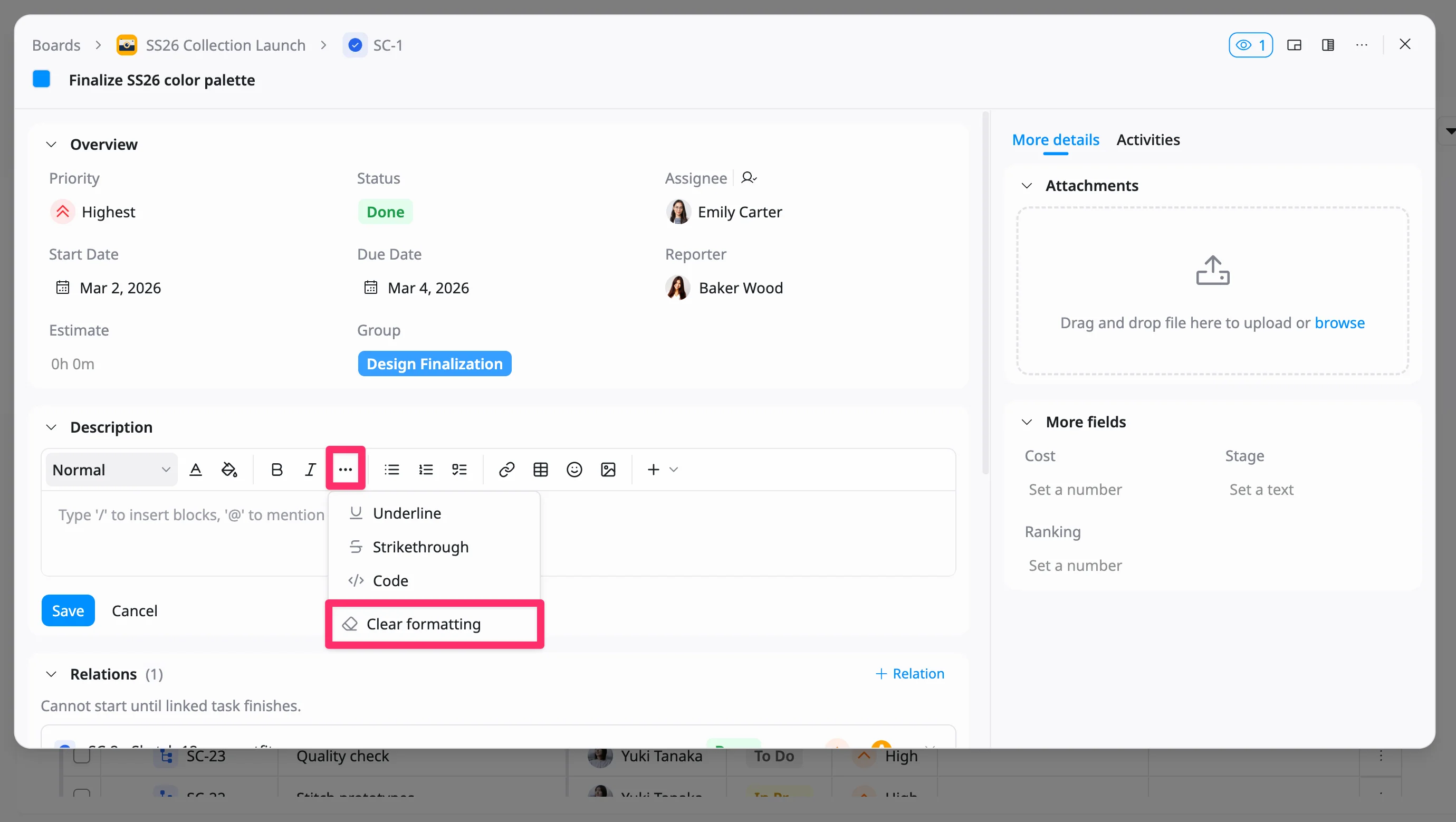
The selected text will return to its default style.
Set text style
You can use text styles to structure your content and make it easier to read.
To change the text style:
- Place your cursor in the text or select the text you want to update.
- Click the Paragraph dropdown in the toolbar.
- Select a style.
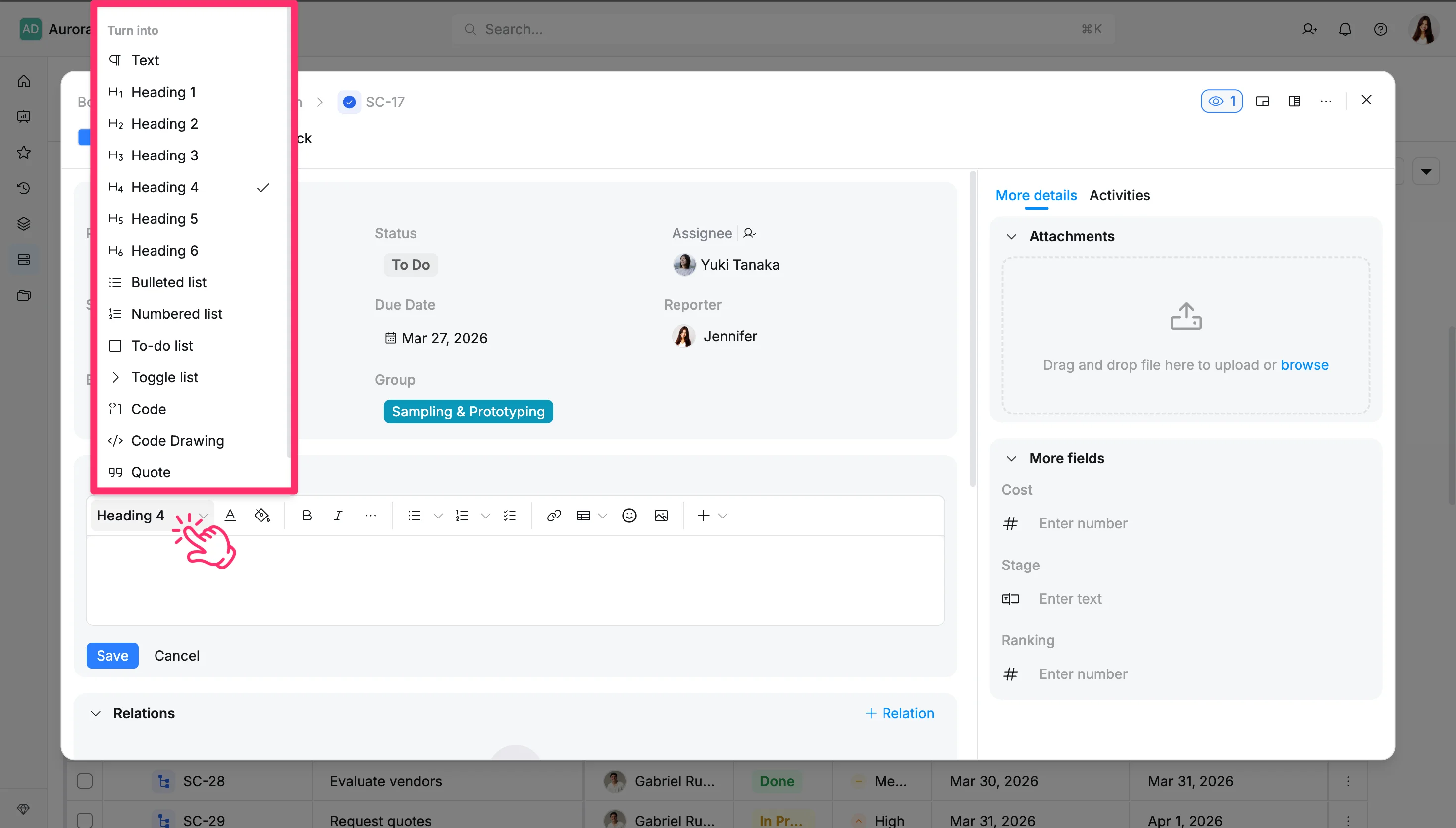
The selected style will be applied to your text, helping organize content into clear sections.
Apply text colors
You can use text and background colors to highlight important information and improve readability.
To apply text or background color:
- Select the text you want to format.
- Click the Text color or Background color icon in the toolbar.
- Choose a color from the palette, or select a custom color.
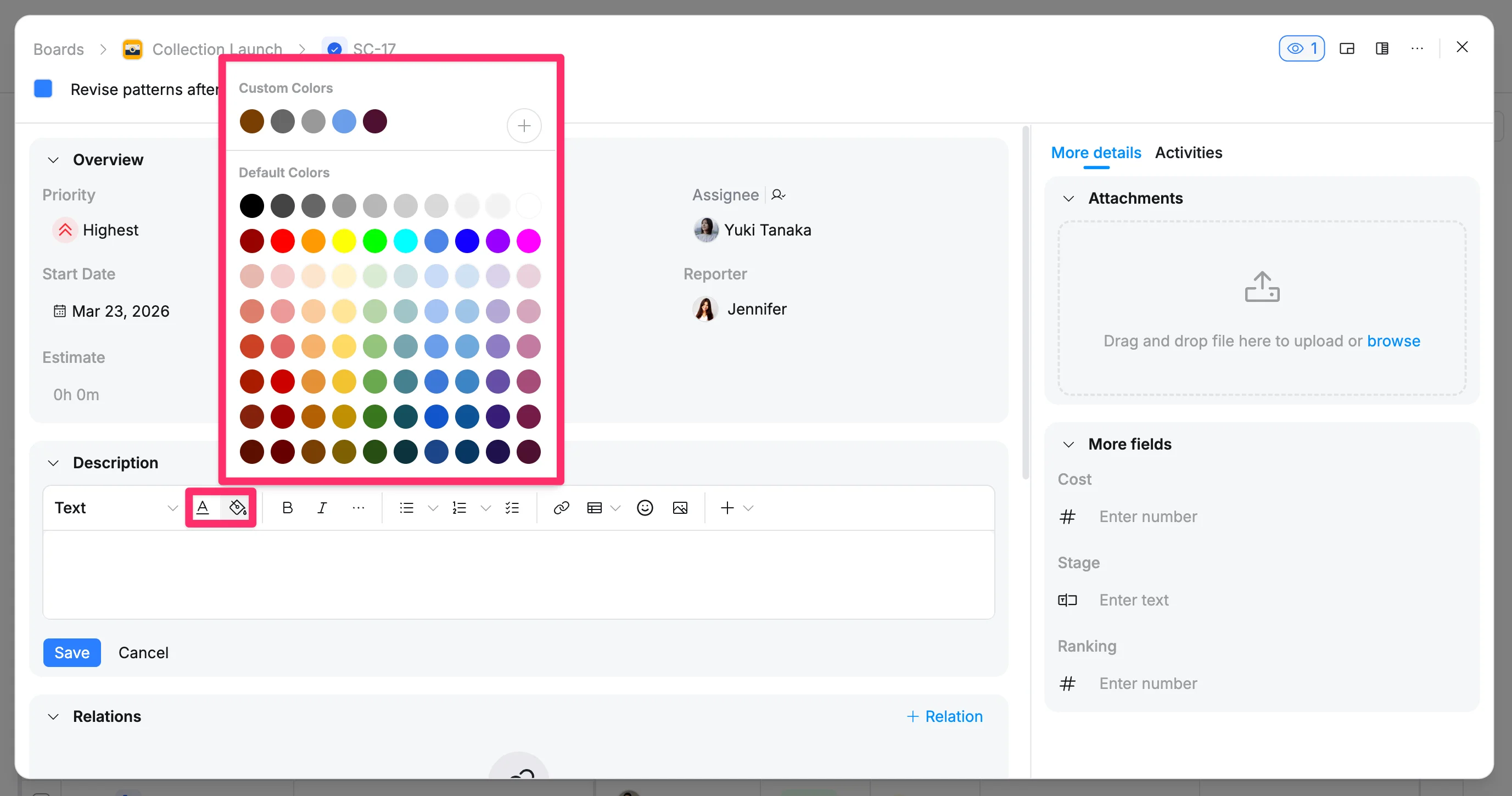
The selected color will be applied to your text.
- Use text color to change the color of the text itself.
- Use background color to highlight text with a colored background.
Create lists
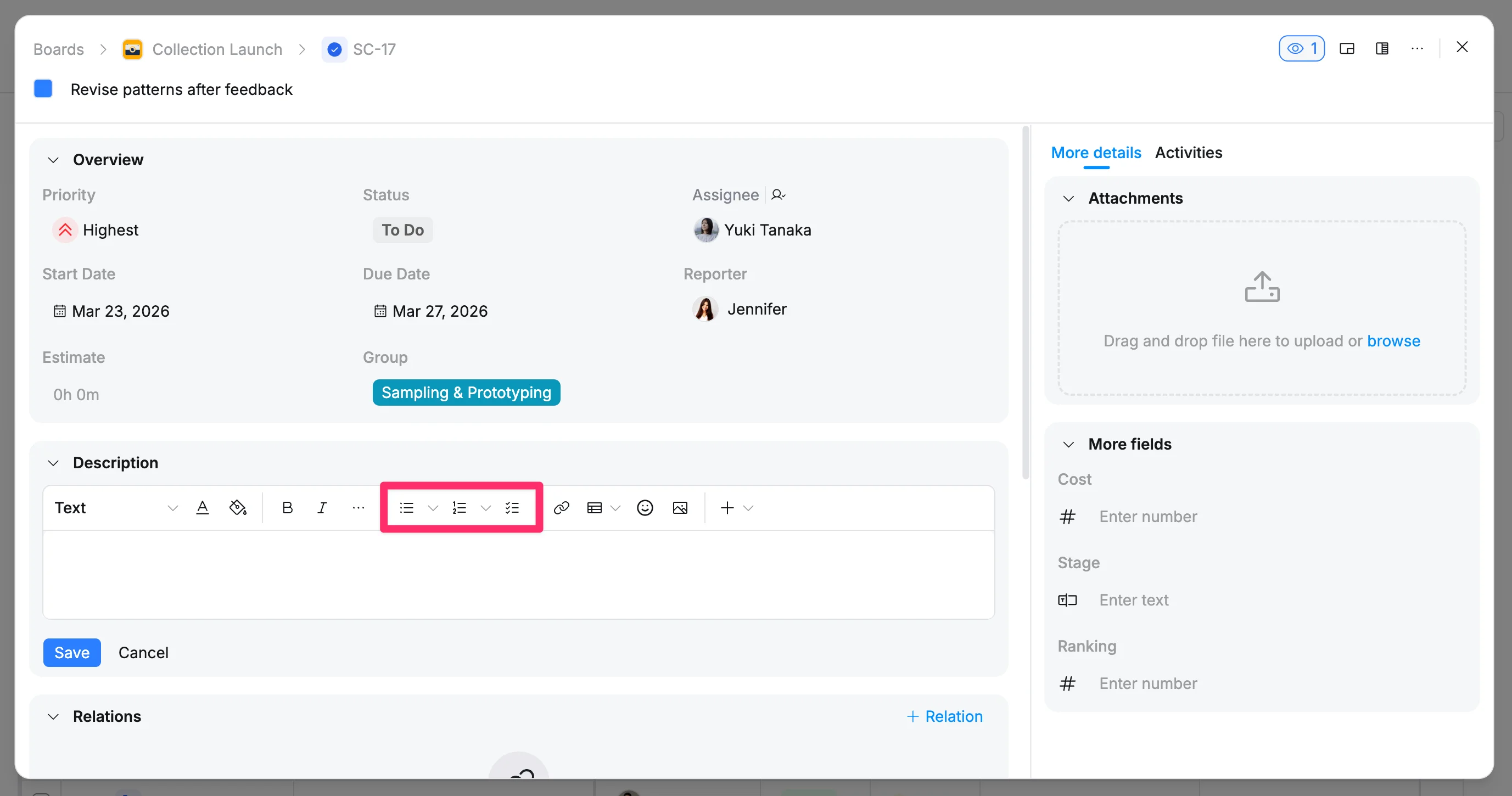
You can use lists to organize information and make your content easier to scan.
To create a list:
-
Place your cursor where you want to start the list.
-
Click one of the list options in the toolbar:
- Bulleted list
- Numbered list
- Checklist
-
Start typing your list item and press Enter to add the next item.
Insert a link
You can add links to your text to reference external resources or related content.
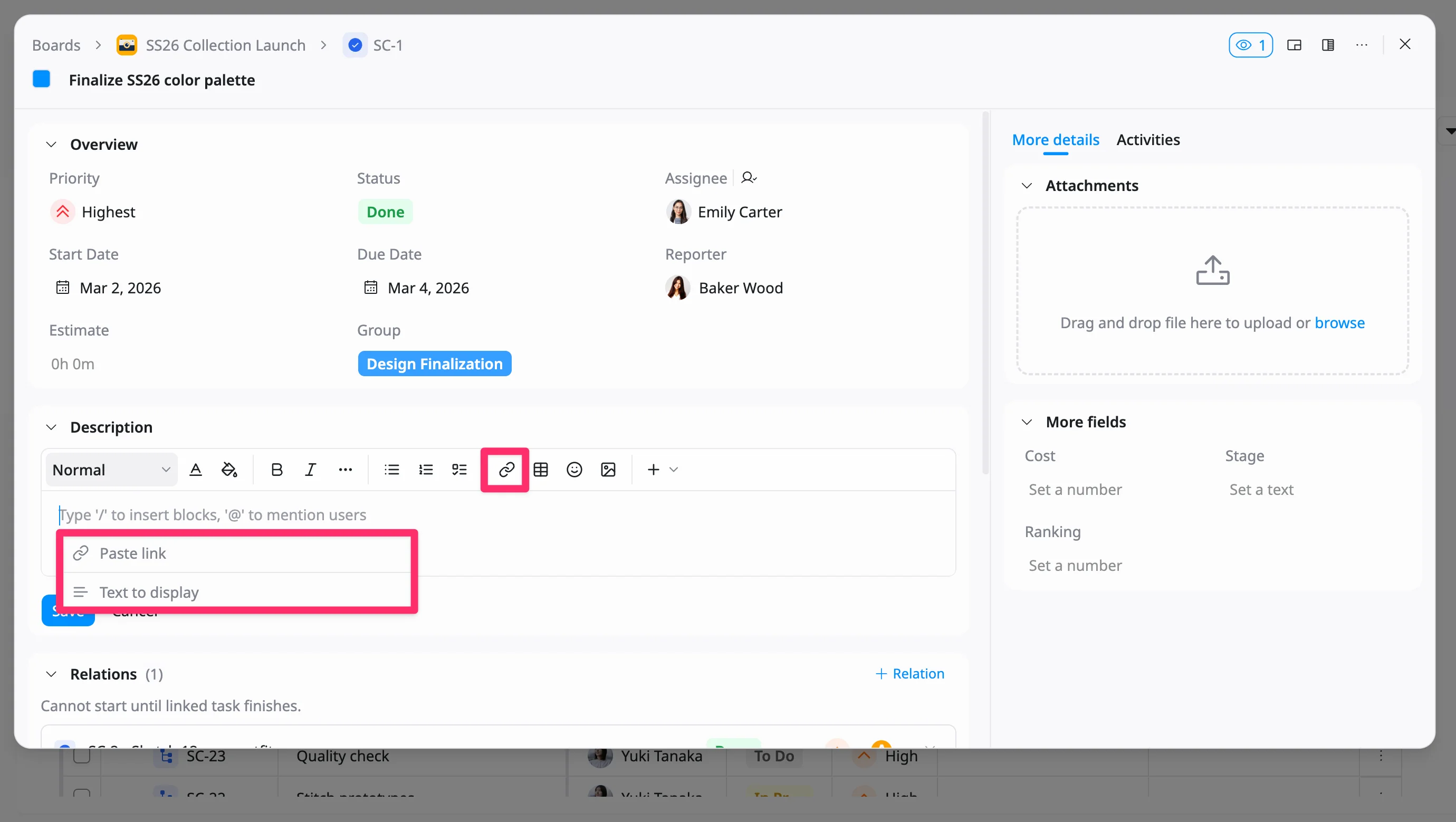
Add a link using the toolbar
-
Select the text you want to turn into a link.
-
Click the Link icon in the toolbar.
-
In the dialog:
- Enter or paste the URL.
- Enter the display text.
-
Press Enter to insert the link.
Paste a link using a shortcut
You can quickly create a link using your clipboard:
- Copy a URL.
- Select the text you want to link.
- Press ⌘ V or Ctrl+V.
The selected text will automatically be converted into a link.
Mention a person
You can mention people in your text to notify them and bring their attention to specific content.
To mention a person:
- Type @ in the editor.
- Start typing the person’s name and select them from the list.
The selected user will be mentioned in your text and notified.
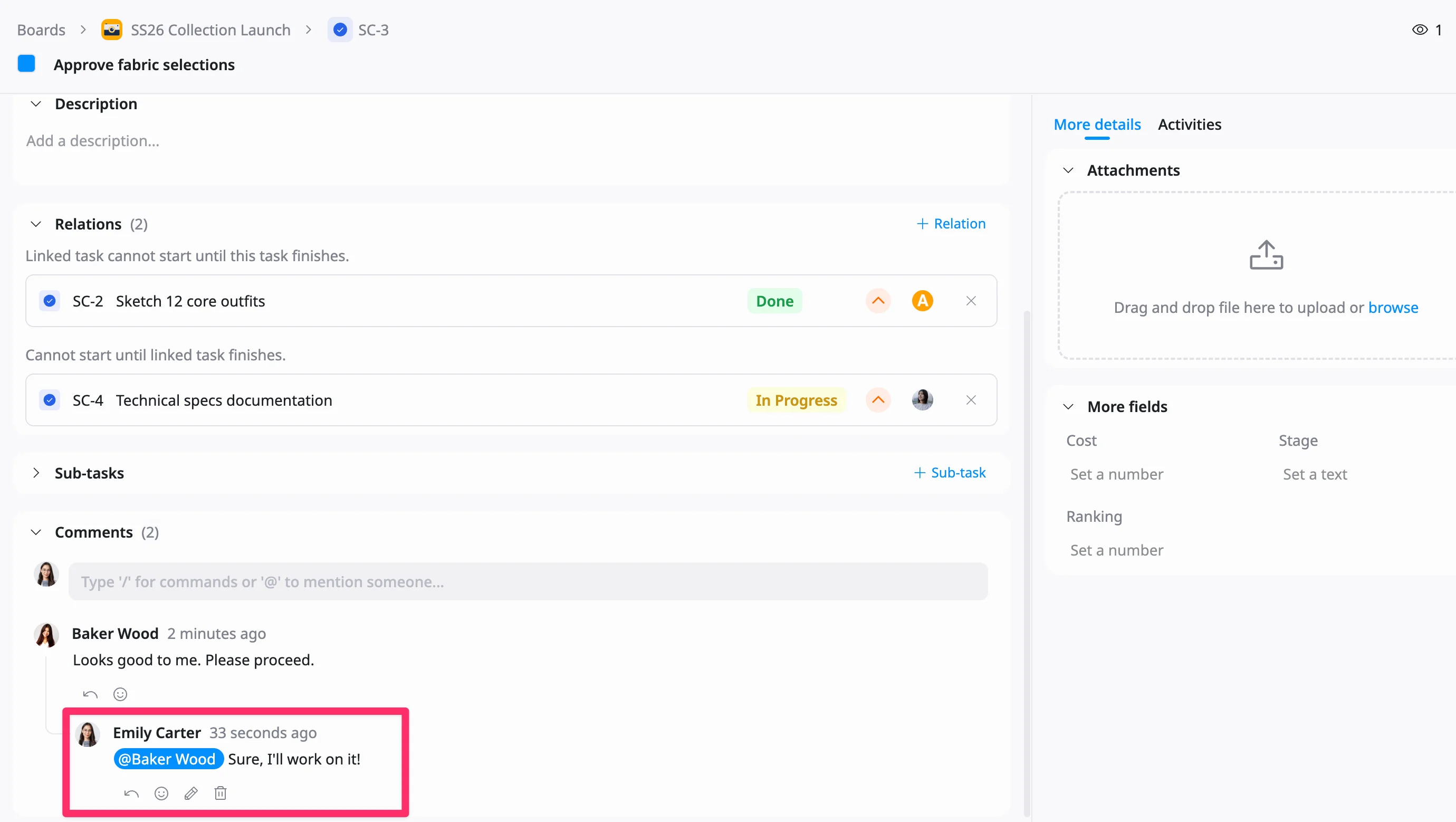
- Mentions can be used in task descriptions and comments.
- Mentioned users will receive a notification, helping keep everyone aligned.
Insert media
You can insert images, videos, audio, or files into your content to provide additional context and support your work.
Add media
-
Click the Media (image) icon in the toolbar.
-
Choose one of the following options:
- Upload from the computer
- Insert via URL
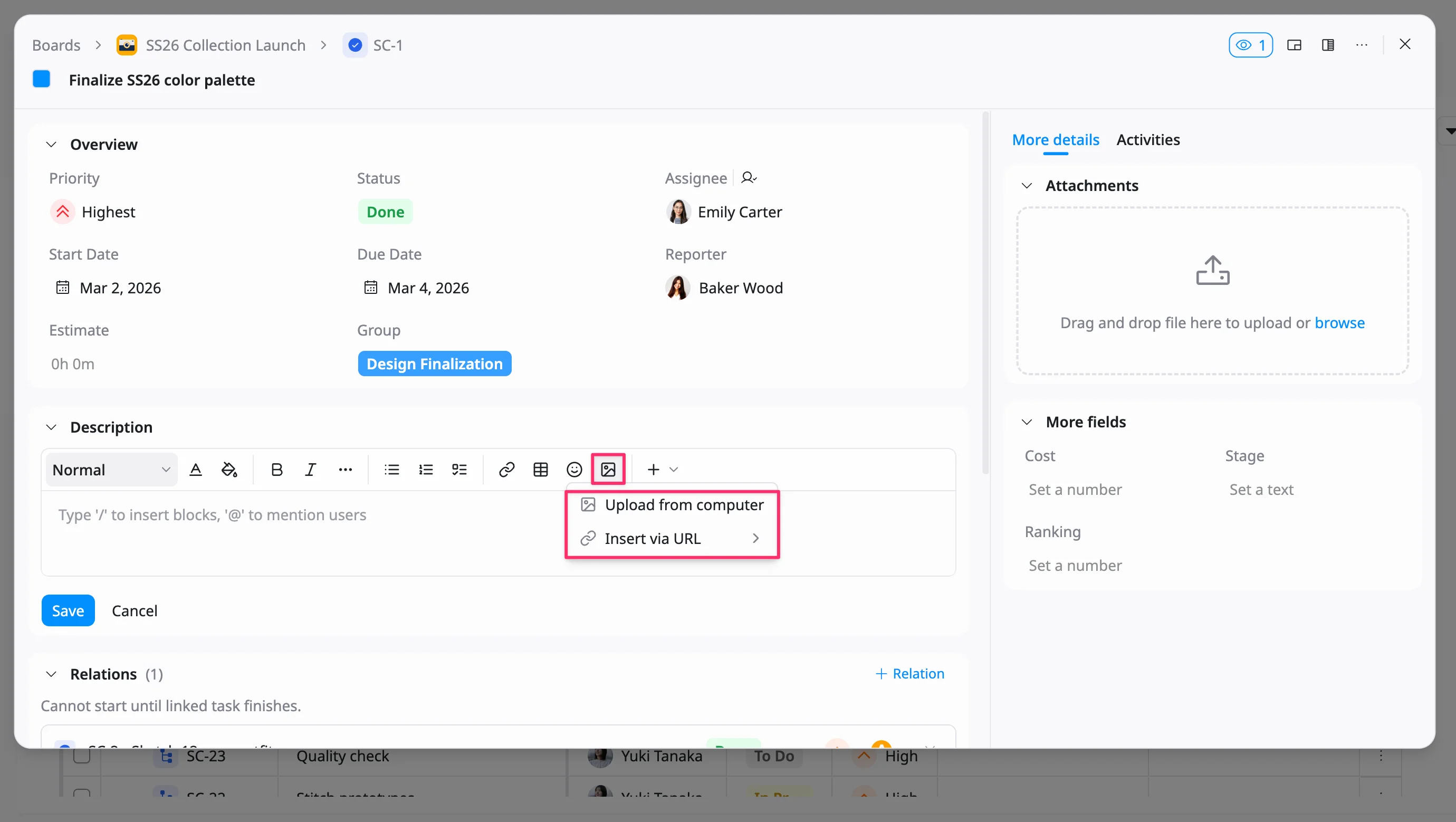
- Select or enter your media.
The media will be inserted into your content.
Manage media
After inserting media, you can perform the following actions:
View in full screen
Double-click the media to open it in full screen.
Resize media
Click the media and drag its edges to adjust the size.
Open more options
Right-click the media to access additional actions:
- Duplicate
- Indent
- Outdent
- Align
- Delete
Edit or remove the media
Click the media once to access quick actions:
- Add a caption
- Delete the media
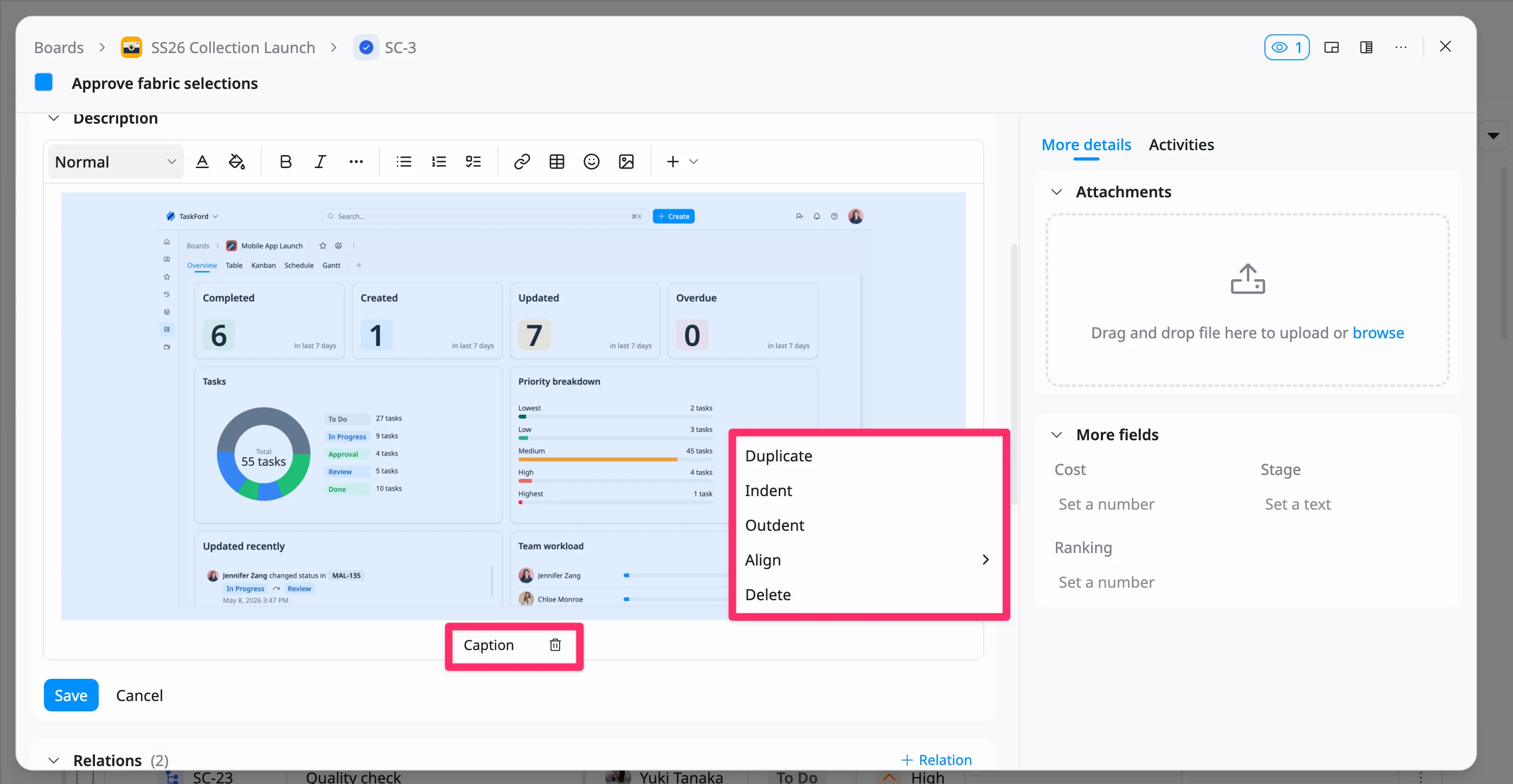
You can delete media either from the toolbar or from the right-click menu.
Create a table
You can insert a table to organize information clearly using rows and columns.
Insert a table
To add a table:
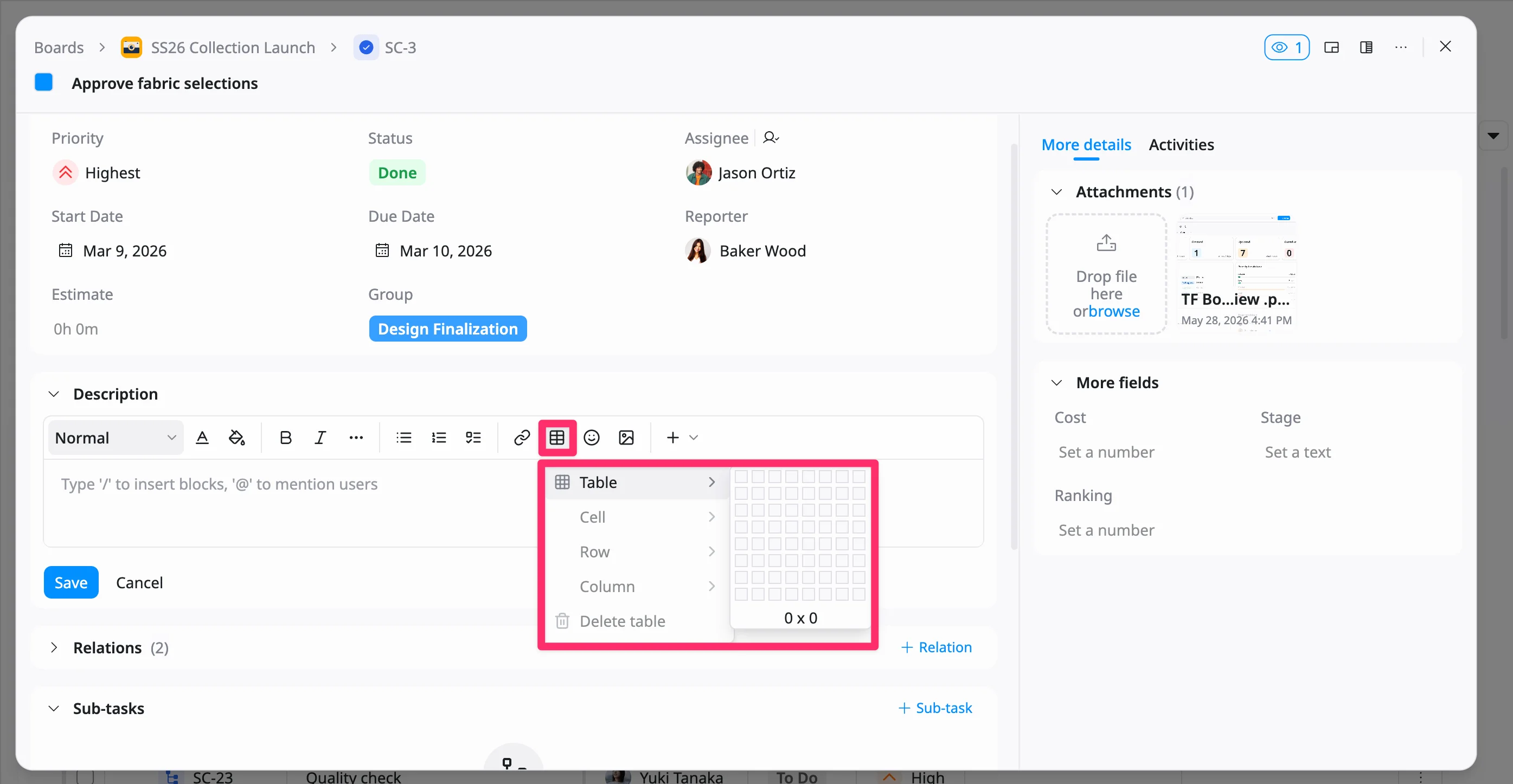
- Click the Table icon in the toolbar.
- Hover over the grid to select the number of rows and columns.
- Click to insert the table into your content.
Edit a table
To edit a table, select any cell in the table.
Table editing options are available from the toolbar at the top menu. You can use these options to:
- Merge and split cells
- Insert or delete rows and columns
- Delete the table
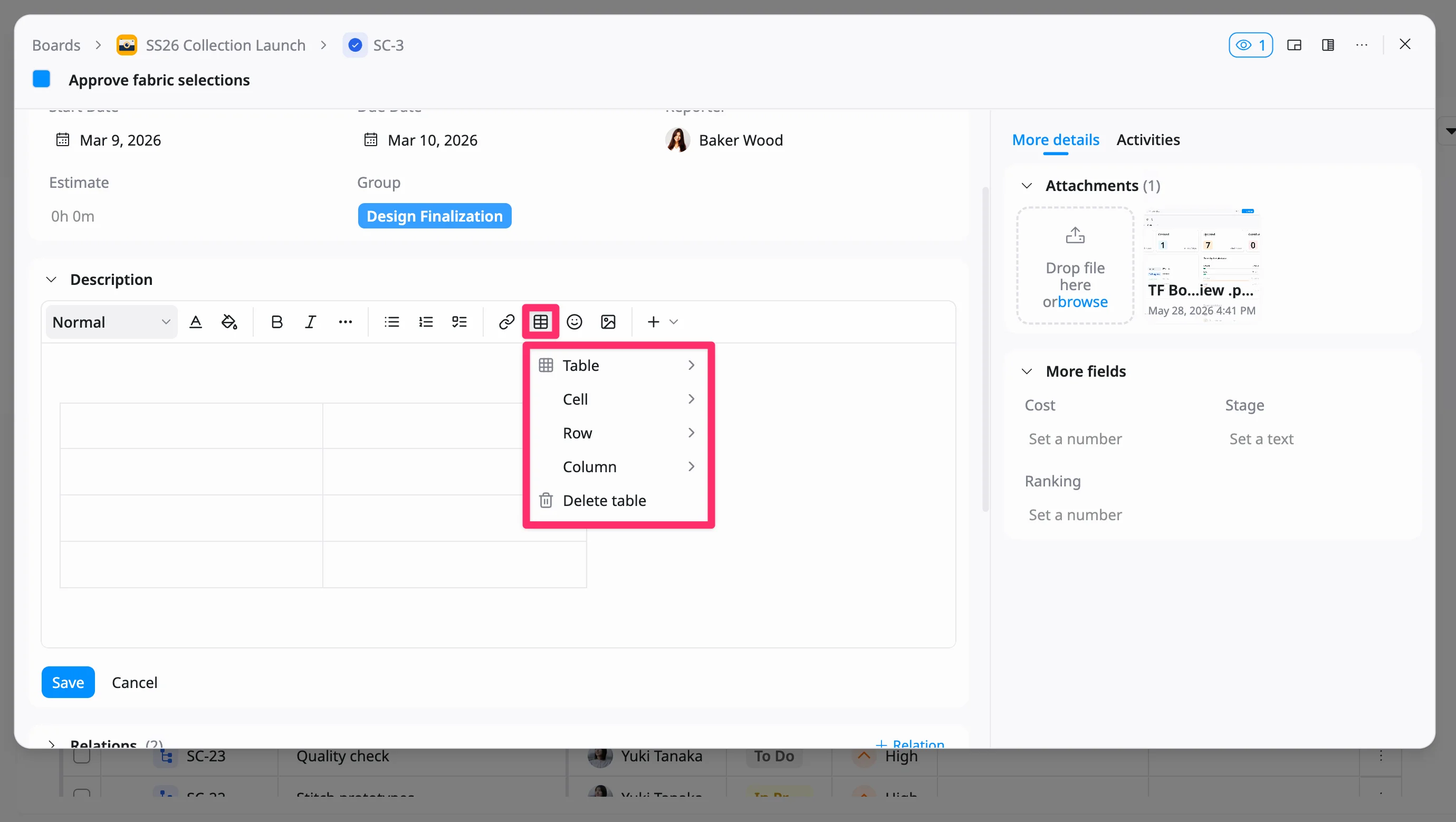
You can also access additional table options by clicking the cell border. A floating menu appears, where you can:
- Set background colors
- Add a column to the left or right
- Clear cells
- Delete a column
- Move a column left or right
- Enable numbered column
To quickly add a new row or column, click the plus (+) icon on the edge of the table border.
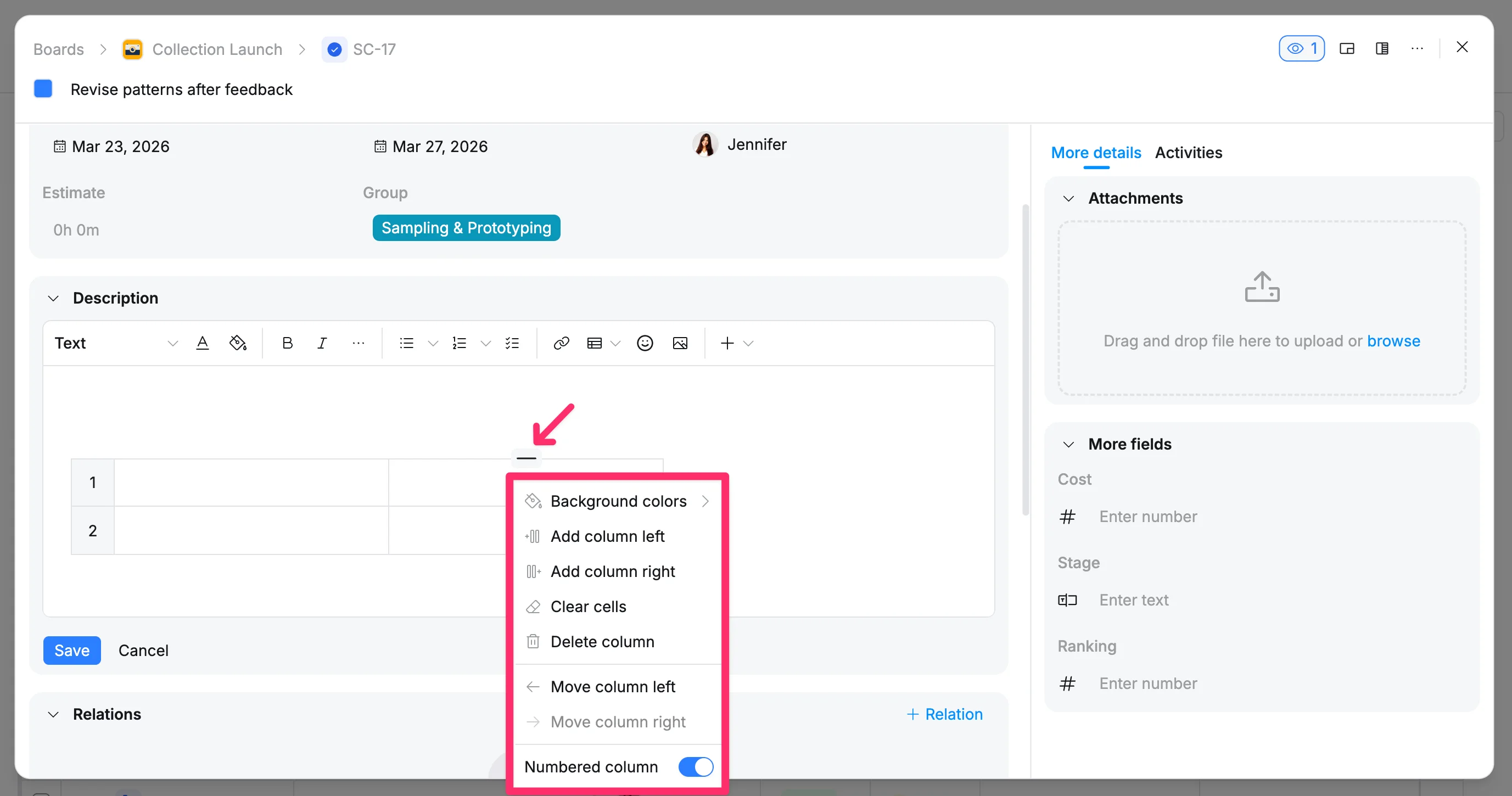
These controls allow you to quickly format and restructure your table directly within your content.
Edit table content
Click into any cell to start typing.
You can apply formatting inside cells, such as:
- Text styling (bold, italic, etc.)
- Links
- Lists
- Mentions
Add emojis
You can use emojis to make your content more expressive and easier to scan.
To add an emoji:
- Click the Emoji icon in the toolbar.
- Browse or search for an emoji in the picker.
- Click an emoji to insert it into your content.
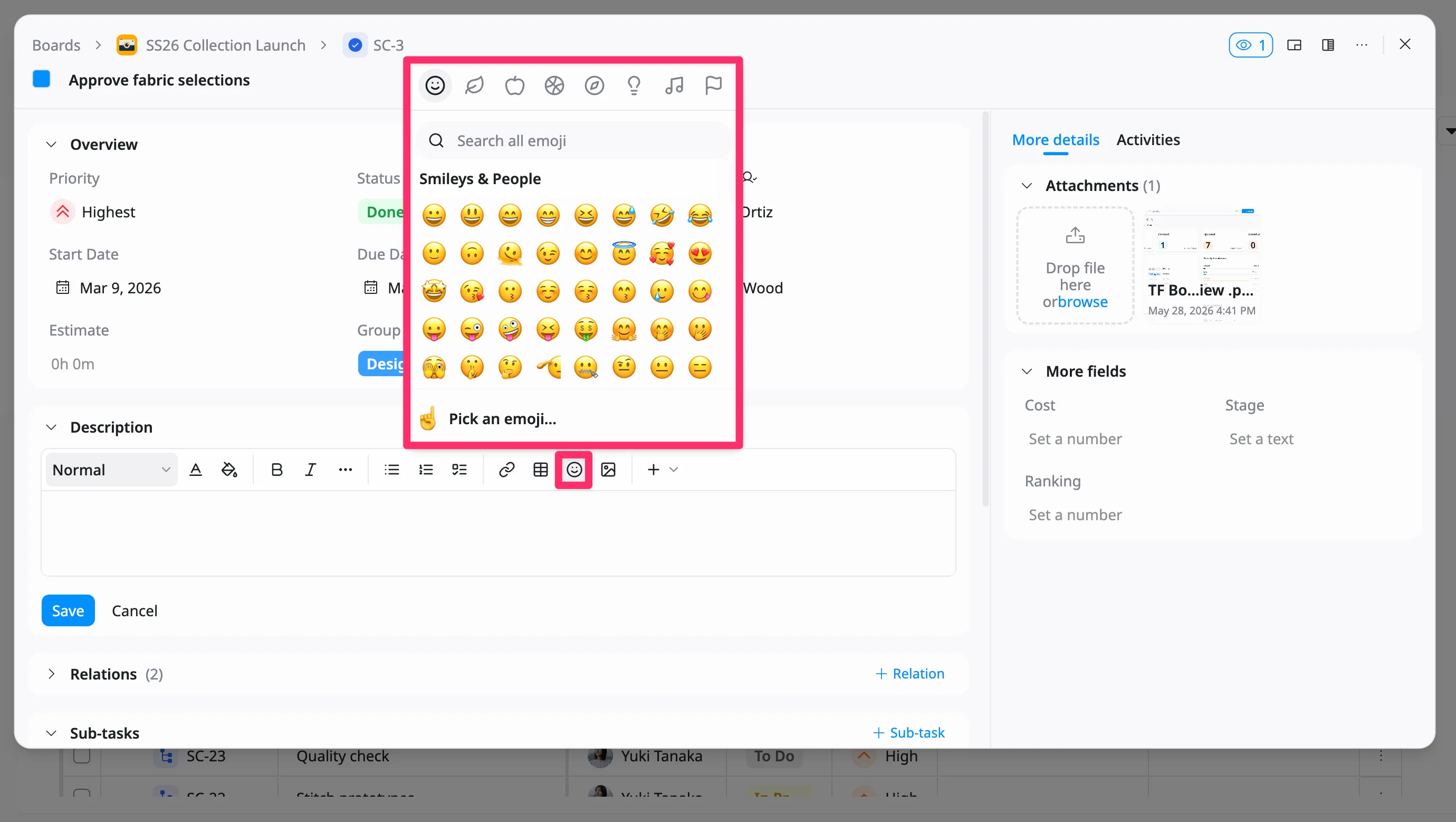
Another way to quickly open your system’s emoji panel is by using a shortcut:
- Mac: ⌃ ⌘ Space
- Windows: Windows key + . (period)
You can then insert emojis directly into the editor without opening the emoji picker from the toolbar.
Insert elements
You can insert structured elements to enhance your content, such as highlights, code snippets, or layouts.
To insert an element:
- Click the Insert (+) icon in the toolbar.
- Select an element from the dropdown menu.
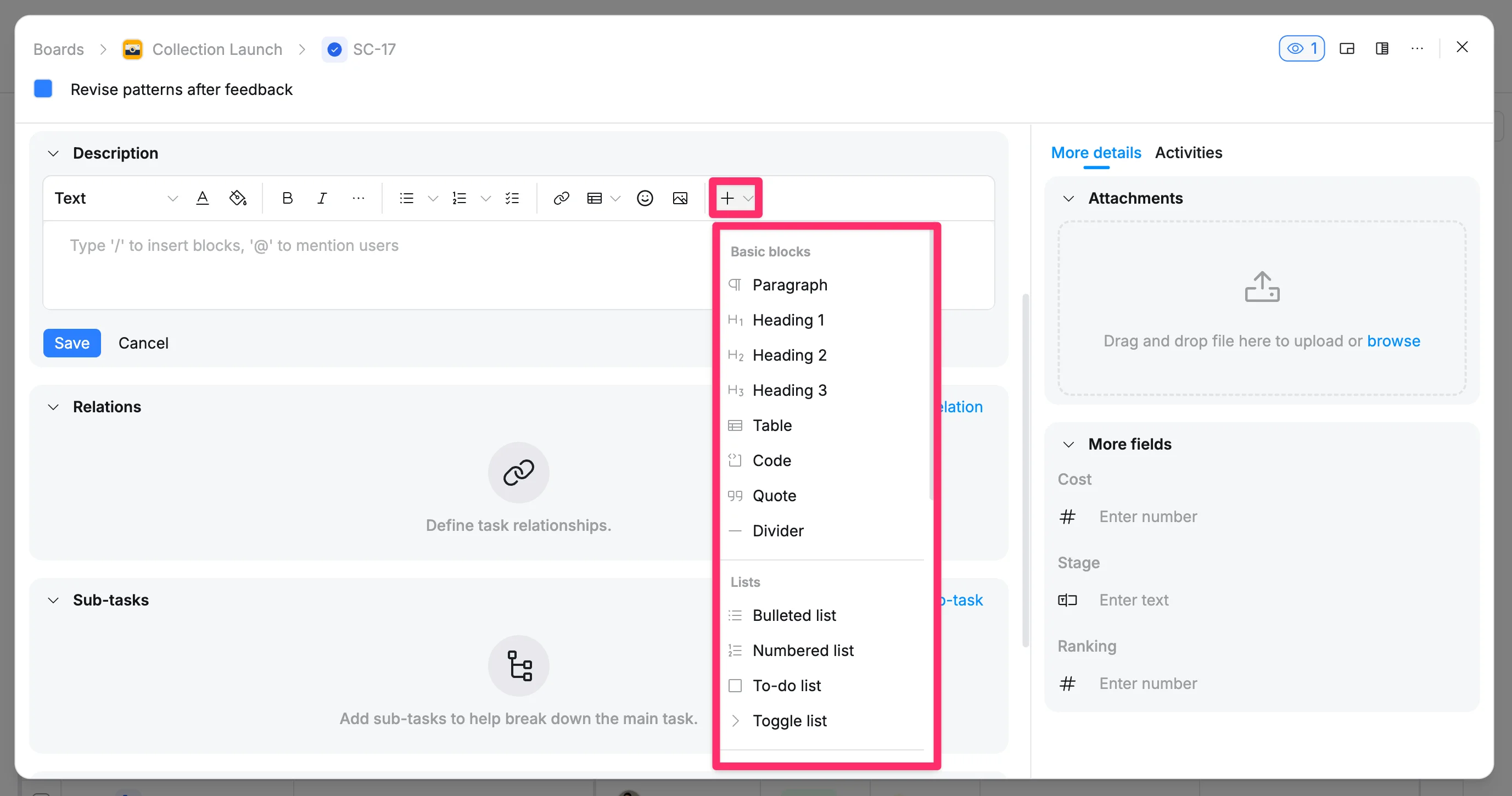
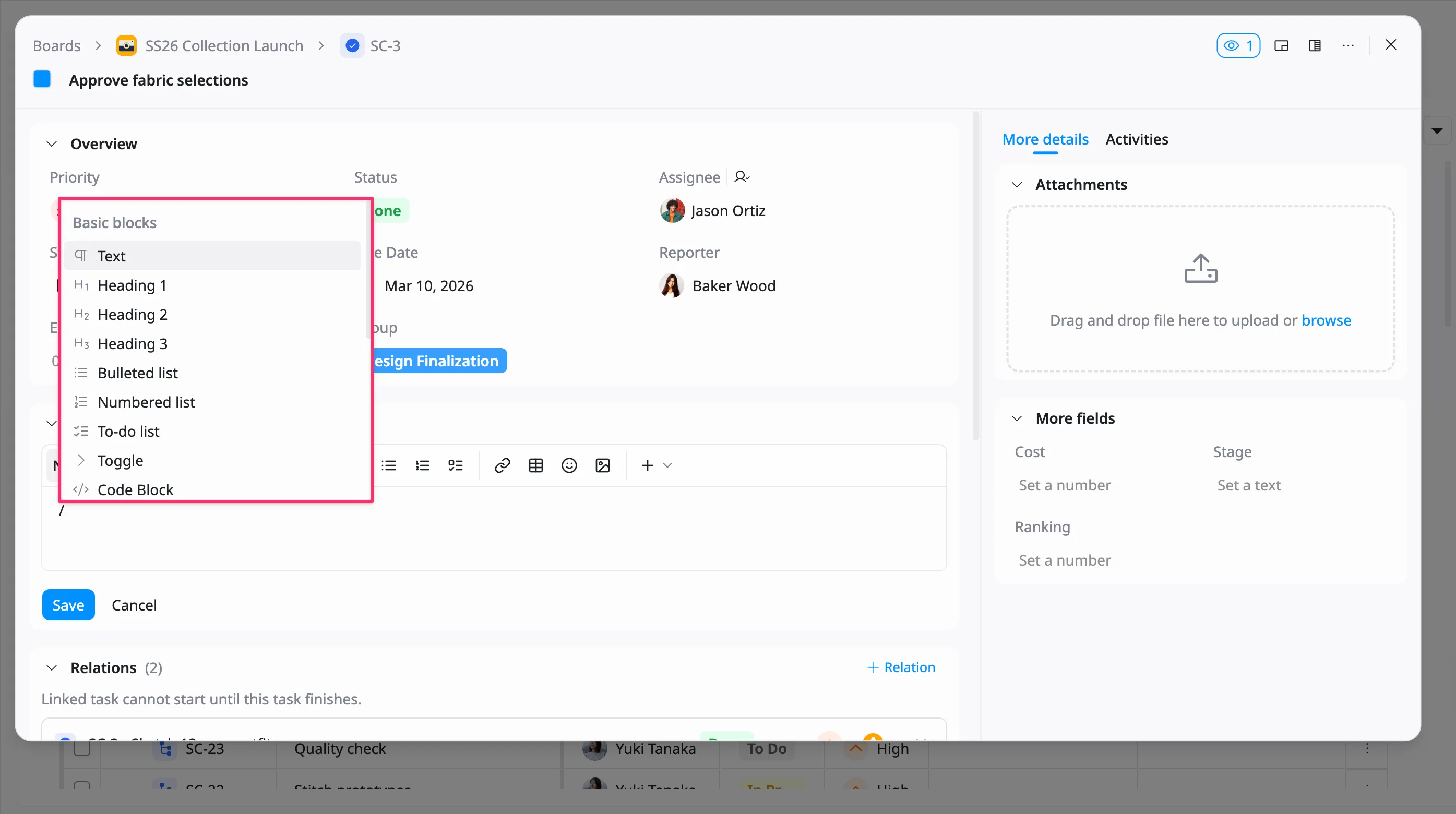
Use quick commands
You can quickly insert blocks and format content by typing ‘/’ in the editor.
A command menu will appear, allowing you to search and select different types of blocks.
Available blocks
Quick commands let you insert:
- Text styles (Normal, Heading 1, Heading 2, Heading 3)
- Lists (Bulleted list, Numbered list, Check list)
- Elements (Table, Code block, Quote, Info panel)
- Advanced blocks (3 columns, Equation)
- Inline items (Date, Inline equation)
- Media (Image, video, audio, file)