Trash
Temporarily store, search, restore, or permanently delete deleted boards in TaskFord’s Trash tab to safeguard and manage site data.
The Trash tab in Site settings is where deleted boards or portfolios are temporarily stored before they are permanently removed. It gives admins a chance to review and restore boards that were removed by mistake.
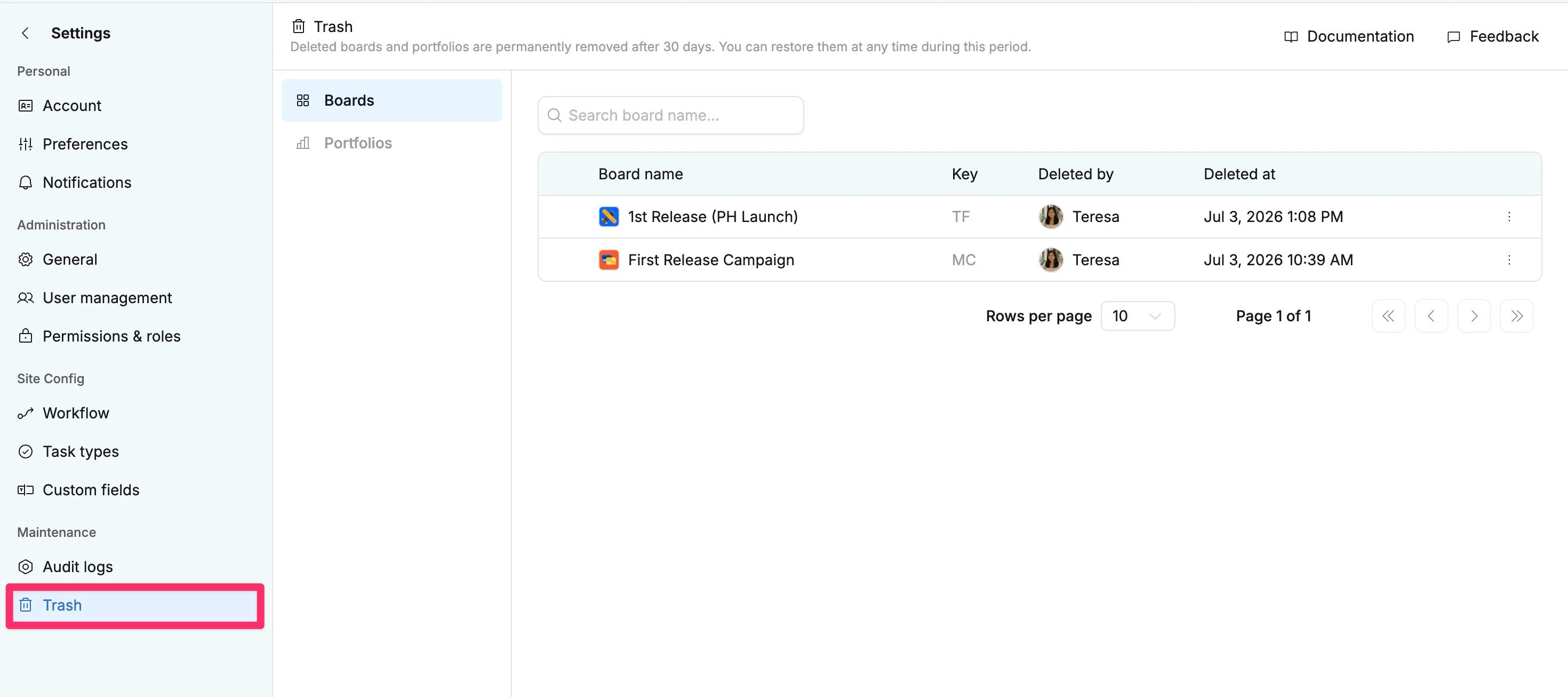
From this page, admins can see key details about each board/portfolio, including the board/portfolio name, key, who deleted it, and when it was deleted. This helps teams track removed boards/portfolios and recover important work when needed.
Deleted boards/portfolios remain in Trash for 30 days before they are permanently purged.
Access the Trash tab
- Navigate to the Site settings page
- Select the Trash tab from the left-hand menu.
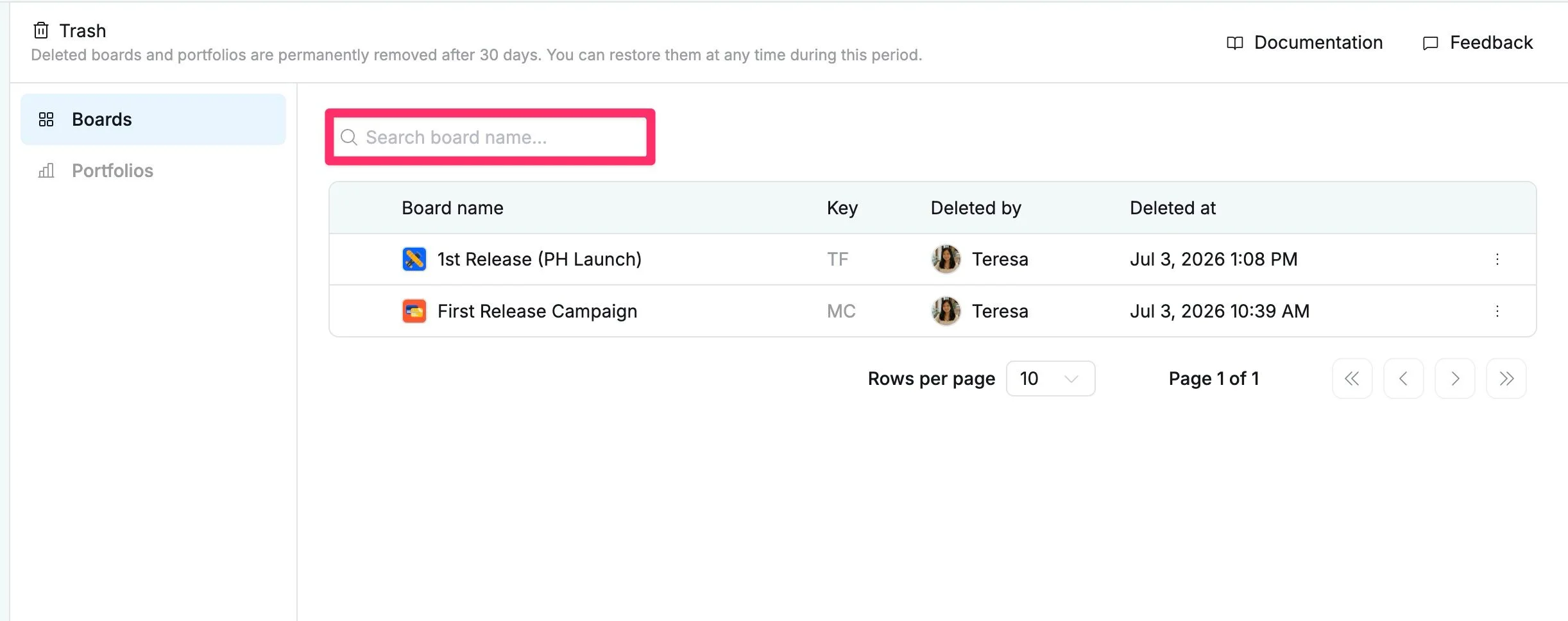
Search for deleted boards/portfolios
To search for deleted boards/portfolios, use the Search bar and enter the board/portfolio name. This helps you quickly locate specific deleted boards/portfolios within the site.
Restore a board
Admins can restore a board from Trash and bring it back from the workspace.
To restore a board:
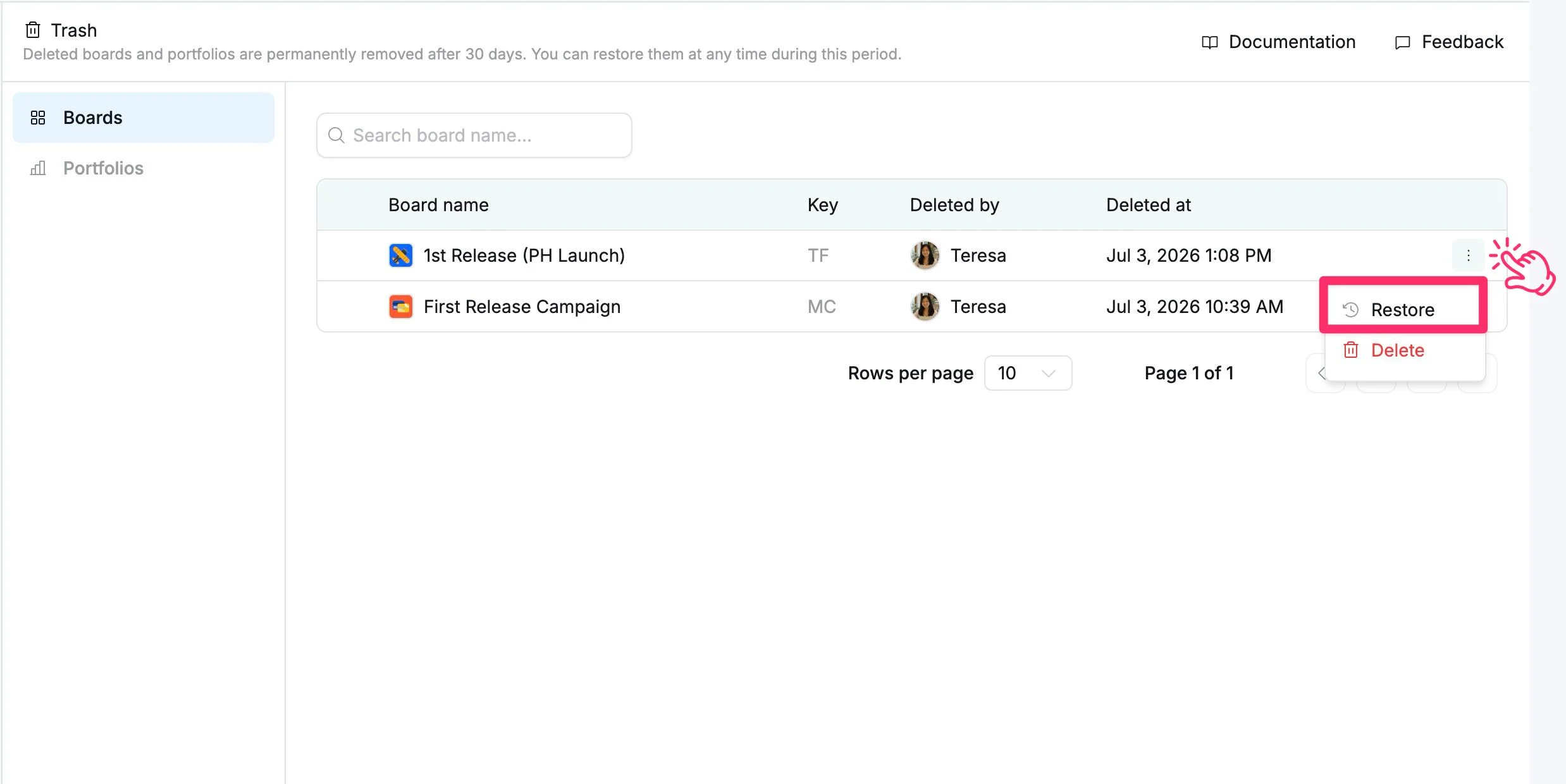
- Locate the deleted board.
- Click the three-dot menu (⋮) next to the Board.
- Select Restore.
- In the confirmation dialog, click Restore to confirm.
To cancel, click outside the confirmation dialog.
Permanently delete a board
Boards stored in the Trash can still be permanently deleted.
To permanently delete a board:
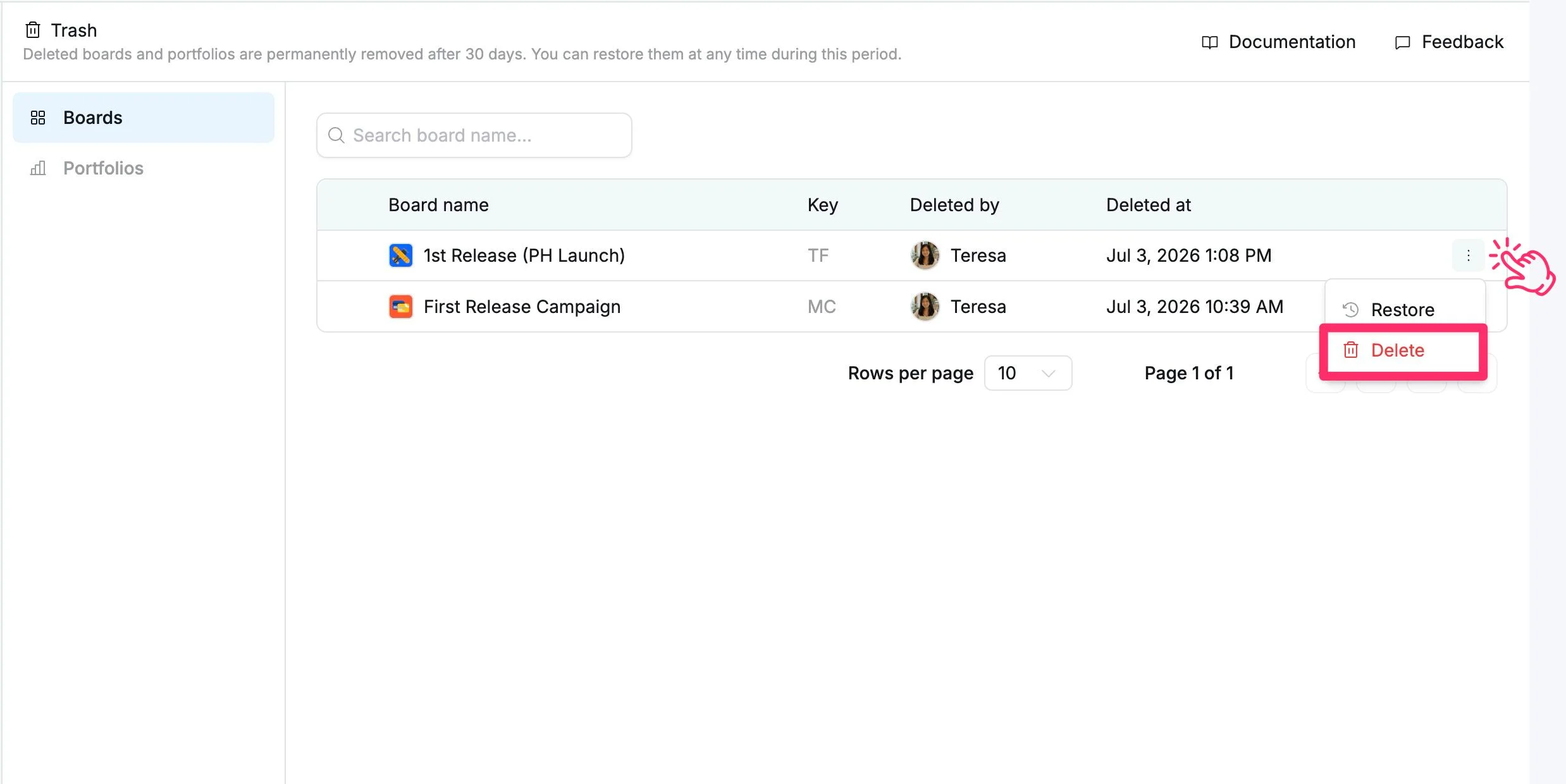
- Find the board you want to delete.
- Click the More actions icon (⋯) next to the board.
- Select Delete.
- In the confirmation dialog, click Delete to confirm.
To cancel, click outside the confirmation dialog.