Upgrade or downgrade your plan
Learn how to view your current subscription tier, upgrade to unlock advanced features, or downgrade your plan when your team's needs change.
Only the Site Owner or users with Billing Manager can manage the site plan.
View your current plan
Before changing plans, review your current plan, billing cycle, and the features your team uses. This will help you understand how an upgrade or downgrade may affect your account.
To view your current plan:
- Click your profile picture in the top-right corner and select Settings.
- In the left-hand menu, navigate to the Administration section and select Billing & Plans.
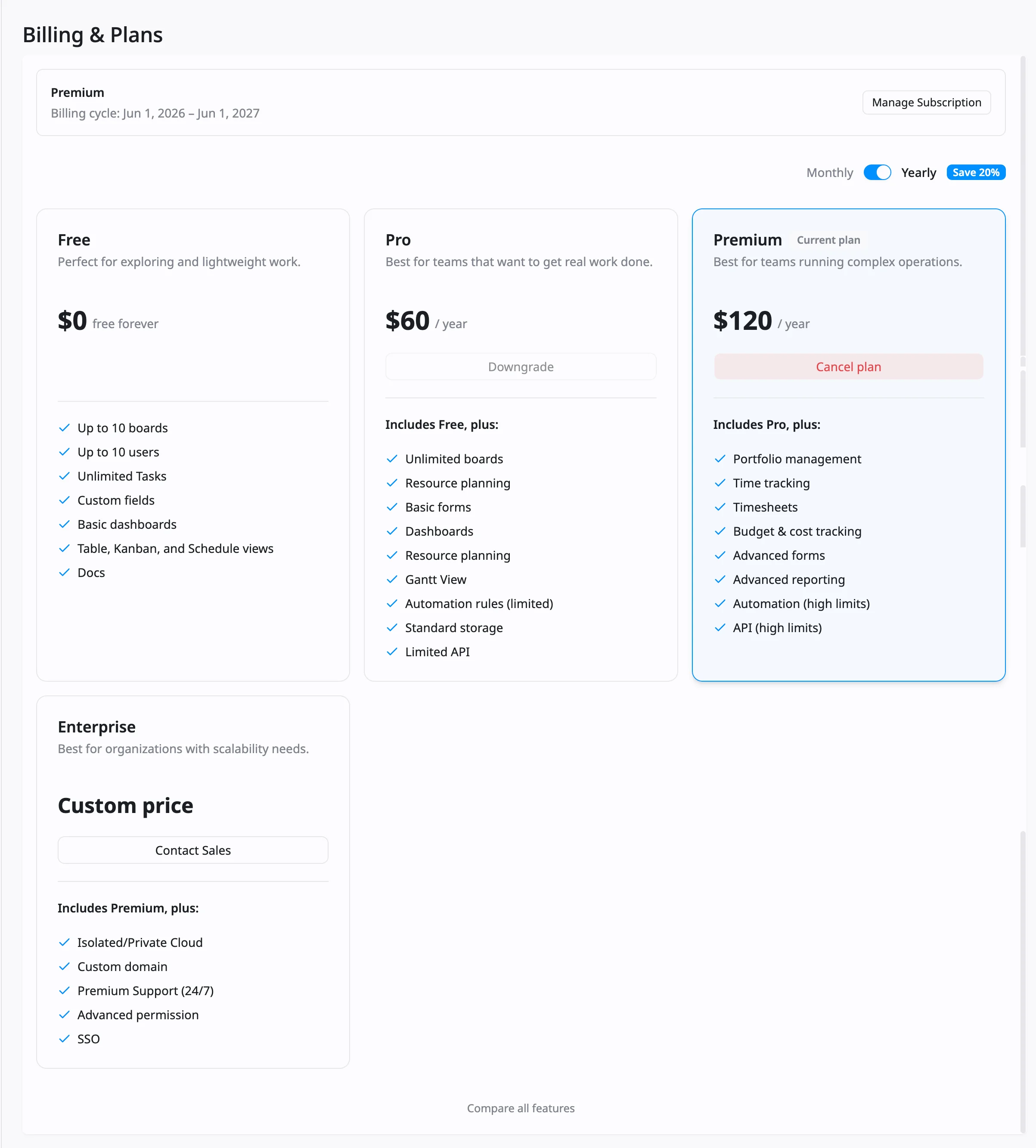
- Your tier (e.g., Free, Pro, or Premium) will display at the top of the page.
What to look for:
- Plan status: Check if you are on the Free, Standard, or Enterprise tier.
- Trial information: If you are in a trial period, the remaining days will be highlighted here.
- Billing cycle: Confirm whether you are billed monthly or annually and check your next renewal date.
Upgrade to a plan
You can upgrade from a lower plan to a higher plan at any time when your team needs more features, higher limits, or advanced tools.
When you upgrade, your site immediately gets access to the selected plan’s features. If your current paid plan still has time left in the billing period, the unused portion may be credited toward the cost of the new plan on a prorated basis.
- Click your profile picture in the top-right corner and select Settings.
- In the left-hand menu, go to the Administration section and select Billing & Plans.
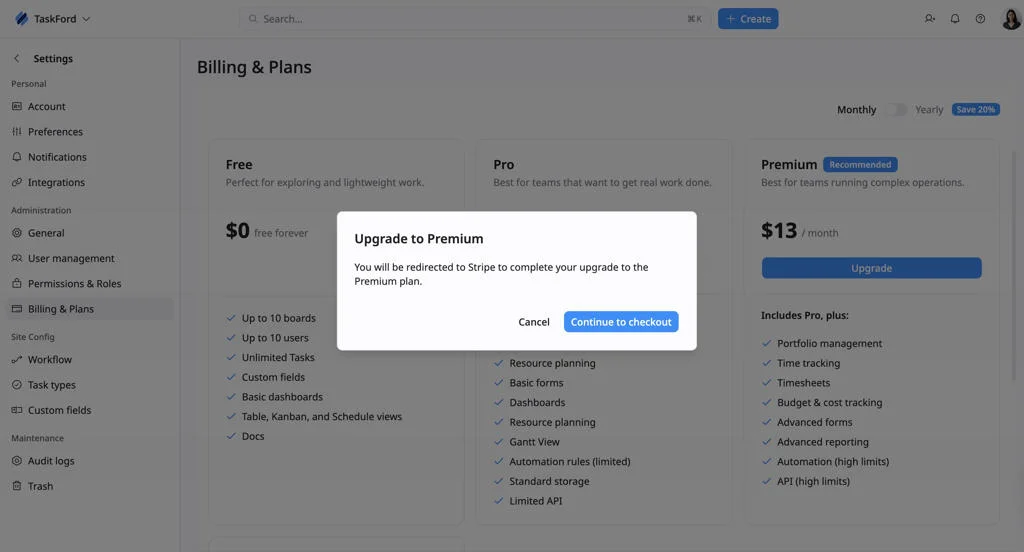
- Locate the plan you want to switch to and click Upgrade.
- Review the changes in the confirmation window, then select Continue to checkout.
- Complete the payment process securely via Stripe to activate your new features immediately.
Your upgrade cost may be based on:
- The new plan price
- The number of paid seats on your site
- The remaining time in your current billing cycle
- Any unused value from your current paid plan
- Your selected billing cycle, monthly or yearly
Upgrade to Enterprise
If you want to upgrade to the Enterprise plan, select Contact Sales on the Enterprise plan card. The TaskFord team will review your organization’s needs and provide a custom plan and pricing.
Downgrade your plan
Downgrading your plan may affect the features, limits, and tools available on your site.
When you downgrade from one paid plan to a lower plan, your current plan usually remains active until the beginning of your next billing period. During that time, you can continue using the features included in your current plan. Once the downgrade takes effect, features that are not included in the new plan may become unavailable.
To downgrade:
- Click your profile picture in the top-right corner and select Settings.
- In the left-hand menu, go to the Administration section and select Billing & Plans.
- Locate the plan you want to switch to and click Downgrade.
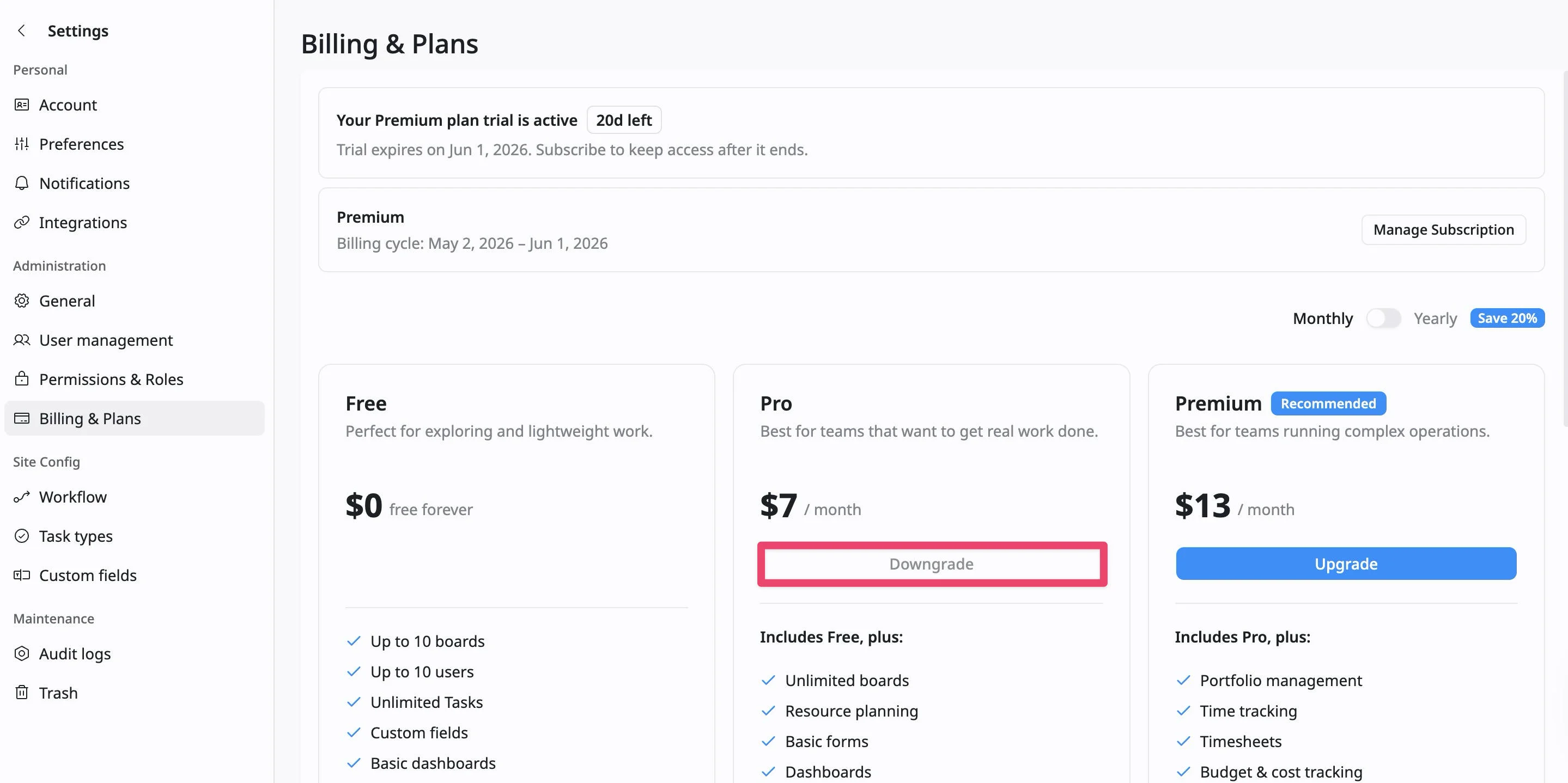
After the downgrade is confirmed, your current plan remains active until the end of the current billing period unless stated otherwise. When the downgrade takes effect, your site moves to the selected lower plan.
Frequently Asked Questions (FAQs)
When do upgraded features become available?
Upgraded features become available after checkout is completed and the upgrade is confirmed.
Will I receive credit for unused time on my current plan?
If you upgrade during an active paid billing period, unused time from your current plan may be credited toward the new plan on a prorated basis.
When does a downgrade take effect?
A downgrade usually takes effect at the beginning of the next billing period. Until then, your current paid plan remains active.
Can I keep using current plan features after downgrading?
Yes. You can usually continue using current plan features until the end of the current billing period. After that, the lower plan takes effect.
Will my data be deleted if I downgrade?
No. Your data is not automatically deleted, but features not included in the lower plan may become unavailable.
Can I upgrade before my current billing period ends?
Yes. When the upgrade is confirmed, your site gets access to the new plan’s features immediately. If your current paid plan still has unused time left in the billing period, the unused portion may be credited toward the cost of the new plan on a prorated basis.
Can I downgrade before my current billing period ends?
When you downgrade before your current billing period ends, your current plan usually remains active until the end of that billing period. You can continue using your current plan’s features until the downgrade takes effect. Once the billing period ends, your site moves to the selected lower plan. Features that are not included in the lower plan may become unavailable.
Can I resubscribe if I have initiated a downgrade?
Yes, if you have initiated a downgrade but the change has not yet taken effect (usually until the end of your current billing cycle), you can often resubscribe to maintain your current subscription.