User management
Manage site users in TaskFord by inviting members, assigning roles, and controlling access all from one central page
Only Site Owners / Site Admins / App Admins can access and manage user management.
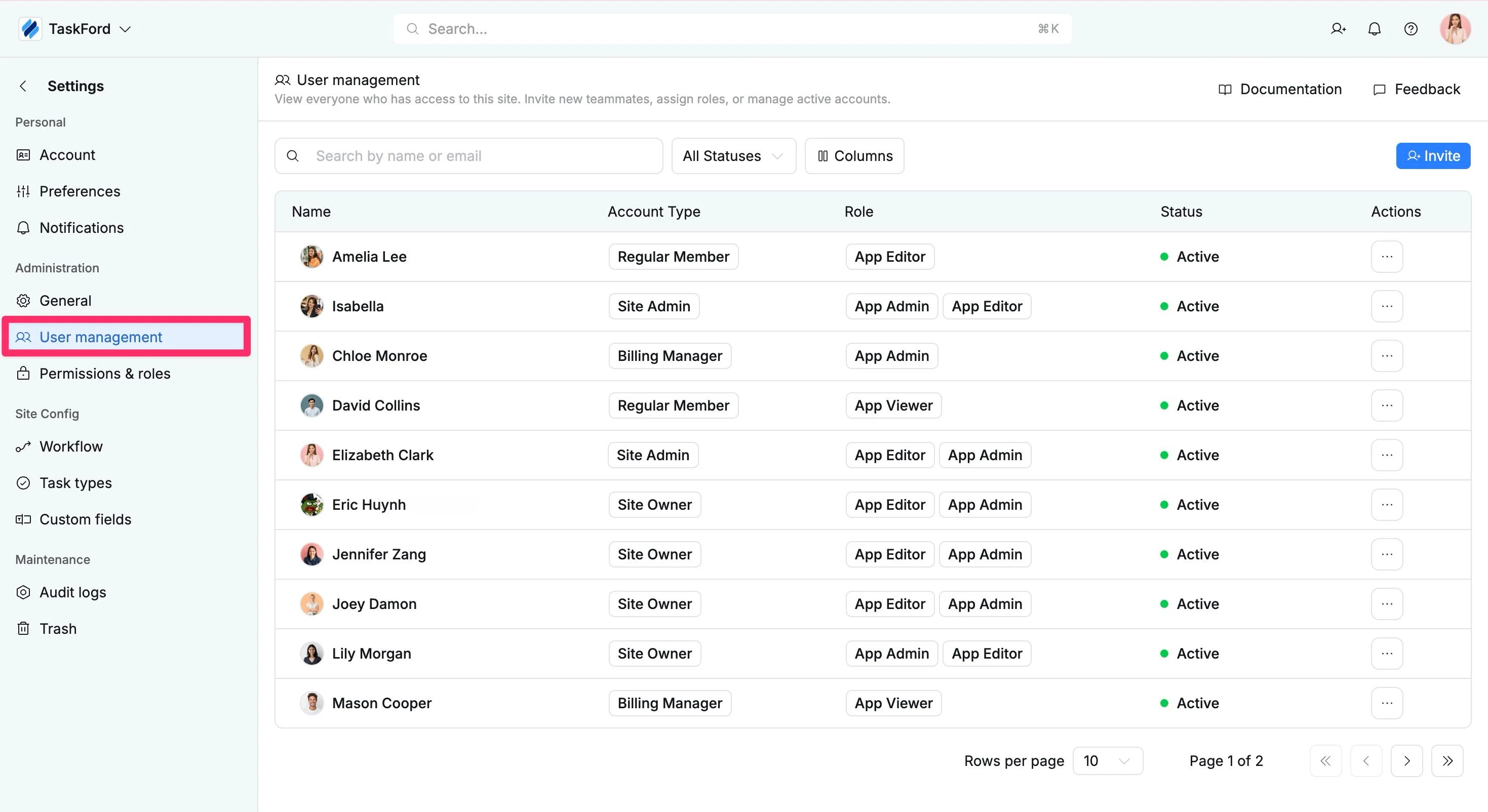
The User Management page is the central place where administrators manage all users who have access to the site. It allows admins to invite new members, view user details, monitor account status, and manage each user’s account type, role, and access permissions to help maintain site security and organization.
Access the User management tab
- Navigate to the Site settings page
- Select the User management tab from the left-hand menu.
Understand the User Directory
The User Directory table gives administrators a quick overview of all users who have access to the site. The table includes the following columns:
- Name: Displays the user’s profile name and avatar.
- Email: Shows the email address used for login, notifications, and invitations.
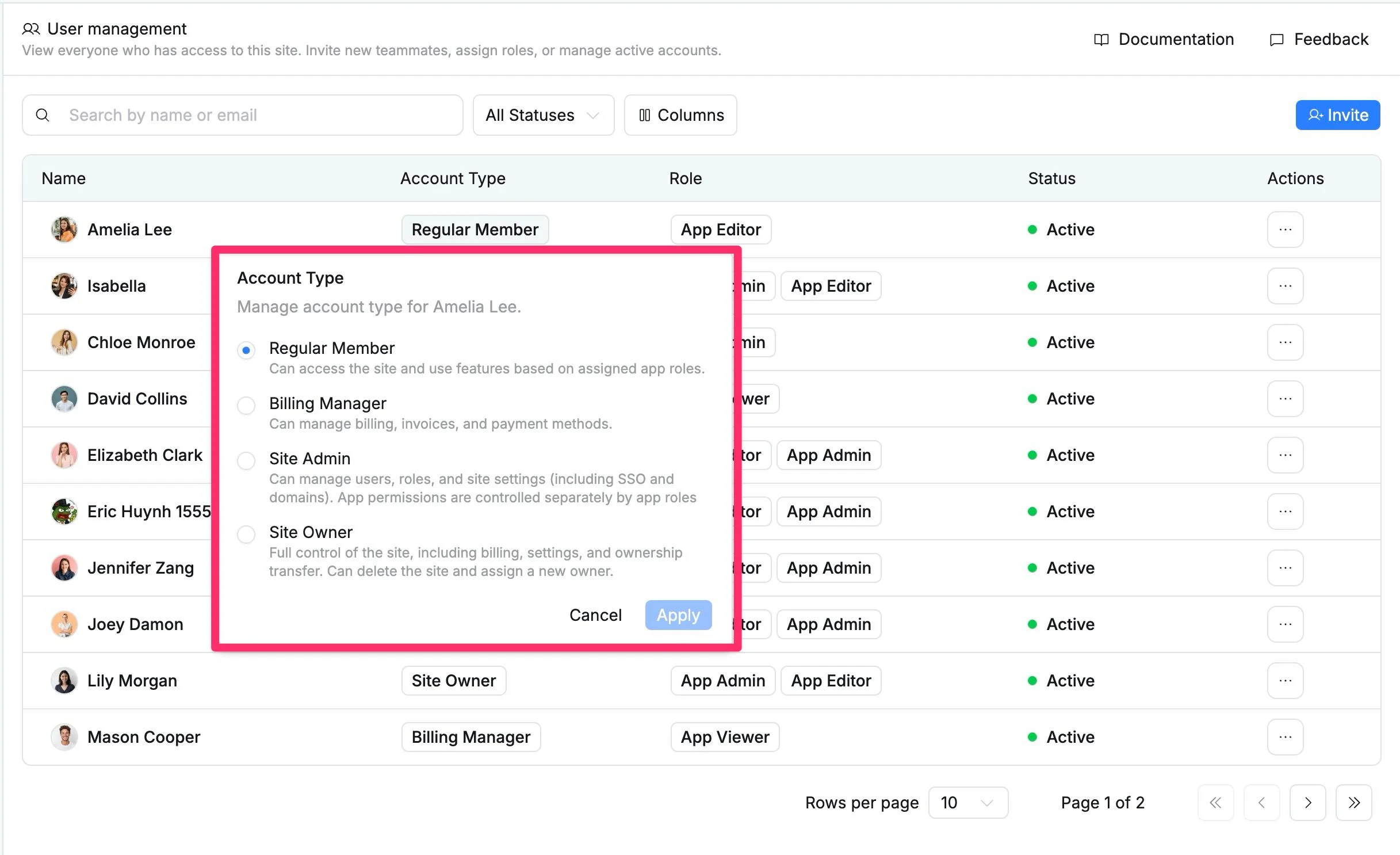
- Account Type: Indicates the user’s site-level account classification, such as Site Owner, Site Admin, Billing Manager, or Regular Member.
- Role: Shows the user’s assigned role, such as Admin, Editor, or Viewer. Roles determine what actions the user can perform in the site.
- Status: Shows the user’s current account state: Active / Inactive / Pending invitation / Waiting for approval / Owner Rejected
- Joined: Shows the date the user joined or was added to the site.
- Actions: Opens a menu where admins can manage the user, such as updating roles, changing account type, deactivating the account, or removing access.
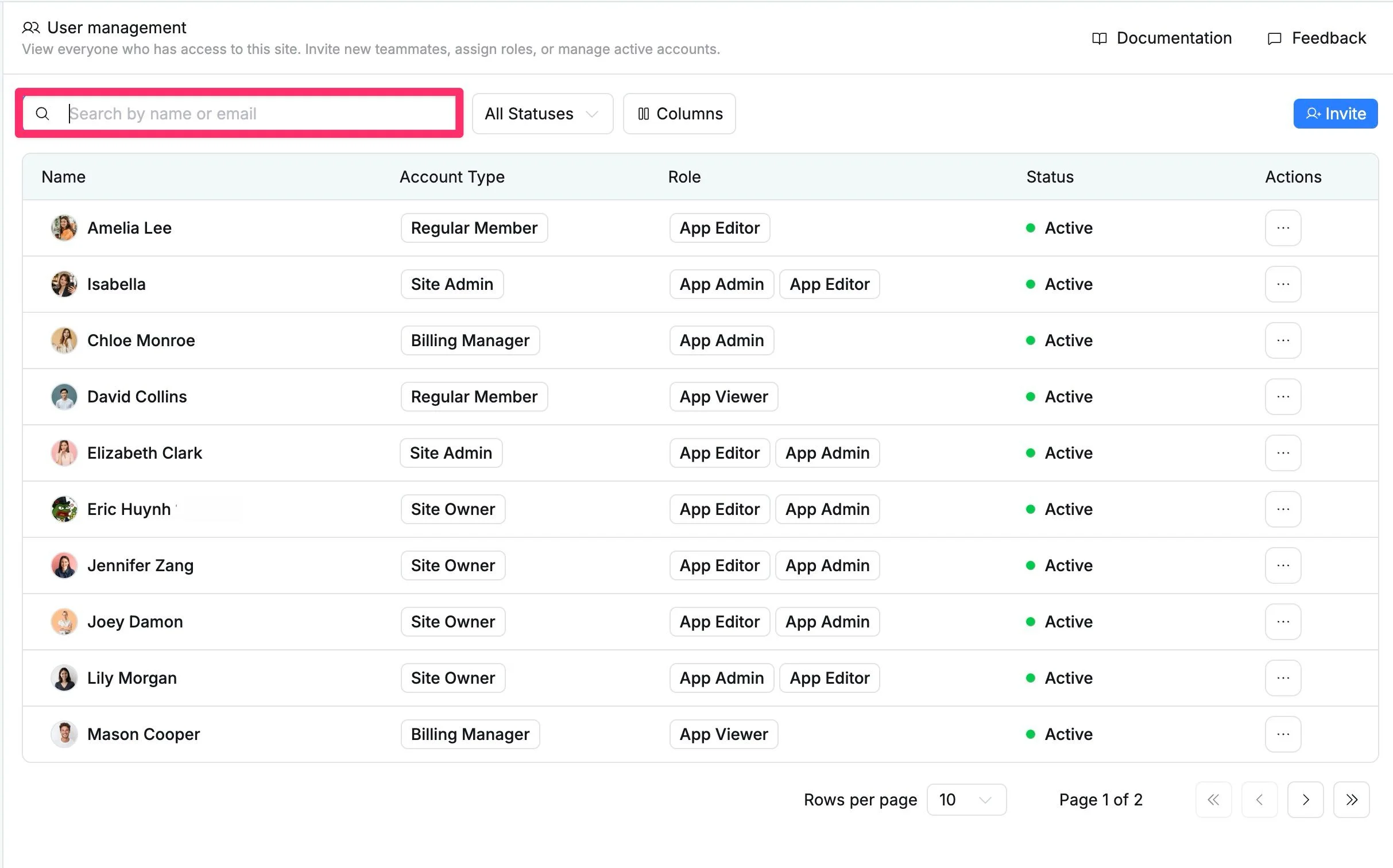
Search for a user
Use the search bar to find a user by name or email address quickly. This helps you easily locate a specific user without scrolling through the full list.
Filter users by status
Use the All Statuses dropdown to filter the user list by account status. You can view all users or narrow the table by selecting one of these statuses:
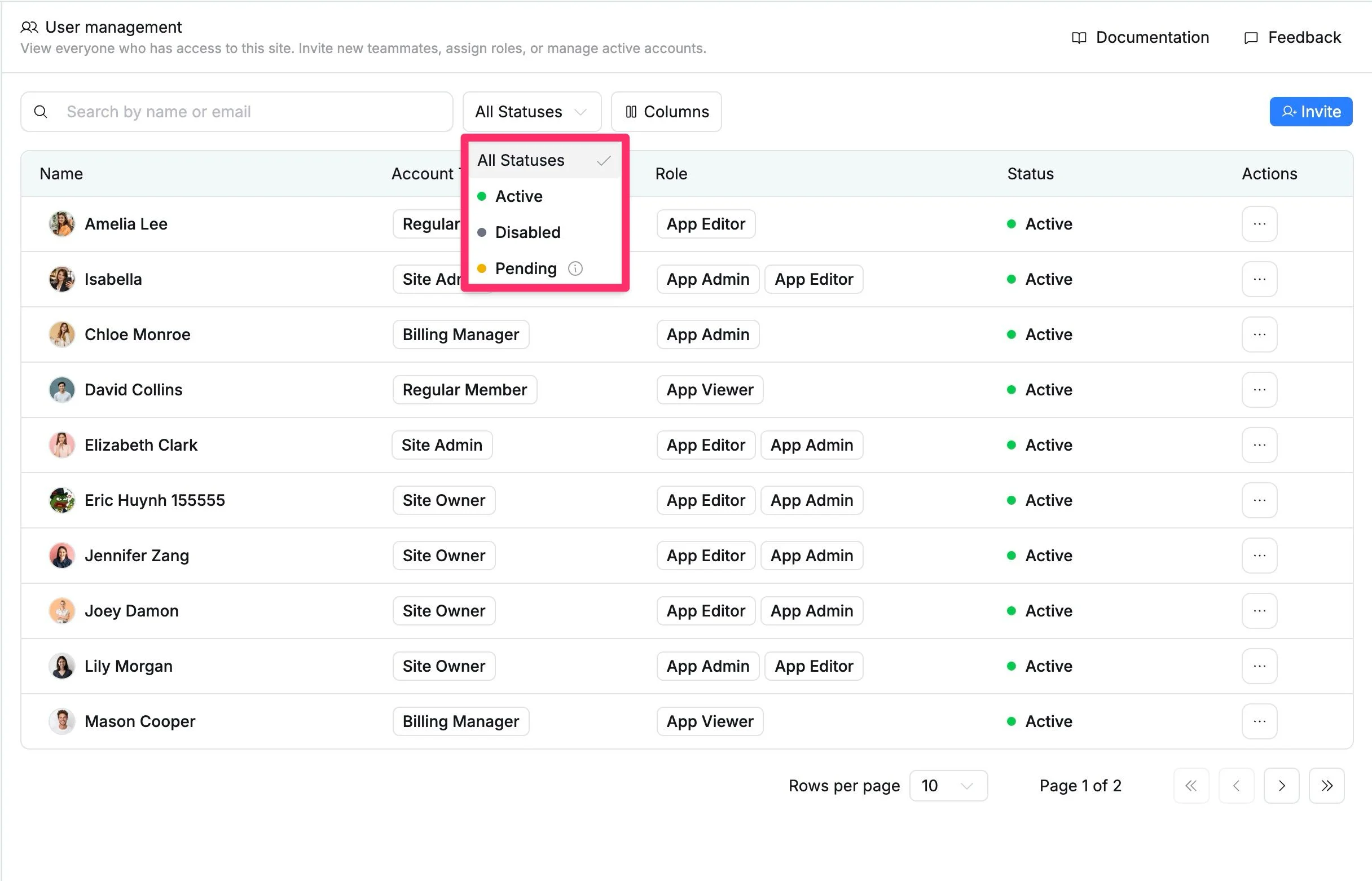
- Active: Users who currently have access to the site.
- Disabled: Users whose access has been deactivated.
- Pending invitation: Users who have been invited but have not accepted the invitation yet.
Customize user table columns
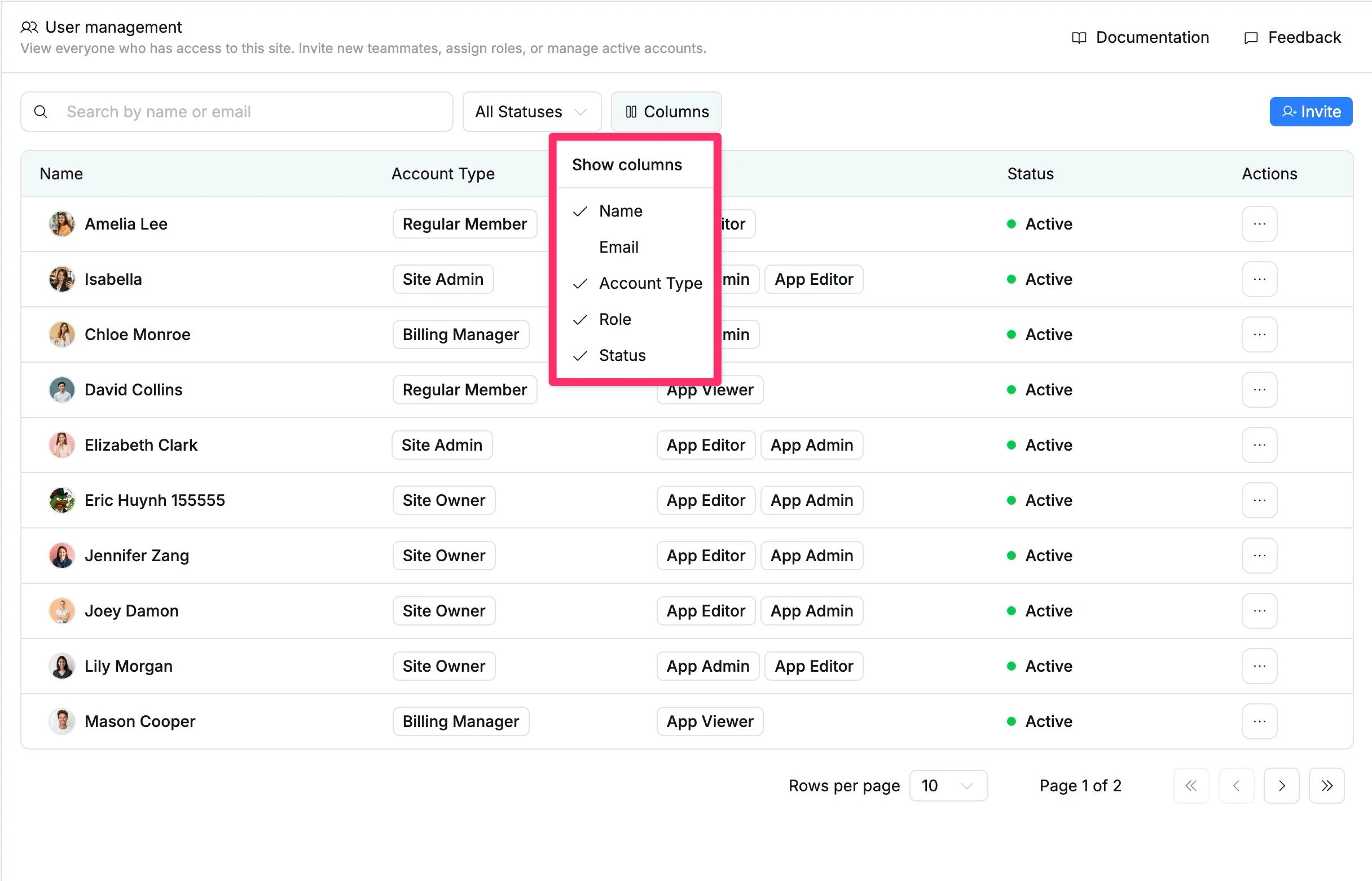
Use the Columns button to choose which details appear in the user table. In the Toggle columns menu, check a column to show it or uncheck it to hide it.
Available columns include Name, Email, Account Type, Role, Status, and Joined
Invite a new user
Admins can invite new users to join the site and assign the right access level during the invitation process.
To invite a user:
- Click Invite in the top-right corner.
- In the pop-up, configure the invitation details:
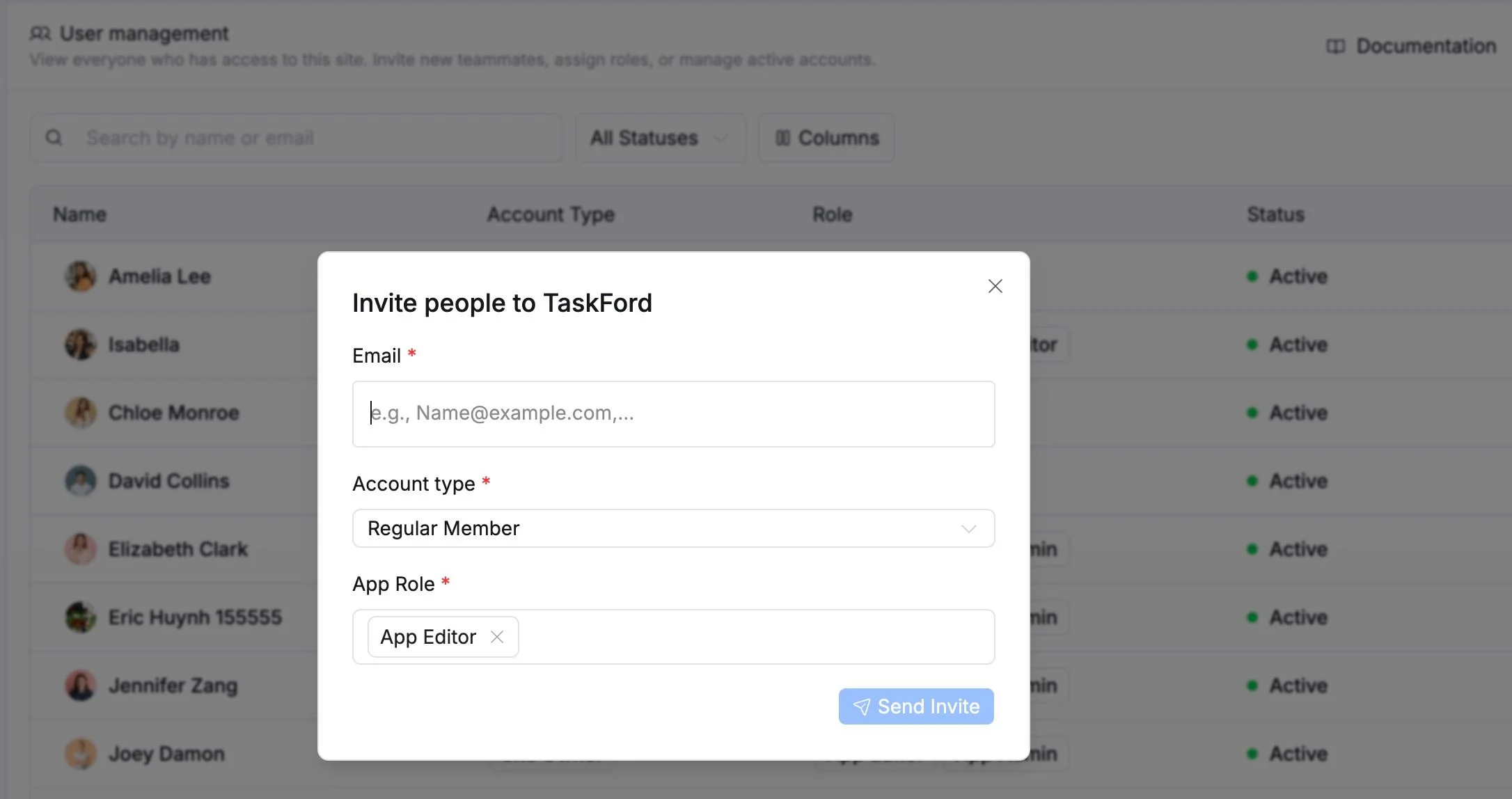
- Email: Enter one or more email addresses. Separate multiple emails with commas.
- Account type: Select the appropriate site-level account type, such as Regular Member, Billing Manager, Site Admin, or Site Owner.
- App Role: Choose one or more roles to define what the user can do in the site, such as Admin, Editor, or Viewer.
- Click Send Invite to send the invitation.
The user will receive an invitation email and can access the site after accepting the invite.
Change a user’s account type or app role
Admins can update an existing user’s access by changing their Account Type or Role directly from the user table.
- To change a user’s Account Type: Click the user’s current Account Type badge > Select a new option > Click Apply.
- To change a user’s Role: Click the user’s current Role badge > Select a new option > Click Apply.
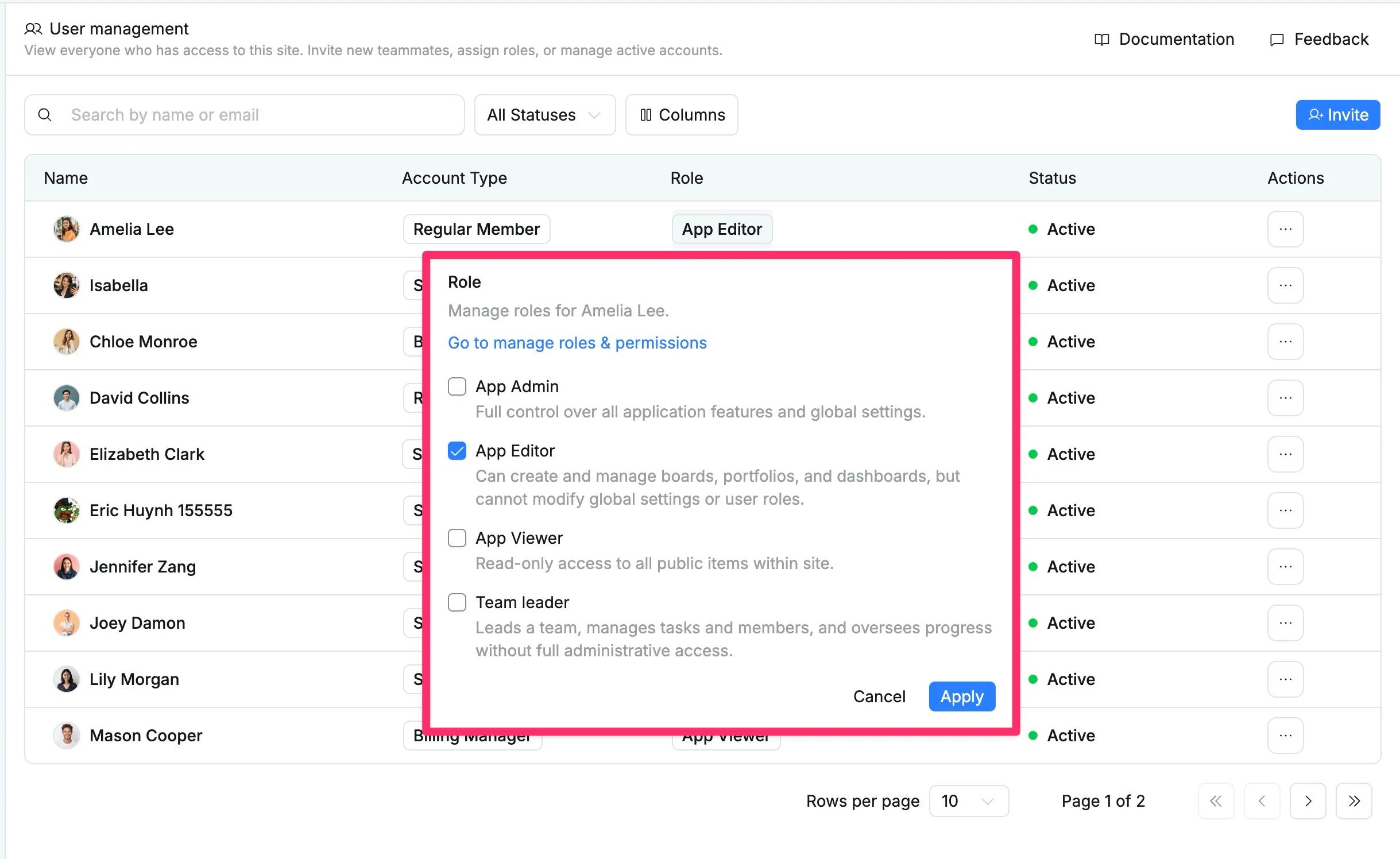
To review or update role permissions, click Go to manage roles & permissions from the role selector.
Deactivate a user
Use Deactivate when you want to temporarily pause a user’s access without deleting their account history.
To deactivate a user:
- Find the user you want to deactivate.
- Click the More actions (⋯) icon in the Actions column.
- Select Deactivate.
- A confirmation window opens. Click Deactivate again to deactivate the user.
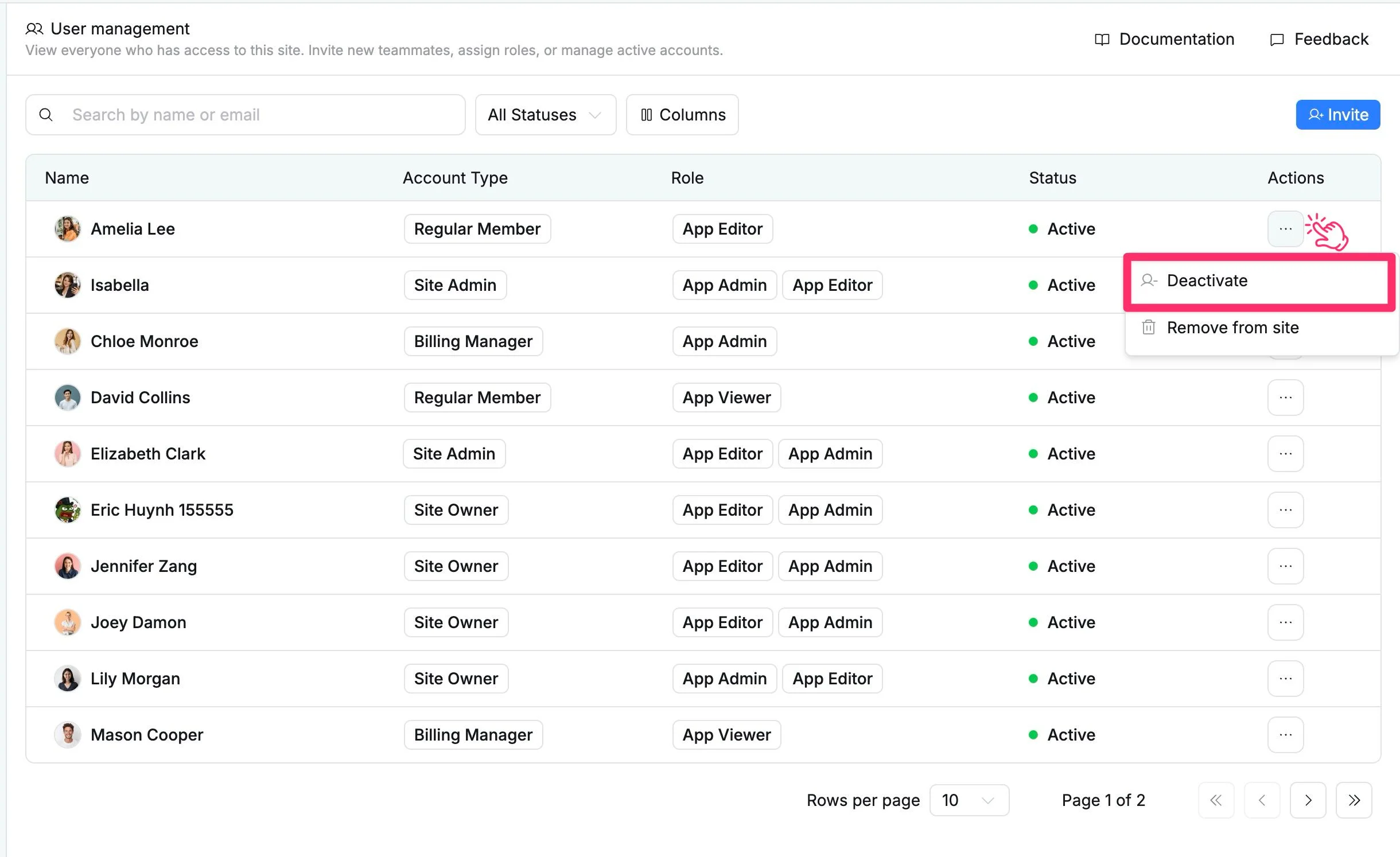
After deactivation, the user’s status changes to Inactive. Their assigned tasks, comments, activity history, and audit logs remain intact.
Deactivating a user does not permanently remove them from the site. An administrator can reactivate the user later if access is needed again.
Reactivate a user
Use Reactivate when an inactive user needs access to the site again.
To reactivate a user:
- Find the user you want to reactivate.
- Click the More actions (⋯) icon in the Actions column.
- Select Reactivate.
- In the confirmation window, click Reactivate again to confirm.
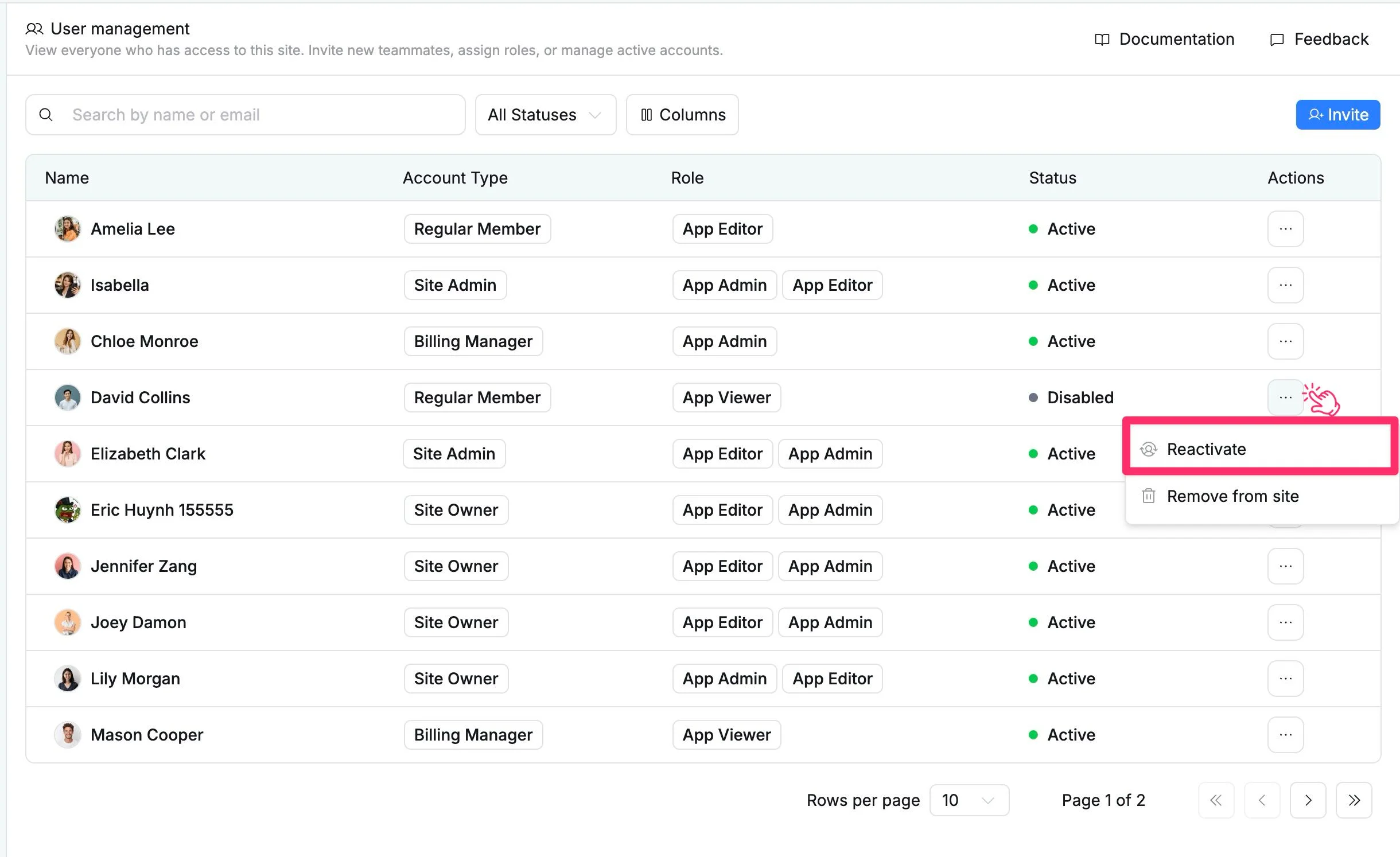
After reactivation, the user’s status changes to Active. They can access the site again based on their assigned account type and app role.
Remove a user from the site
Admins can remove users who no longer need access to the site.
To remove a user from the site:
- Find the user you want to remove.
- Click the More actions (⋯) icon in the Actions column.
- Select Remove from site.
- In the confirmation window, click Remove again to confirm.
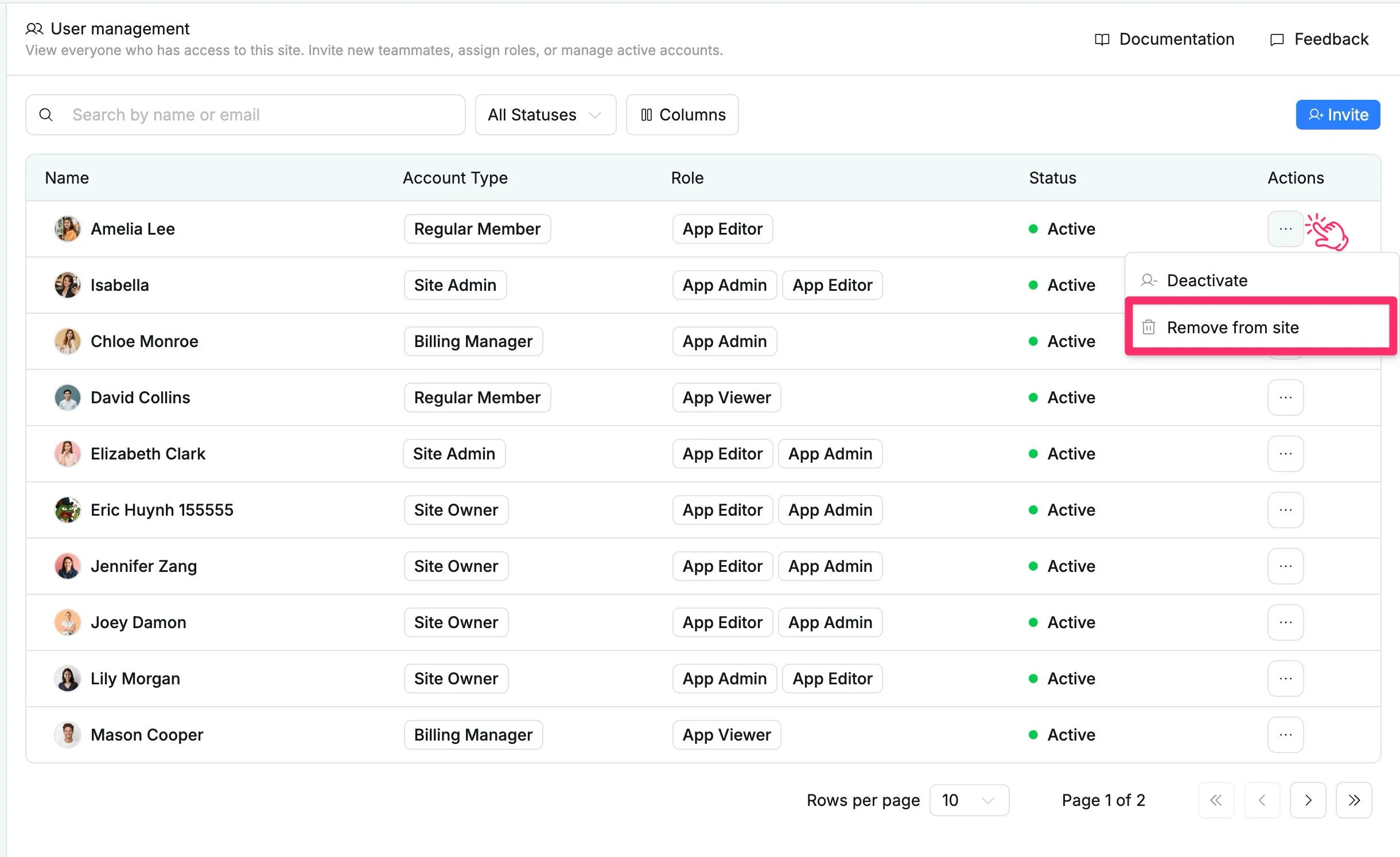
After removal, the user loses access to the site and no longer appears as an active site member.
Removing a user does not delete their previous task activity, comments, or audit history.