View invoice history
Learn how to view and download your TaskFord invoice history, check payment status, and review past charges.
Only the Site Owner or users with Billing Manager permission can change billing cycle settings.
The Invoices page helps Site Owners and Billing Managers review billing records for a TaskFord subscription. Use this page to check past charges, understand payment status, review prorated adjustments, and download invoices or receipts for accounting records.
View invoice history
View your TaskFord invoice history using either the app’s internal Billing & Plans page or the external Stripe Customer Portal. Both methods allow you to review plan details, payment statuses, and download past records.
Option 1: From the Invoices page in TaskFord
Use this option when you want to quickly review invoice records inside TaskFord.
To view invoices:
- Go to the Billing & Plans page.
- Select Invoices in the left-hand menu.
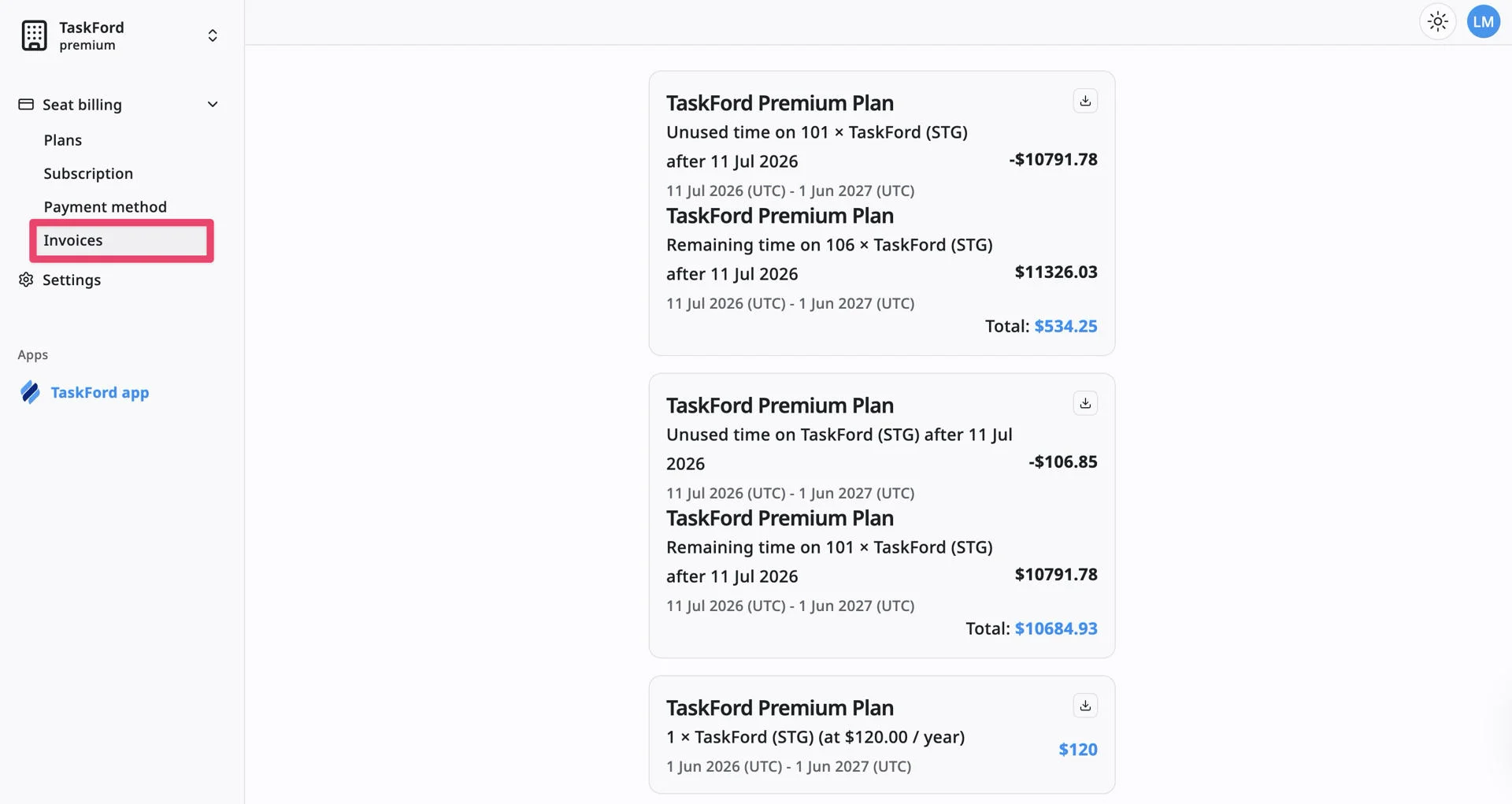
The Invoices page shows a list of invoice cards for your TaskFord subscription.
Each invoice may show:
- Plan name: The TaskFord plan related to the invoice, such as the TaskFord Premium Plan.
- Billing description: A short description of what the invoice is for. For example, it may show a trial period, a subscription renewal, unused time, remaining time, or a seat change.
- Billing period: The date range covered by the invoice, such as Jul 11, 2026 – Jun 1, 2027.
- Amount: The total amount charged, credited, or paid for that invoice.
- Download icon: A download button that lets you download the invoice document.
Option 2: From the Stripe Customer Portal
Use this option when you want a deeper dive into your full receipt and payment history in Stripe.
To view invoice history in Stripe:
- Open the Stripe Customer Portal.
- Scroll to the Invoice History section.
- Select the invoice you want to review.
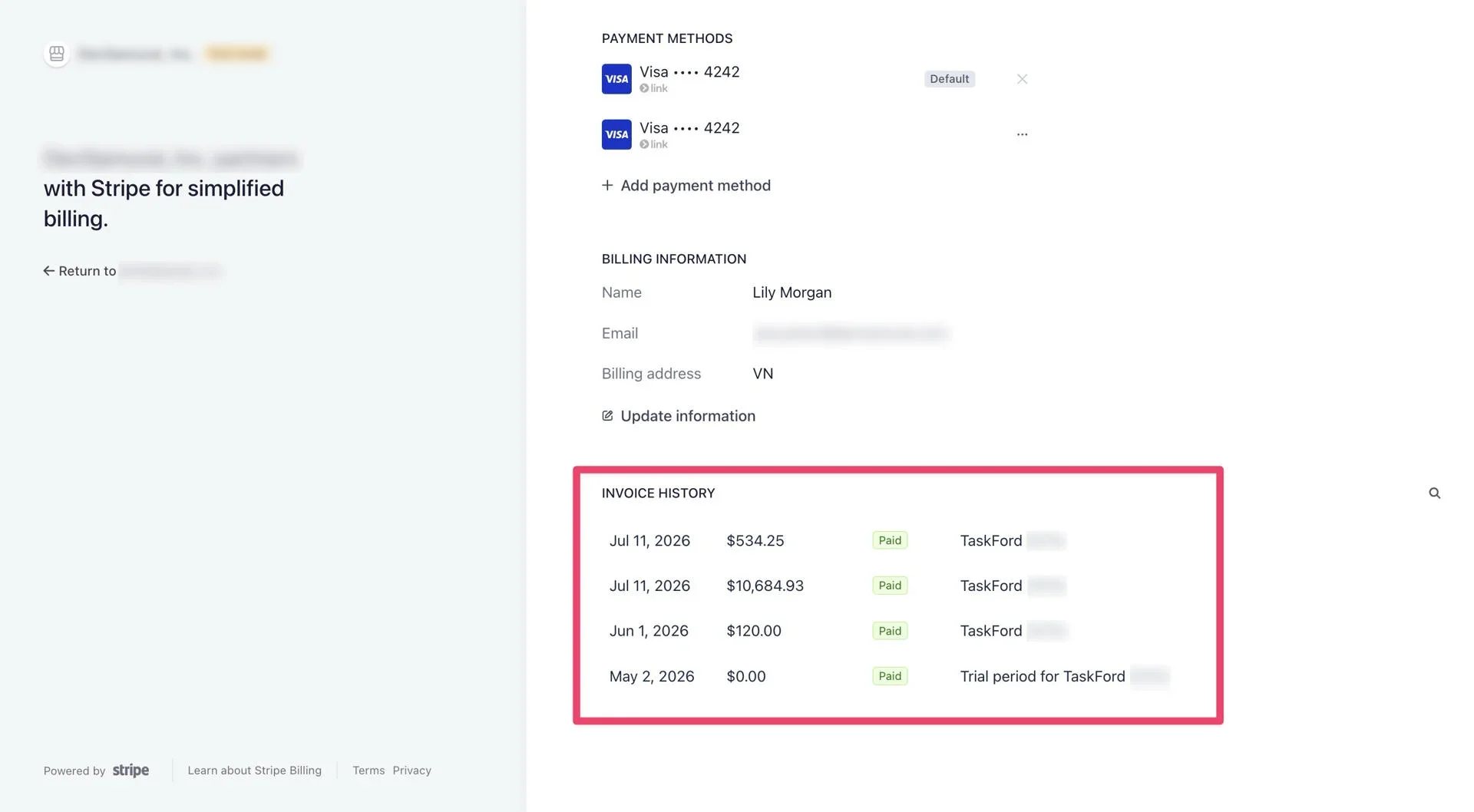
The Stripe invoice history list may show:
- Invoice date: The date the invoice was created or paid.
- Amount: The invoice amount.
- Payment status: The invoice status, such as Paid.
View invoice details in Stripe
You can open an invoice from the Invoice History section in the Stripe Customer Portal to review more details about a billing event.
Use this option when you want to check the payment status, review the invoice amount, or download an invoice or receipt.
To view invoice details
- Open the Stripe Customer Portal from TaskFord.
- Scroll to the Invoice History section.
- Find the invoice you want to review.
- Click the invoice row.
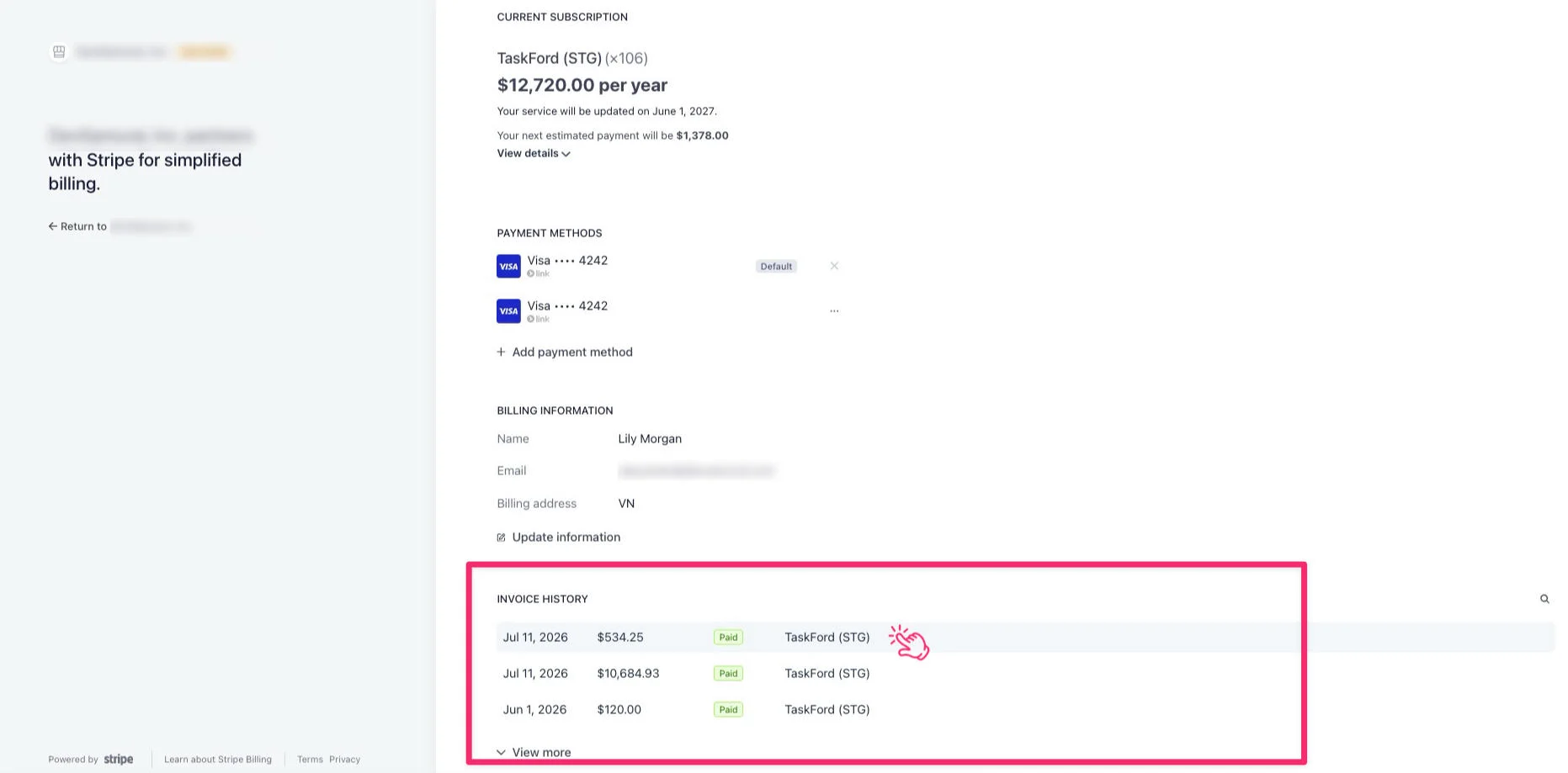
→ Stripe opens the invoice details page for that billing event.
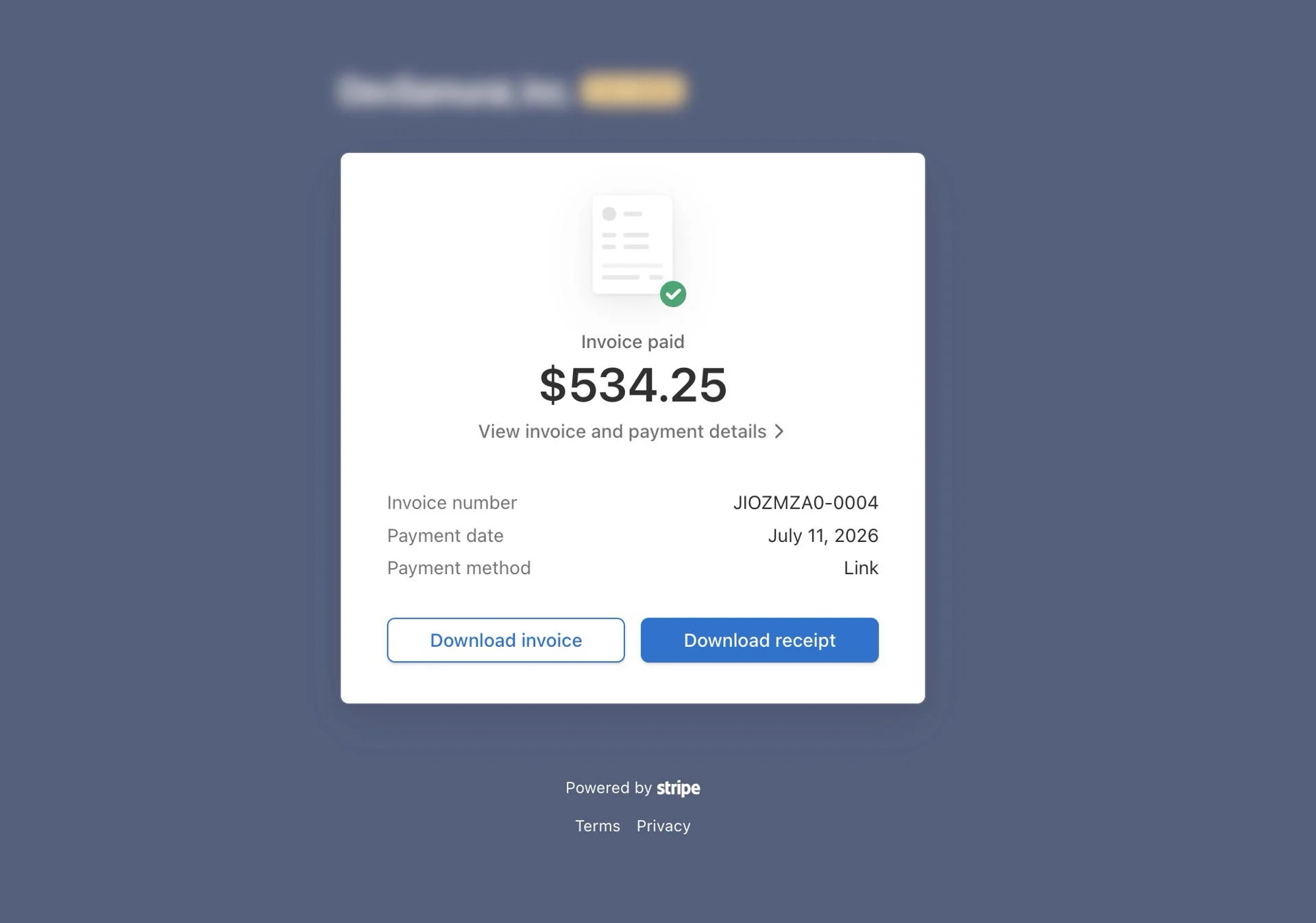
This page may include:
- Payment status: Shows whether the invoice was paid.
- Amount paid or amount due: Shows the total amount paid or still due for that invoice.
- Invoice number: A unique number used to identify the invoice.
- Payment date: The date the payment was completed.
- Payment method: The payment method used for the payment.
From the invoice summary page, you can download the invoice or receipt
- Download Invoice: Generates a PDF of the itemized bill, which includes buyer/seller details and tax breakdowns.
- Download Receipt: Once the invoice is successfully paid, you can download a receipt PDF.