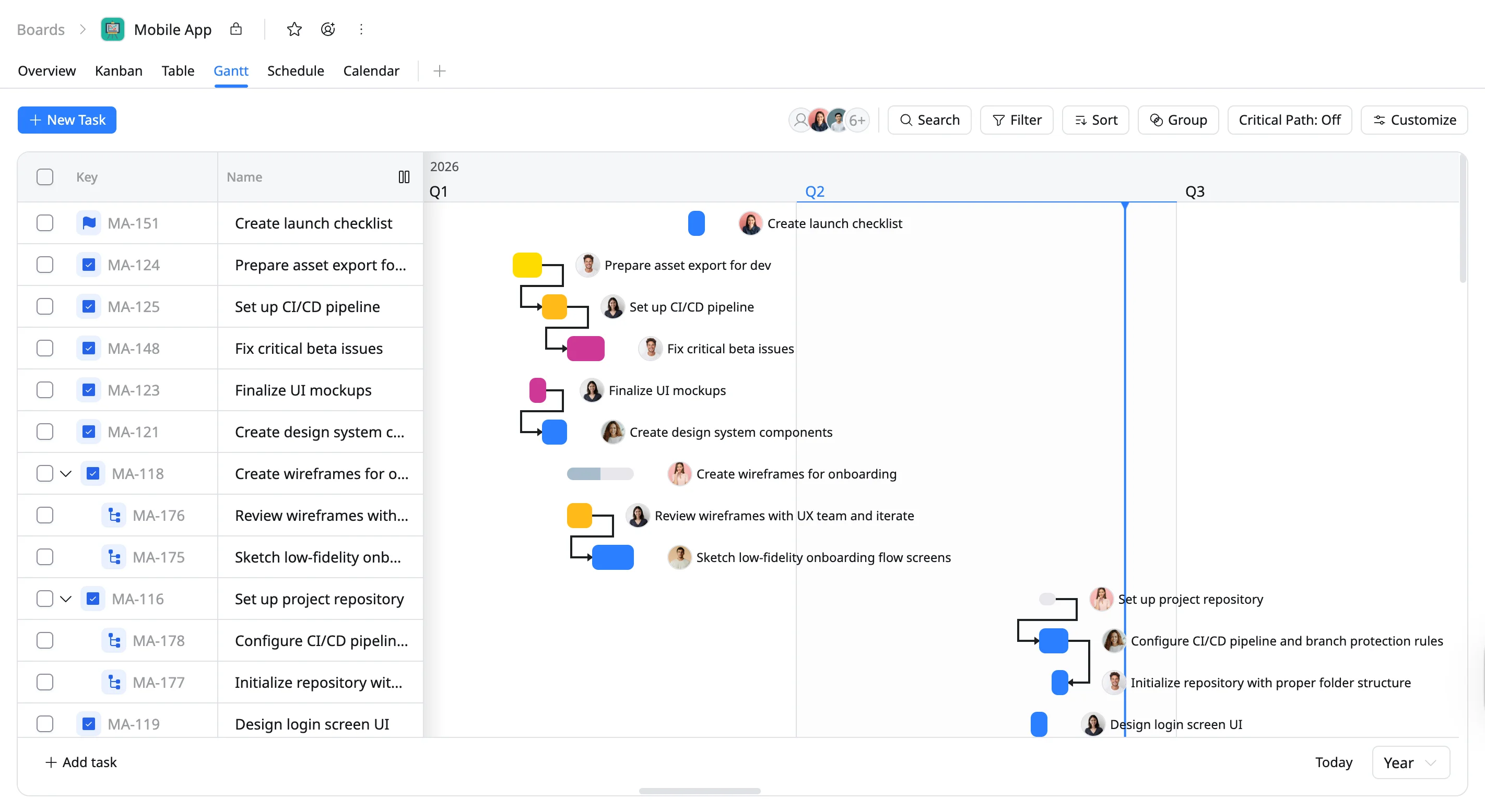
View mode in Gantt
Customize the Gantt view timeline in TaskFord with flexible view modes to review schedules across weekly, monthly, quarterly, or yearly timeframes.
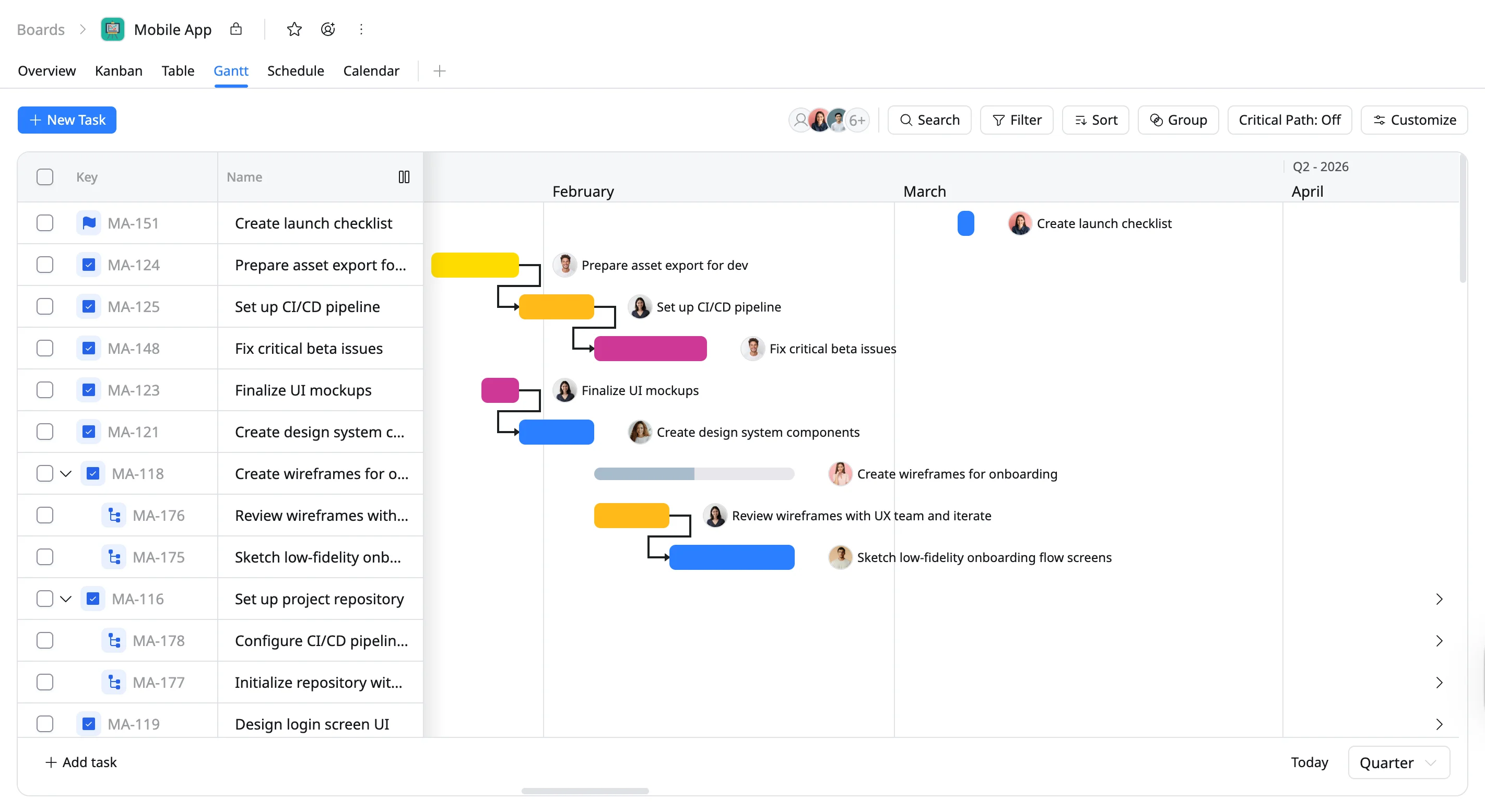
View mode in the Gantt view lets you change the timeline scale to review your project across different timeframes. You can switch between Week, Month, Quarter, and Year views to focus on short-term schedules or review the overall project timeline.
Adjusting the timeline scale helps you understand how tasks are distributed across the project, track upcoming milestones, and see how schedule changes affect the overall timeline.
Customize the View mode
To customize the view mode in the Gantt View:
- Locate the View mode controls in the bottom-right corner of the Gantt view.
- Click Today to jump to the current date on the timeline.
- Click the View Mode dropdown to adjust the timeline display.
- Select your preferred time scale (Week, Month, Quarter, or Year) to view your schedule with the desired level of detail.
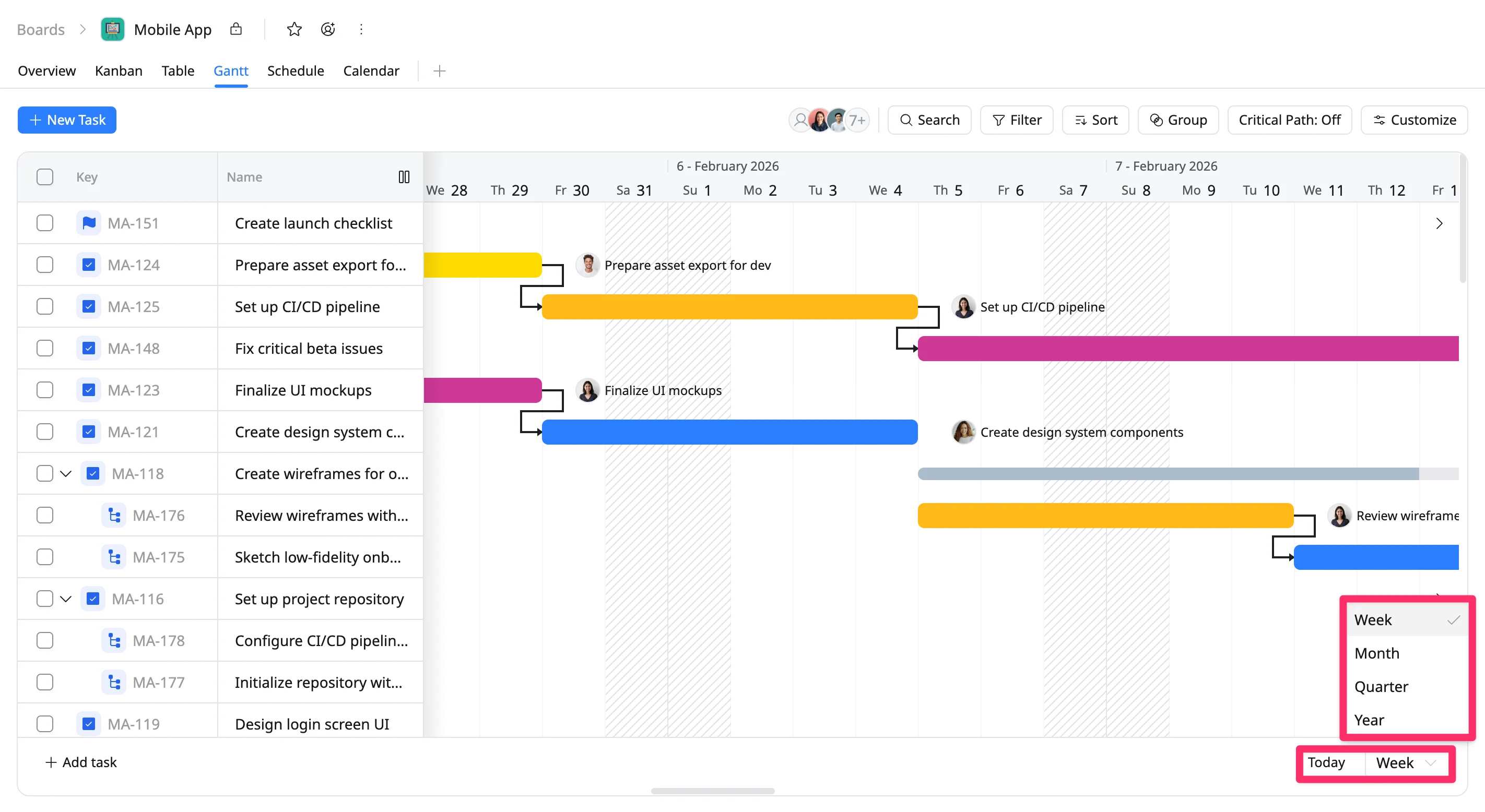
View mode
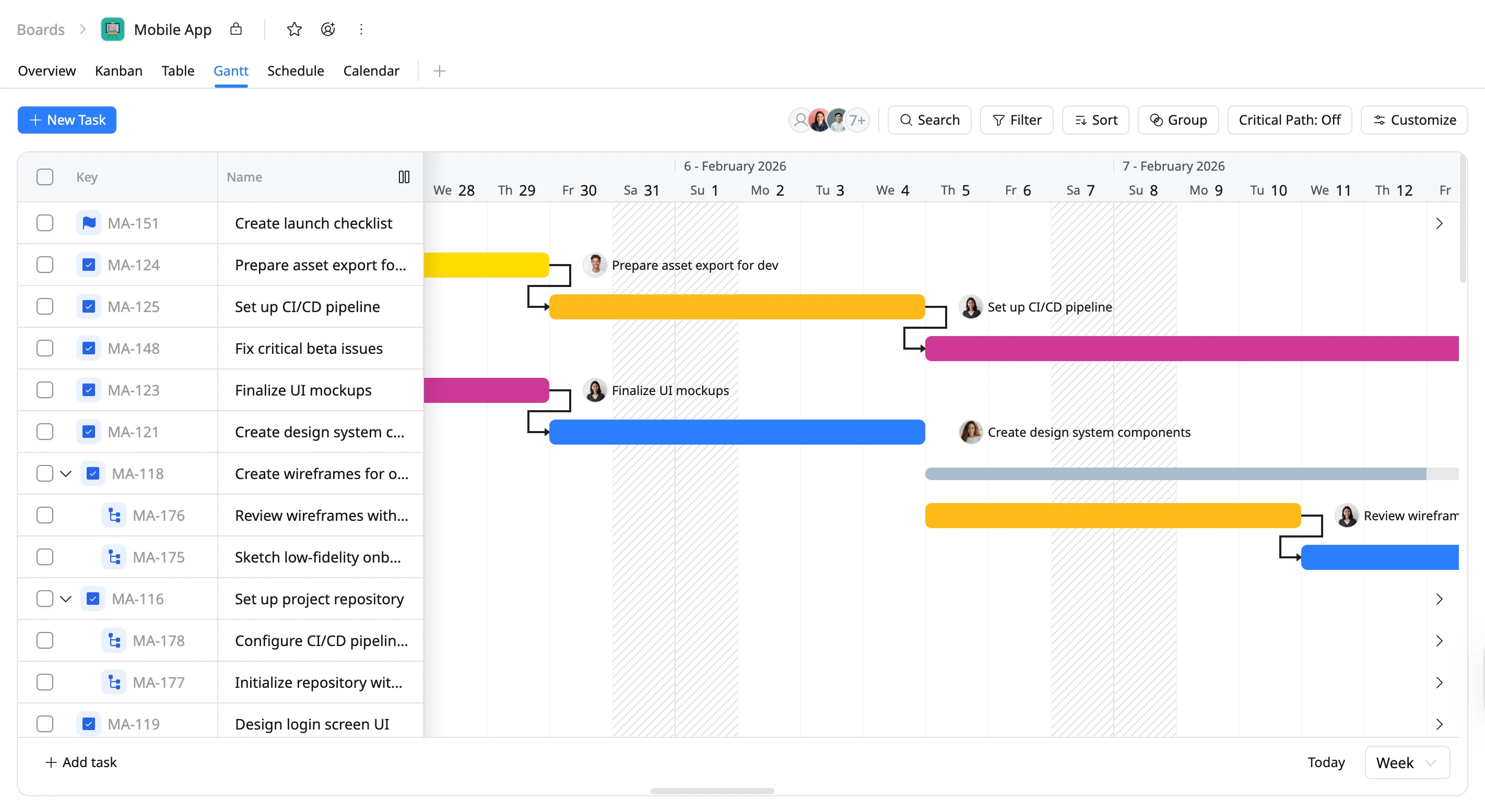
Week view
The timeline displays tasks across each day of the week, allowing you to review detailed schedules and task durations within a short timeframe.
→ Ideal for managing daily work and short-term planning.
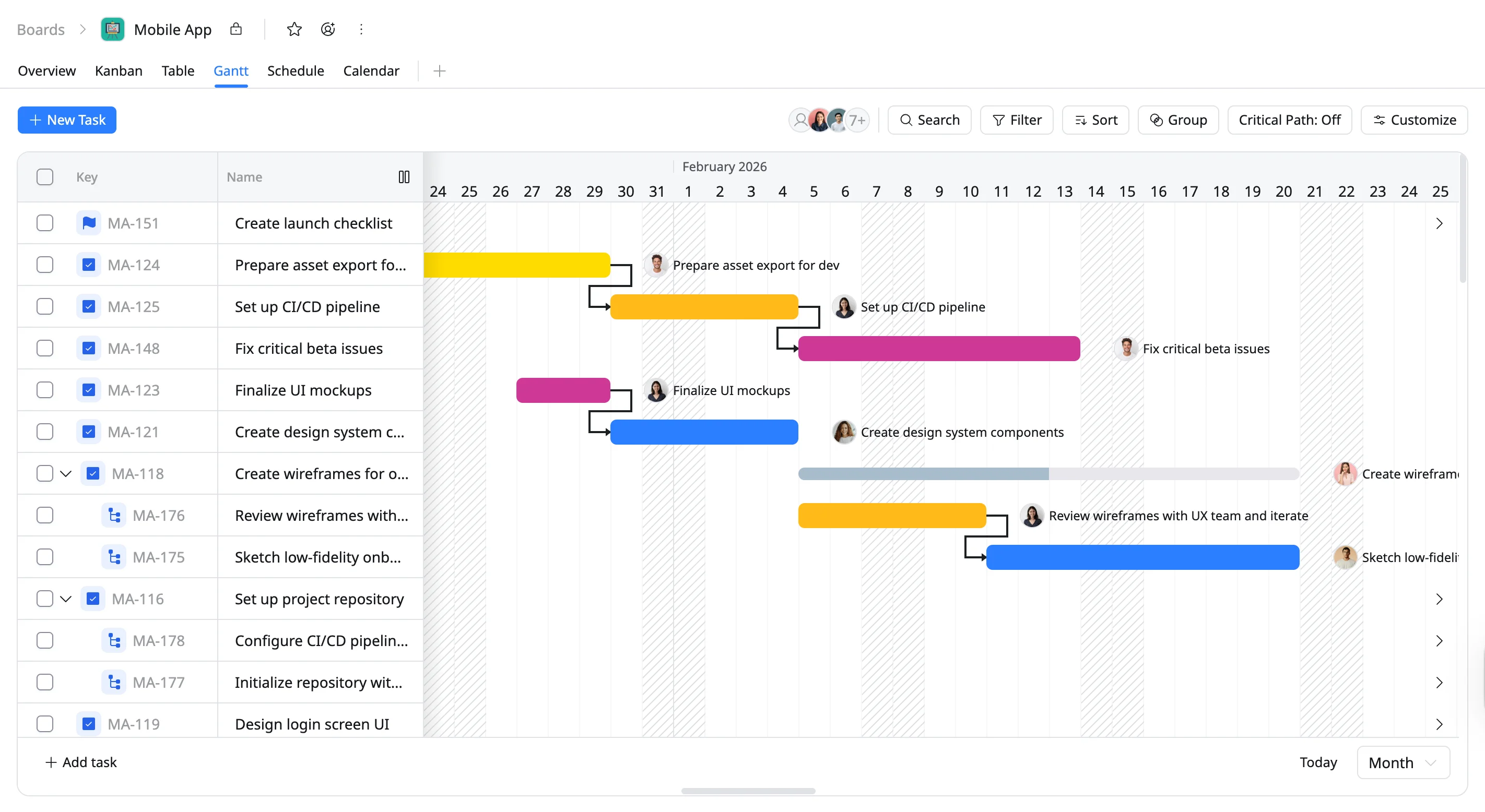
Month view
The timeline expands to show several weeks within a monthly grid. Tasks span multiple days or weeks, making it easier to view deadlines, dependencies, and milestones across the month.
→ Best for tracking upcoming work and monitoring progress over several weeks.
Quarter view
The timeline displays a three-month period, providing a broader view of how tasks and milestones are distributed across the quarter.
→ Useful for reviewing mid-term plans and coordinating work across multiple months.
Year view
The timeline shows the entire year, giving a high-level overview of major tasks, milestones, and project phases.
→ Best for long-term planning and high-level project reviews.