Work on tasks
Learn how to find and manage your tasks in TaskFord to stay organized and update progress efficiently as you work with your team.
Now that your profile is set up, it’s time to focus on your tasks. TaskFord organizes your work into boards (projects), and you’ll be assigned tasks that need your attention.
Find your tasks
Your goal is to quickly locate the tasks assigned to you so you can start working.
View all your tasks across multiple boards
For a faster overview, you can view all your assigned tasks in one place.
- Navigate to the Home page from the sidebar.
- Click the My Tasks tab.
This view displays every task assigned to you across all boards in the workspace. You can quickly click on any task to open its details and take action without navigating to individual boards.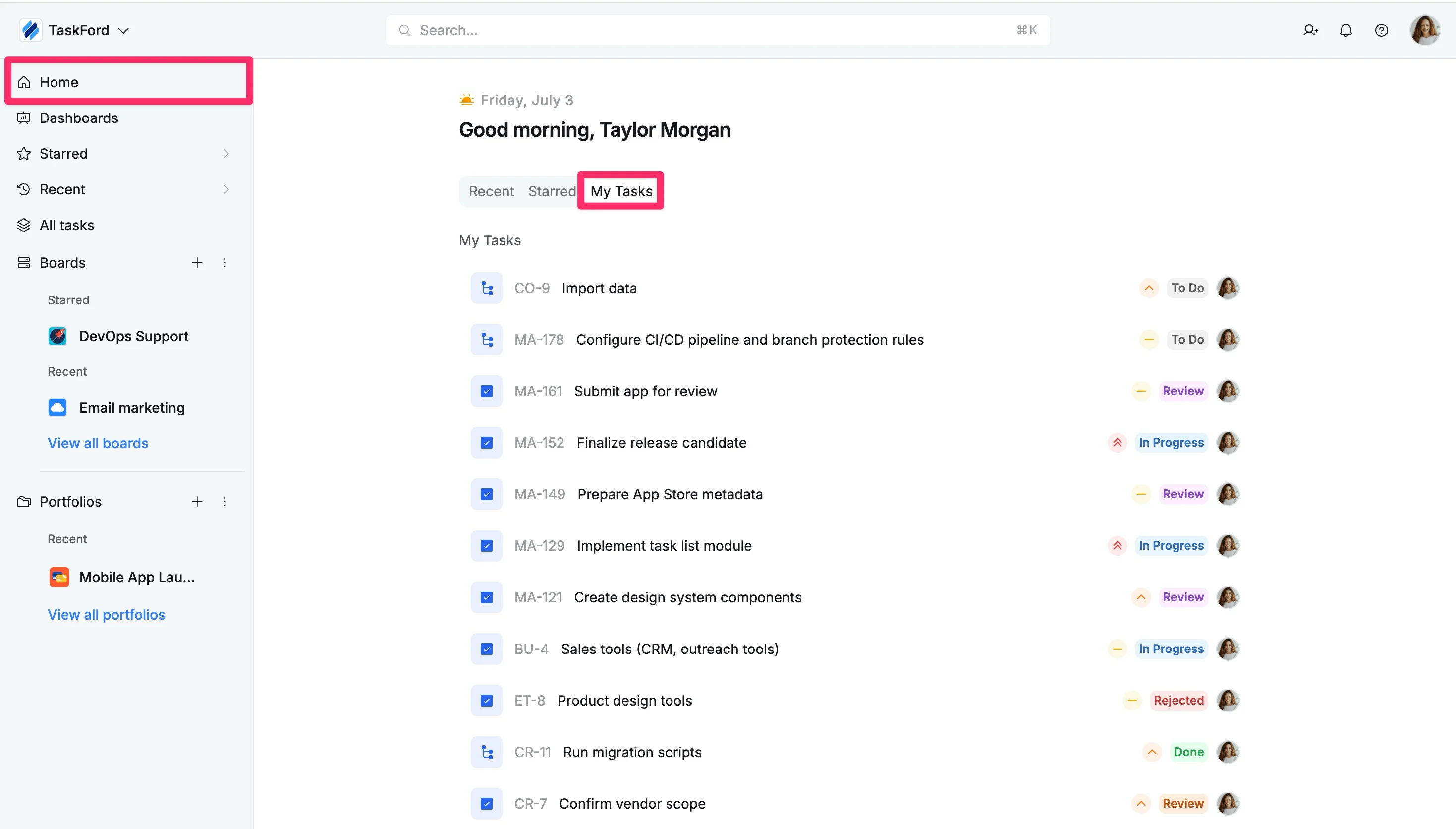
Find tasks within a board
Access your boards
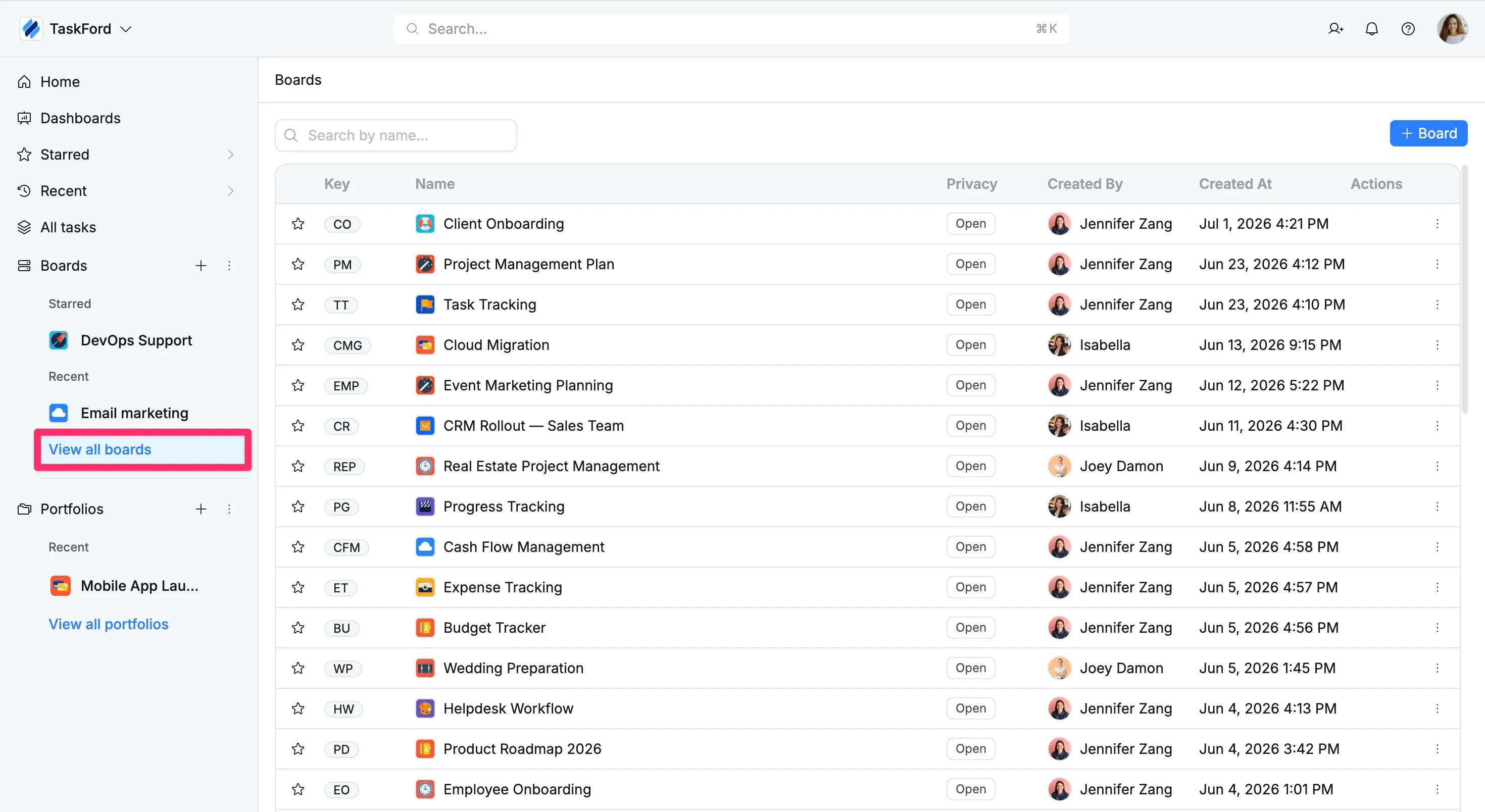
When you join a site, you’ll see all the boards you have permission to access.
- Navigate to the sidebar
- Click View all boards under Board section to open the full list
- Browse the list of available boards
- Open the board related to your project or team
Find tasks within a board
Once you open a board, you can narrow down to your tasks using the filters available in any board view.
To find your tasks:
- Open the board you want to work on
- Select any view (Table, Kanban, Gantt, or Schedule)
- Click the Filter option in the toolbar
- Select your name from the assignee list to instantly filter and see only your tasks.
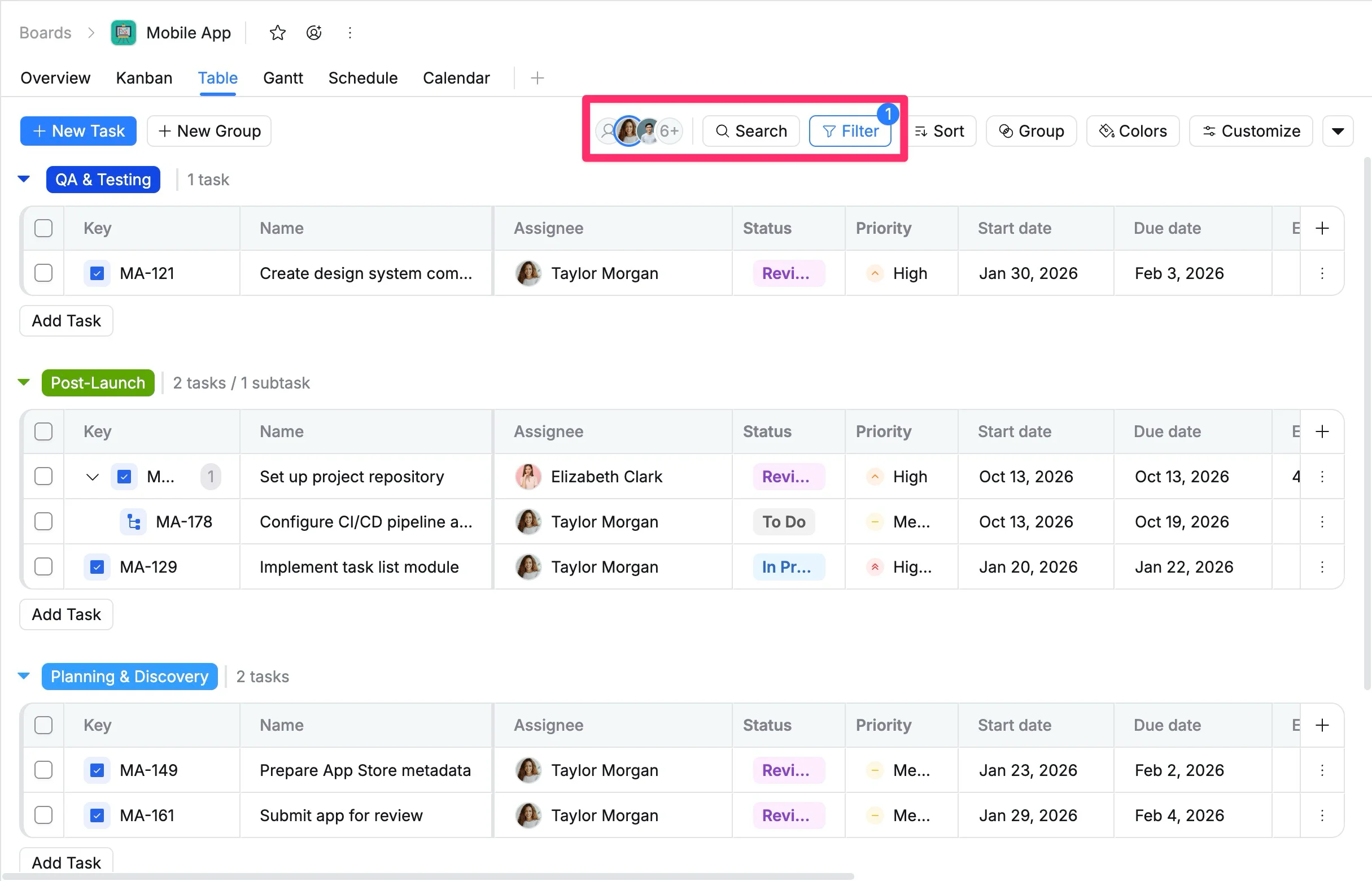
You can quickly filter tasks by selecting your profile picture in the view toolbar.
You can further refine results by status or priority to identify your most urgent tasks.
👉 This will display only the tasks assigned to you within that board, helping you stay focused and organized.
Work on a task
Once you’ve identified your tasks, you can begin working on them and updating progress so your team stays aligned.
Start working on a task
When you begin work:
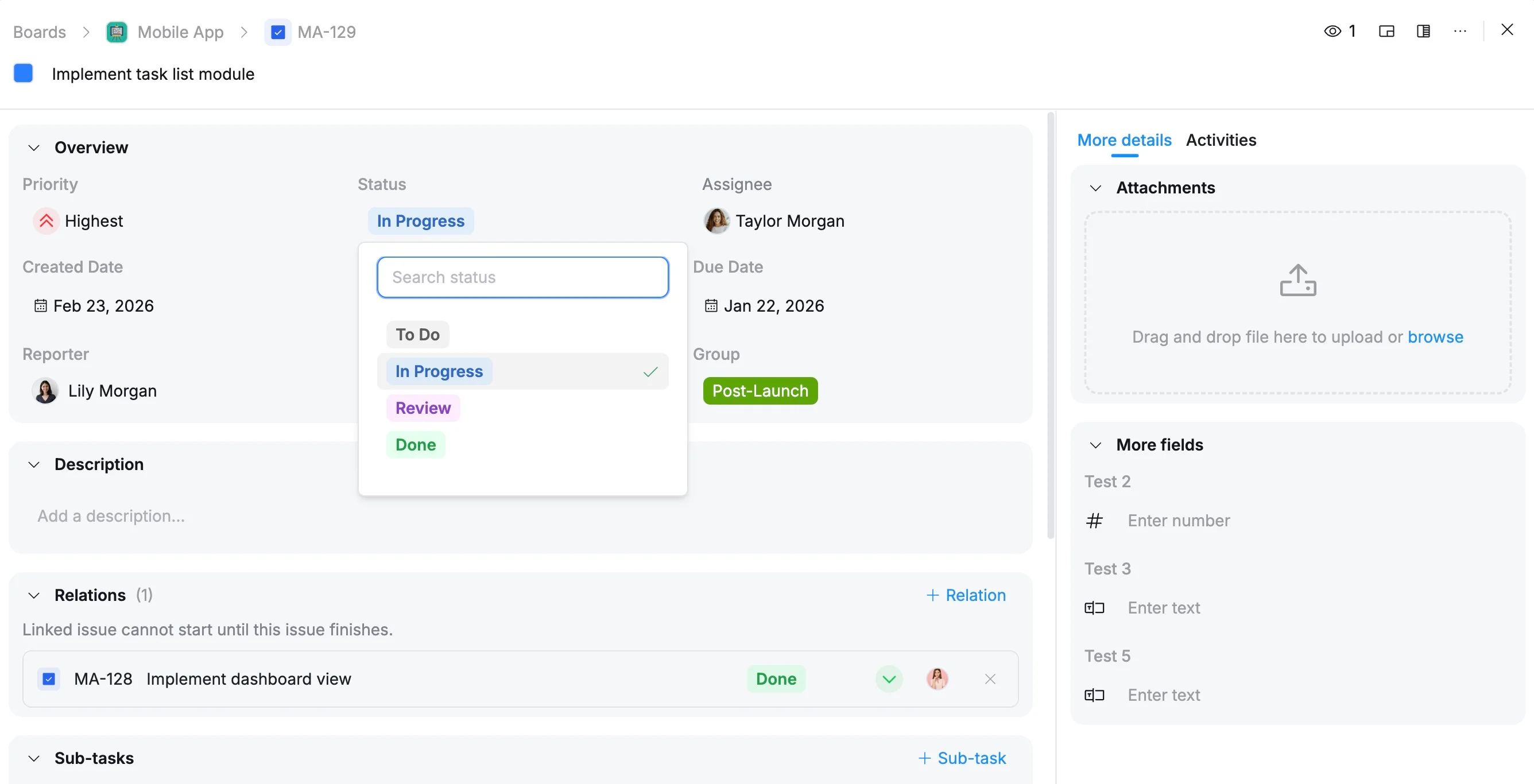
- Open the task to view its details
- Move the task status to In Progress to indicate that work has started
- Assign the task to yourself (if not already assigned) to show ownership
Update task details as you work
As you make progress, keep your task information up to date:
- Add descriptions or notes to provide context
- Attach files or resources related to the task
- Update priority, dates, or other fields if needed
- Move the task through statuses (e.g., In Progress → Review → Done)
How to manage tasks from the task details view.