Work with boards
You’ll learn how to update board settings, control access, archive or delete boards, and navigate boards more efficiently.
This section covers the essential actions you can take to manage and organize your boards in TaskFord. You’ll learn how to update board settings, control access, archive or delete boards, and navigate boards more efficiently.
Edit board details
Only Board Admins can edit board details.
To edit board details:
- Access ‘Board settings’ in two ways:
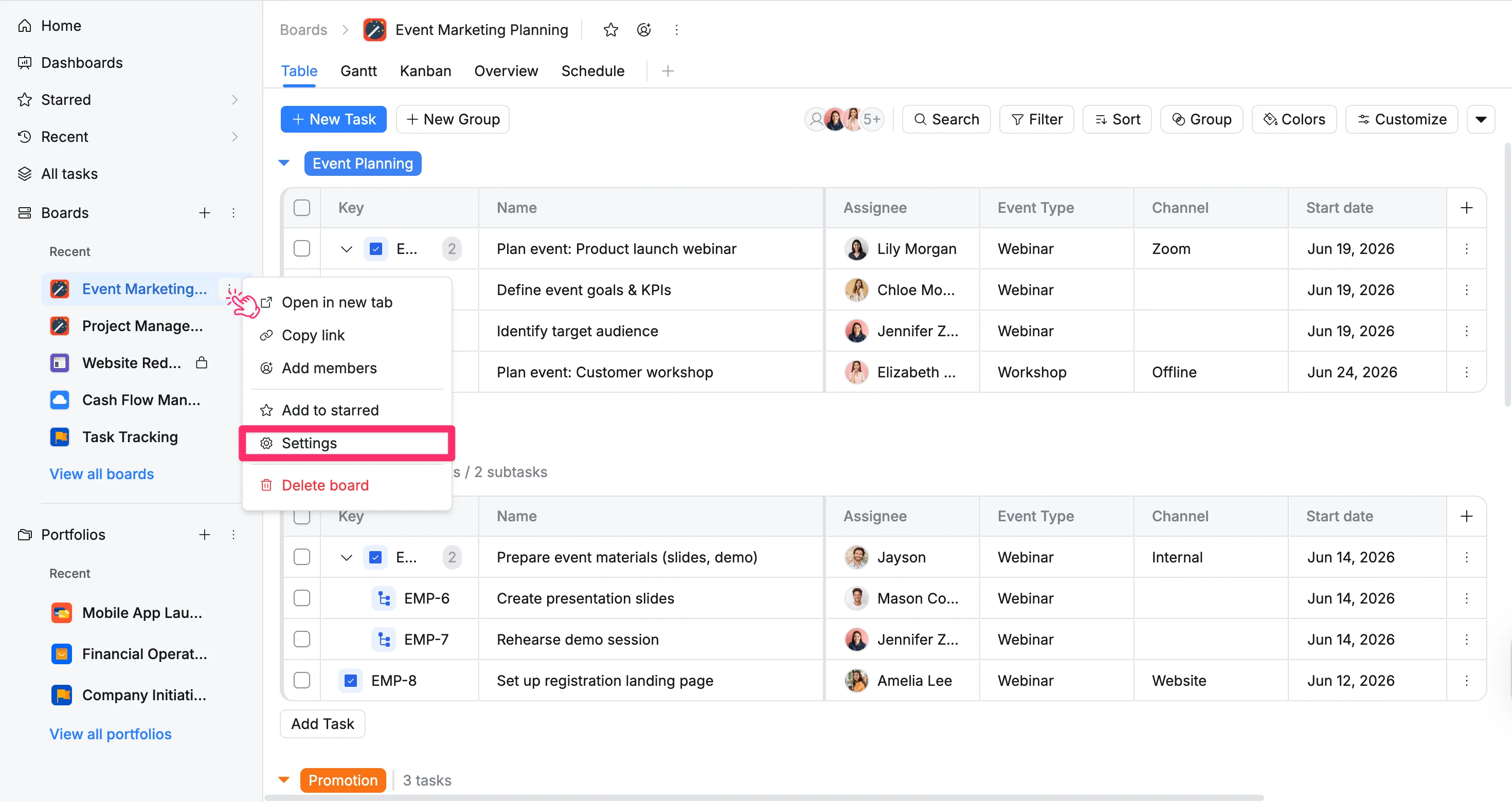
Option 1: From the sidebar
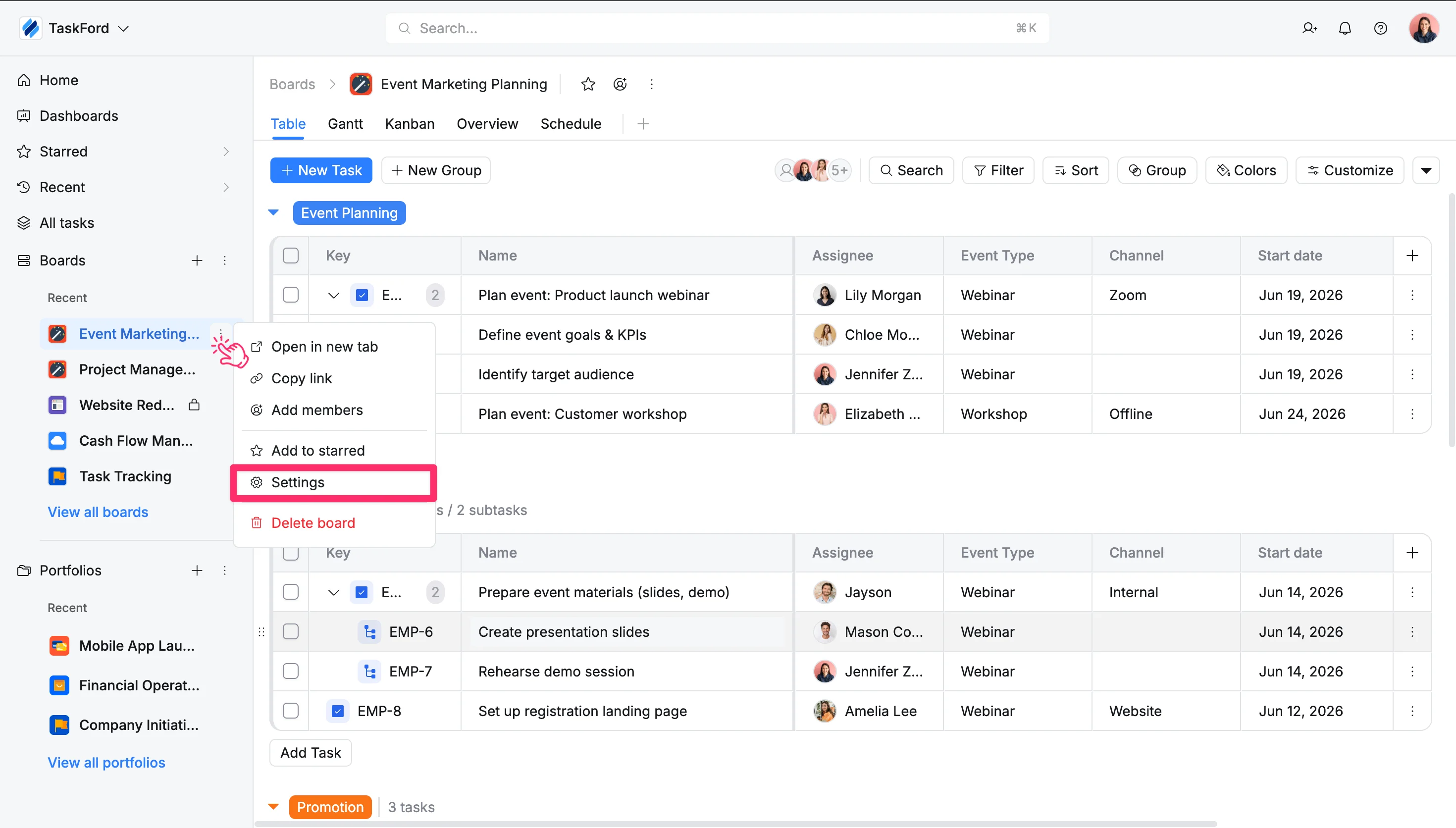
- In the sidebar, locate the desired Board.
- Click the three vertical dots (⋮) that appear next to the board name.
- Select Settings from the dropdown menu.
Option 2: From the Board header
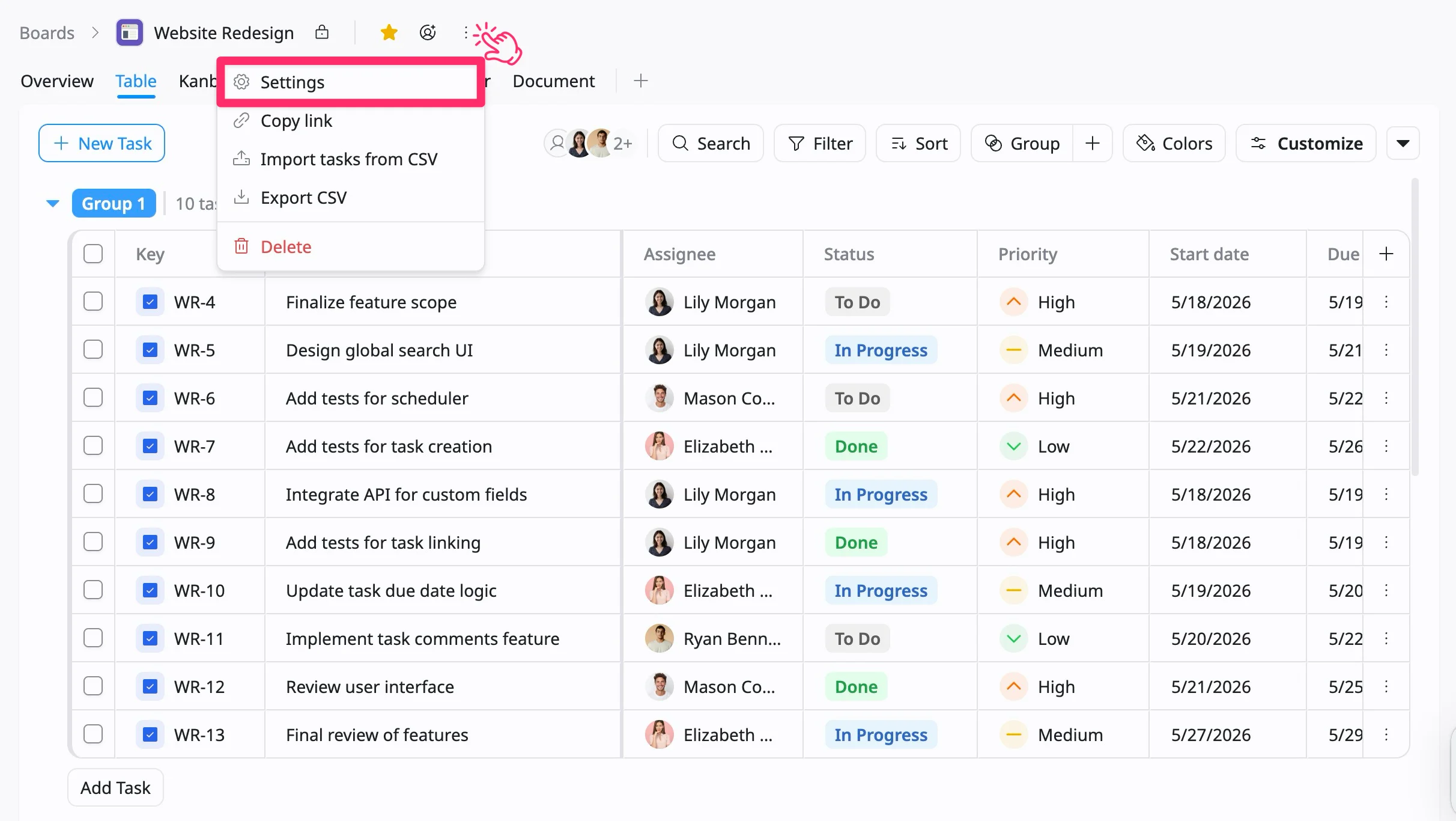
- Go to the desired Board space.
- Click the vertical dots (⋮) in the board header.
- Select Settings from the dropdown menu.
- In the left panel of Board settings, select the ‘General tab’. From here, you can update:
- Avatar: Change the board icon.
- Board name: Update the name.
- Key: Modify the unique identifier for the board.
- Description: Add or edit a summary of the board’s purpose.
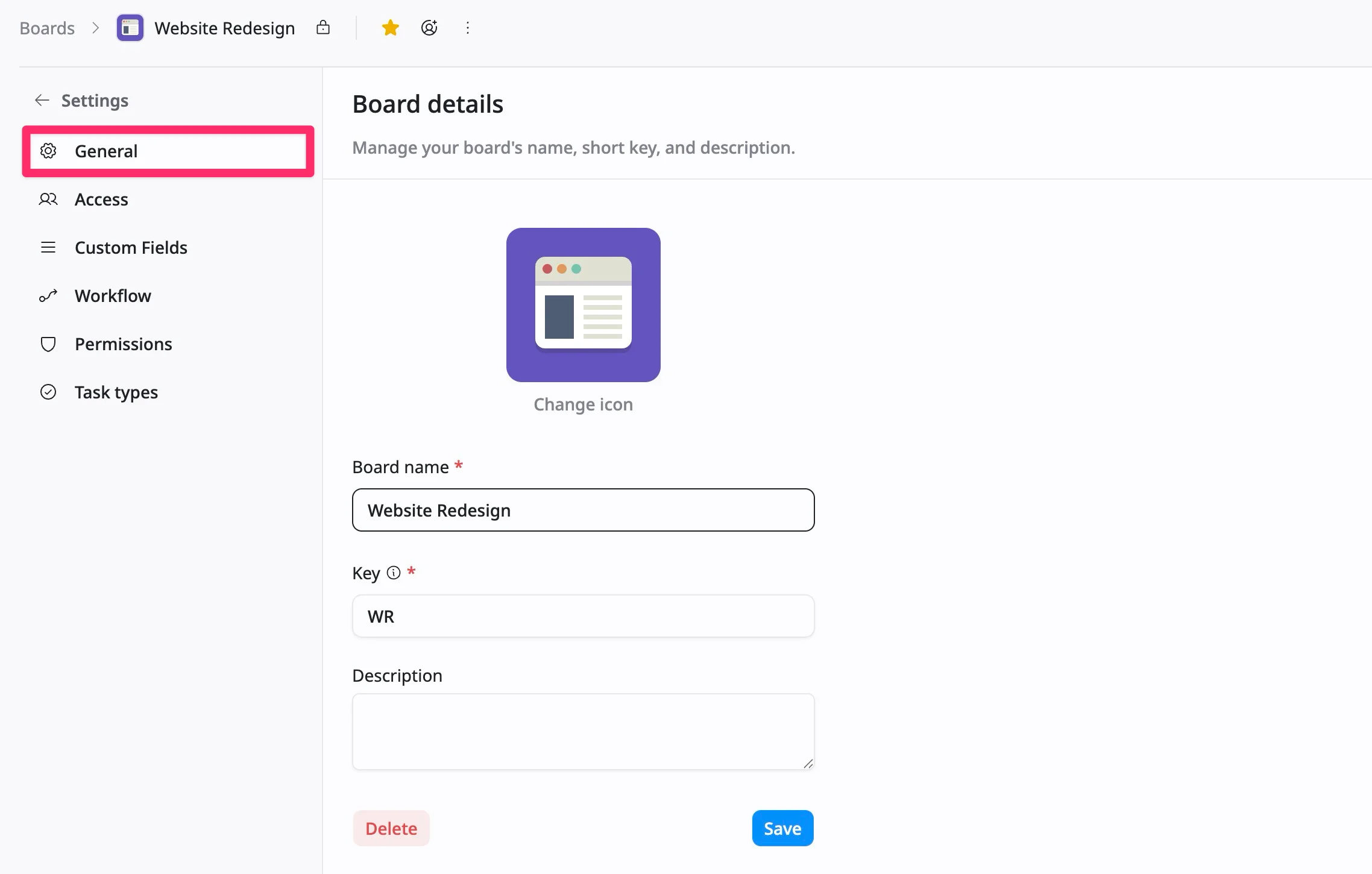
3. Click ‘Save’ to apply your changes.
Delete a board
Only Board Admins / App Admins can delete a board.
You can delete a board in several ways, depending on where you are in the app.
Option 1: From Board settings
- Access ‘Board settings’ in two ways:
Option 1: From the sidebar
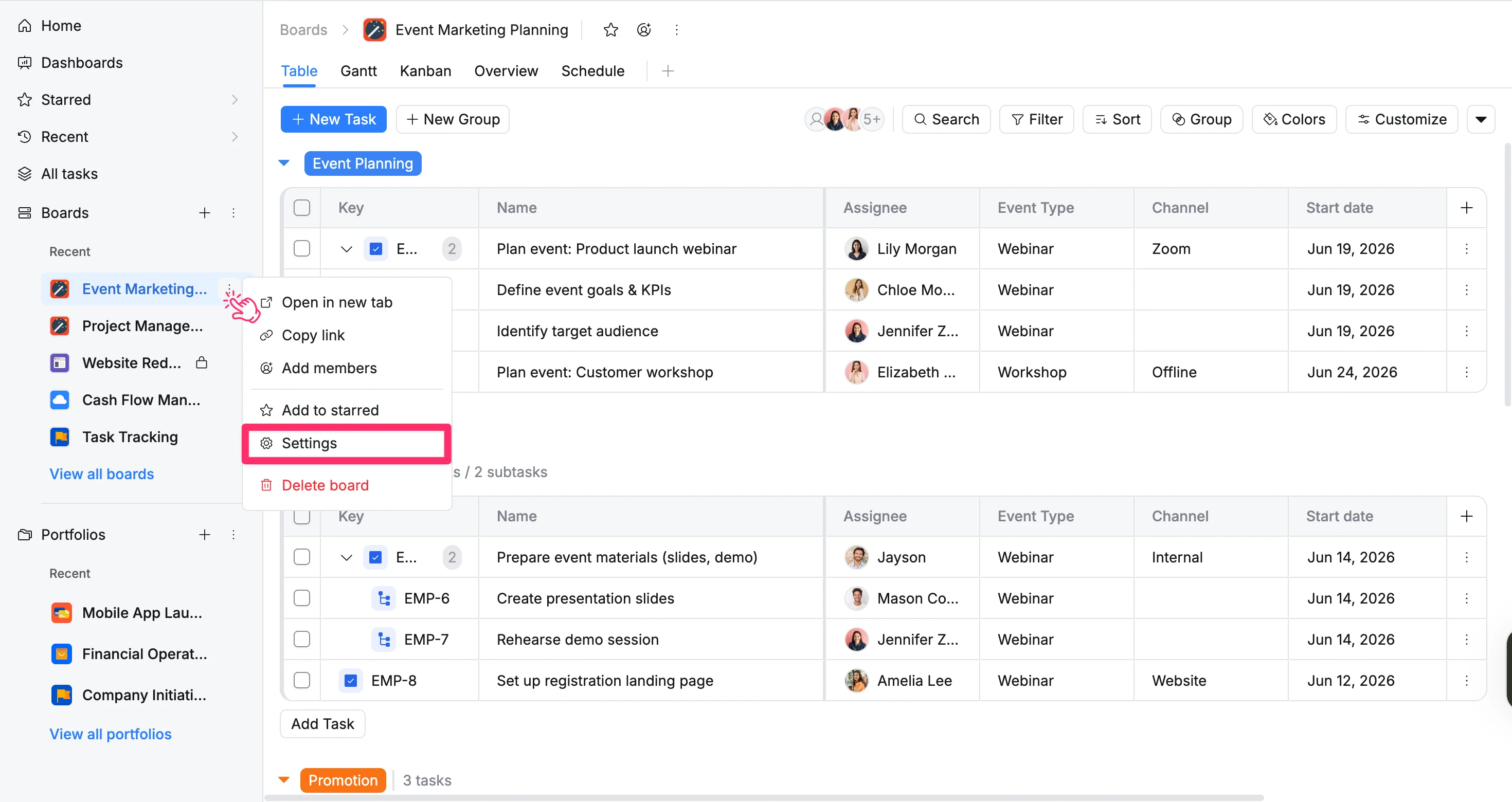
- In the sidebar, locate the desired Board.
- Click the three vertical dots (⋮) that appear next to the board name.
- Select Settings from the dropdown menu.
Option 2: From the Board header
- Go to the desired Board space.
- Click the vertical dots (⋮) in the board header.
- Select Settings from the dropdown menu.
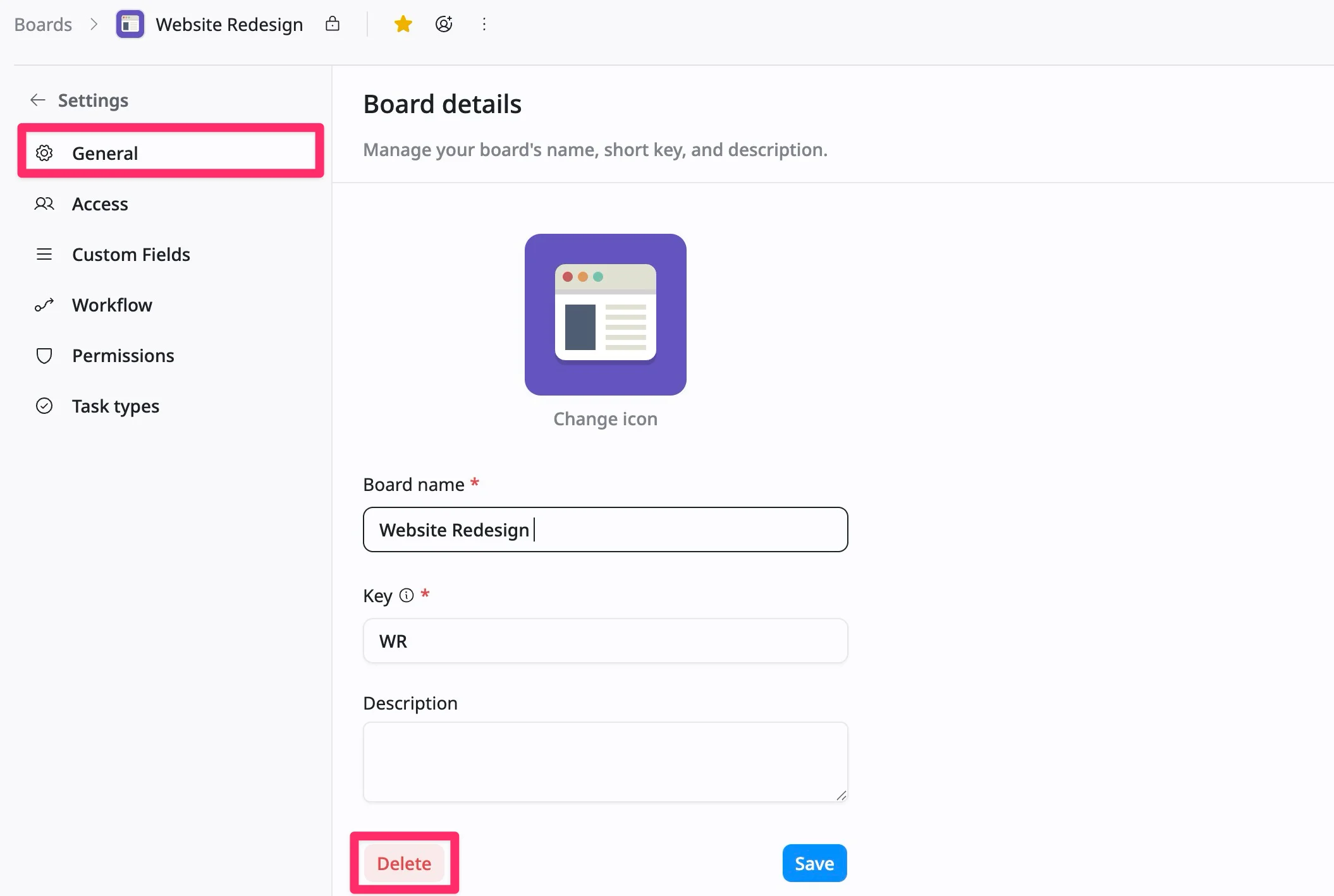
- In the left panel of Board settings, select the ‘General’ tab.
- Click ‘Delete’ to remove the board.
Option 2: From the sidebar
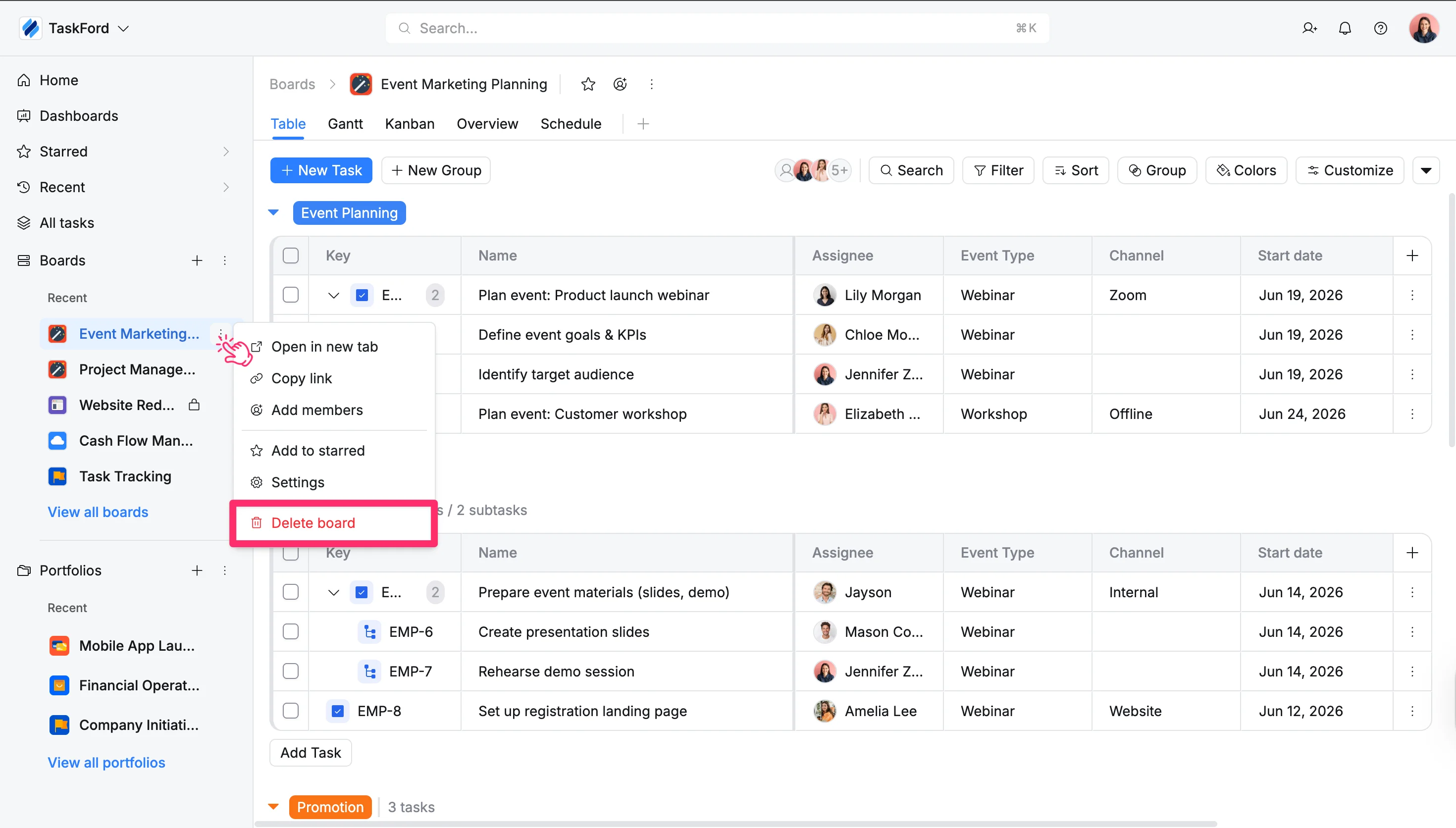
- In the sidebar, locate the board you want to delete.
- Click the three vertical dots (⋮) that appear next to the board name.
- Select Delete board from the dropdown menu.
Option 3: From the All boards screen
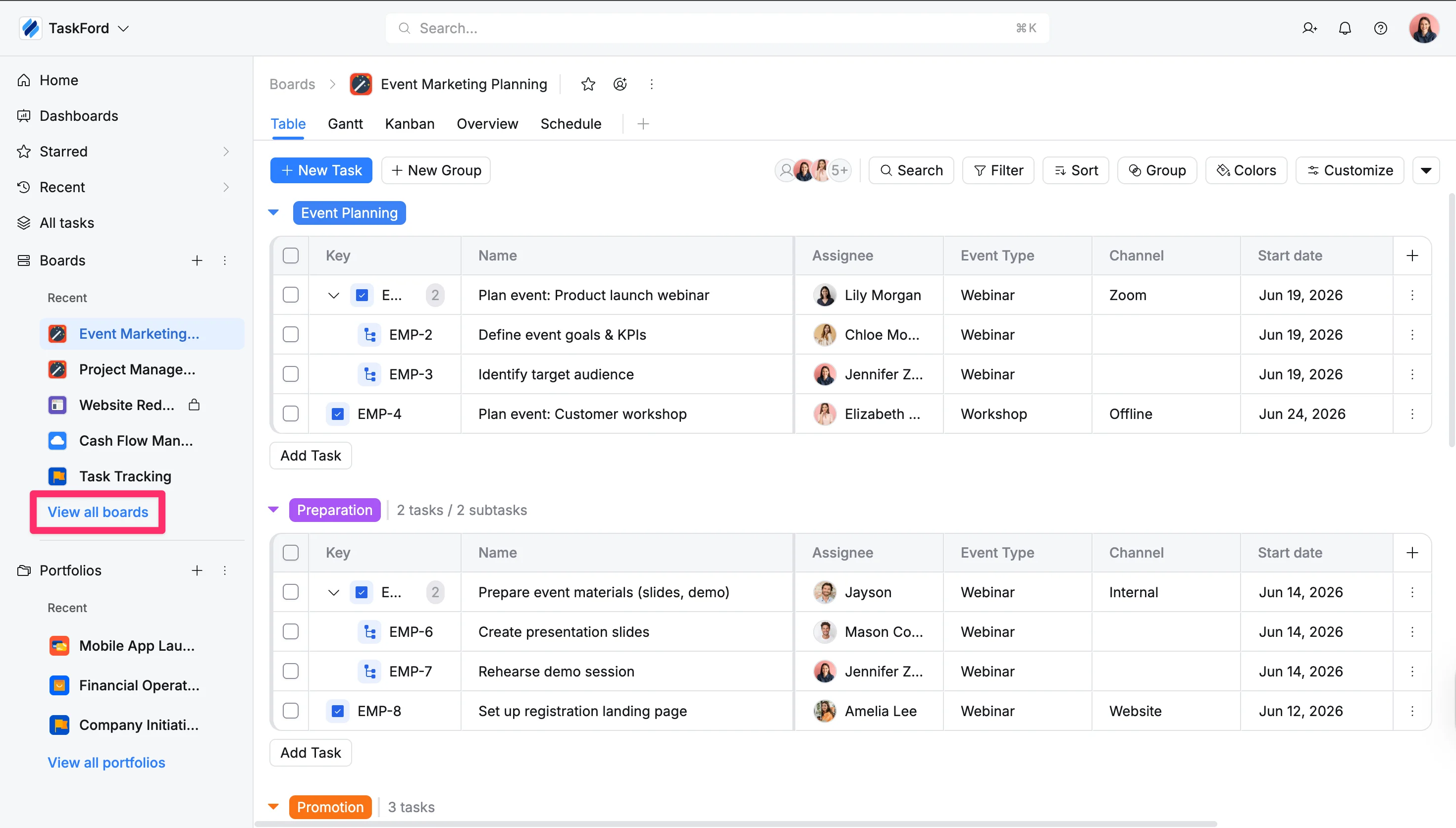
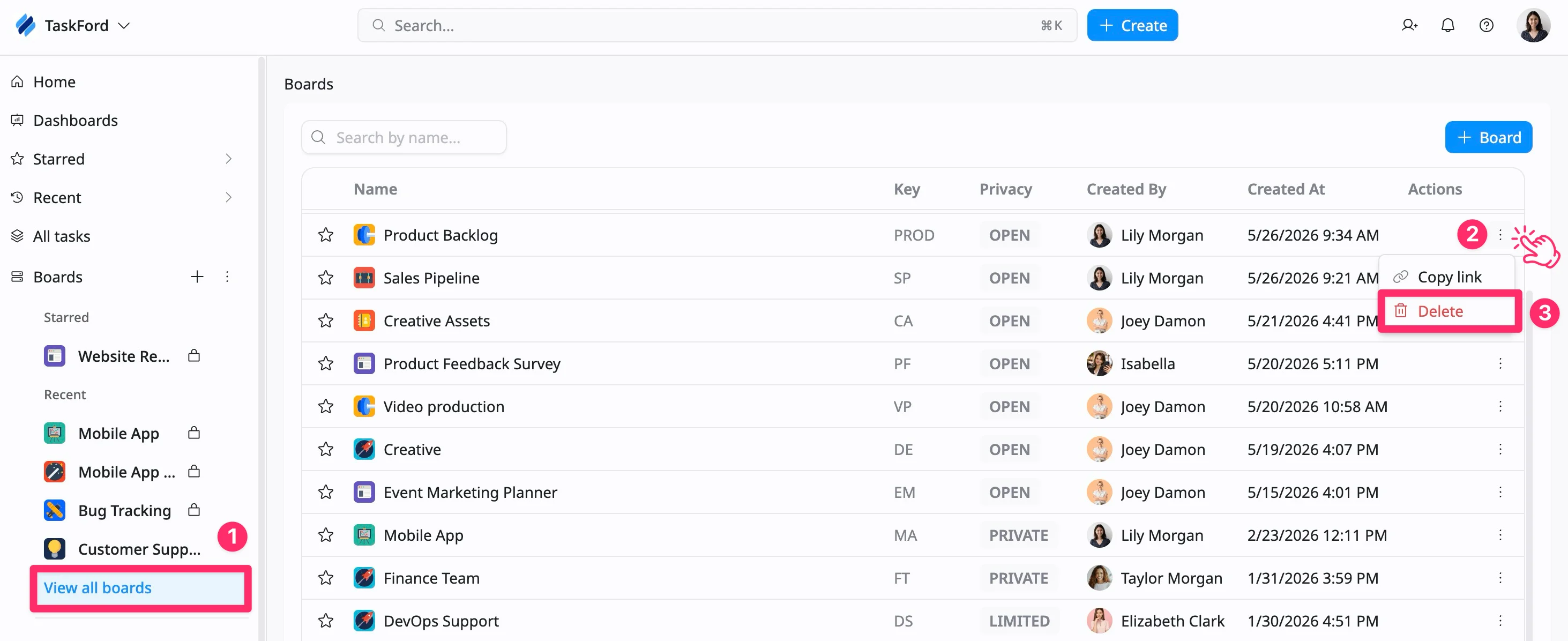
- In the sidebar, click View all boards to open the All boards screen.
- In the Actions column, click three vertical dots (⋮).
- From the dropdown menu, select Delete to remove the board.
Option 4: From the board header
- Go to the desired Board space.
- Click the vertical dots (⋮) in the board header.
- Select Delete from the dropdown menu.

Change Board privacy
Only Board Admins can change privacy levels.
Board privacy controls who can see and access a board within your site. By adjusting privacy settings, board admins can limit access to invited members or make the board visible to a wider audience.
To change Board privacy, follow these steps:
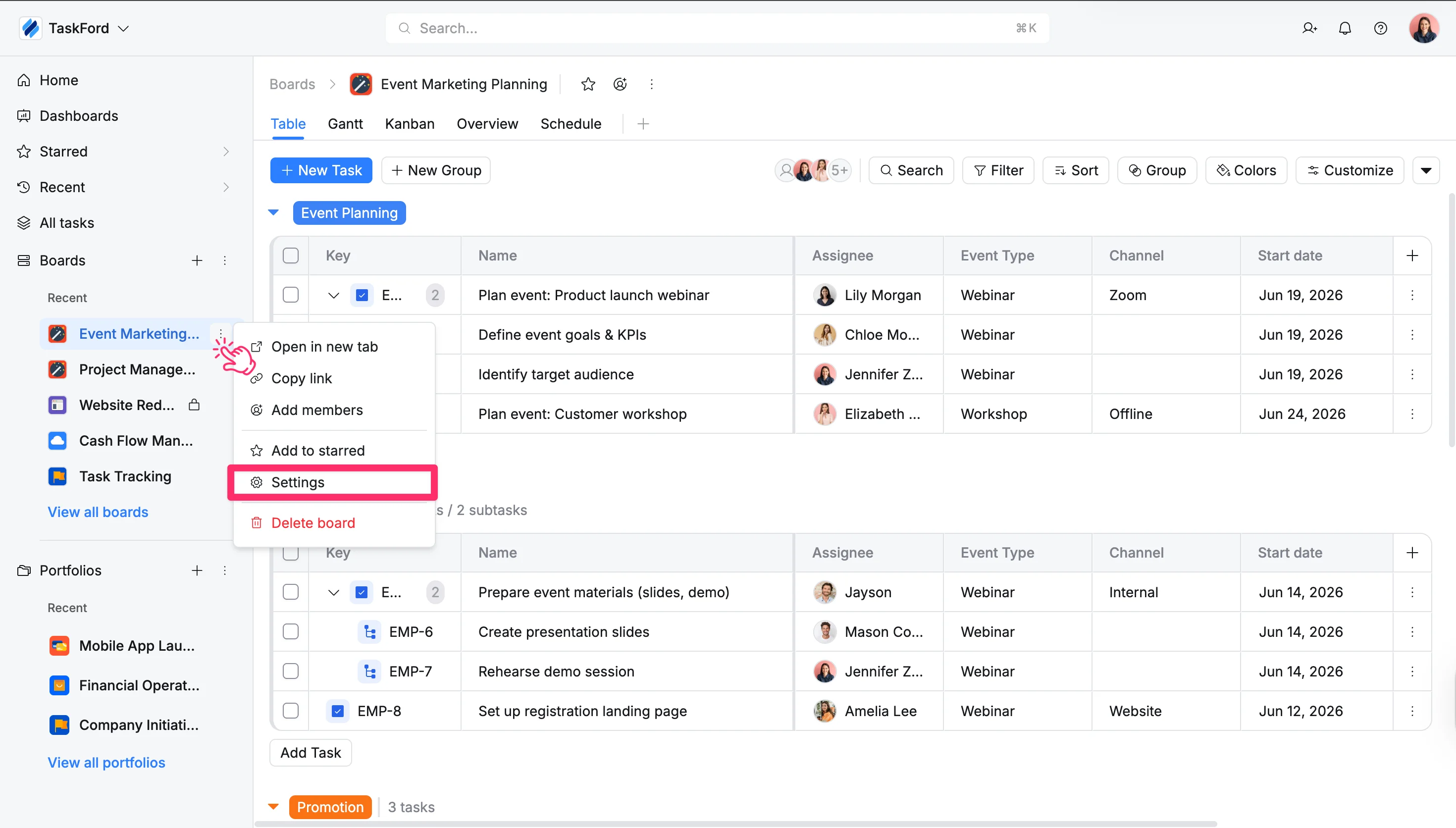
- Access ‘Board settings’ in two ways:
Option 1: From the sidebar
- In the sidebar, locate the desired Board.
- Click the three vertical dots (⋮) that appear next to the board name.
- Select Settings from the dropdown menu.
Option 2: From the Board header
- Go to the desired Board space.
- Click the vertical dots (⋮) in the board header.
- Select Settings from the dropdown menu.
- In the left panel of Board settings, select the ‘Access’ tab.
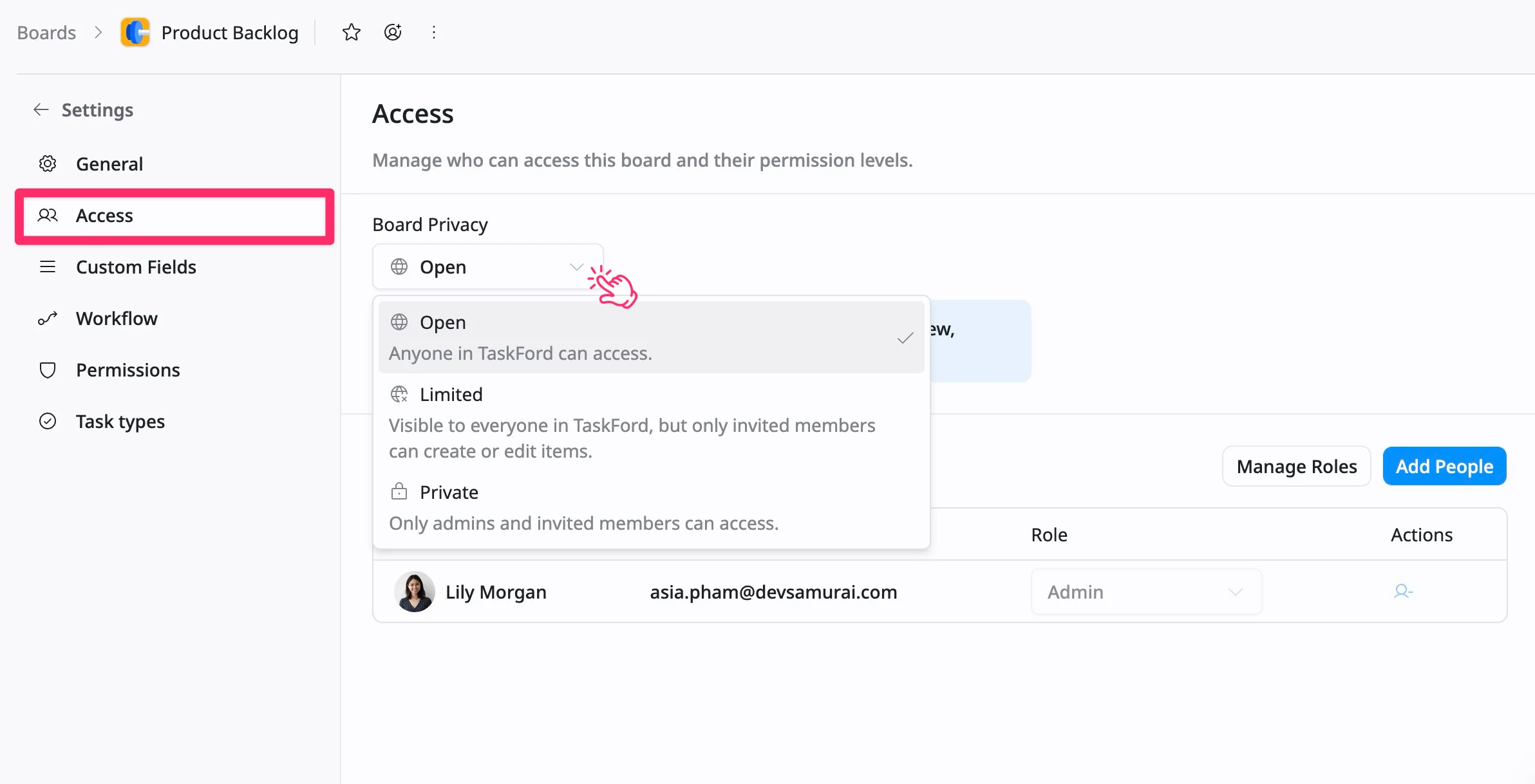
- Update the Board privacy as needed.
Add a board to starred
Anyone who has access to a board can add it to Starred.
Starred boards help you quickly access the boards you use most. Your Starred list is personal; other members in your workspace can’t see or access your favorites. There’s no limit to how many boards you can add to Starred.
You can add a board to Starred in two ways:
Option 1: From the sidebar
- In the sidebar, locate the board.
- Click the three vertical dots (⋮) that appear next to the board name.
- Select Add to Starred.
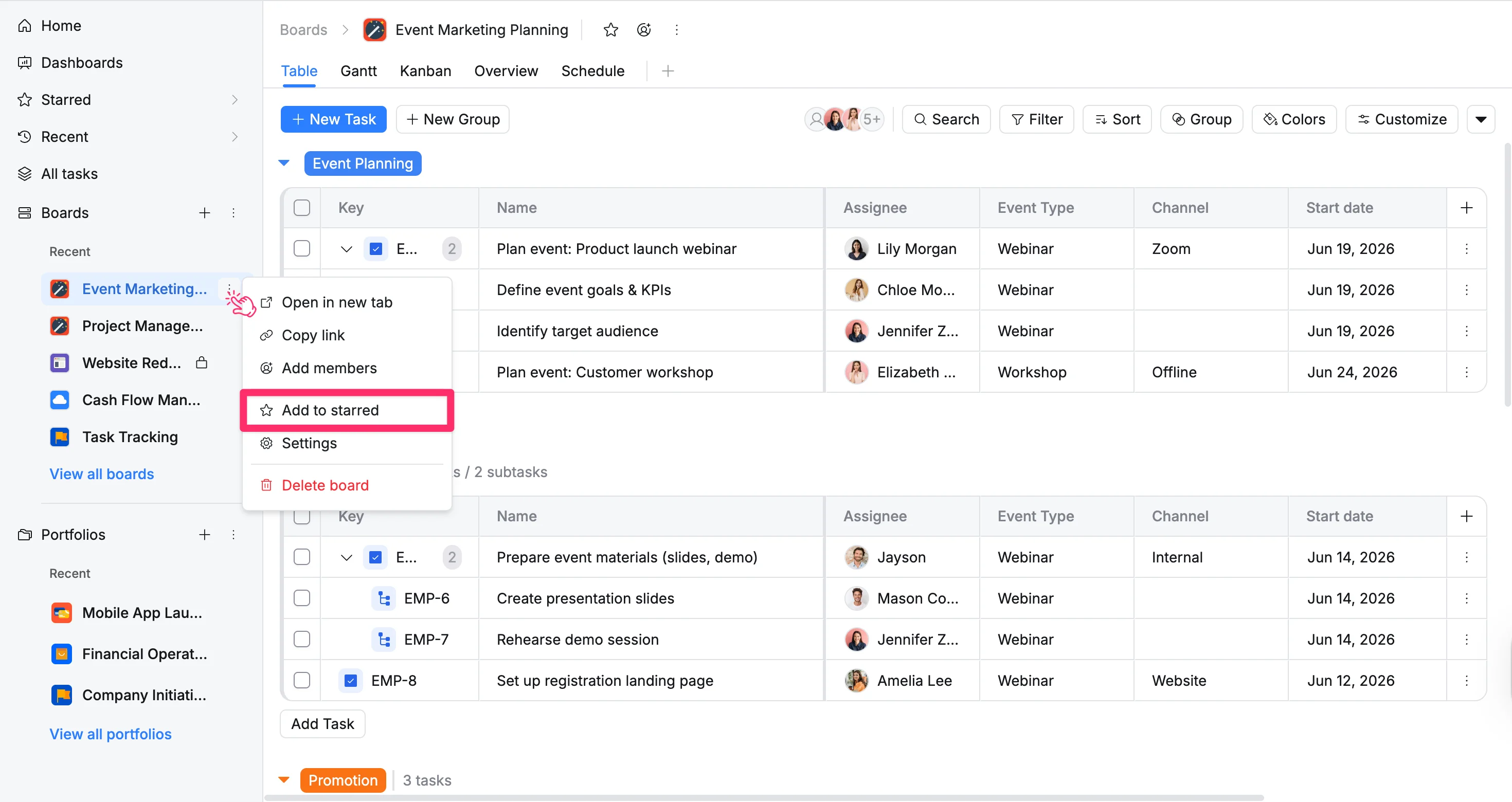
To remove a board from starred, follow the same steps and select Remove from starred.
Option 2: From the board header
- Go to the desired Board space.
- Click the Star icon in the header.
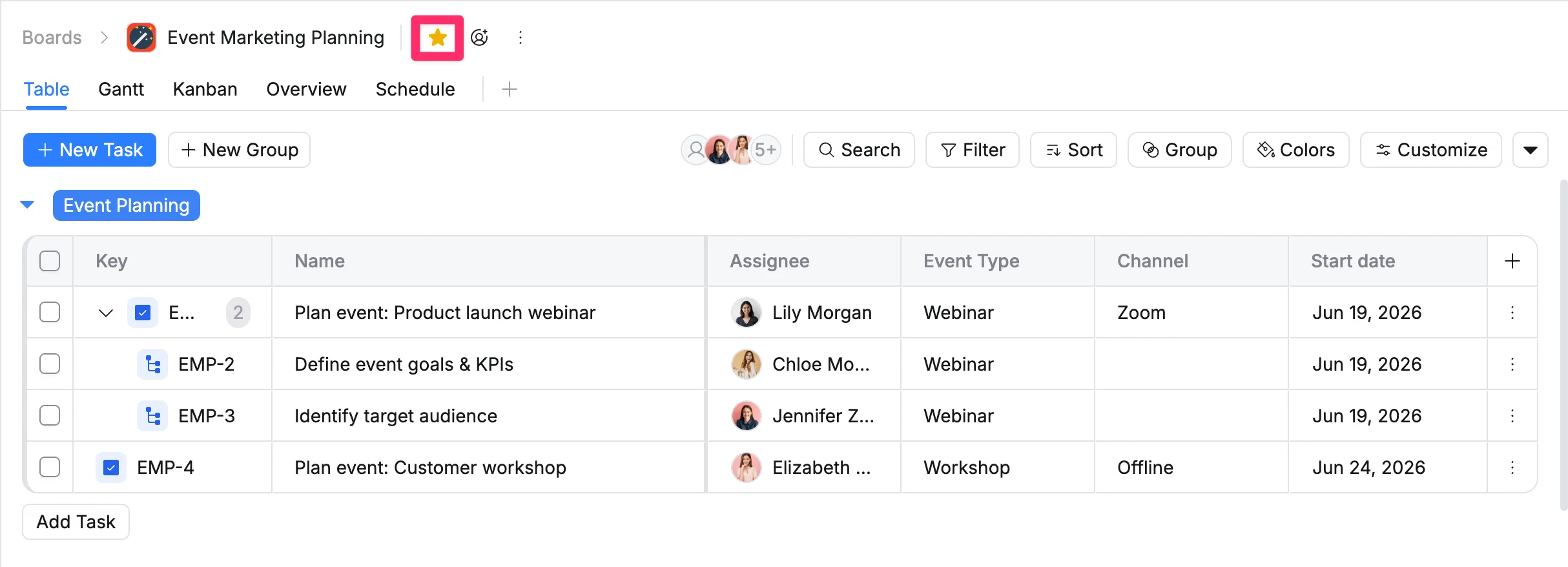
Click the icon again to remove it from the starred.
Copy a board link
- Anyone with access to a board can copy the board link.
- A shareable link can only be viewed by users who have access to the board.
Copying a board link allows you to share direct access to a board with others. This is useful when inviting collaborators or referencing a board outside of TaskFord.
You can copy a Board link in two ways:
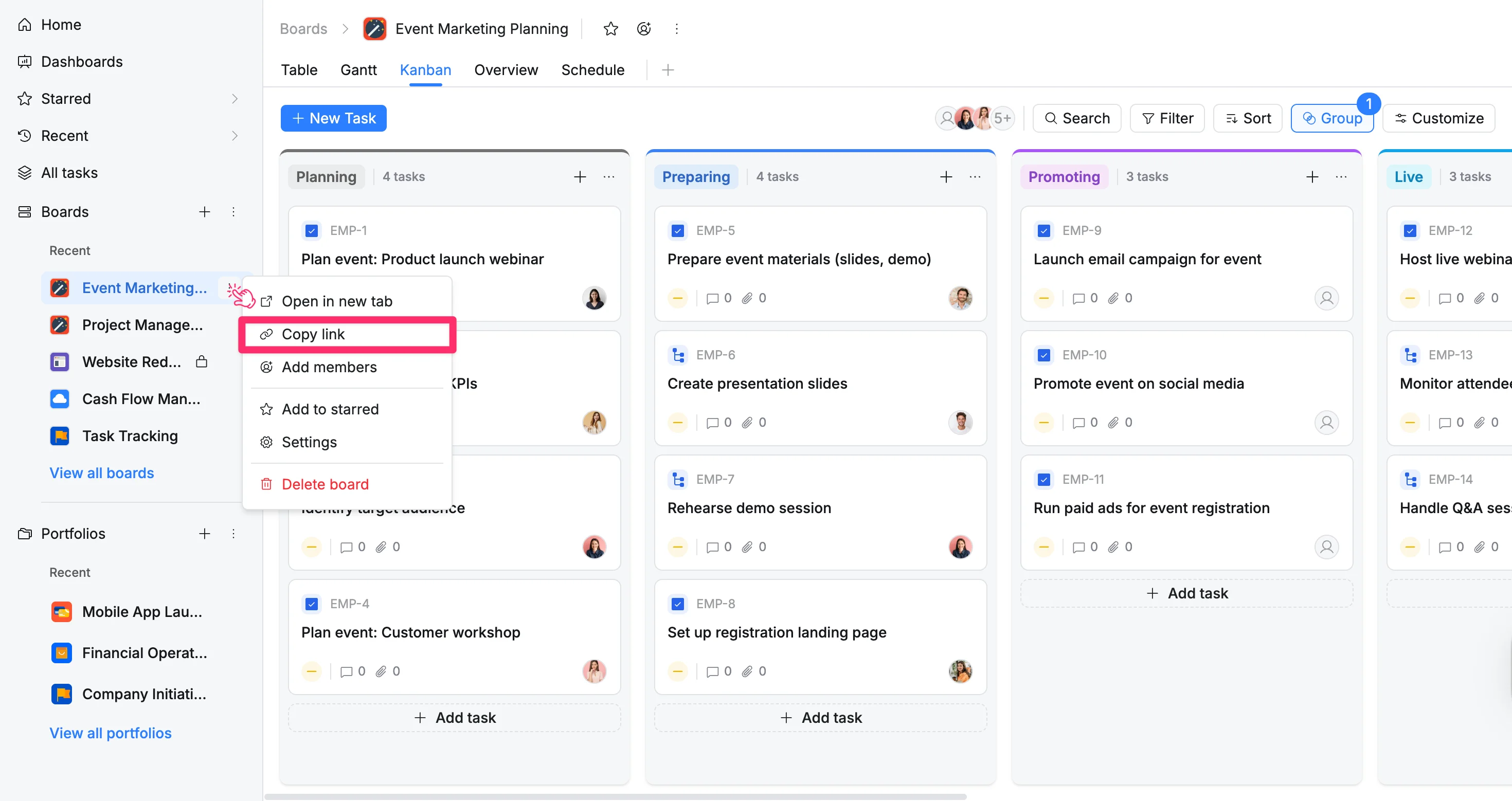
Option 1: From the sidebar
- In the sidebar, locate the board you want to copy link.
- Click three vertical dots (⋮) next to the board name.
- Select Copy link from the dropdown menu.
Option 2: From the board header
- Go to the desired Board space.
- Click three vertical dots (⋮) in the board header.
- Select Copy link from the dropdown menu.

Open a board in a new tab
Anyone who has access to a board can open it in a new tab.
Opening a board in a new tab allows you to keep your current workspace view while working on another board at the same time. This is useful when comparing boards, referencing information, or working on multiple boards simultaneously.
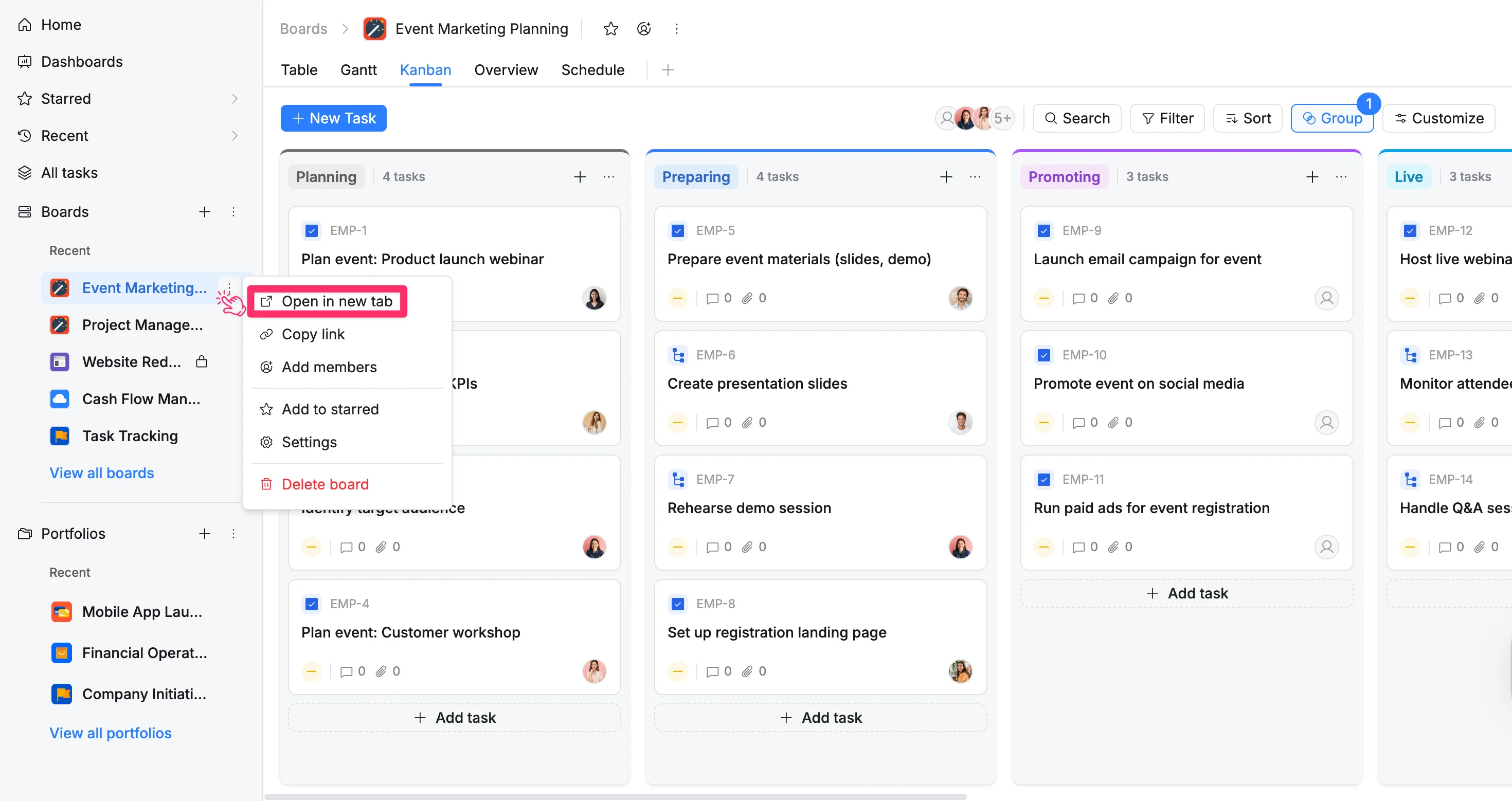
To open a board in a new tab:
- In the sidebar, locate the board you want to open.
- Click three vertical dots (⋮) next to the board name.
- Select Open in new tab from the dropdown menu.
Browse boards
Browsing boards lets you view and explore all boards you have access to. This view helps you quickly find boards across different projects and teams.
- In the sidebar, go to the Boards section.
- Click View all boards to open the All boards screen.
From here, you can explore all boards visible to you.