Templates
Incident / Postmortem Template
Incident / Postmortem Template
Get Free Template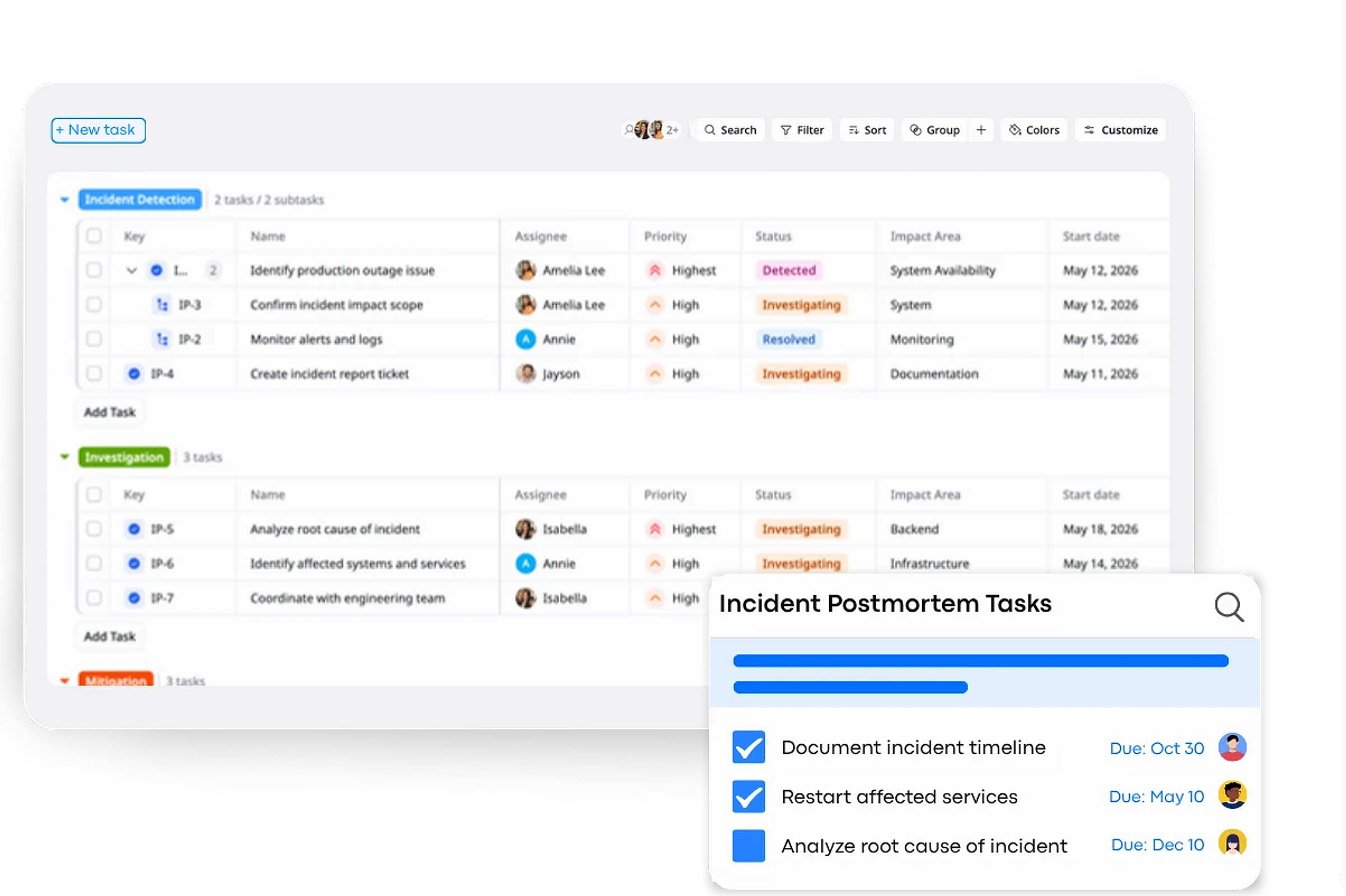
Description
A Incident / Postmortem Template helps you track incidents, resolve issues quickly, and document learnings to prevent future occurrences.
Best for
IT & devops teams
Product & engineering teams
QA teams
System administrators
Key Features
Incident Summary
Structured Timeline
Action Items
Priority Management
What is a Incident / Postmortem Template?
A Incident / Postmortem Template is a structured tool designed to help teams track and manage incidents, resolve issues efficiently, and document the lessons learned to prevent similar occurrences in the future.
This template helps in systematically identifying, investigating, mitigating, and resolving incidents, and later documenting the postmortem analysis.
What's included in this Incident / Postmortem Template?
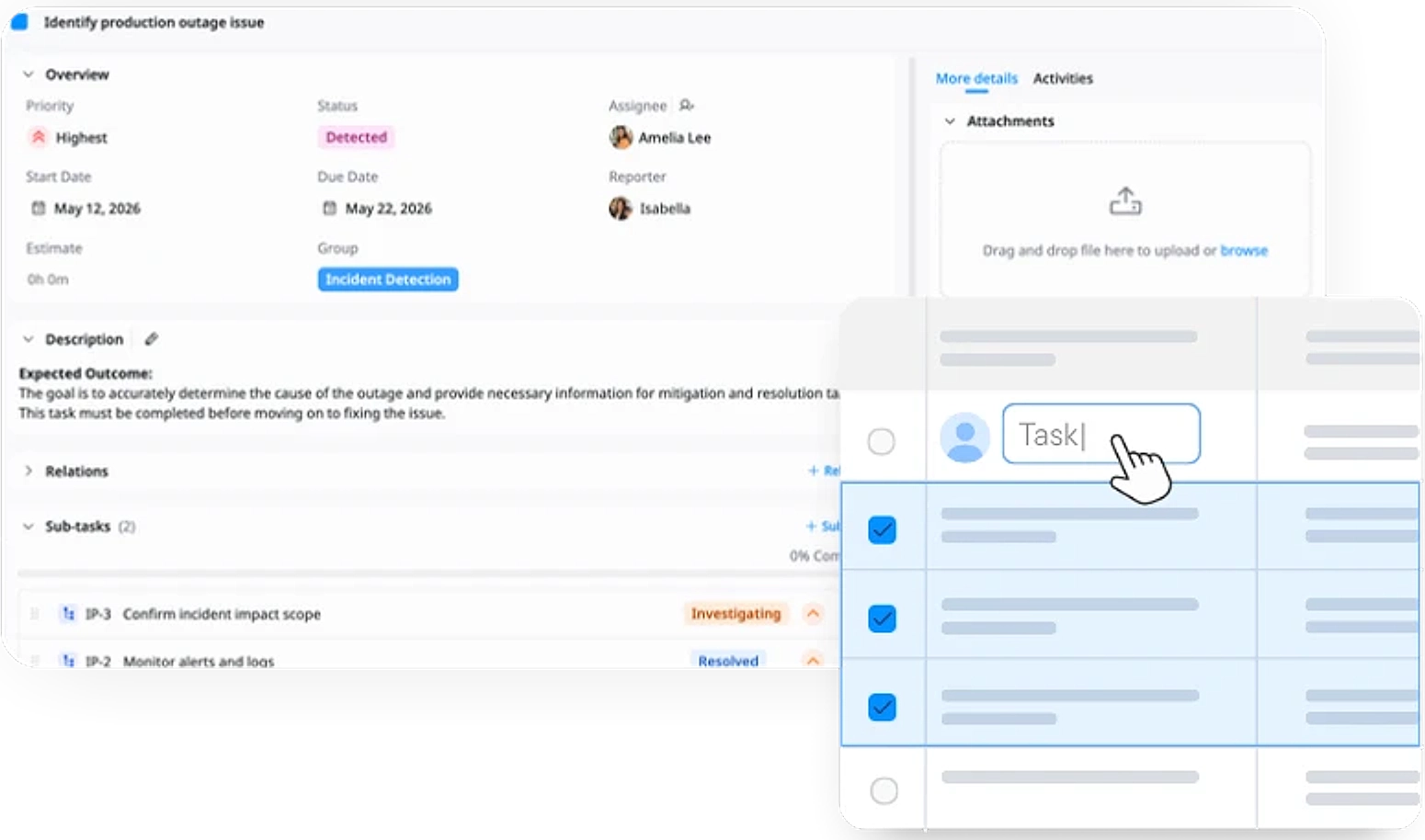
Incident Summary
A brief overview of the incident, including what happened, when, and its impact on the system or users.
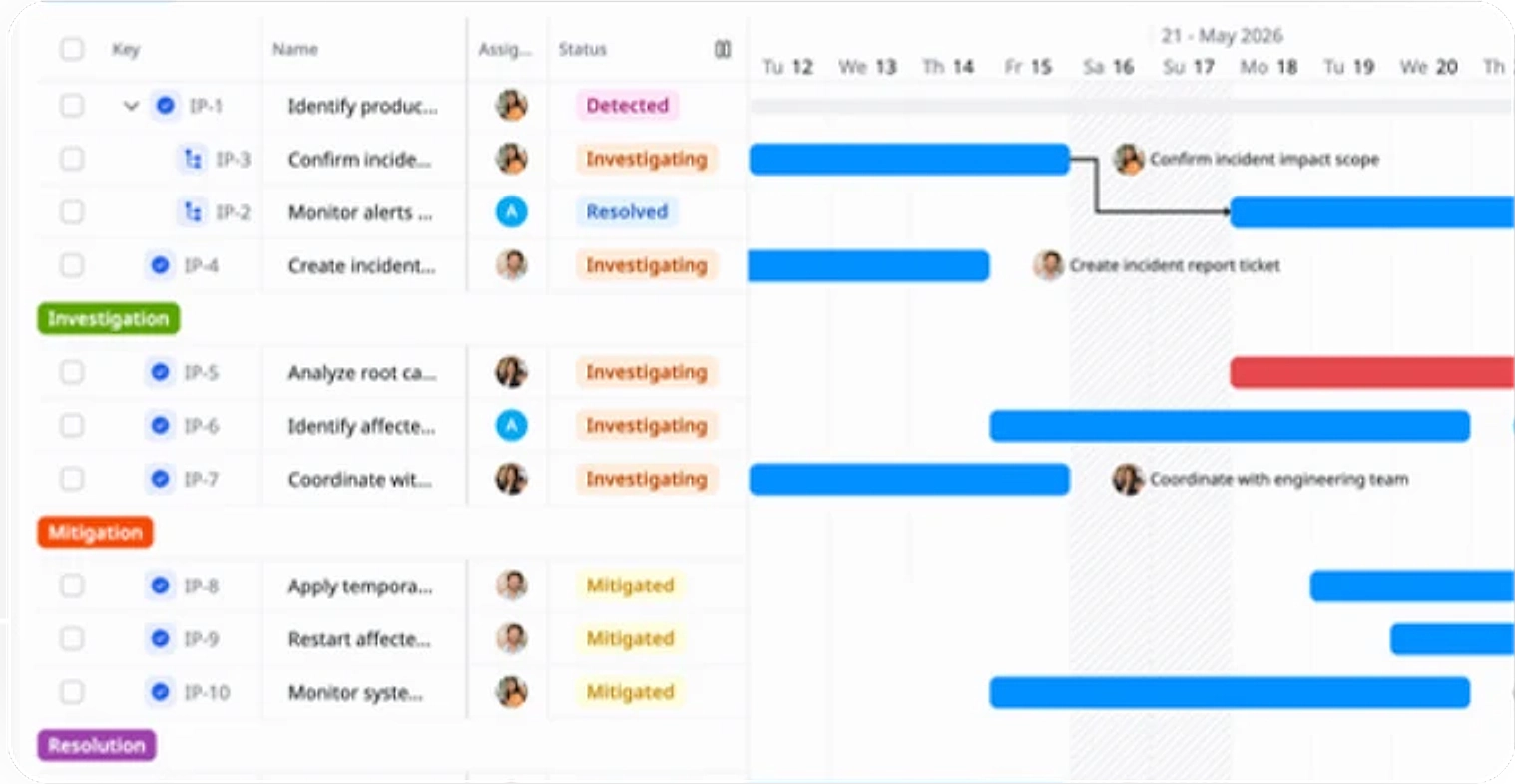
Incident Timeline
A clear visual representation of key release dates, milestones, and deadlines to ensure the release stays on track.
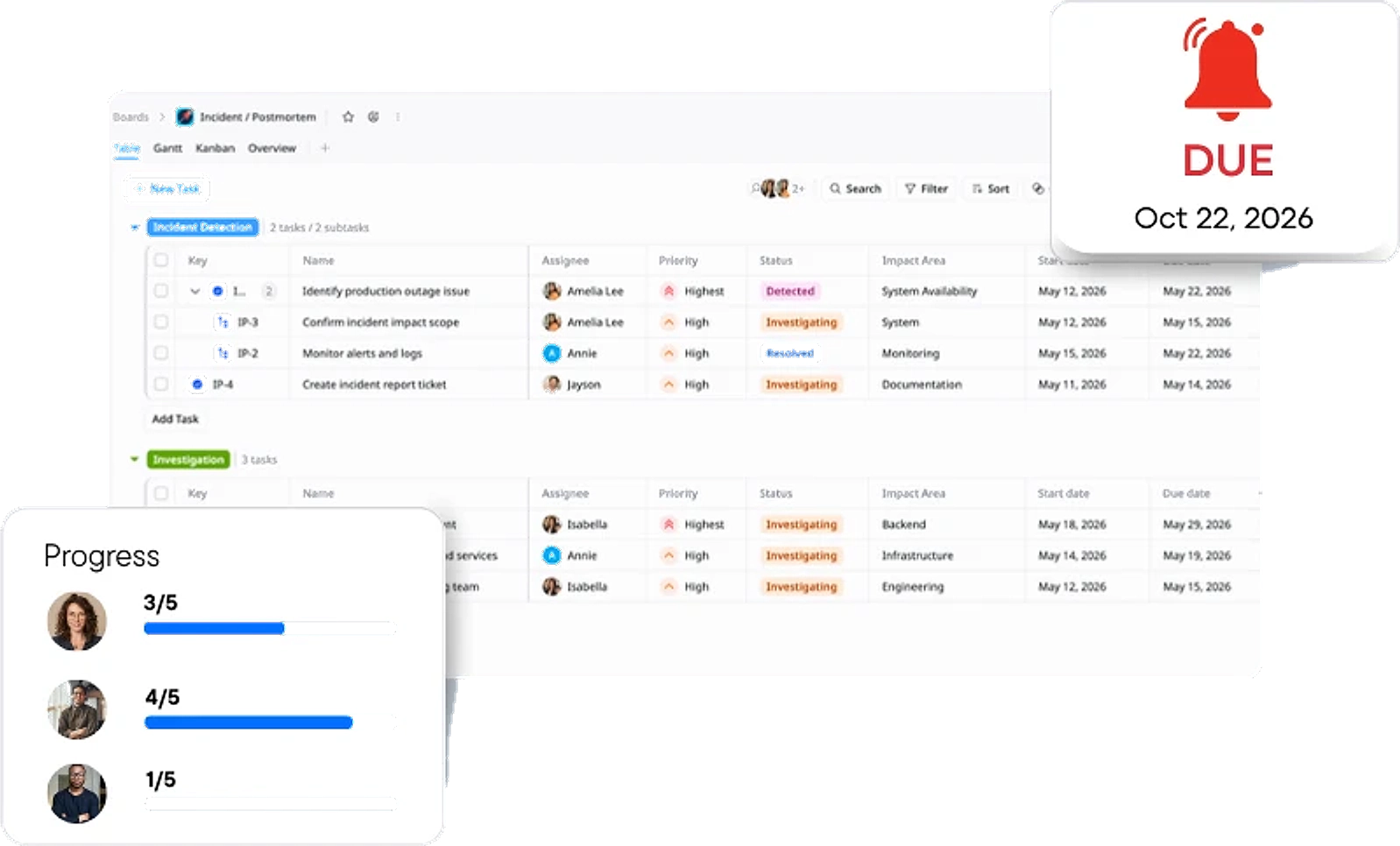
Action Items
Assign tasks to prevent future incidents, with clear owners and due dates for accountability.
Status Tracking
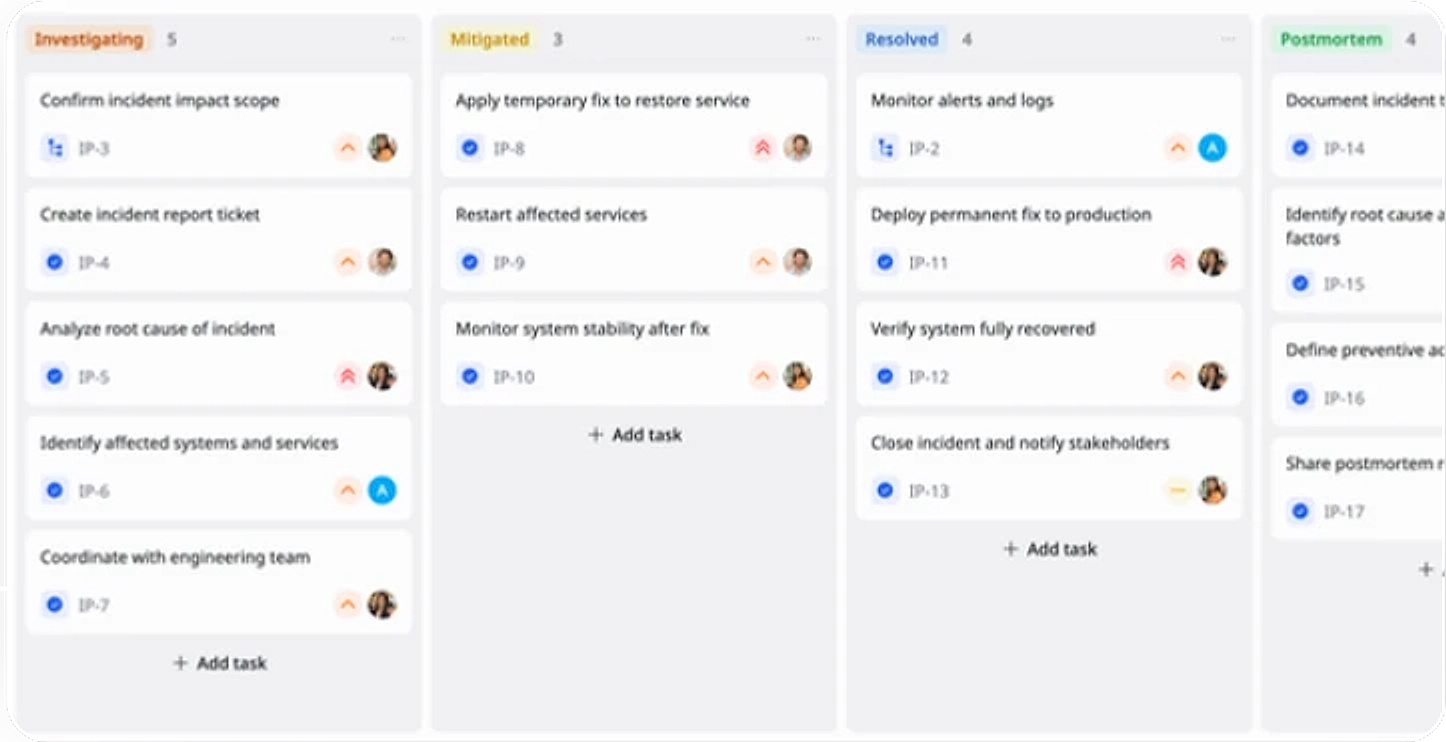
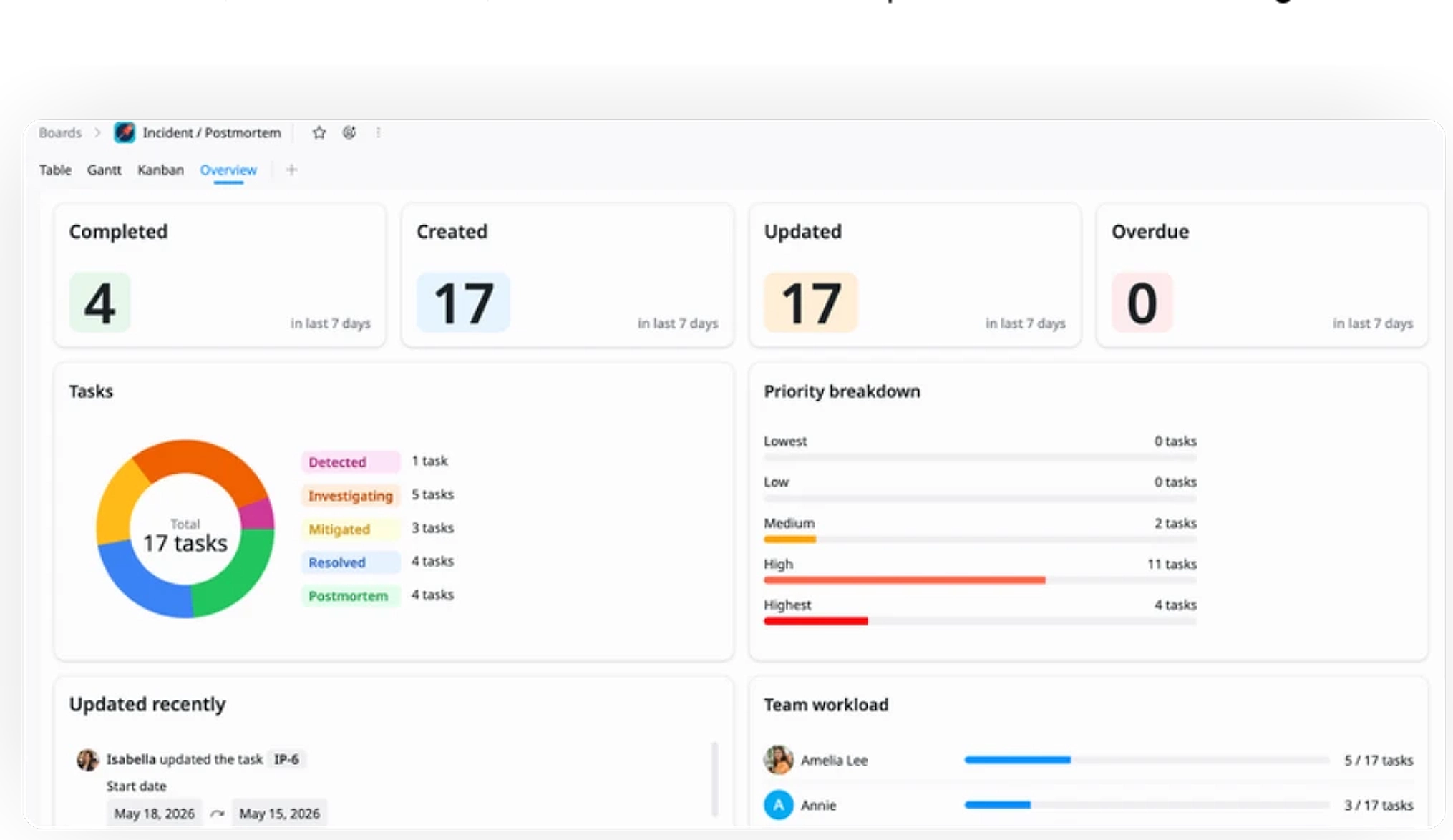
The workflow tracks progress through statuses like Detected, Investigating, Mitigated, Resolved, and Postmortem.
Why use this Incident / Postmortem Template?
The Incident / Postmortem Template helps teams efficiently manage and resolve incidents by tracking their lifecycle from detection to resolution.
- Track Incidents: Monitor and manage incidents from detection to resolution with clear status updates.
- Document Root Causes: Conduct thorough postmortem analysis to identify and address underlying issues.
- Improve Processes: Learn from incidents to prevent future occurrences and improve workflows.
- Enhance Communication: Ensure all stakeholders are aligned with detailed reporting and action items.
How to use this Incident / Postmortem Template
1
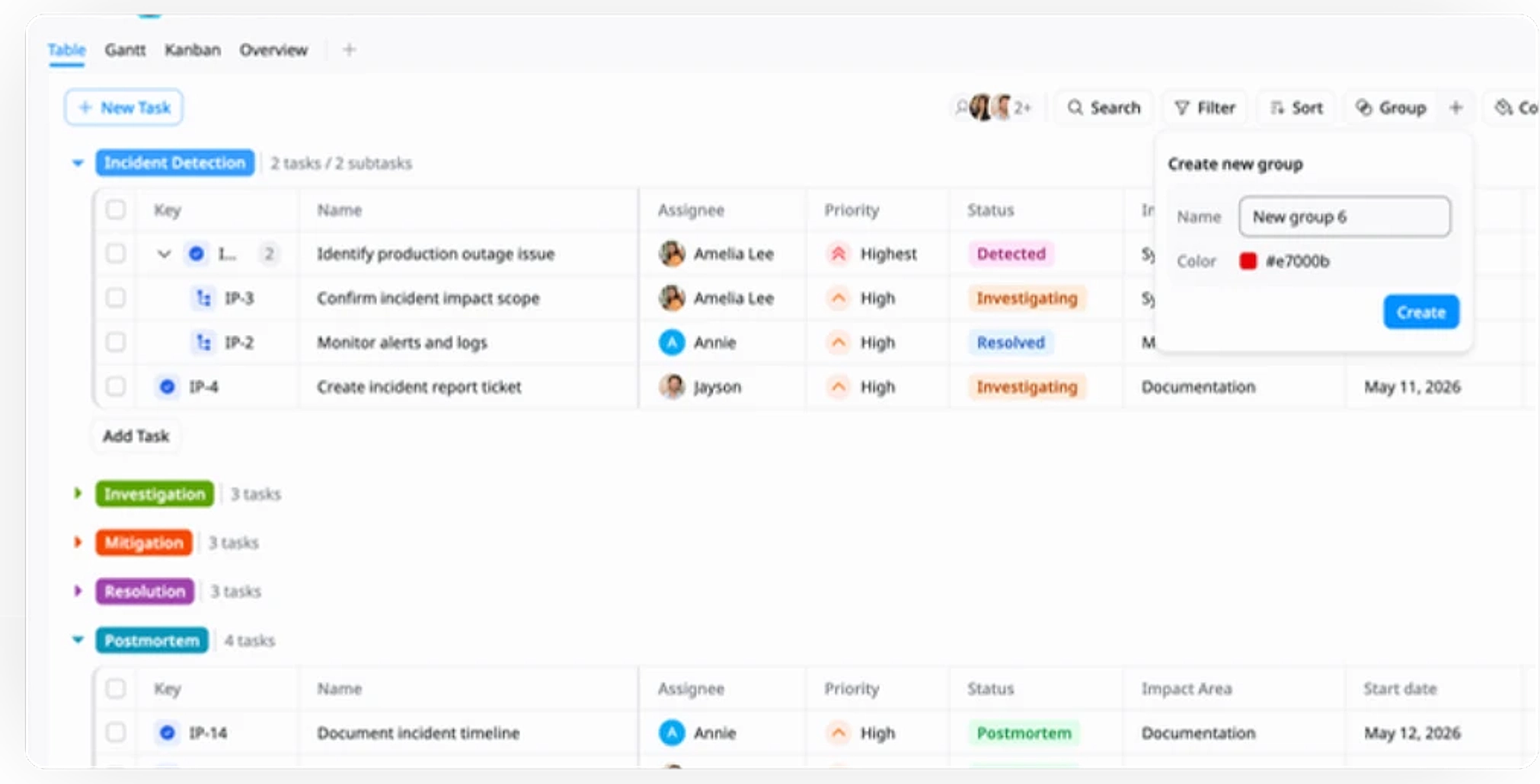
Create Task Groups
Organize the incident management process into distinct groups (e.g., Detection, Investigation, Mitigation, Resolution). This allows for a structured approach to manage tasks across different phases.
2
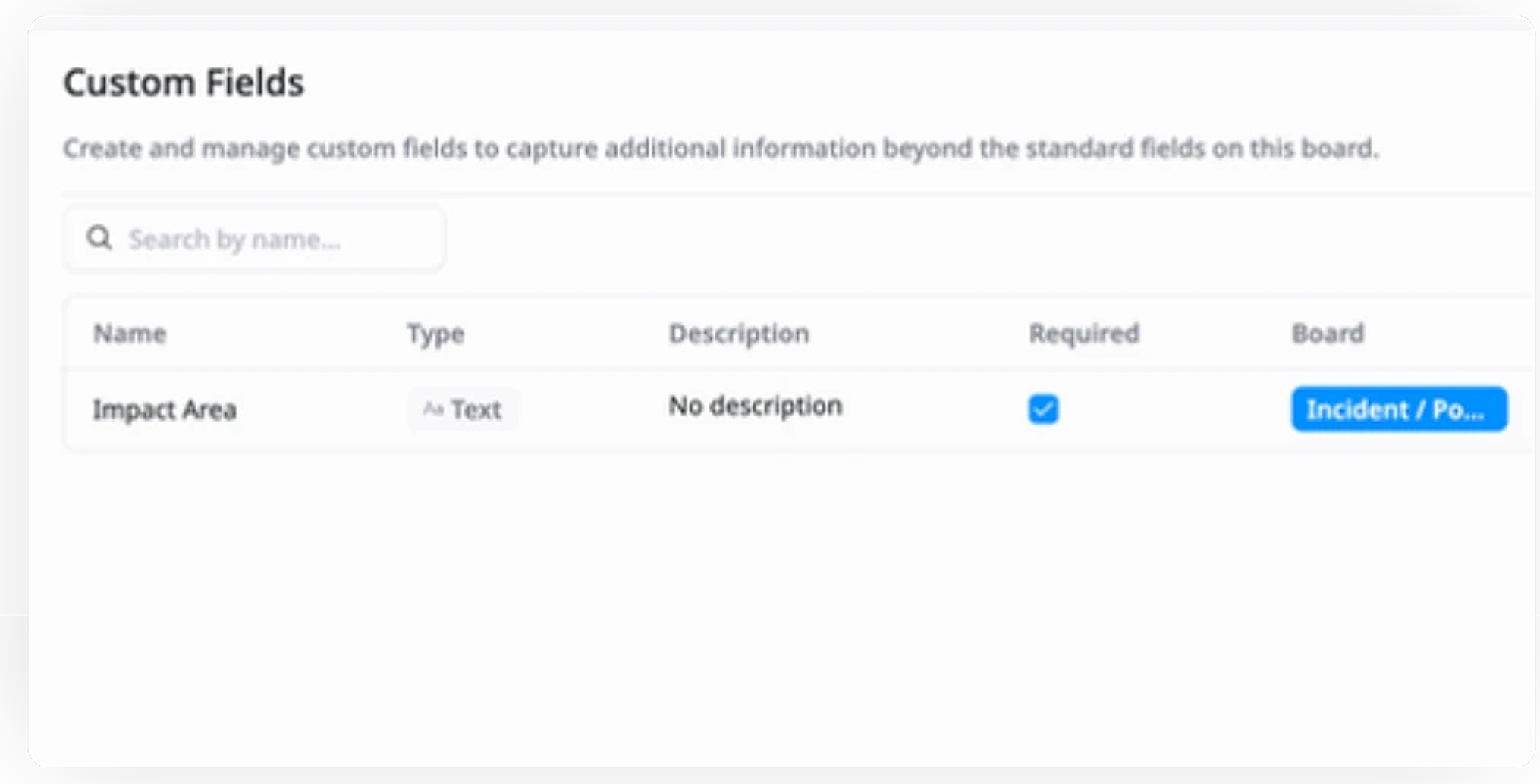
Add Custom Fields for Impact Area
Use custom fields to specify the Impact Area (e.g., Backend, Infrastructure, Customer Facing). This helps prioritize tasks based on the affected areas and resources needed.
3
Assign Tasks & Set Due Dates
Assign tasks to relevant team members and set clear due dates to ensure timely resolution. This keeps teams focused on their responsibilities and ensures accountability throughout the process.
4
Track Status with Kanban
Monitor progress using Kanban view to track task status (e.g., Detected, Investigating, Mitigated, Resolved, and Postmortem.). This provides real-time updates on the incident resolution process and ensures nothing is overlooked.
5
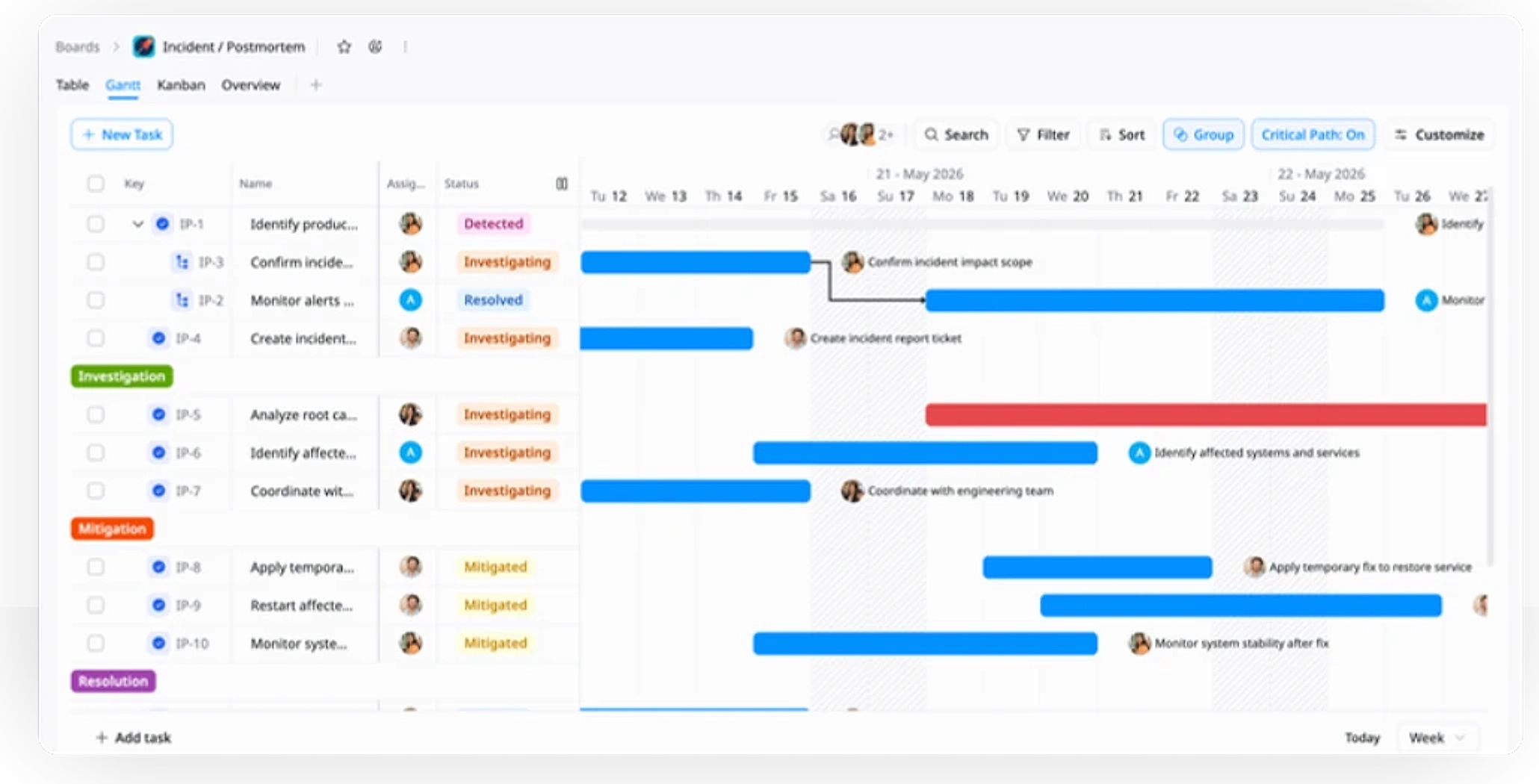
Visualize Timeline with Gantt
Use Gantt view to visualize the timeline of tasks, milestones, and dependencies. This ensures tasks are completed on time and tracks progress against key deadlines.
6
Maintain an Overview
Utilize the Overview view to get a high-level snapshot of the incident's progress. This view consolidates key information, task statuses, and timelines to keep all stakeholders aligned.
Advanced tips
Prioritize Tasks with Impact & Severity
Focus on resolving the most critical tasks first by prioritizing based on severity and impact.
Prioritize high-severity tasks that affect system performance or user experience
Use custom fields like Impact Area to categorize and address urgent issues
Allocate resources efficiently to the highest priority tasks to ensure timely resolution
Group By / Sorting Feature
Use grouping and sorting to organize tasks effectively by priority, impact, or status. This ensures clear visibility of tasks and helps streamline the resolution process.
Group tasks by Impact Area or Priority (e.g., Critical, Low Impact)
Sort tasks based on severity or due date for better task management
Quickly identify the most urgent issues for immediate attention
Leverage Dependencies to Prevent Bottlenecks
Track task dependencies to ensure tasks are completed in the right order, preventing delays and optimizing workflow.
Map out task dependencies using Gantt view to visualize progress
Ensure tasks that are dependent on others are completed first to maintain smooth workflow
Quickly identify bottlenecks and take action to resolve any task blockers
Related Templates
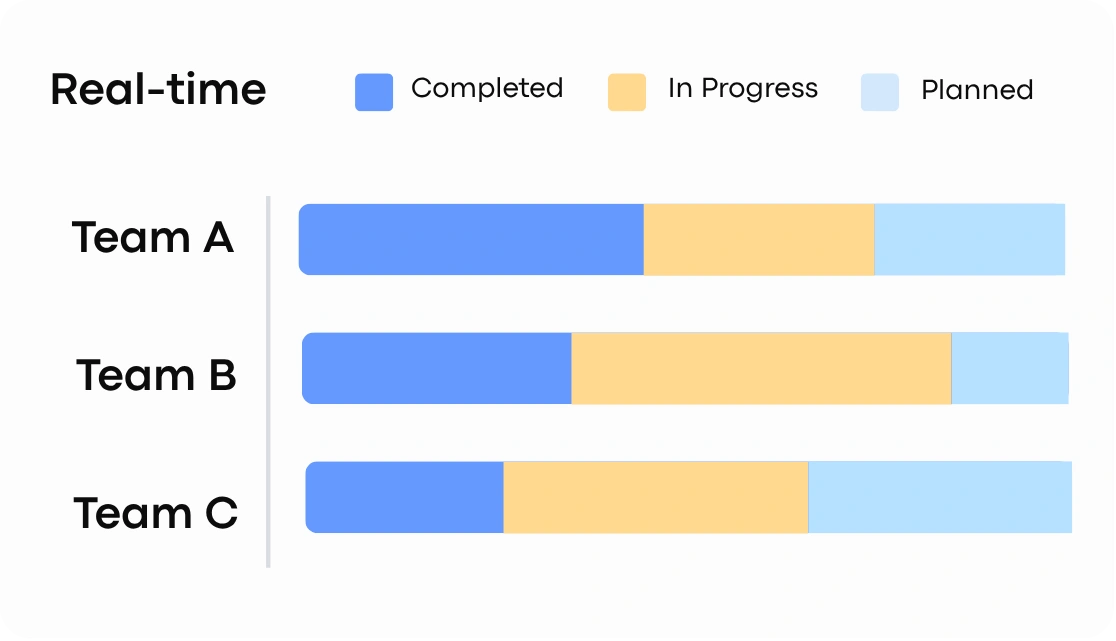
GTM Plan for Product Launch
by TaskFord
Plan and execute GTM strategies to drive product launch and adoption.
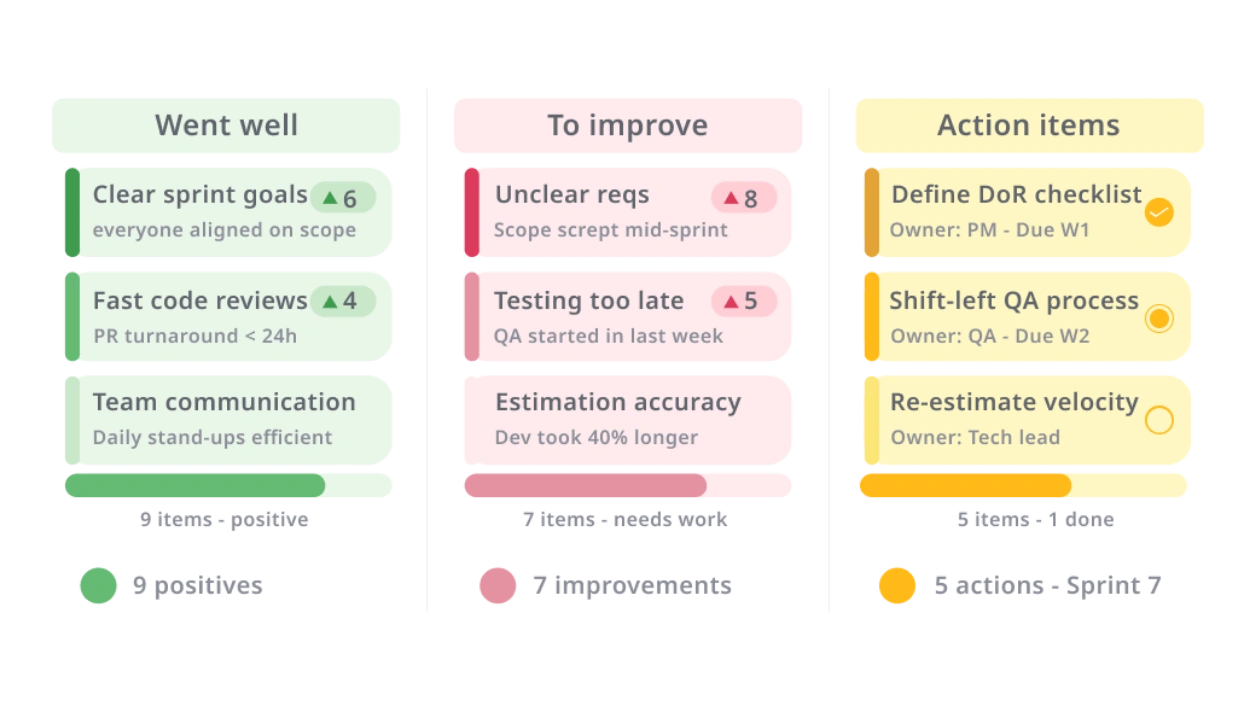
QA Testing Workflow
by TaskFord
Plan, execute, and track testing to ensure product quality.
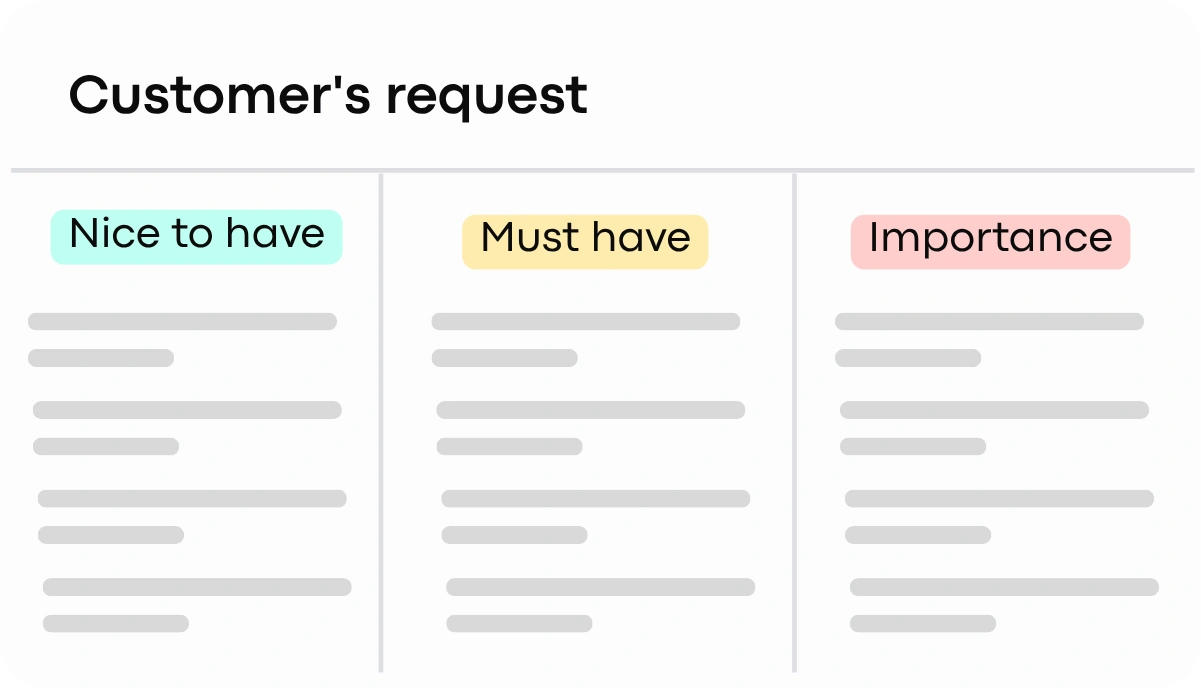
Feature Prioritization Matrix
by TaskFord
Prioritize features by impact and effort to focus on high-value work.