Templates
IT Support Tickets Template
IT Support Tickets Template
Get Free Template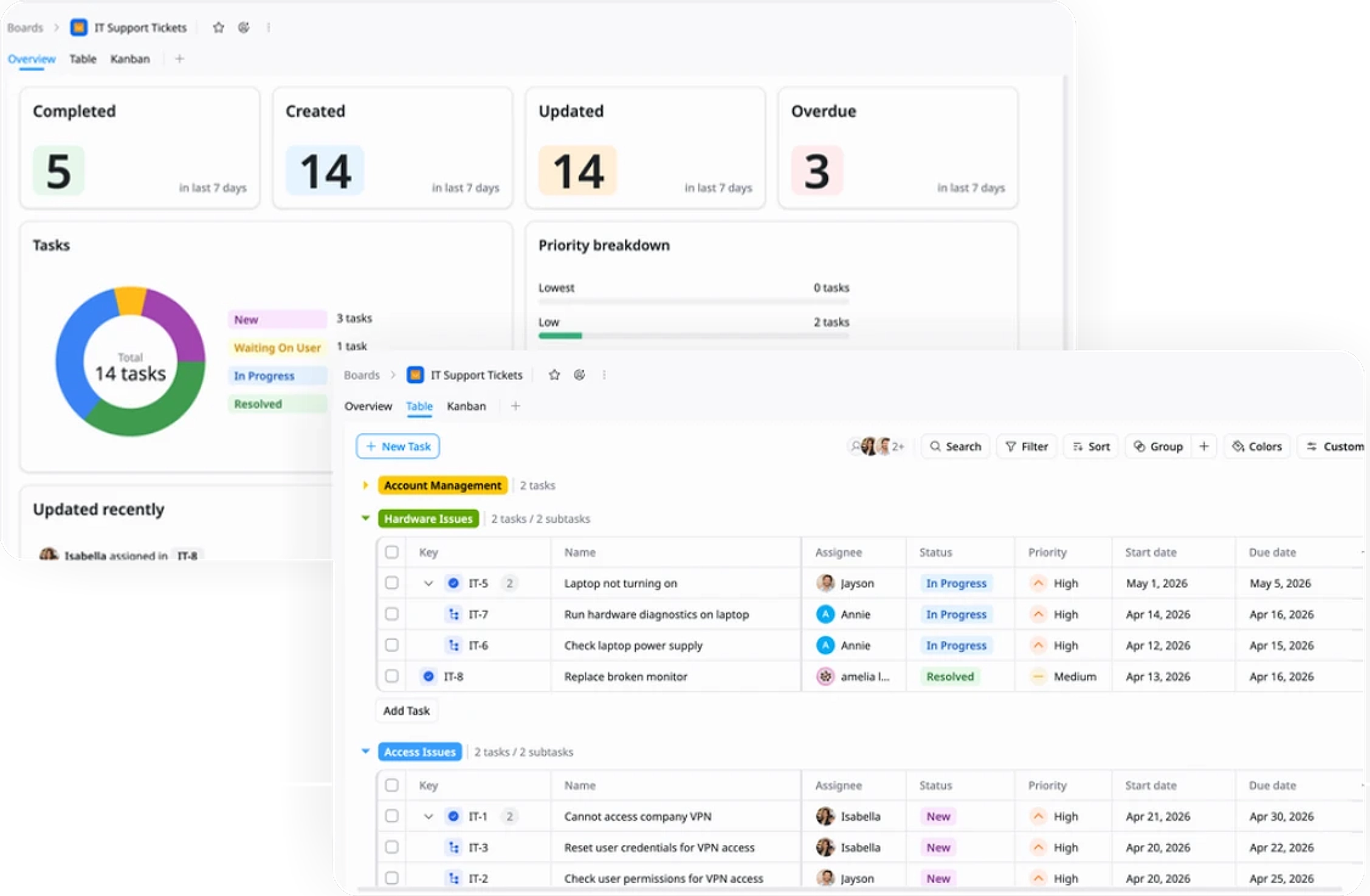
Description
A IT Support Tickets Template helps you track, manage, and resolve IT support requests efficiently to ensure smooth operations and quick issue resolution.
Best for
IT support teams
Helpdesk teams
IT managers
Customer support teams
Operations teams
Key Features
Ticket management
Priority tracking
Issue Grouping
Kanban
Table
What is a IT Support Tickets Template?
An IT Support Tickets Template is a structured workspace that helps you track, manage, and resolve IT support requests efficiently.
It provides a clear framework to organize tickets, assign ownership, and monitor progress—ensuring issues are handled quickly and operations run smoothly.
What's included in this IT Support Tickets Template?
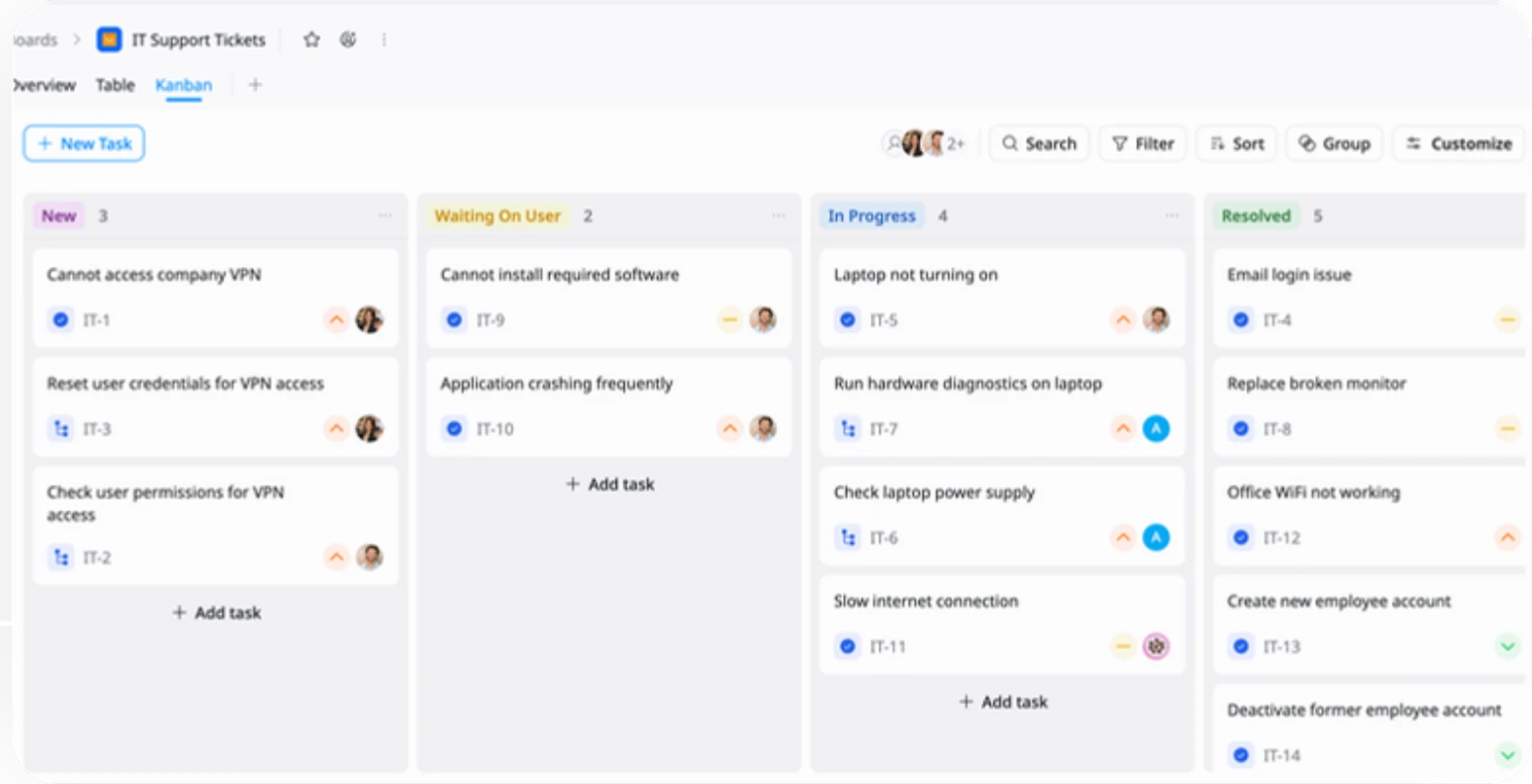
Ticket Management
Centralize and track all IT support requests in one place for efficient handling.
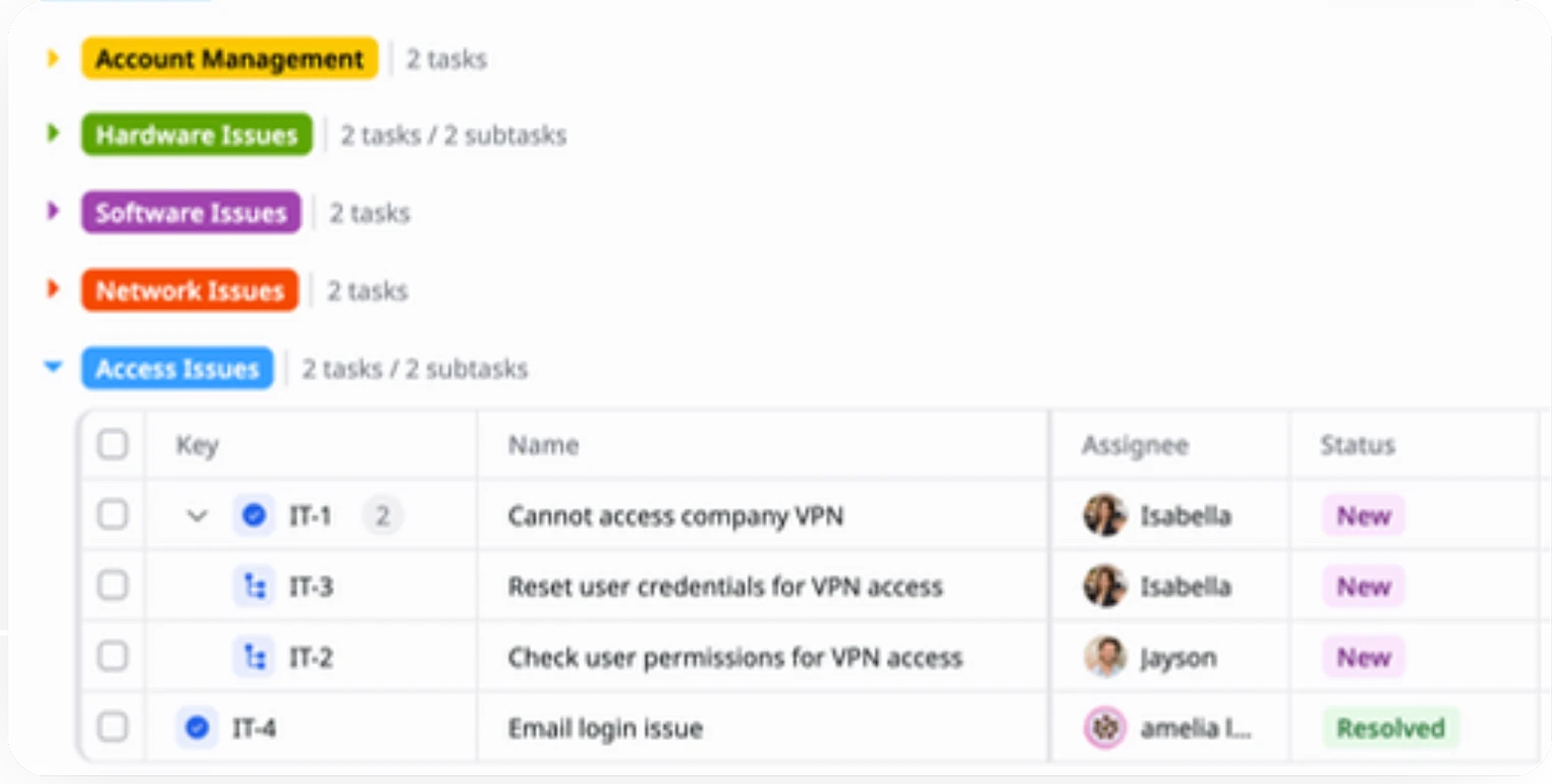
Issue Categorization
Organize tickets by type (e.g., Access, Hardware) for better tracking and management.
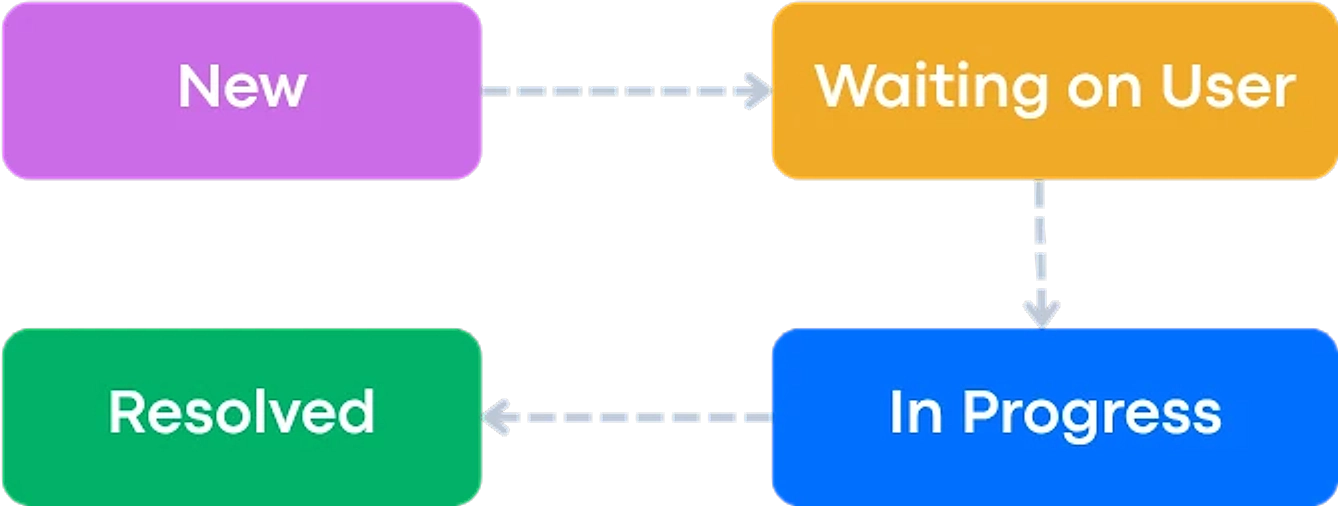
Custom Workflow
Tailor ticket status stages to match your team's specific process.
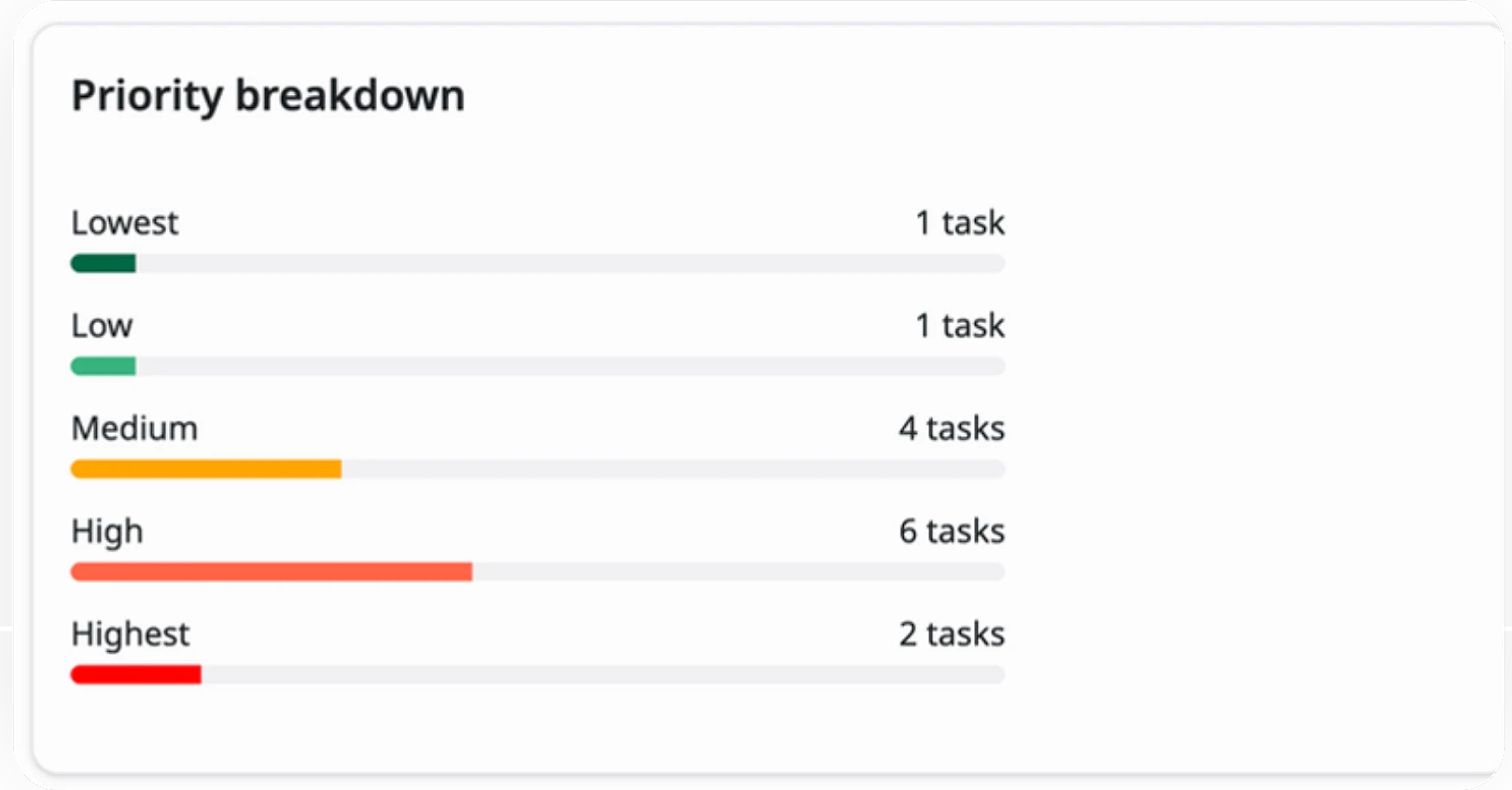
Priority Tracking
Set and manage priority levels to focus on urgent and high-impact issues first.
Why use this IT Support Tickets Template?
Managing IT requests across teams and channels can quickly become overwhelming. This template provides a clear system to capture, track, and resolve tickets efficiently in one place.
- Stay organized: Centralize all support requests and their status
- Prioritize effectively: Handle urgent issues first with priority and SLA tracking
- Ensure accountability: Keep visibility across all tickets and resolutions
This helps your team deliver faster support and maintain smooth operations.
How to use this IT Support Tickets Template
1
Create tickets
Create a new task for each IT support request. Capture essential details like issue type, description, and priority.
2
Organize by categories
Group tickets into categories like Access Issues, Hardware Issues, and Network Issues for easy tracking.
3
Assign tasks and set priorities
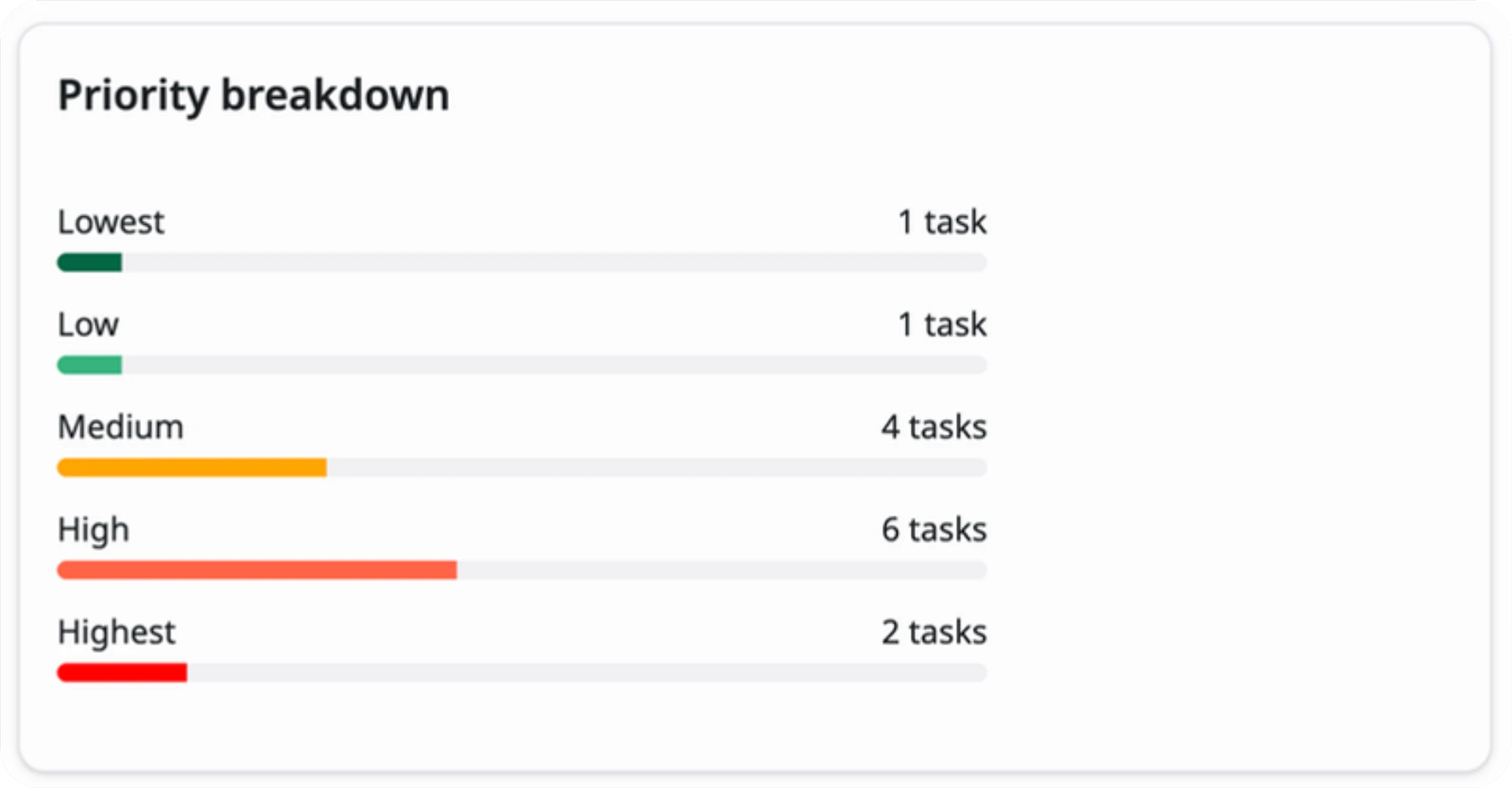
Assign tickets to the appropriate team member and set priority levels (High, Medium, Low) to manage urgency.
4
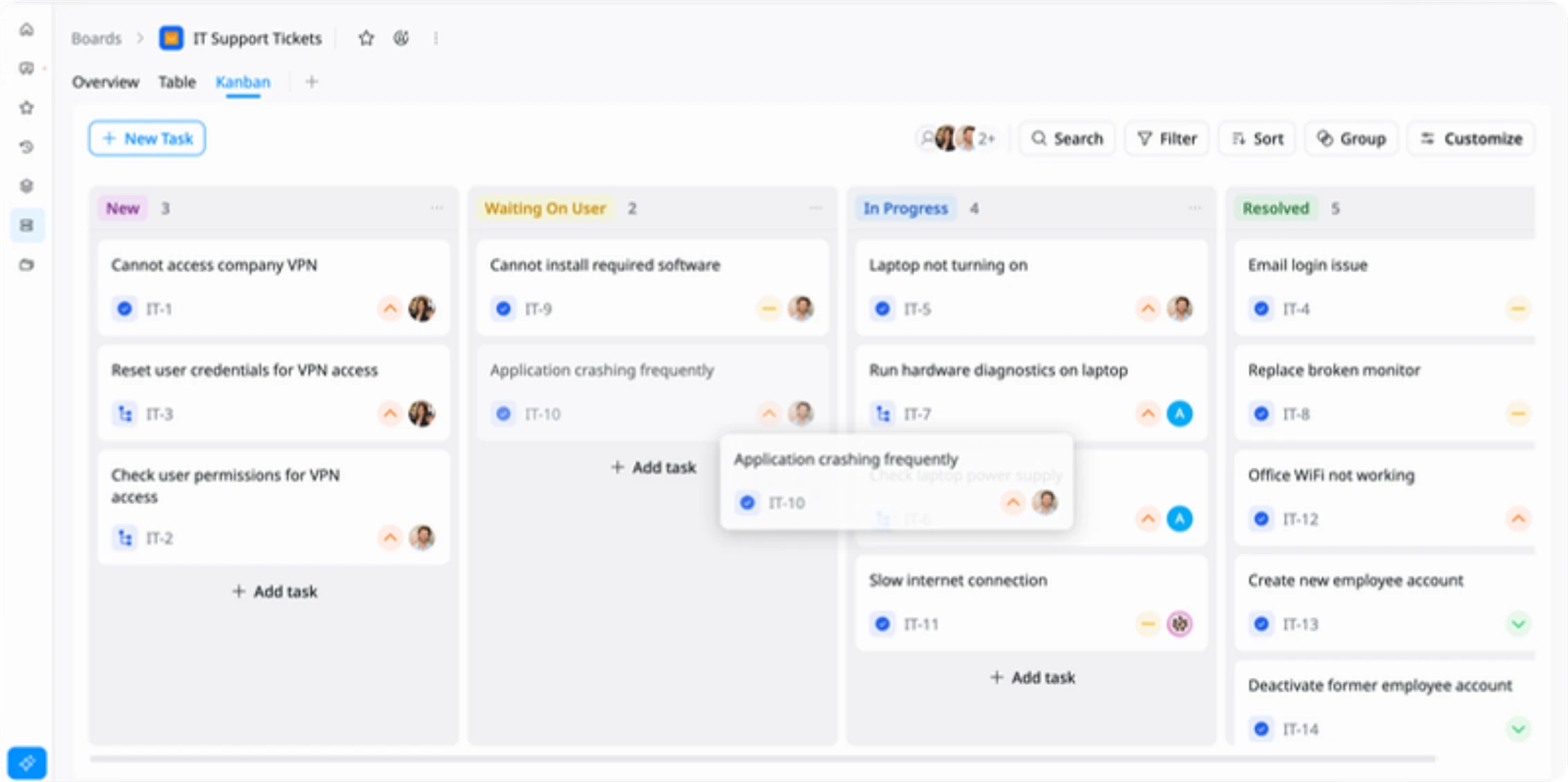
Track progress through statuses
Use the workflow (New → In Progress → Waiting on User → Resolved) to track each ticket's status and keep things moving.
5
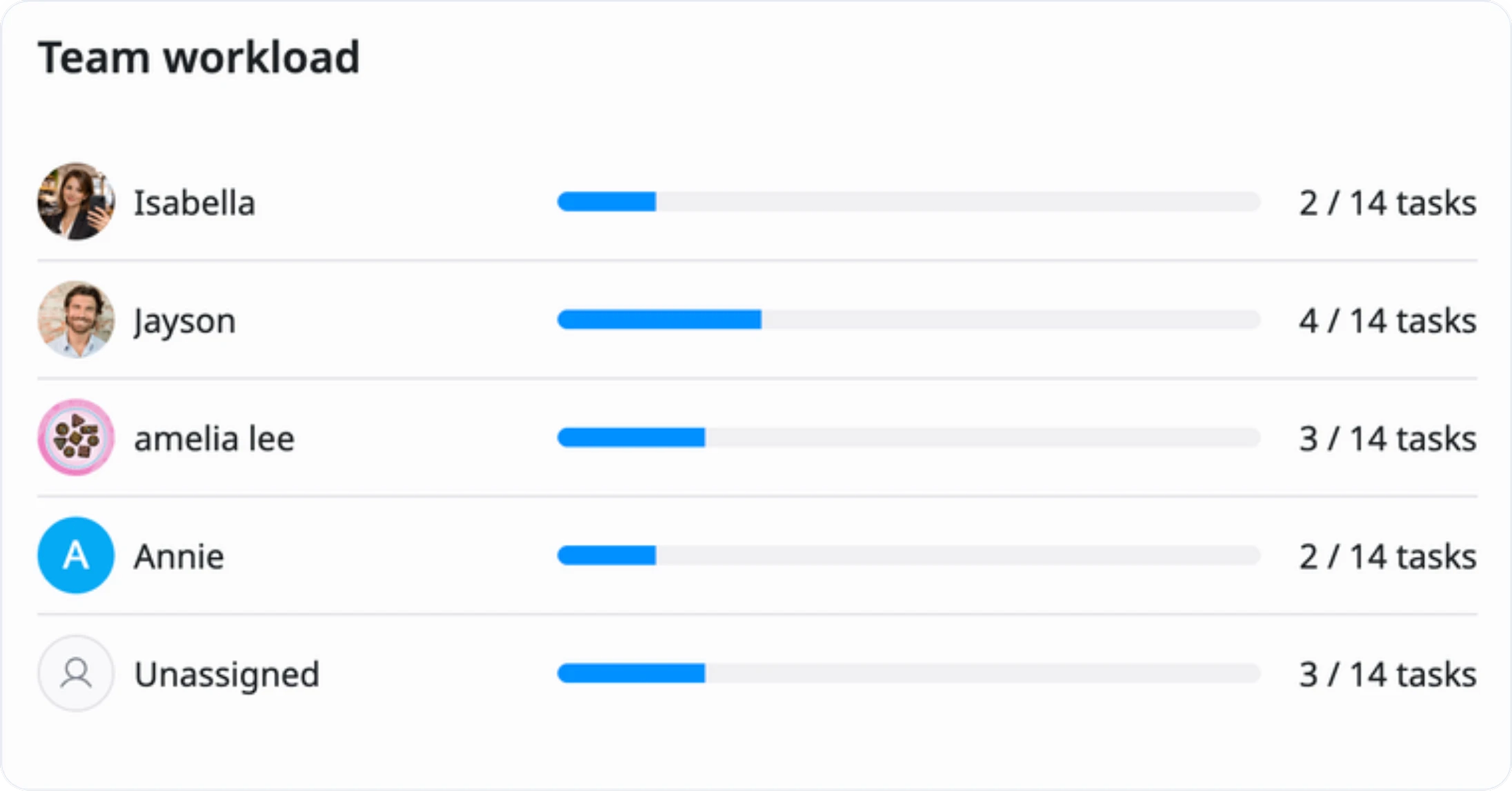
Monitor and close tickets
Ensure tickets are resolved on time, and use the Overview view to monitor overall progress and workload distribution.
Advanced tips
Use filters and views
Leverage filters and custom views to focus on specific categories, priorities, or assignees.
This helps your team:
Stay organized
Quickly access high-priority issues
Focus on specific workflows or tasks

Group tickets by categories
Organize tickets by category (e.g., Access, Hardware, Software) to simplify management and reporting.
This helps your team:
Prioritize issues by category
Streamline ticket handling across teams
Customize workflows
Tailor status stages (e.g., New → In Progress → Resolved) to match your team's support process.
This helps your team:
Streamline ticket resolution
Maintain clarity and consistency