Templates
Ticket Management System Template
Ticket Management System Template
Get Free Template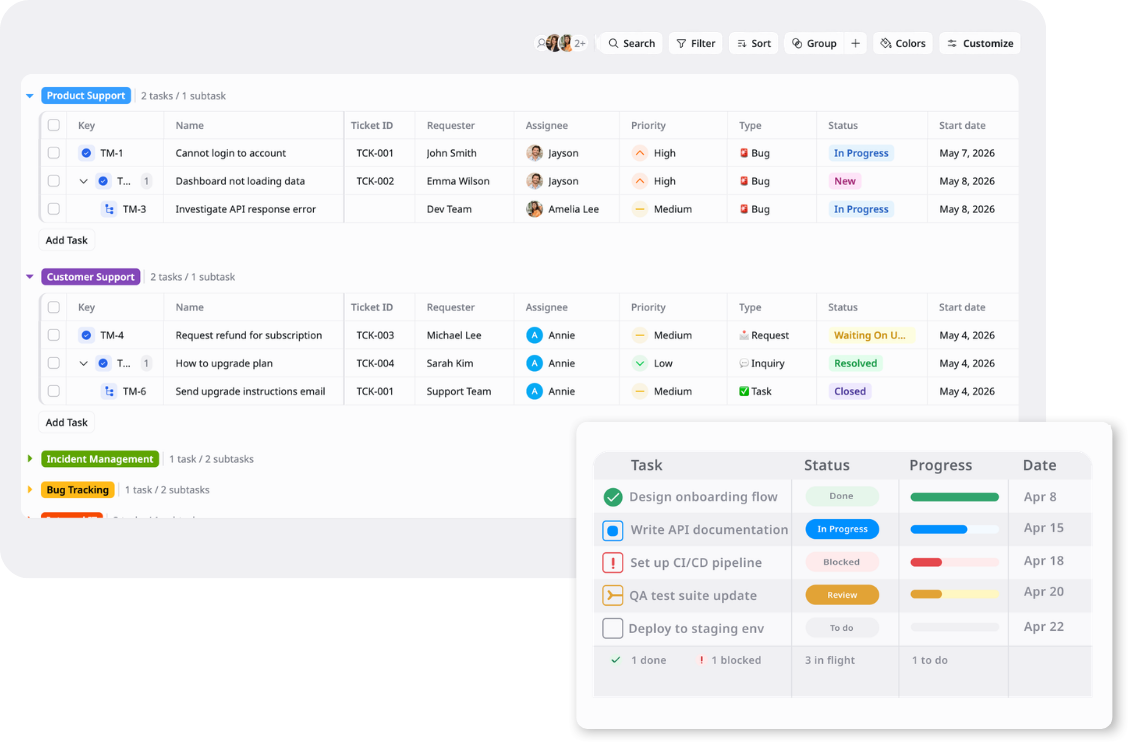
Description
A Ticket Management System Template helps teams track and resolve support requests, bugs, incidents, and internal tickets with clear ownership.
Best for
Customer support teams
IT support teams
Operations teams
Product teams
Key Features
Ticket Tracking
Priority Management
Support Workflow
Ticket Overview
What is a Ticket Management System Template
A Ticket Management System Template is a structured workspace for managing incoming support requests, bugs, incidents, and internal service tickets from intake to resolution.
It helps teams centralize ticket details, assign clear owners, prioritize urgent issues, and track each request through statuses such as New, In Progress, Waiting on User, Resolved, and Closed using Table, Kanban, and Overview views.
What's included in this Ticket Management System Template
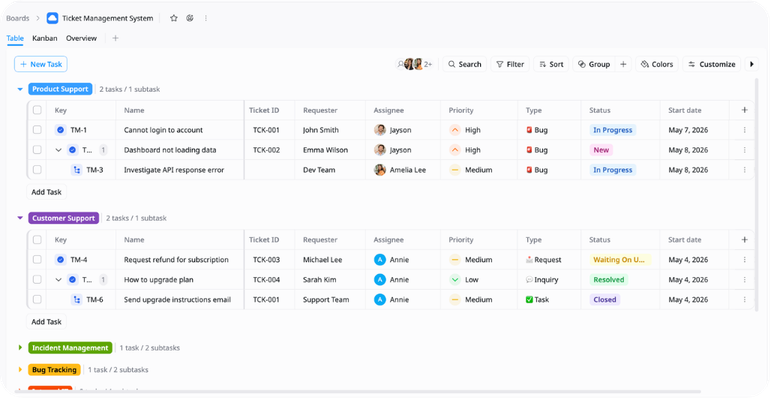
Ticket Intake Tracker
Centralized ticket records with Ticket ID, requester, assignee, type, priority, and due dates across all categories.
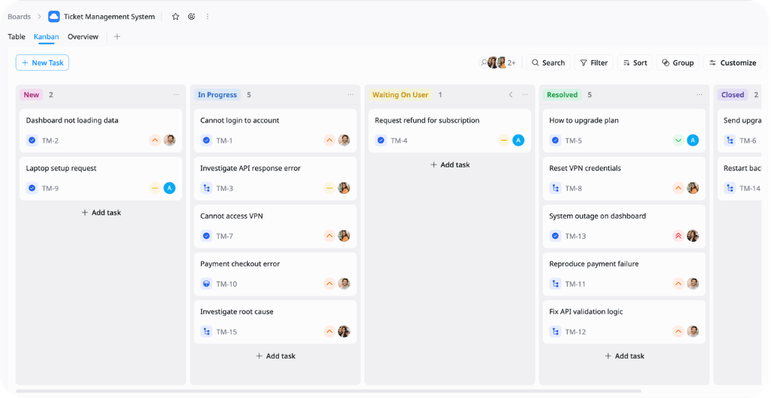
Support Resolution Workflow
A structured process for moving tickets from New to In Progress, Waiting on User, Resolved, and Closed.
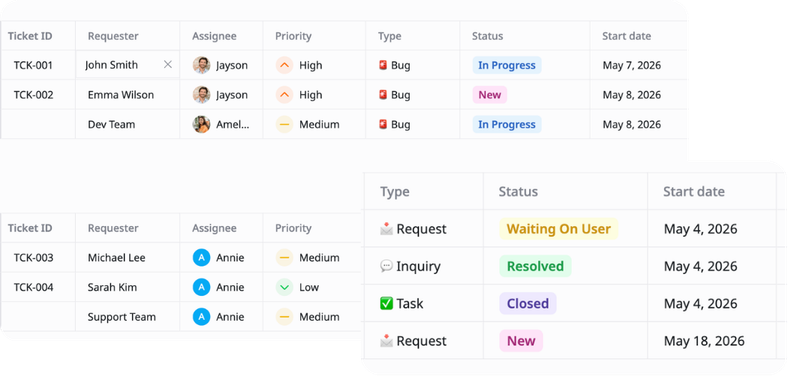
Priority & Ownership Management
Clear fields for tracking ticket priority, responsible assignee, requesters, and due dates so urgent work is easier to identify.
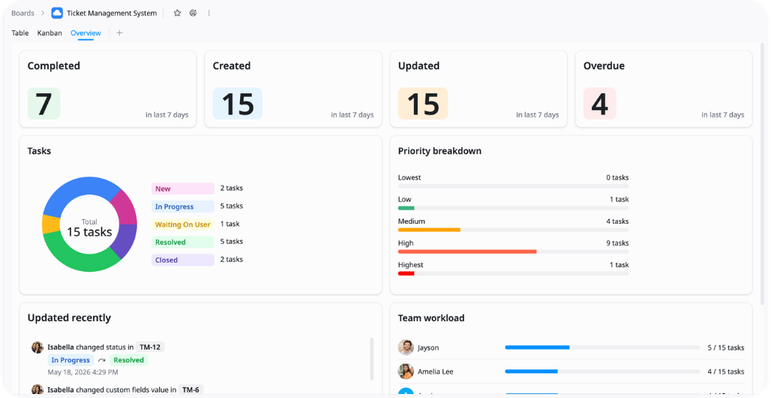
Ticket Volume Overview
High-level summary of active tickets, overdue items, and resolution progress across all support categories.
Why use this Ticket Management System Template?
Tickets spread across email, chat, and spreadsheets create gaps in ownership and visibility. This template keeps all requests organized with consistent structure, priority tracking, and status accountability in one place.
- Track tickets by category, assignee, type, and due date
- Manage work through New, In Progress, Waiting on User, Resolved, and Closed
- Identify overdue and pending tickets faster
- Prioritize high-severity bugs and incidents immediately
- Review resolution progress and workload on Overview
How to use this Ticket Management System Template
1
Log incoming tickets
Create a task in the relevant category group, fill in Ticket ID, requester, assignee, type, priority, start date, and due date in the Table view. Use subtasks for multi-step tickets.
2
Break down complex tasks
Add subtasks to parent tickets for detailed action items such as reproducing bugs, resetting VPN credentials, investigating API errors, or sending follow-up communications.
3
Track ticket progress
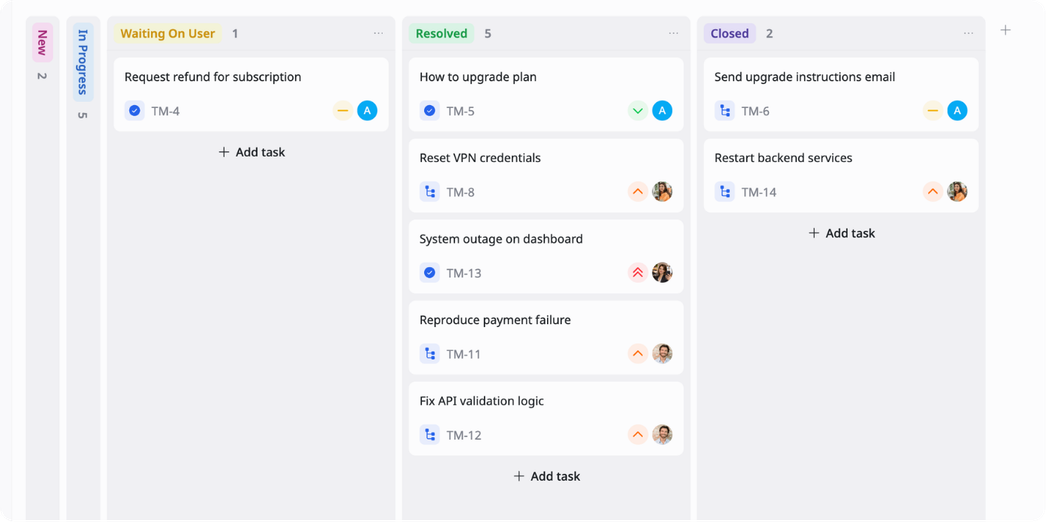
Move tickets through New → In Progress → Waiting on User → Resolved → Closed in Kanban view to maintain real-time status visibility across all statuses.
4
Prioritize by severity
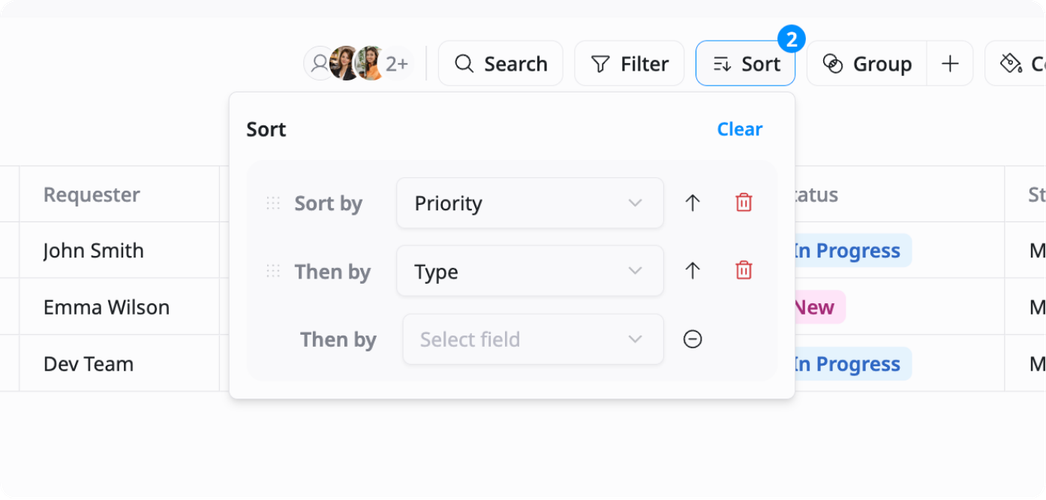
Sort by Priority and Due Date in Table view to surface Critical and High priority tickets first. Then sort by Type — Bug or Incident — to isolate urgent work requiring immediate assignment.
5
Review ticket operations
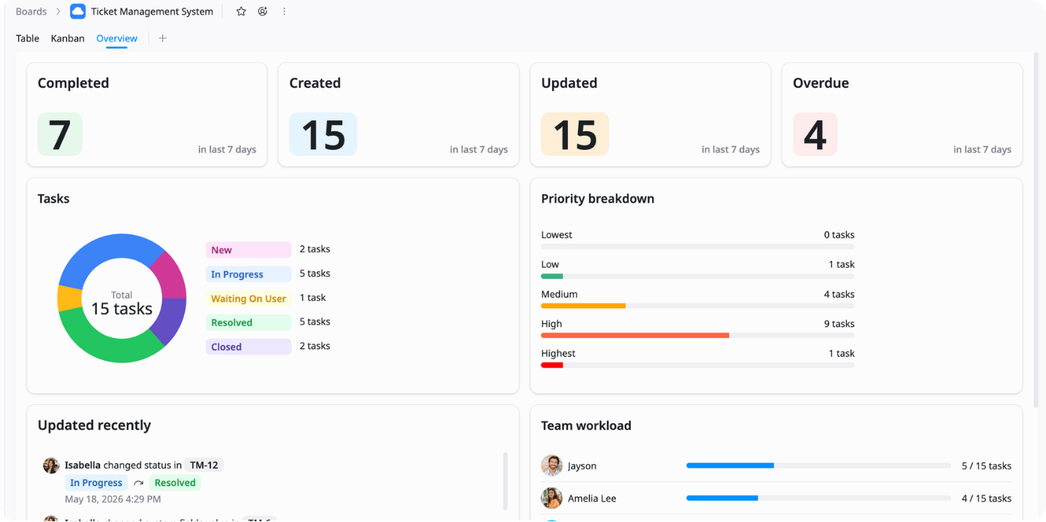
Switch to Overview to monitor resolution rates, identify tickets stuck in Progress, spot overdue items, and keep all support categories on track.
Advanced tips

Group by ticket category
Use groups to separate support requests, bugs, incidents, and internal IT tickets.
Keep similar ticket types together
Review workload by category
Identify where most requests come from
Prioritize urgent tickets
Use priority and type fields to ensure high-severity tickets are never buried.
Flag Critical and High priority tickets for immediate assignment
Filter by Type: Bug or Incident to isolate urgent work
Sort by due date within each priority level to sequence resolution
Use Kanban for status tracking
Track ticket movement across New, In Progress, Waiting on User, Resolved, and Closed.
Move tickets as work progresses
Spot blocked tickets quickly
Keep resolution status visible across the team